

Camera quality degradation happens silently on production lines. A lens accumulates dust, focus drifts out of alignment, or a mounting bracket vibrates loose, and suddenly your computer vision model processes unreliable data. Blurry cameras waste inference cycles on low-quality frames, generate false positives that slow production, and miss actual defects that reach customers.
Roboflow's new Blurry Camera Detection feature addresses this problem through automated camera quality monitoring. This article demonstrates how to detect blurry cameras using Roboflow's Camera Focus workflow block, configure device alerts that notify your team when sharpness degrades, and monitor camera health across your deployment fleet using the streams table in Deployment Manager.
How to Detect Blurry Cameras with Roboflow
This tutorial demonstrates how to build a camera quality monitoring system using Roboflow's Camera Focus workflow block. You'll start by preparing a test dataset of blurry and sharp images, then build a workflow that calculates focus quality using the Brenner measure. The workflow outputs numerical sharpness scores that distinguish between acceptable and degraded camera feeds, the same quality gate that powers device alerts in production deployments.
Once you understand how the workflow block operates, we'll show how this translates to fleet-scale monitoring through device alerts and the streams table in the Deployment Manager dashboard. By the end of this section, you'll know how to detect blurry cameras before they degrade model performance and how to configure automated alerts that notify your team when cameras need maintenance.
Step 1: Prepare the Dataset from Roboflow Universe
For this tutorial, we'll use the Shelf Motion Blurred & Defocused Class dataset from Roboflow Universe, which contains a mix of sharp and degraded camera images representative of real deployment conditions. A good test set for camera quality monitoring requires both extremes: clearly focused images that your models should process, and noticeably blurry images that should trigger alerts. This dataset provides exactly that balance, with images ranging from crisp, high-resolution captures to severely out-of-focus shots.
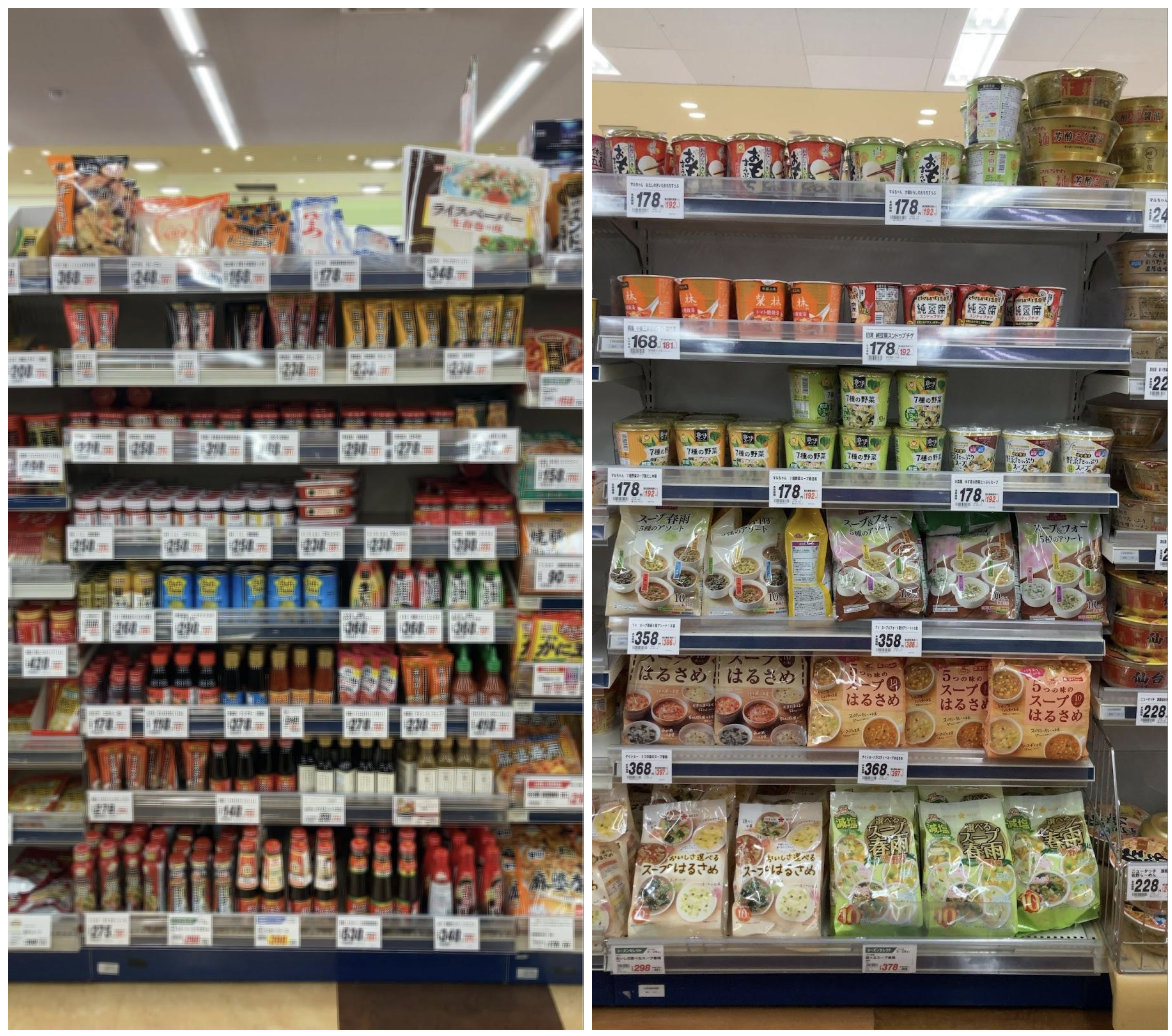
The variation in quality simulates what happens in production environments when cameras experience focus drift, lens contamination, or mechanical issues. Testing with this range ensures your thresholds catch quality problems before they affect model accuracy.
Step 2: Build the Focus Detection Workflow
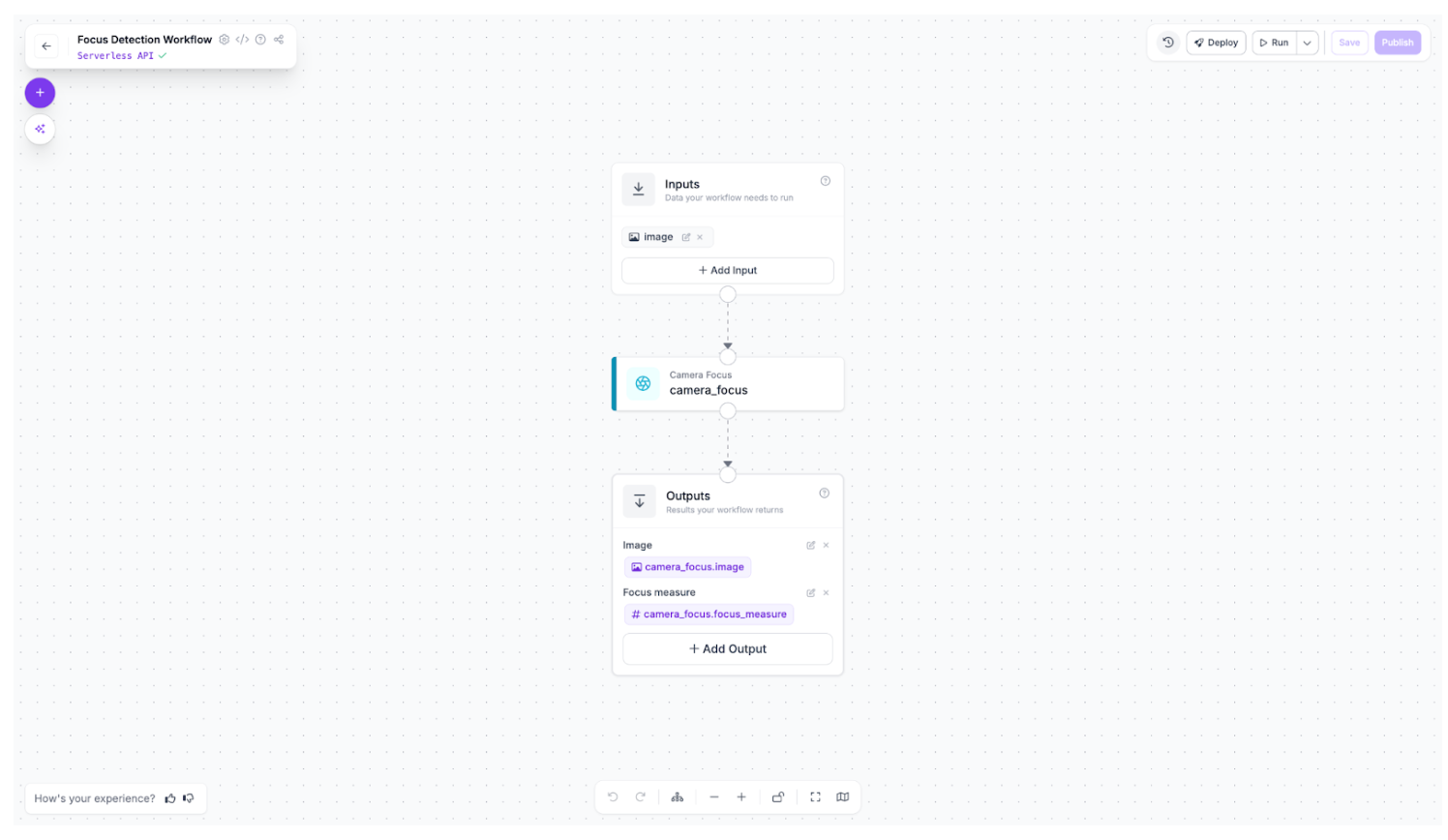
The focus detection workflow consists of three core blocks: an Input block that accepts camera images, a Camera Focus block that computes sharpness using the Brenner measure, and an Output block that displays the quality score. This simple pipeline forms the foundation of production camera monitoring systems. Here is the workflow we'll build.
Configure the Workflow
Roboflow Workflows include Input and Output blocks by default. Add the Camera Focus block (`roboflow_core/camera_focus@v1`) between them. This block analyzes image sharpness using the Brenner focus measure, a gradient-based algorithm that calculates focus quality by measuring high-frequency content. Sharp images contain more edge detail and produce higher scores, while blurry images lack distinct edges and score lower. Connect the Input to Camera Focus to Output, and your workflow is ready to evaluate camera quality.
Run and Analyze Results
Upload both sharp and blurry images from your dataset to see how the workflow distinguishes quality levels. The Camera Focus block returns a numerical focus measure that quantifies sharpness.
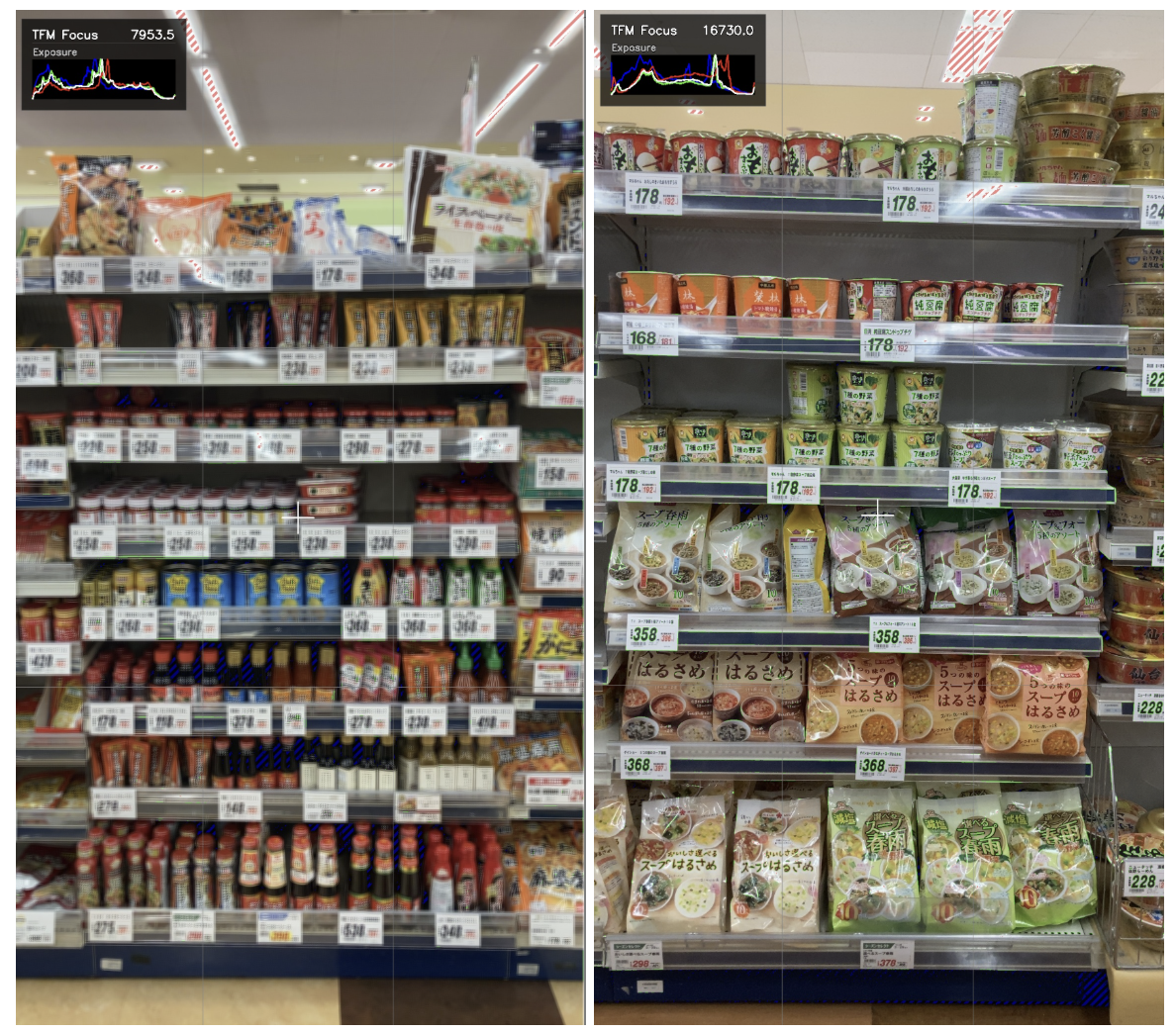
The results reveal a clear separation between quality levels. Sharp images typically score above 12,000, while degraded images fall below this threshold. This numerical boundary becomes your quality gate; images below the threshold indicate cameras that need maintenance or adjustment. In production deployments, you'd set alert thresholds based on these values to catch focus drift before it impacts model accuracy.
Adding Quality Gates with Continue If
While this tutorial workflow outputs all results for analysis, production systems need to block low-quality images before they reach inference. The Continue If block enables this filtering by evaluating focus measures against your threshold. Configure it to only pass images with focus measures above 12,000, effectively creating a quality gate that prevents blurry images from consuming inference credits or generating unreliable predictions.
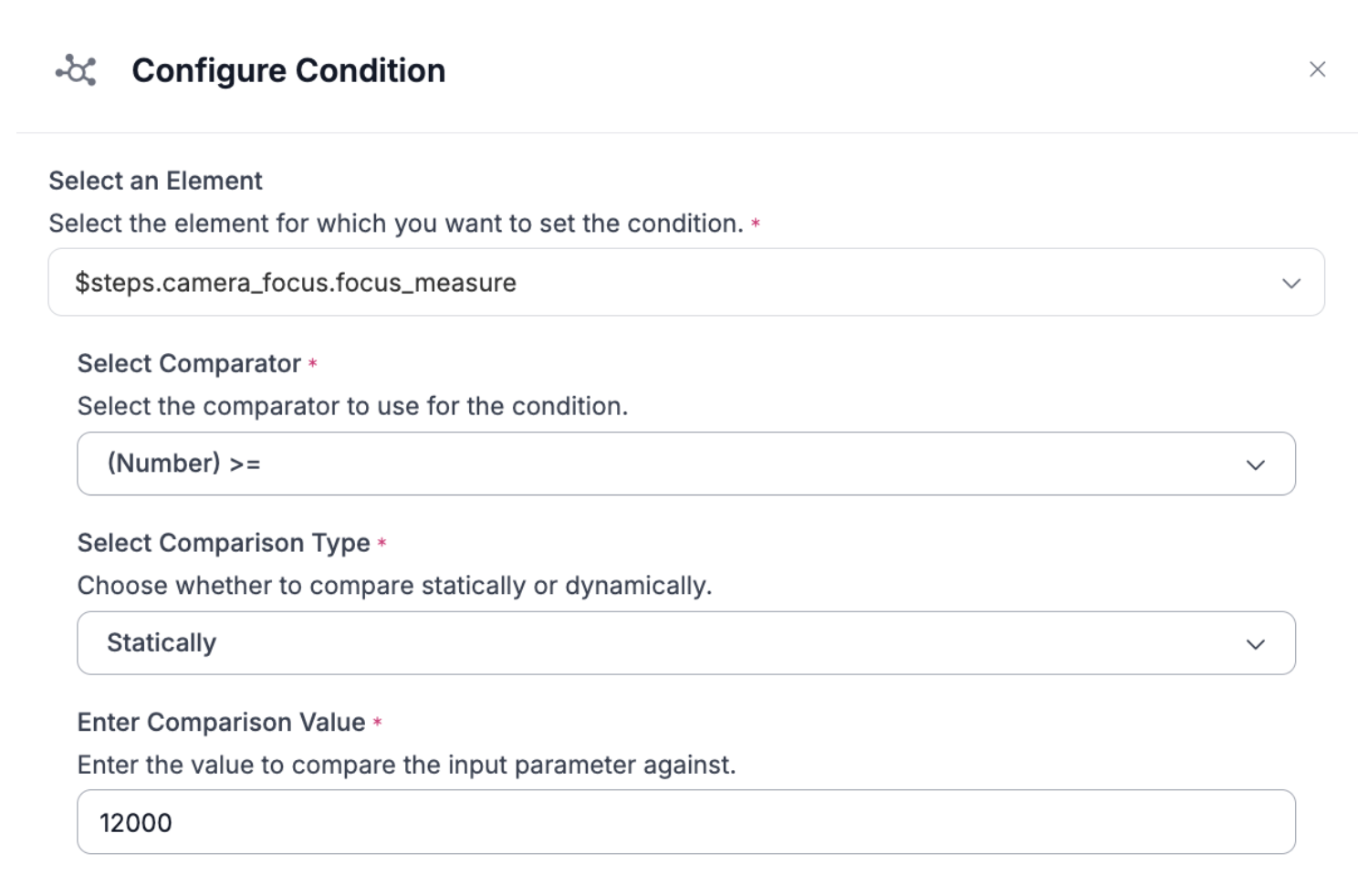
Images that fail the quality check would be blocked from downstream processing, triggering device alerts instead of wasting computational resources on degraded inputs.
From Workflow to Production
This workflow becomes a quality gate before model inference in device streams. In production, the Camera Focus block runs continuously on incoming camera feeds, calculating sharpness scores in real-time. When scores drop below your configured threshold, device alerts notify your team immediately, catching focus issues before they degrade detection accuracy, waste inference costs, or compromise automated decisions. The same logic you've tested with static images scales to fleet-wide camera monitoring across hundreds of devices.
Step 3: Configure Device Alerts
In production deployments, the Camera Focus block runs continuously on device streams, calculating sharpness scores for every frame from your camera fleet. Device alerts monitor these scores in real-time, triggering notifications when quality drops below your configured threshold.
Setting up alerts:
- Navigate to Deployment Manager, select your device, then go to the "Device Alerts" tab
- Create a new device alert using the standard alerts configuration modal
- Set the condition: sharpness score < 12,000 (based on workflow results)
- Configure email notifications for your operations team
When an alert triggers:
- Your team receives immediate notification identifying the affected device
- Operations can investigate the root cause: lens contamination, focus drift, or mechanical failure
- Low-quality frames are blocked from inference using Continue If logic
- Prevents wasted compute costs and unreliable predictions during camera maintenance
This automated monitoring catches focus issues before they degrade model performance. Instead of discovering quality problems through failed detections or customer complaints, your team gets proactive alerts the moment camera sharpness falls below acceptable levels.
Step 4: Monitor Camera Health in the Streams Table
The Deployment Manager streams table provides fleet-wide visibility into camera quality across all your deployed devices. Each active stream reports its current sharpness score alongside standard metrics like FPS and connection status, giving you a centralized dashboard for monitoring camera health at scale.
Accessing the streams table:
- Navigate to Deployment Manager from your workspace dashboard
- Your streams table displays all active device streams across your fleet
- The sharpness column shows real-time focus quality scores for each camera
- Sort by sharpness score to quickly identify cameras needing attention
The sharpness column displays real-time focus quality scores for every camera in your deployment. Rather than discovering quality issues through failed detections or manual inspection, you can scan the streams table and immediately identify which cameras have degraded below acceptable thresholds. Cameras showing consistently low sharpness scores signal the need for maintenance - whether that's lens cleaning, refocusing, or hardware replacement - before the quality issues impact production operations.
Proactive maintenance workflows:
- Schedule regular camera inspections based on sharpness trends
- Prioritize maintenance visits by identifying the lowest-scoring cameras first
- Track quality improvement after maintenance to verify fixes
- Correlate sharpness drops with environmental factors (temperature, vibration, contamination)
This proactive approach catches camera degradation early, preventing the cascading effects of poor image quality: wasted inference costs, reduced model accuracy, and delayed responses to critical events.
Conclusion: Automate Blurry Camera Detection
Camera quality degradation is a silent threat to computer vision deployments. By the time blurry images affect model accuracy, you've already wasted inference credits and generated unreliable predictions. The Camera Focus workflow block, combined with device alerts and the streams table dashboard, transforms this reactive problem into proactive monitoring.
The workflow you built demonstrates how Brenner focus measures distinguish between acceptable and degraded camera feeds. In production, this quality gate runs continuously on device streams, blocking low-quality frames before they reach your models while alerting your team to maintenance needs.
The business impact is immediate: prevent quality issues before they affect operations, reduce wasted inference costs, and shift from reactive troubleshooting to proactive maintenance. Instead of discovering camera problems through failed detections, your operations team receives automated alerts and can prioritize maintenance based on measured sharpness scores.
Start monitoring camera quality today with the Camera Focus workflow block.
Further reading
Below are a few related topics you might be interested in:
Cite this Post
Use the following entry to cite this post in your research:
Contributing Writer. (Mar 19, 2026). Automate Camera Quality Monitoring. Roboflow Blog: https://blog.roboflow.com/automate-camera-quality-monitoring/