

Every year, millions of products are unnecessarily discarded or, worse, consumed past their prime because expiry dates are difficult to track manually. Whether you're managing inventory for a warehouse, building a smart fridge application, or creating a food waste reduction app, the ability to automatically detect and interpret expiry date codes is incredibly valuable.
But here's the challenge: expiry dates come in countless formats. You might see "Best Before: 12/25/2024," "EXP 25DEC24," "Use By 2024-12-25," or even cryptic manufacturer codes like "B4356" stamped on packaging. Traditional OCR alone extracts the text, but understanding what that text means requires contextual intelligence. This is where the combination of Roboflow and Google's Gemini becomes powerful.
In this guide, we’ll be building a tool that performs OCR (optical character recognition), tracks grocery items and their expiry dates, and neatly tabulates the data. This is done really easily with a combination of Gemini and Roboflow Workflows, so let’s begin!
How to Identify Date Codes with Computer Vision: Build an OCR Workflow
We’ll start by creating a new Workflow (finished version) already. If you haven't already, create a Roboflow account, with an API key, and a new workspace:

From here, create a new Workflow:

Once you have an empty workflow, add the Gemini block:
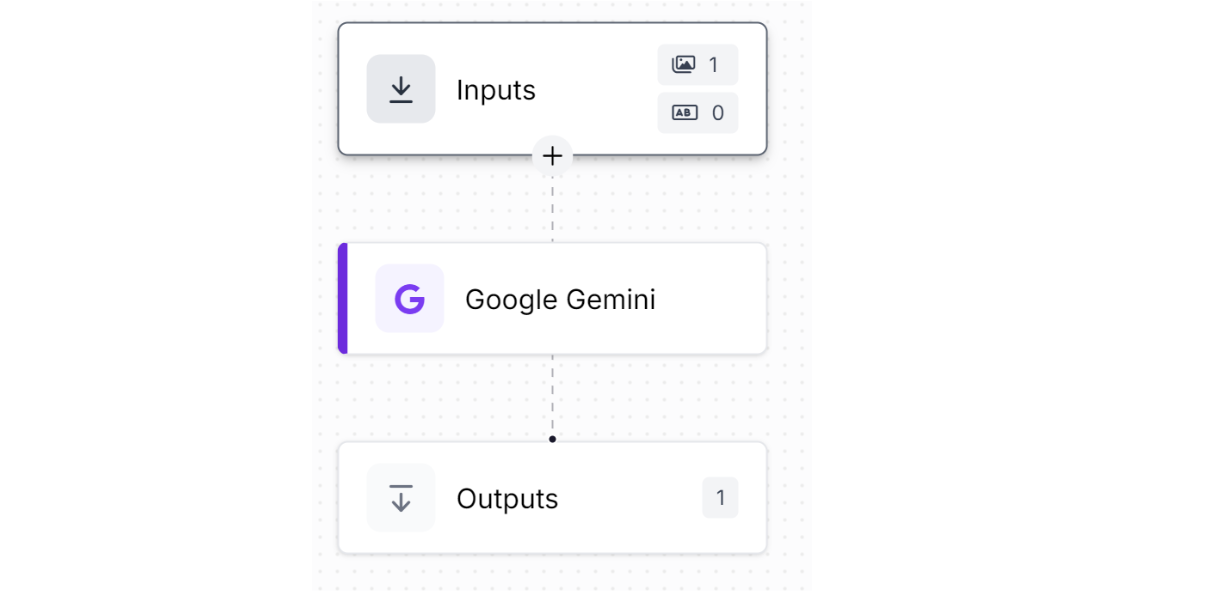
From here, we’ll customize the specific output of the blocks to a structured, JSON response. Doing this makes it easy to perform OCR and identify things like the food item in a photo, the brand, and the expiry date:
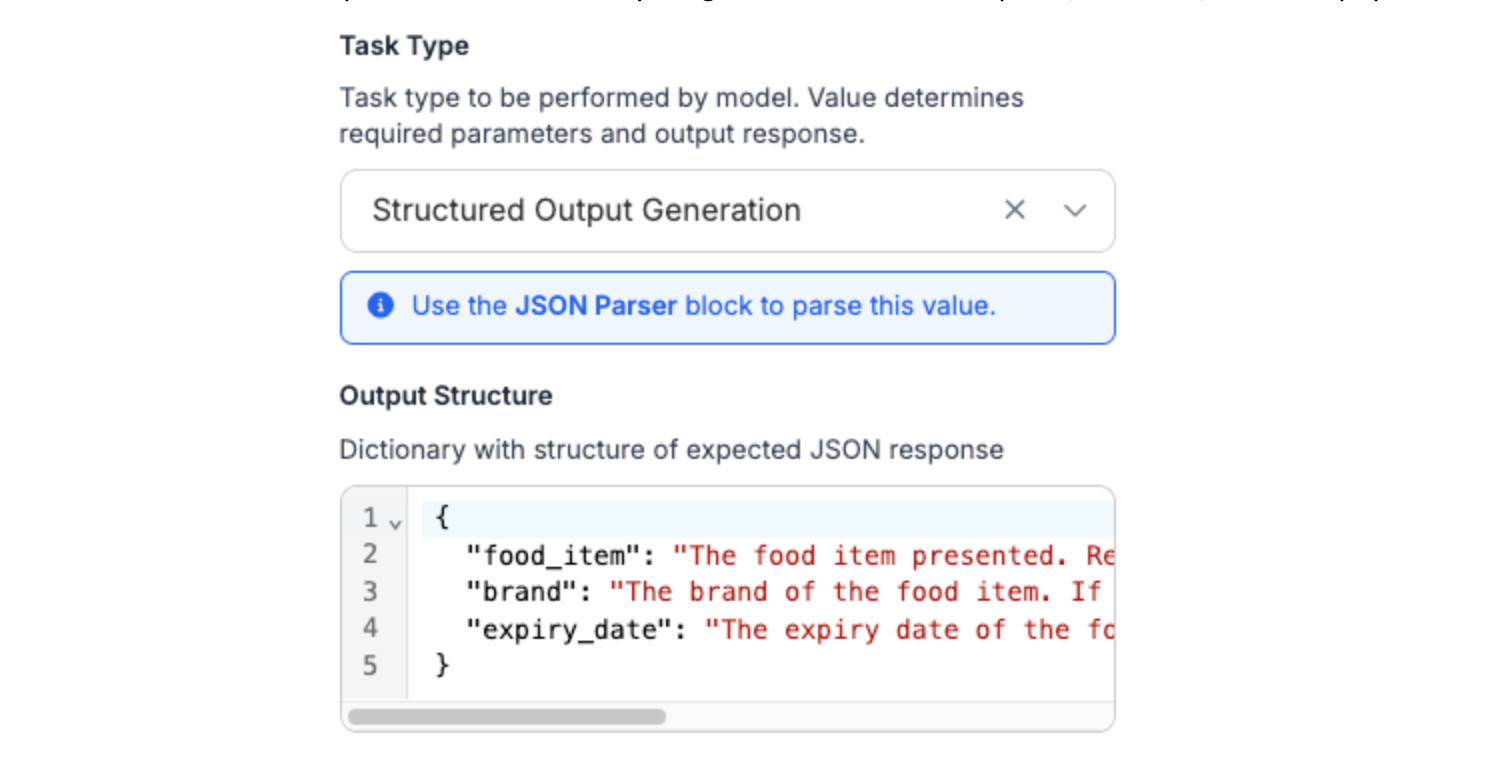
The JSON description I’m using is as follows:
{
  "food_item": "The food item presented. Read from the product label if possible.",
  "brand": "The brand of the food item. If not visible, put None.",
  "expiry_date": "The expiry date of the food item. Should be in MM/YY format. If not visible, put Unknown."
}
This allows Gemini to perform OCR for strictly the 3 things that we want: the item, brand, and expiry date. Additionally, it has the option of putting “None” for the brand and "Unknown" for the expiry date, and this is helpful to see when the results are tabulated.
Before the Workflow is ready, to efficiently use the results of the OCR, another “JSON Parser” block is required to be chained together with the Gemini block. It’s function is to clean up the results of Gemini, and include only the important fields:
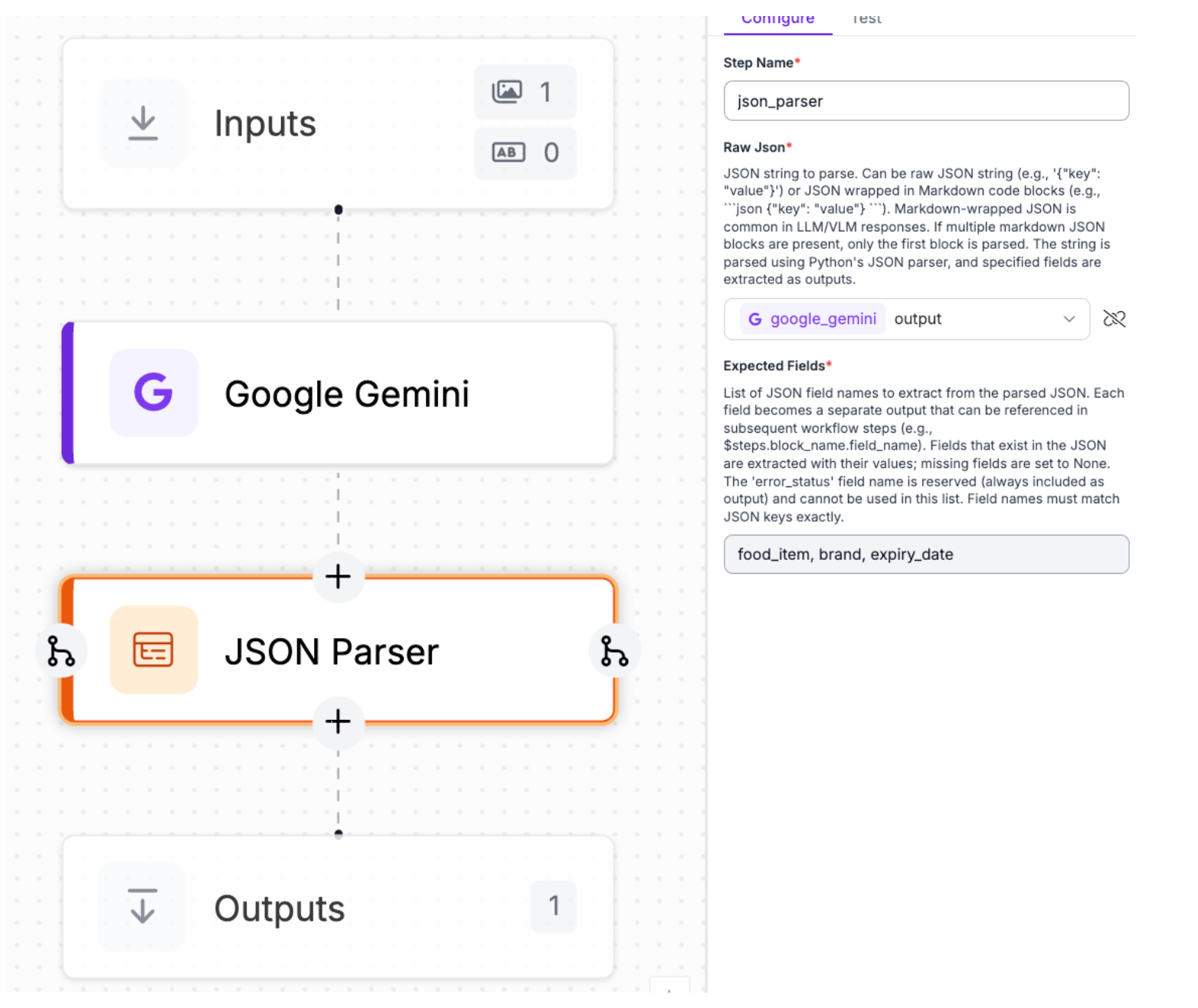
Make sure to fill in the expected fields with the fields above. Testing the workflow on a sample image:
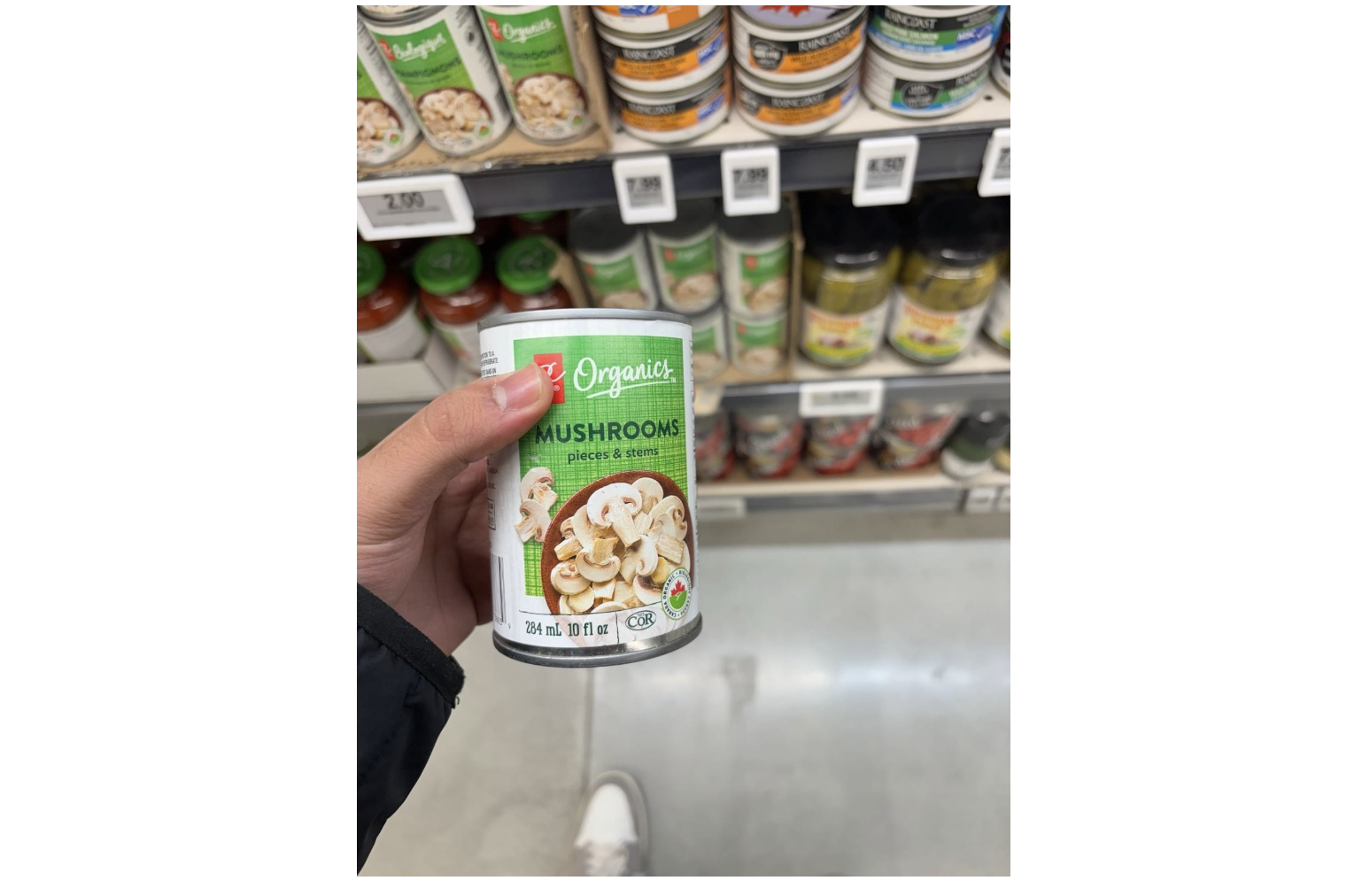
Gemini does a great job at OCR and correctly identifies the necessary details. Of course, in the sample image, the expiry date was missing.
Now, we’re ready to implement this workflow in a real tabulation tool.
Implementation
Deploy the workflow with the dedicated deploy button on the Workflows page. Select “images”, and the serverless deployment option:
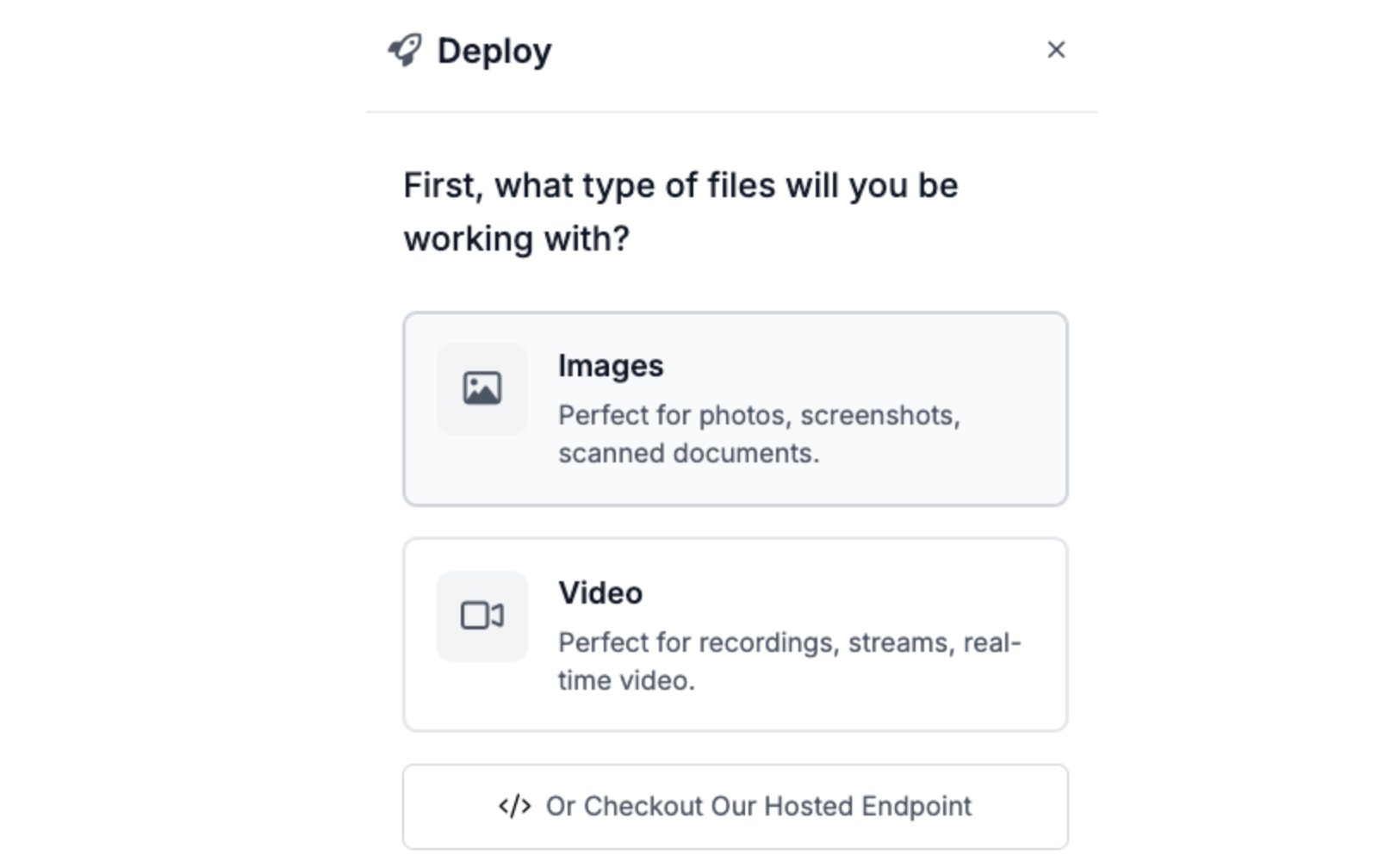
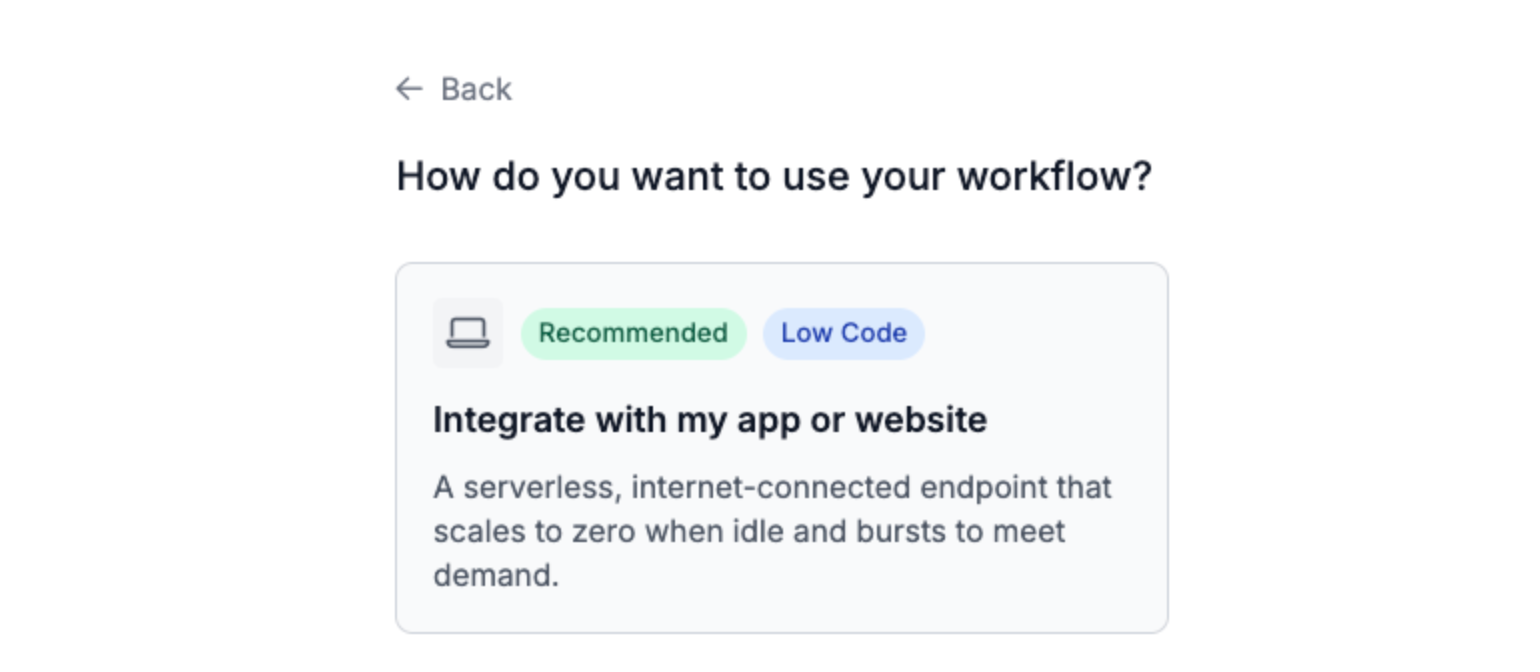
Roboflow then provides a very helpful boilerplate code in Python for running the workflow on test images:
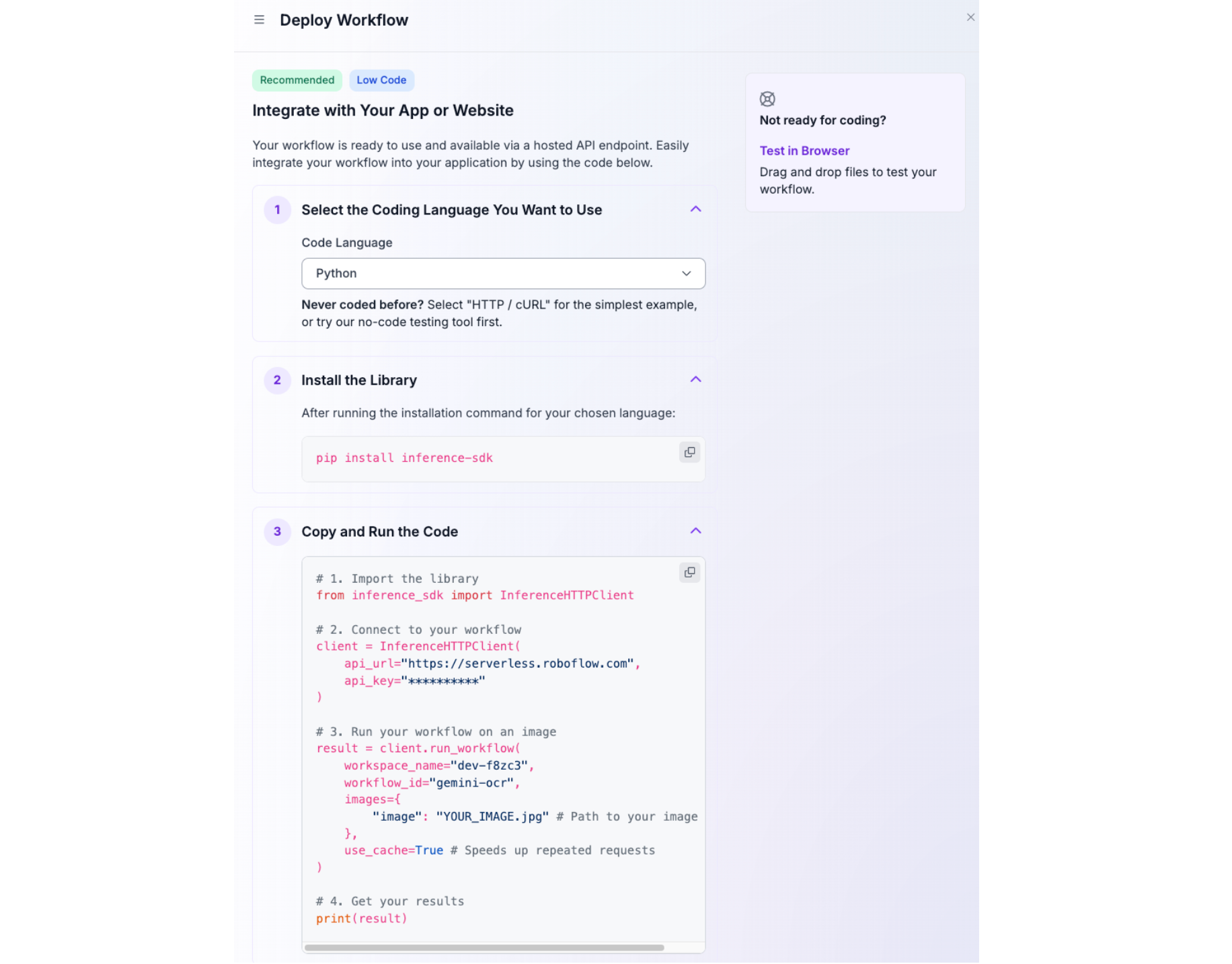
Open up a Python project in a code editor, and copy the boiler plate code. Before running, make sure the inference-sdk library is installed with:
pip install inference-sdk
Additionally, have a test image in the same directory as the main python file, and change the “image” attribute in the “run_workflow” function to the path of the test image. Printing the results:

Verifying that it’s working, update main.py to:
import os
from inference_sdk import InferenceHTTPClient

client = InferenceHTTPClient(
    api_url="https://serverless.roboflow.com",
    api_key="YOUR_API_KEY”
)

# List all .jpg files in the grocery directory and process only the first 3
image_files = sorted([f for f in os.listdir("grocery") if f.endswith(".jpg")])

for image_name in image_files:
    image_path = f"grocery/{image_name}"
    result = client.run_workflow(
        workspace_name="YOUR_WORKSPACE_ID",
        workflow_id="YOUR_WORKFLOW_ID”
        images={"image": image_path},
        use_cache=True
    )

    if result and isinstance(result, list) and result:
        output = result[0].get("json_parser", {})
        food_item = output.get("food_item", "Unknown")
        brand = output.get("brand", "Unknown")
        expiry_date = output.get("expiry_date", "Unknown")

        print(f"Food Item: {food_item}")
        print(f"  Brand: {brand}")
        print(f"  Expiry Date: {expiry_date}")
This code uses the inference client to process the .jpg images in the grocery directory (create one at the same level for all of the images) with the OCR workflow. It loops through all .jpg files, sends each image to the workflow, and extracts the food_item, brand, and expiry_date from the workflow's output. The results for each image are printed immediately, showing the identified food item, its brand, and expiry date.
Running main.py:
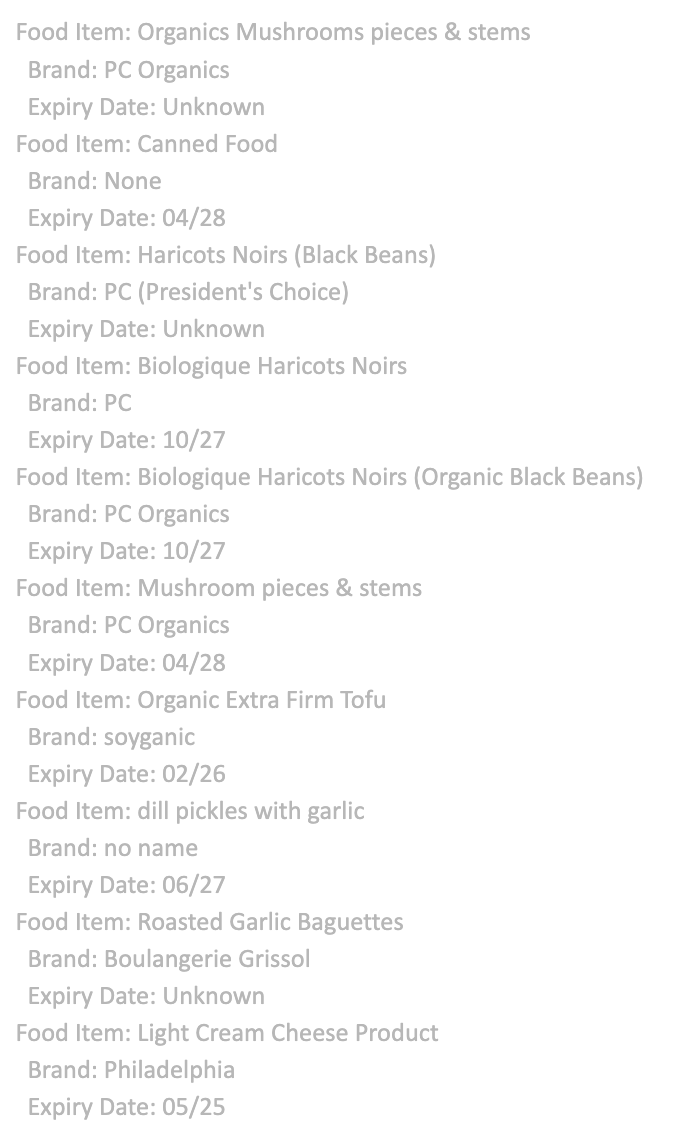
And with that, the tool is complete!
Expiry Date Code Inspection Conclusion
In just a few steps, we've built a practical expiry date tracking system that combines Gemini’s OCR capabilities with Roboflow Workflows to extract structured data from product images. This approach can easily scale to handle hundreds of grocery items and consumer goods, integrate with inventory management systems, or power consumer-facing applications that reduce food waste.
Written by Aryan Vasudevan
Cite this Post
Use the following entry to cite this post in your research:
Contributing Writer. (Jan 16, 2026). Expiration Date Inspection: How to Use Gemini + Roboflow. Roboflow Blog: https://blog.roboflow.com/expiration-date-inspection/