

Vision models can extract structured information from paper receipt photos, including vendor name, transaction time, line items, and totals, without any special receipt-parsing infrastructure. This tutorial builds a Roboflow Workflow using OpenAI GPT to read a receipt image and send the extracted fields as a Slack notification. The same pattern extends to multi-receipt images by adding an object detection model to crop each receipt individually before passing it to the vision model.
Paper receipts, unlike digital transaction statements in a bank account, give an itemised breakdown of a transaction – you can find out how much you spent on individual items. But paper receipts are more difficult to work with than digital information; to make the information useful, it is likely that you want to have a digital representation.
Using vision AI models, you can take a photo of a receipt and:
- Ask questions to retrieve specific information about a receipt (i.e. how much was spent on a single item).
- Retrieve all text in a receipt.
- Calculate how much tax was added onto a transaction.
- And more.
In this guide, we are going to walk through how to programmatically read receipts with AI.
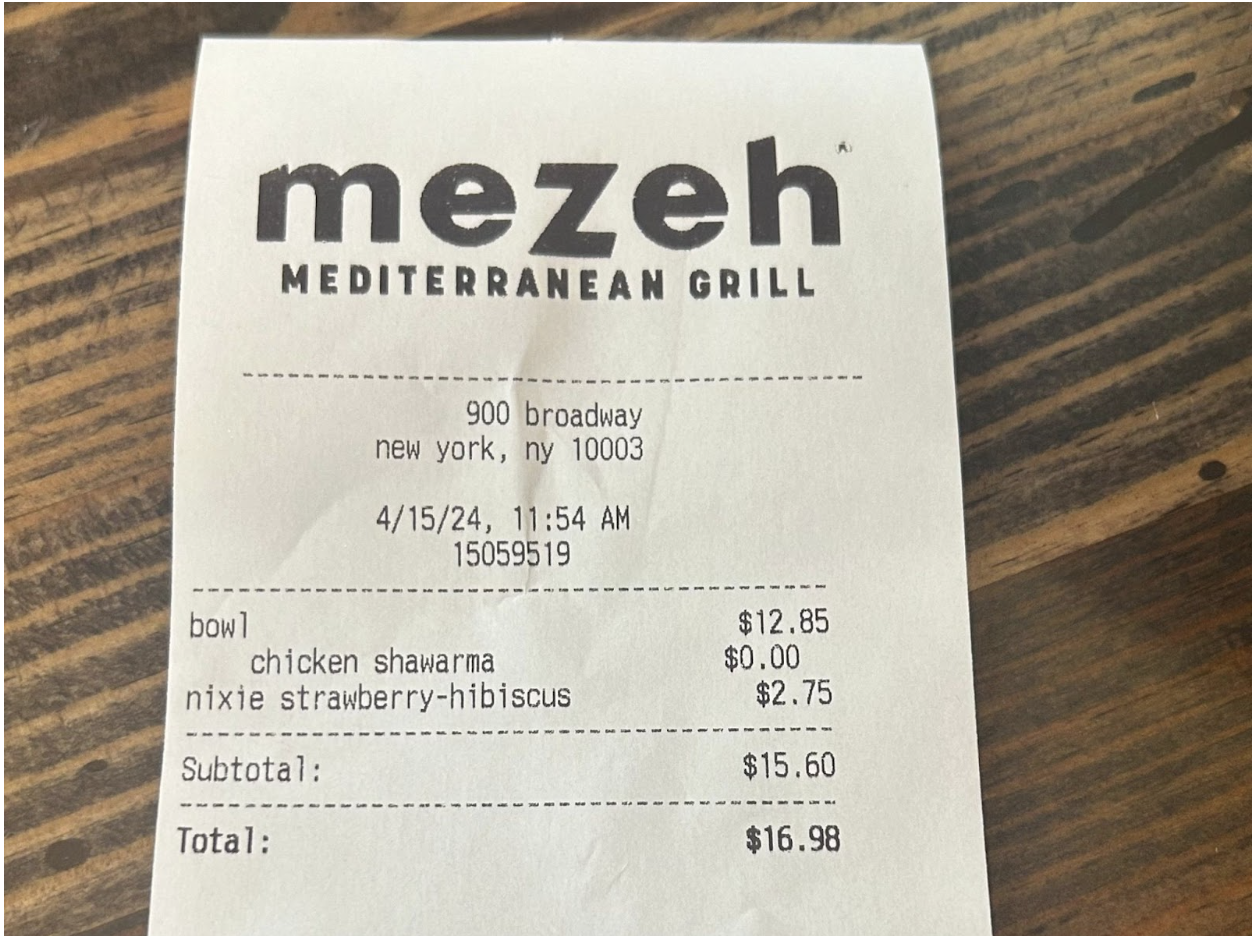
We’ll work with the following receipt and retrieve information like where the receipt was issued, the time it was issued, the items in the transaction, and the total cost of the transaction:
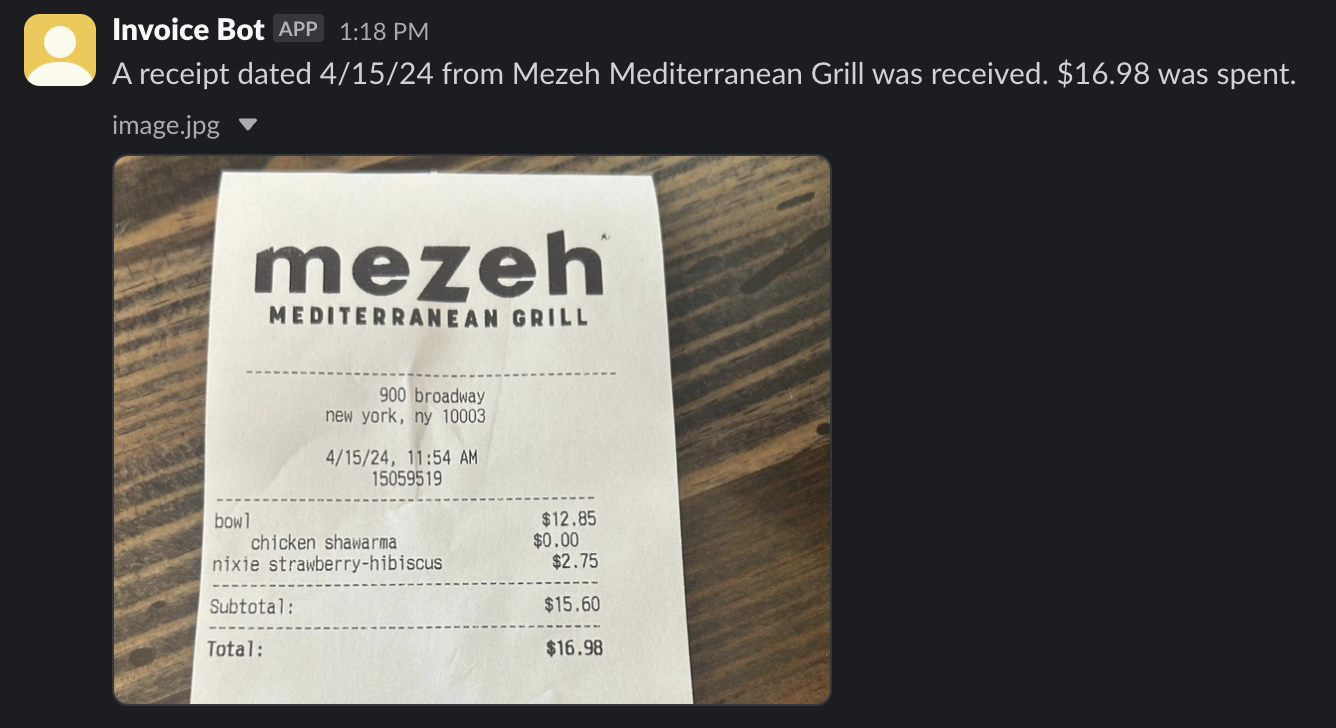
We will then build a Slack plugin that sends a message whenever a receipt is received:
Without further ado, let’s get started!
Prerequisites
To follow this guide, you will need:
- A free Roboflow account.
- An OpenAI account.
- An OpenAI API key.
Step #1: Create a Workflow
For this guide, we are going to use Roboflow Workflows, a web-based application builder for visual AI tasks.
With Workflows, you can chain together multiple tasks – from identifying objects in images with state-of-the-art detection models to asking questions with visual language models – to build multi-step applications.
Open the Roboflow dashboard then click “Workflows” in the right sidebar. Then, create a new Workflow.
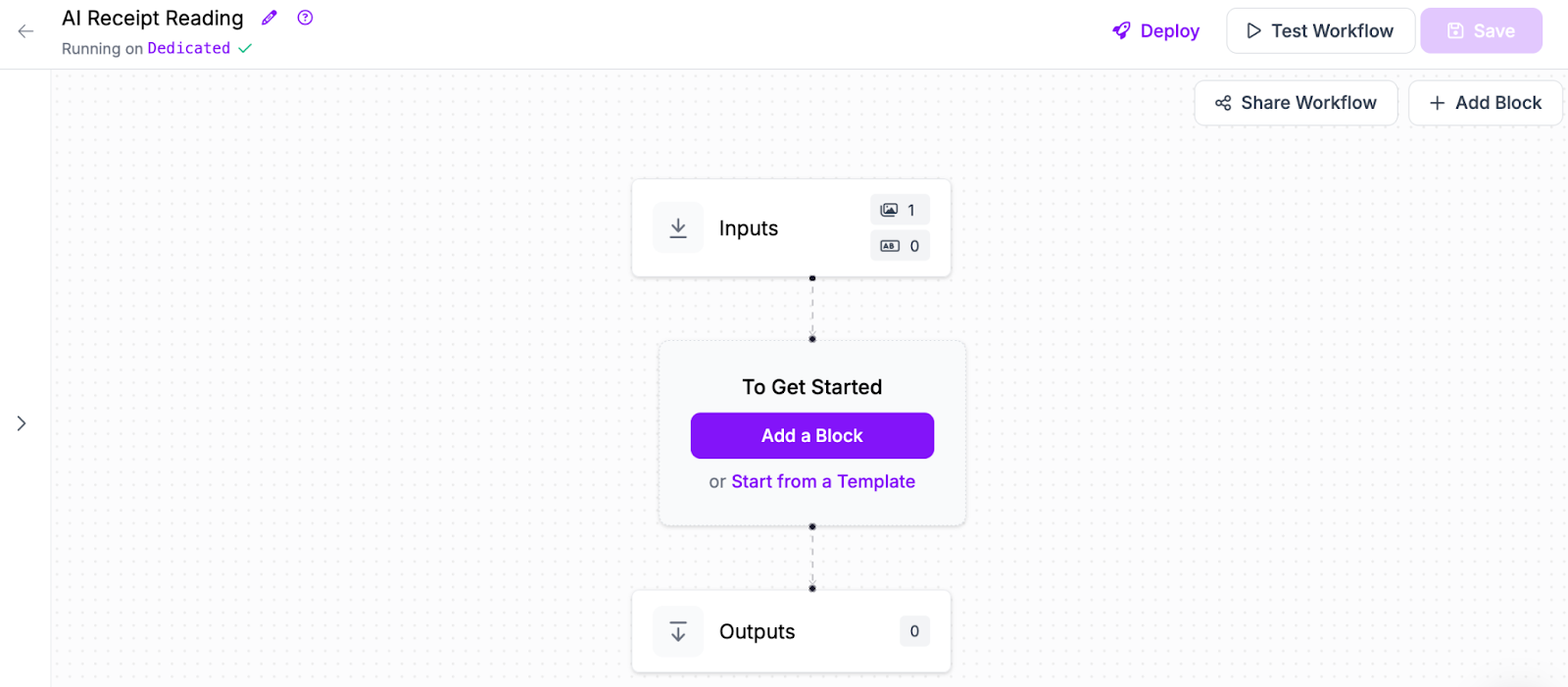
You will be taken to a blank Workflow editor:
Step #2: Add a Multimodal Model Block
Workflows supports many state-of-the-art AI models for use in reading information.
We recommend a multimodal model that supports vision question answering. The ones we support include:
- OpenAI’s GPT models.
- Anthropic’s Claude models.
- Google’s Gemini models.
- Florence-2 (which can run on your own hardware, or in the cloud with a Dedicated Deployment).
For this guide, we will use a GPT model from OpenAI. But, you can use any model you like.
Click “Add Block” in the Workflows editor, then search for the multimodal model you want to add:
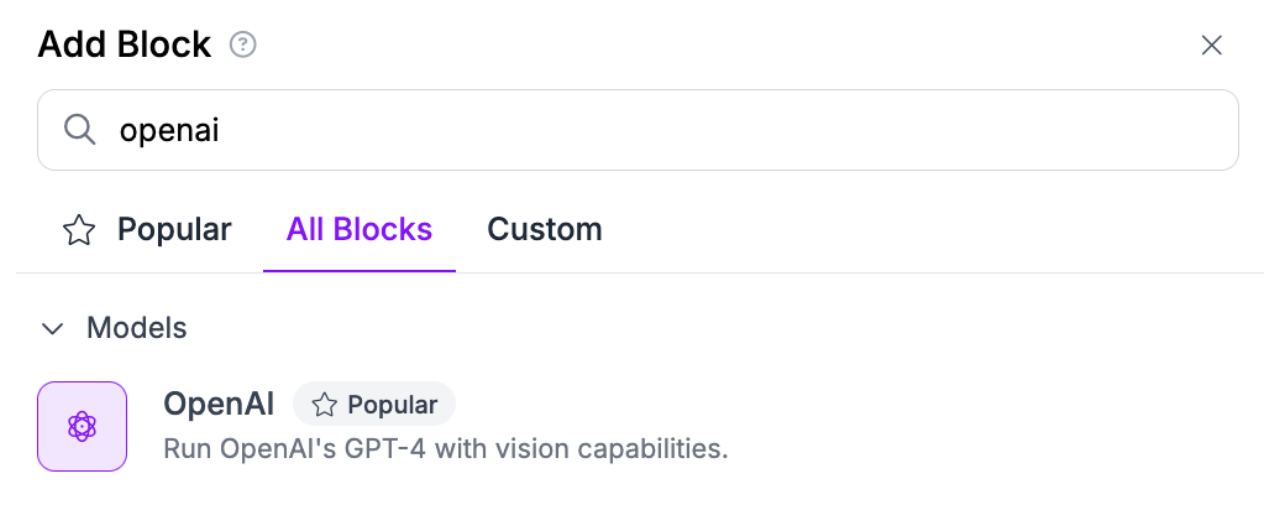
A configuration window will appear in which you can set up a prompt for the multimodal model.
For this guide, we are going to use the Structured Output Generation method of prompting GPT. This lets you provide a JSON structure that GPT will use to form a response. Let’s use the following structure:
{
  "location": "",
  "time": "",
  "date": "",
  "transactions": "",
  "total_cost": "",
}
This will be sent to GPT when our Workflow runs to say exactly what information we want to retrieve, and in what structure.
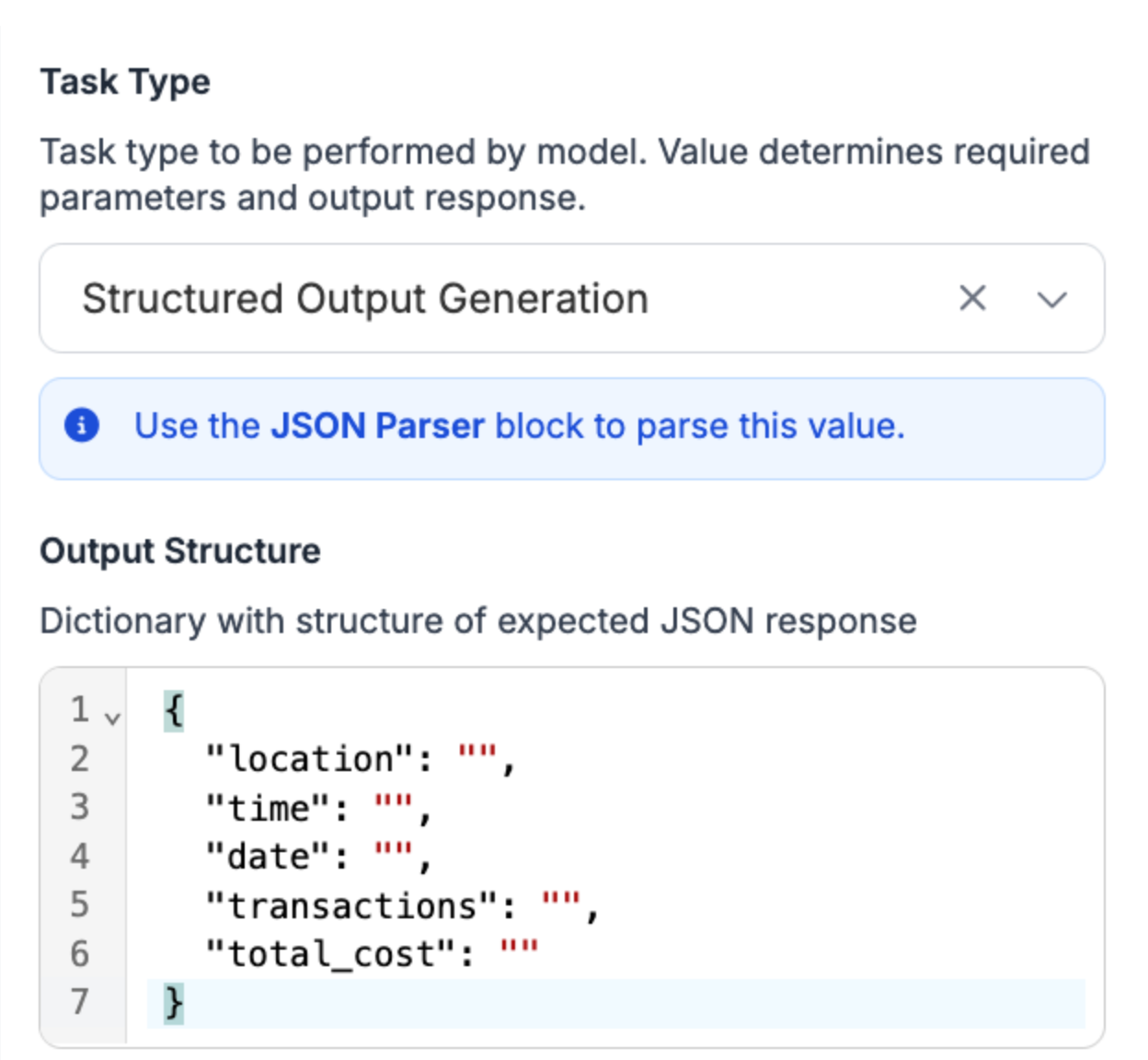
Once you have configured the multimodal model you are using, click “Save”.
Step #3: Test the Workflow
We are now ready to test our AI receipt reading application.
Click “Test Workflow” in the top right corner of the Workflows application, then drag and drop an image that you want to use:
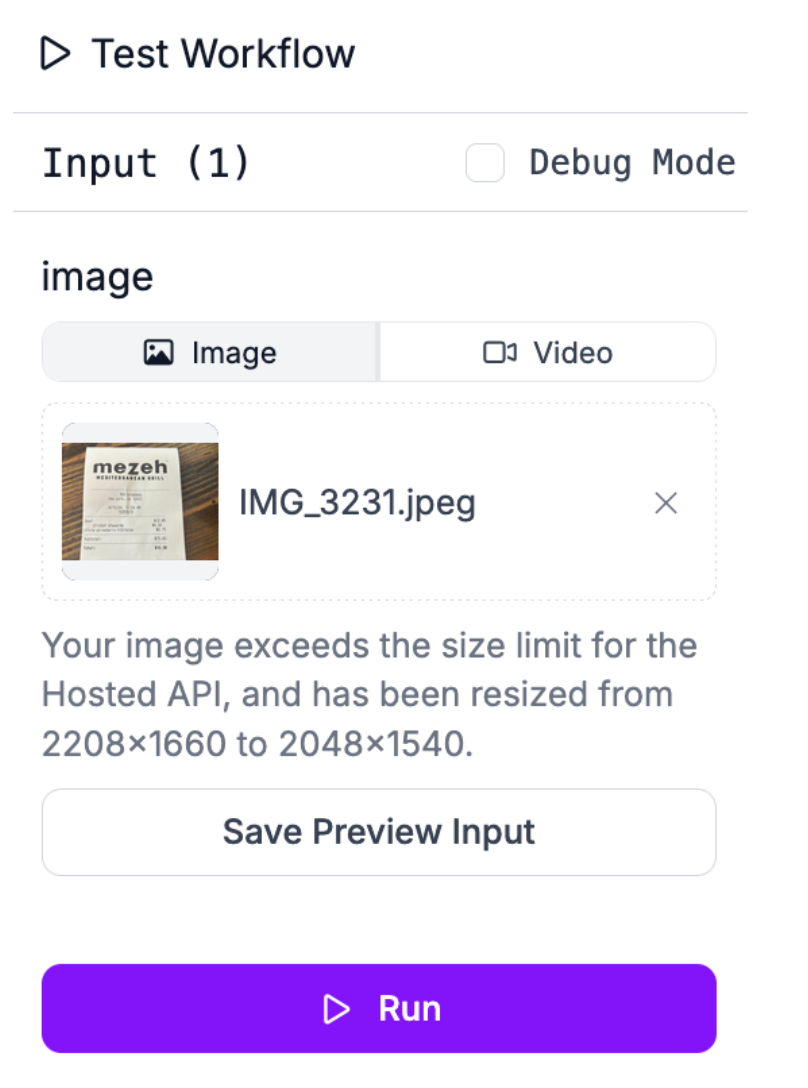
Click the “Run” button to run your Workflow.
When the Workflow is called, OpenAI’s API will be queried with your image as an input.
Our Workflow returns:
[
  {
	"open_ai": {
  	"output": "```json\n{\n	\"location\": \"900 Broadway, New York, NY 10003\",\n	\"time\": \"11:54 AM\",\n	\"date\": \"4/15/24\",\n	\"transactions\": [\n    	{\n        	\"item\": \"bowl chicken shawarma\",\n        	\"cost\": \"$12.85\"\n    	},\n    	{\n        	\"item\": \"nixie strawberry-hibiscus\",\n        	\"cost\": \"$2.75\"\n    	}\n	],\n	\"total_cost\": \"$16.98\"\n}\n```",
  	"classes": null
	}
  }
]
The output key contains a JSON representation of our data.
This key includes:
- Location: 900 Broadway, New York, NY, 10003
- Time: 11:54 AM
- Date: 4/15/24
- Transactions: A list that contains:
- bowl chicken shawarma with a cost of $12.85
- nixie strawberry hibiscus with a cost of $2.75
- Total cost: $16.98
This information matches exactly the information in the receipt.
We have successfully read a receipt with AI!
So far, we have tested our application in the browser. But, you can call your Workflow from anywhere. Note: Since this Workflow depends on GPT, you will need an internet-connected device to run it.
Click “Deploy” at the top of the Workflows editor to see code snippets that show how to call a cloud API using your Workflow or deploy your Workflow on your own system.
Here is an example that shows how to call a Workflow from the Roboflow Cloud:
from inference_sdk import InferenceHTTPClient

client = InferenceHTTPClient(
	api_url="https://detect.roboflow.com",
	api_key="API_KEY"
)

result = client.run_workflow(
	workspace_name="WORKSPACE-NAME",
	workflow_id="WORKFLOW-ID",
	images={
    	"image": "YOUR_IMAGE.jpg"
	},
	use_cache=True # cache workflow definition for 15 minutes
)
Conclusion
With vision models like GPT or Claude, you can read the contents of an image programmatically. In this guide, we showed how to use Roboflow Workflows, a web-based application builder, to create a receipt reading application that uses OpenAI’s GPT series.
You could extend the example in this guide to do more. For example, suppose you had an image with multiple receipts. You could use an object detection model trained on Roboflow to identify each receipt, then crop each receipt, then send each receipt individually to GPT. This would ensure that GPT is only prompted with a single receipt at a time, which may reduce the chance the model returns invalid information.
To learn more about building with Roboflow Workflows, check out the Workflows launch guide.
Cite this Post
Use the following entry to cite this post in your research:
James Gallagher. (Jan 30, 2025). How to Read Receipts with AI. Roboflow Blog: https://blog.roboflow.com/how-to-read-receipts-with-ai/