

Companies sit on decades of legacy documentation: technical manuals, compliance records, and internal procedures locked in scanned PDFs. These documents can't be searched, edited, or integrated into modern knowledge management systems.
The information exists, but it's effectively inaccessible to the employees who need it. Knowledge workers spend 2.5 hours per day, 30% of their workday, searching for information, and an enterprise employing 1,000 workers wastes $2.5 million annually due to their inability to locate and retrieve documents.
The cost compounds daily. Engineers waste hours digging through paper archives for specifications. Compliance teams can't quickly verify protocol versions. Customer support searches PDFs page by page for troubleshooting steps. Manual migration to platforms like Notion or Confluence stalls after a few dozen pages. Across Fortune 500 companies, unstructured document management costs $12 billion per year in lost productivity.
Vision-language models solve this by understanding document structure, not just extracting text, but preserving headers, tables, lists, and formatting. This tutorial shows how to build an automated extraction workflow using Gemini 3 Pro in Roboflow Workflows, transforming scanned pages into clean, searchable markdown ready for modern knowledge bases.
How to Automate Legacy Documentation Migration with Gemini 3 Pro
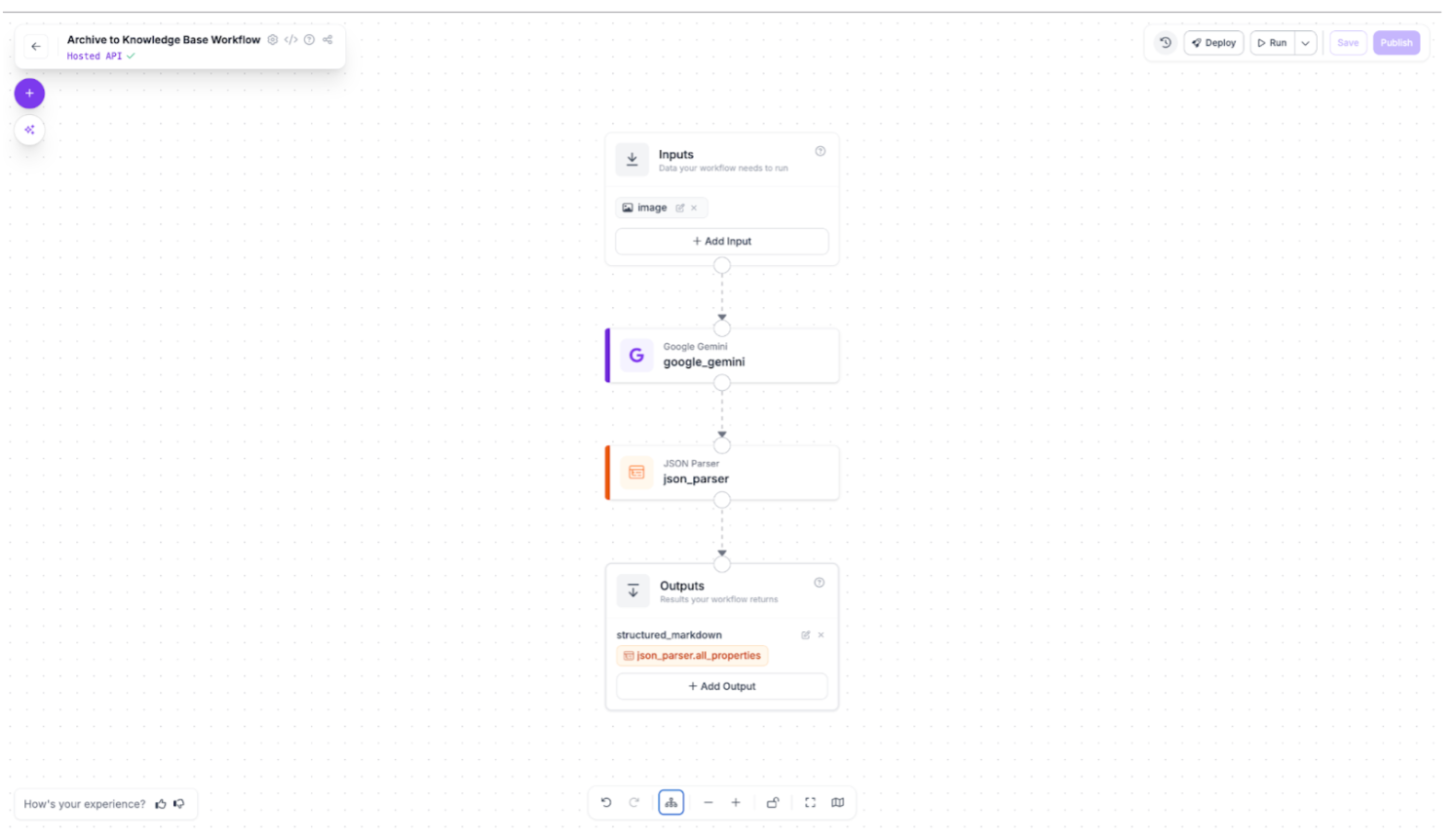
This workflow demonstrates how vision-language models extract structured markdown from scanned documentation. The complete pipeline uses just two blocks: Gemini 3 Pro analyzes each page image and outputs structured text, while a JSON parser validates the extraction. The result is clean markdown ready for import into modern knowledge management systems.
You'll build this workflow in Roboflow, test it on sample document pages, and see how legacy manuals transform into searchable, editable content. You can find the finished workflow here.
Step 1: Configure the Gemini 3 Pro Block
Add the Google Gemini block to your workflow and select Gemini 3 Pro as your model version. This model excels at document understanding thanks to its massive 1-million-token context window and strong visual reasoning capabilities. It can parse complex layouts, distinguish between headers and body text, and preserve table structures that smaller models often miss.
Set the Task Type to Structured Output Generation. This ensures Gemini returns clean JSON instead of conversational text, making the output immediately parseable by downstream systems.
Configure the prompt:
Convert this document page to markdown format. Preserve all structure including:
- Headers (use # ## ### for hierarchy)
- Lists (numbered and bulleted)
- Tables (use markdown table syntax)
- Text formatting (bold, italic)
- Paragraph breaks

Return only the markdown content without any preamble or explanation.
Define the output structure:
{
  "markdown_content": "The complete markdown text extracted from the document page, preserving all headers, lists, tables, and formatting"
}
This configuration tells Gemini exactly what to extract and how to format it, ensuring consistent results across all document pages.
Step 2: Add the JSON Parser Block
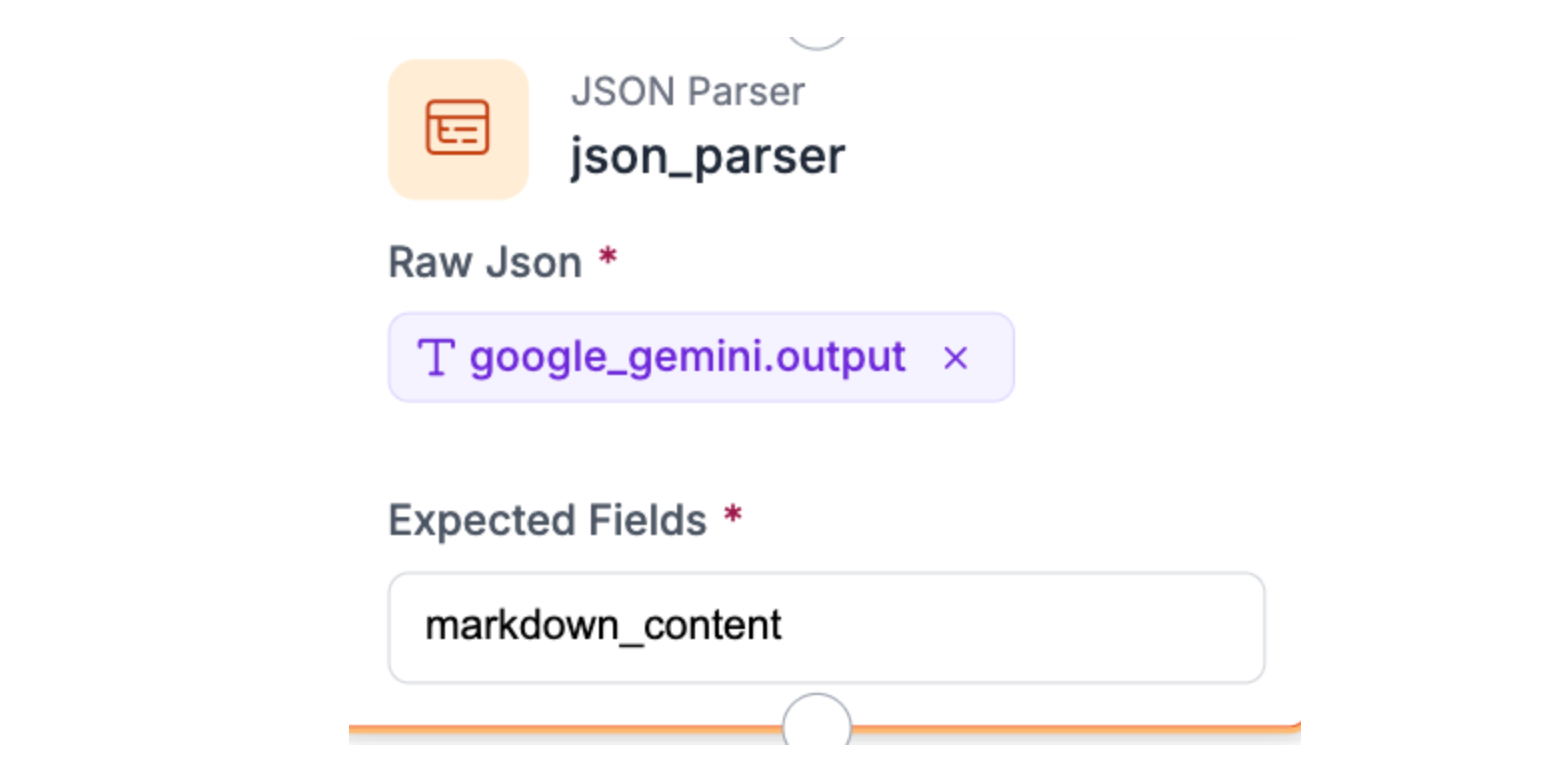
Connect the JSON Parser block to your Gemini output. Set the Expected Fields to `markdown_content`. This extracts the markdown text from Gemini's JSON response and validates the structure. If Gemini returns malformed output, the parser catches it here rather than breaking downstream processes. Simple, but critical for reliability.
Step 3: Test the Workflow
For this demonstration, we'll use the IBM Selectric II Typewriter Operating Instructions from the Internet Archive. This 1970s-era manual represents exactly what companies face: scanned pages with multi-column layouts, technical diagrams, tables, and varied typography. If the workflow handles this, it handles most legacy documentation.
Download the manual and convert it to images (PNG or JPG). Upload an image to your workflow and click Run.
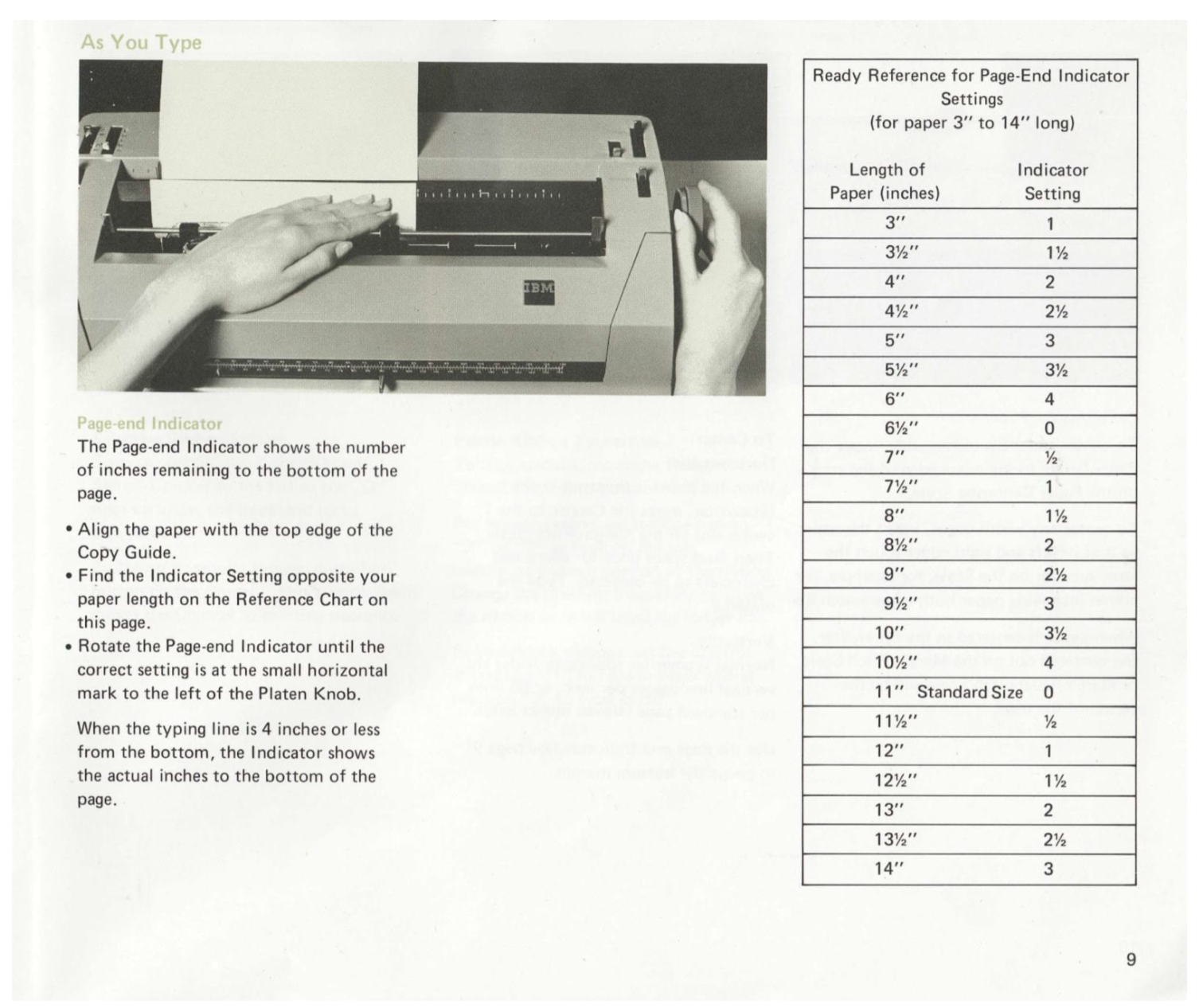
Scanned documentation page (before extraction)
The workflow processes the image and returns structured markdown. Copy the extracted text into any markdown editor (Notion, Obsidian, or even GitHub) to see the transformation:
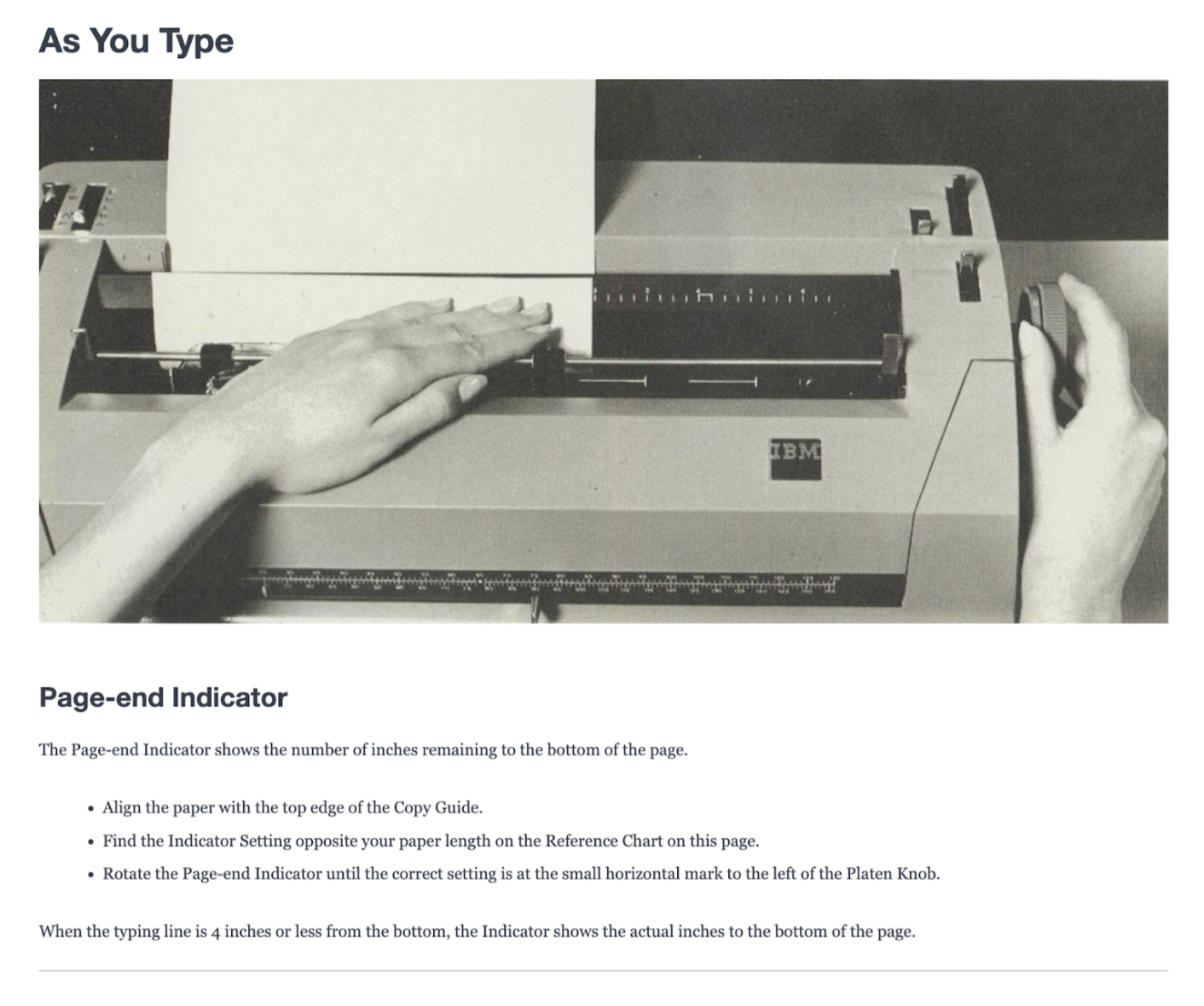
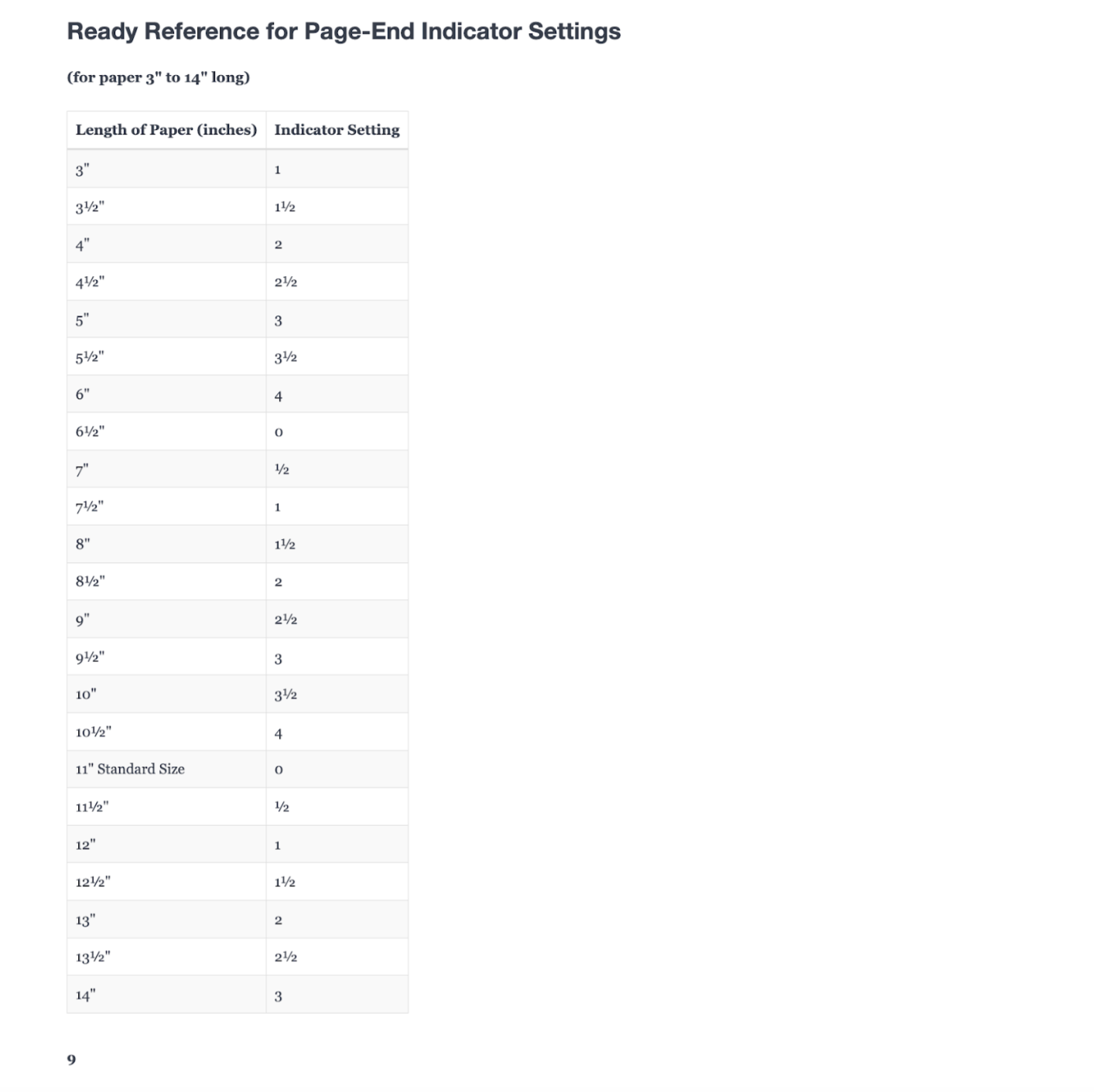
Modernized documentation page (after extraction)
The scanned 1970s manual page is now searchable, editable text with preserved structure. Headers become proper headings, tables render correctly, and formatting carries through. This is what legacy documentation looks like after modernization.
From Tutorial to Production: Gemini 3 Pro Document De-Rendering
The workflow you built extracts clean markdown from individual pages, but companies migrating thousands of legacy documents face different challenges: degraded scans that confuse even advanced models, specialized formatting that generic prompts miss, and VLM processing speeds that make traditional batch workflows impractical. This section shows how to adapt the core workflow for production environments, from engineering prompts that handle technical diagrams to building automated pipelines that respect API constraints while processing documentation at scale.
Advanced Prompt Engineering for Specialized Documents
Generic extraction prompts work for standard manuals, but technical documentation demands domain-specific instructions. A prompt that handles IBM typewriter manuals will miss critical details in electrical schematics, pharmaceutical protocols, or legal contracts.
Domain-specific prompt patterns:
- Technical manuals with diagrams: "When encountering diagrams or images, describe their content in [bracketed annotations] within the markdown. For circuit diagrams, note component labels and connections. For flowcharts, preserve decision logic."
- Legal/compliance documents: "Preserve exact section numbering (e.g., §1.2.3). Maintain all cross-references. Flag any text marked CONFIDENTIAL or PROPRIETARY with [REDACTED] tags."
- Tabular data-heavy documents: "For tables with merged cells, use nested markdown structures. If a table spans multiple pages (indicated by 'continued' notation), add [TABLE CONTINUES] markers."
Few-shot prompting for consistency: Instead of hoping Gemini interprets "preserve formatting" correctly, show it examples:
Input example: [Image showing a specification table]
Expected output:
| Component | Voltage | Tolerance |
|-----------|---------|-----------|
| R1 | 5V | ±2% |

Now process this document using the same structure.
This cuts extraction errors by teaching the model your exact formatting standards rather than relying on its interpretation.
Automating Notion Integration with Webhooks
Manual copy-paste doesn't scale beyond a dozen pages. Production workflows need automated ingestion that creates Notion pages directly from extracted markdown.
The automation stack:
Roboflow Workflows doesn't support batch processing reliably for VLM tasks, so production systems process pages sequentially with webhook triggers:
- Workflow completes: Sends extracted markdown to webhook endpoint
- Zapier/Make.com catches webhook: Parses markdown content
- Creates Notion page: Uses Notion API to generate a new page in the designated database
- Adds metadata: Tags page with source document, extraction date, confidence score
Scaling sequential processing: Run 5-10 parallel workflow instances (each processing different documents) with 2-3 second delays between API calls. This respects both Gemini's rate limits and Notion's 3 req/sec API constraint. Well-tuned systems handle 200-400 pages/hour, sufficient for most documentation migrations.
Handling Edge Cases and Low-Quality Scans
Production documentation isn't pristine IBM manuals. Expect faded photocopies, coffee stains, handwritten annotations, and pages scanned at wrong angles, all of which confuse even advanced VLMs.
Roboflow Workflows offers preprocessing blocks that can improve extraction quality:
- Contrast Equalization block: Recovers faded text from aged documents using histogram equalization
- Image Blur block: Reduces scanner noise and artifacts with median filtering
- Image Preprocessing block: Corrects orientation issues (rotate, flip) for misaligned scans
Add these blocks before Gemini in your workflow. These automated corrections often mean the difference between successful extraction and garbled output.
Conclusion: Gemini 3 Pro Document De-Rendering
You've built a workflow that transforms scanned documentation into structured markdown using Gemini 3 Pro. The core pipeline (vision-language model extraction, JSON parsing, and validation) handles documents that traditional OCR can't process. Headers, tables, and formatting survive the conversion, not just raw text.
The real transformation happens at scale. What started as inaccessible scanned pages becomes searchable content in Notion, indexed in Elasticsearch, or integrated into training systems. Engineers find specifications instantly. Compliance teams verify protocols without manual PDF searches. Customer support accesses troubleshooting steps through modern search interfaces.
VLM document extraction isn't instant. Processing runs sequentially at 200-400 pages per hour, not thousands per minute. But for companies with decades of archived documentation, overnight processing of entire manuals beats months of manual migration. The workflow you built handles the extraction. Production systems scale it with parallel instances and automated pipelines. Legacy documentation becomes modern knowledge infrastructure.
Further Reading
Below are a few related topics you might be interested in:
Cite this Post
Use the following entry to cite this post in your research:
Contributing Writer. (Mar 13, 2026). Extracting Structured Markdown from Legacy Documentation with Gemini 3 Pro. Roboflow Blog: https://blog.roboflow.com/document-derendering-gemini3pro/