

Two computer vision tutorials cover different ends of food operations automation. The first builds an end-line plating QA system using Roboflow Workflows and Gemini 3: a natural language prompt defines the plate standard, the vision-language model evaluates each frame, and a structured shift report is saved automatically with no training data required. The second builds a packaging line monitor using a custom RF-DETR model and ByteTrack to count complete and incomplete meal boxes on a conveyor, suited to high-throughput environments where per-frame VLM calls would be too slow and costly.
The food industry depends on consistency. Commercial kitchens plate the same meals hundreds of times a day, meal box factories pack the same combinations continuously, and catering lines repeat the same setup across every shift. Even small mistakes like a missing garnish, an incomplete meal box, or a missed PPE check can lead to customer complaints, wasted food, and operational losses.
Computer vision helps automate these checks directly where they happen. Cameras placed at prep stations, plating lines, or packaging areas can continuously verify food items, presentation quality, PPE compliance, and delivery contents without adding manual inspection overhead.
With vision-language models like Google Gemini 3 now available inside tools like Roboflow Workflows, building these systems has become much easier. Instead of training a complex custom model for every task, developers can describe the expected standard in natural language and let the model reason about each frame.
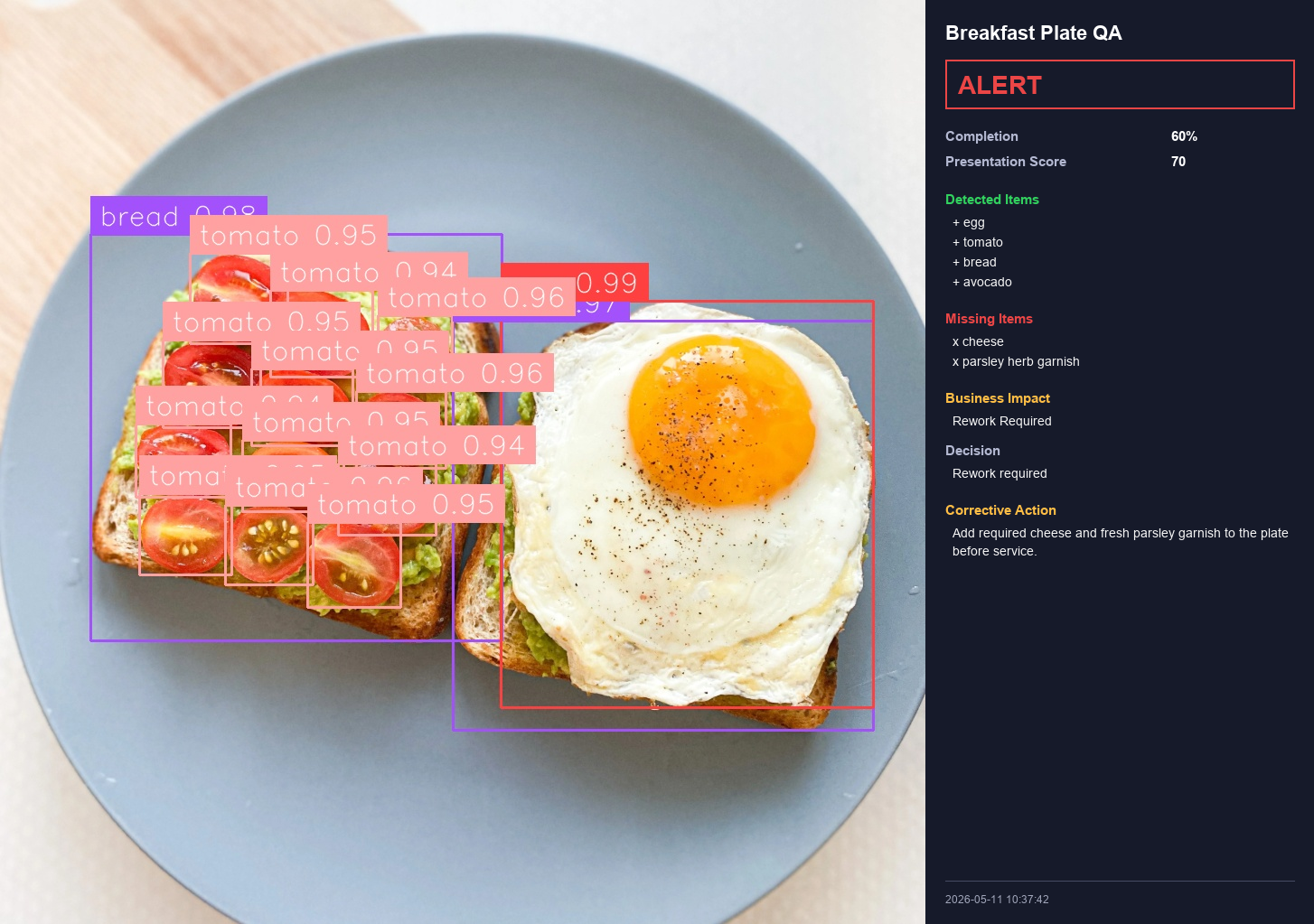
In this post, we explore how AI can automate food preparation, PPE monitoring, plating quality inspection, and delivery verification. We then build two of these workflow solutions. The first is an End-Line Plating QA system that uses Roboflow Workflows and Gemini 3 to evaluate every plate at the end of the kitchen line, flag problems in real time, and save a structured report for every shift.
The second is a food packaging line monitoring that uses a custom-trained RF-DETR model, ByteTrack, and a line counter to detect and count complete and incomplete meal boxes as they move through a production conveyor, with a live display and a per-session report.
Food packaging line monitoring system output
So let's get started!
Computer Vision Applications Across Food Operations
Below are four areas where AI vision systems are already being explored and deployed across food production and food service environments.
1. Food Preparation Monitoring
Preparation quality directly impacts every stage that follows. Portion size, ingredient sequencing, and contamination risks all begin at prep stations before food is plated or packaged.
A vision system mounted above a prep table can monitor ingredient addition, verify assembly order, and identify missing preparation steps. In manufacturing environments, these systems can also estimate portion consistency and detect process deviations before they become large-scale quality issues.
The operational value is consistency and waste reduction. Even small improvements in portion control can significantly reduce food cost over time in high-volume kitchens and food manufacturing lines.
2. PPE and Hygiene Compliance
PPE verification is one of the most practical computer vision applications in food service because the task is visually well-defined. Cameras positioned at kitchen entrances or prep stations can continuously verify gloves, masks, hairnets, and aprons.
Unlike manual spot checks, an AI-based system runs continuously and automatically creates timestamped compliance records. This helps kitchens maintain hygiene standards while also generating operational audit trails.
3. Plating and Presentation QA
Presentation consistency matters in restaurants, catering lines, and meal-prep operations. A dish that looks different across shifts or locations affects customer perception and brand consistency.
An overhead vision system positioned near the expo line can evaluate each plate against a defined plating standard, including missing components, garnish placement, and portion balance.
4. Delivery and Tray Verification
Delivery accuracy has become a major operational challenge for cloud kitchens, cafeterias, and institutional food service providers. Missing items, incorrect trays, and incomplete packaging directly impact customer satisfaction and operational cost.
Computer vision systems positioned at the end of an assembly line can verify whether all required items are present before a tray or delivery bag is sealed. In healthcare and institutional dining, these systems can also help verify that trays match dietary requirements before dispatch.
The operational value is fewer delivery errors, reduced refunds, and better quality assurance visibility.
Tutorial 1: Building an End-Line Plating QA System
In this tutorial, we will build a breakfast plate inspection system that runs at the end of the kitchen line. A camera captures each plated dish, sends the image through a Roboflow Workflow, and gets back a pass or fail decision with a specific corrective action and a structured record for reporting. No custom-trained model is required. The plate standard lives entirely in the prompt.
The system produces three outputs per plate: An annotated image with bounding boxes drawn around each detected food item; a structured JSON record with the full QA assessment; and a CSV row that appends to a shift log. By the end of service you have a complete dataset of every plate that left the kitchen.
Before writing any code it helps to understand what happens when a plate goes through the system.
A plate arrives at the expo window and is placed under a fixed overhead camera. The camera captures a frame and sends it to the Roboflow Workflow. Inside the workflow, two Gemini blocks receive the same image simultaneously. One acts as a visual detector, identifying where each food item sits on the plate and returning bounding box coordinates. The other acts as a QA reasoner, comparing what it sees against the defined plate standard and returning a structured JSON assessment. Both complete in a single inference round trip. The Outputs block collects the annotated image, the bounding box predictions, and the QA JSON, and the reporting script writes a record to the shift log.
Three decisions keep this practical at production scale. The camera is fixed and overhead so the geometry is consistent from plate to plate and Gemini does not need to handle variable angles. The plate standard is defined in plain text inside the prompt rather than encoded in a trained model, so updating the standard for a seasonal menu change or a new garnish is a one-line edit. The two Gemini blocks run in parallel rather than in sequence, so the full detection and assessment cycle happens in the time of a single API call.
Step 1: Set Up the Roboflow Workflow
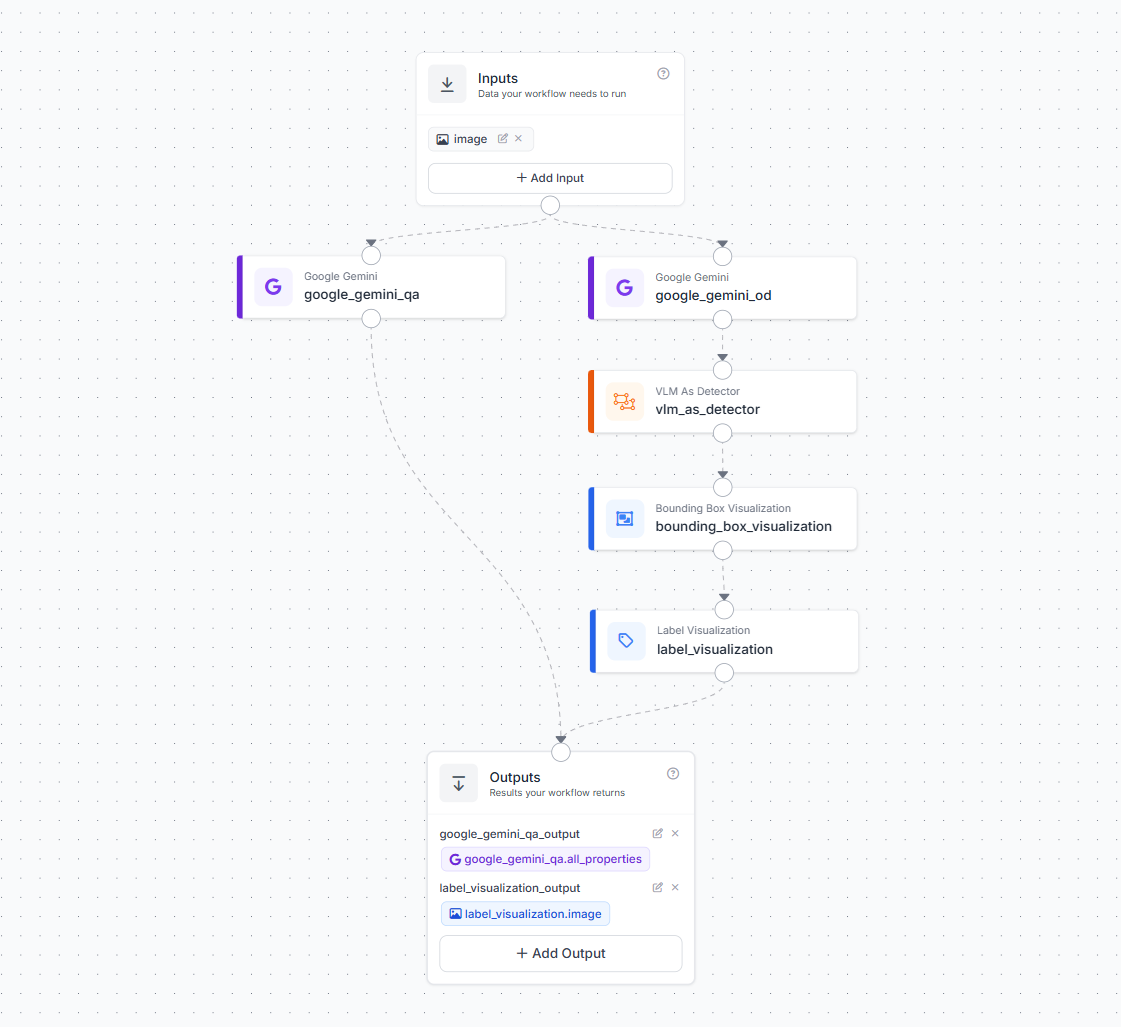
Create a new workflow in your Roboflow dashboard and add one image input. Then add two Google Gemini blocks connected in parallel to that input.
Name the first block google_gemini_od. This block handles visual detection. Configure it to act as an object detector by connecting its output to a VLM As Detector block. The VLM As Detector block converts Gemini's text response into structured bounding box predictions. Connect that to a Bounding Box Visualization block and then a Label Visualization block. This chain produces an annotated image showing exactly what the system detected on each plate.
Name the second block google_gemini_qa. This block handles QA reasoning. It receives the same image and evaluates the plate against the standard defined in its prompt. It runs independently from the detection chain and returns its own output.
In the Outputs block, add three outputs. Connect label_visualization.image as label_visualization_output to capture the annotated frame. Connect vlm_as_detector.predictions as vlm_as_detector_output for the raw detection data. Connect google_gemini_qa.all_properties as google_gemini_qa_output for the full QA assessment. Save and publish the workflow.
Step 2: Define Your Plate Standard
The breakfast plate in this example must contain five items. A fried or boiled egg, sliced tomato, bread, cheese, and fresh parsley as garnish. These items were chosen to cover the main QA failure categories, including missing protein, missing produce, missing garnish, and missing accompaniment. Parsley is the right garnish for a vision-based system because its bright flat green leaf creates strong contrast against the white plate and the warm tones of the other food items, making it reliably detectable even at lower camera resolutions.
To adapt this for a different plate, simply change the item list and the descriptions. The rest of the pipeline stays the same.
Step 3: Write the QA Prompt
This prompt goes directly into the google_gemini_qa block in the Workflow editor. It defines the plate standard, the output format, and the decision rules. Gemini reads this on every inference call and applies it to whatever image it receives.
Every field in the JSON schema serves a specific purpose in the report. The completion_percent field tracks how many required items were present. The presentation_score field gives a 0 to 100 rating of how the plate looks. The business_impact field tells the expo team whether the plate is approved, needs a quick fix at the window, or must go back to the line. The report_summary field produces a one-sentence log entry suitable for a QA record.
You are an AI breakfast plating quality inspector for an end-line
food service QA system.

Inspect the breakfast plate in the image.

The standard breakfast plate must contain:
1. Egg
2. Tomato
3. Bread
4. Cheese
5. Parsley herb garnish

Check whether each required item is clearly visible on the plate.
Also check plating quality, presentation, portion balance, and
whether the plate is ready for service.

Return ONLY valid JSON. Do not return markdown. Do not add
explanation outside JSON.

Use this exact JSON structure:

{
  "plate_type": "Breakfast Plate",
  "required_items": ["egg","tomato","bread","cheese","parsley herb garnish"],
  "detected_items": [],
  "missing_items": [],
  "extra_items": [],
  "item_level_check": {
    "egg":                  { "present": true, "quality_note": "" },
    "tomato":               { "present": true, "quality_note": "" },
    "bread":                { "present": true, "quality_note": "" },
    "cheese":               { "present": true, "quality_note": "" },
    "parsley herb garnish": { "present": true, "quality_note": "" }
  },
  "plating_quality": {
    "presentation_score": 0,
    "portion_balance":    "good | acceptable | poor",
    "plate_cleanliness":  "clean | minor issue | poor",
    "garnish_quality":    "present and acceptable | missing | poor placement",
    "visual_appeal":      "good | acceptable | poor"
  },
  "qa_result": {
    "status":             "READY | ALERT",
    "completion_percent": 0,
    "decision":           "",
    "corrective_action":  ""
  },
  "analytics": {
    "missing_item_count":         0,
    "extra_item_count":           0,
    "defect_category":            "none | missing_item | plating_quality | portion_issue | cleanliness_issue | extra_item",
    "business_impact":            "approved | rework_required | reject_required",
    "recommended_station_action": ""
  },
  "report_summary": ""
}

Rules:
- If all required items are visible and plating quality is acceptable,
  set status to READY.
- If any required item is missing, set status to ALERT.
- If the plate is messy, poorly arranged, or not service-ready,
  set status to ALERT.
- completion_percent must be based on required items present.
- presentation_score must be from 0 to 100.
- corrective_action must clearly say what should be added or fixed.
- business_impact should be approved if READY, rework_required if an
  item or plating issue can be fixed, and reject_required only if the
  plate is not suitable for service.
- report_summary should be one short sentence suitable for a QA report.
Step 4: Deploy the Workflow Script
Use the following script to deploy the workflow. The script sends the plate image to workflow, and receives the full workflow result. The system finally gives a complete audit trail that links each inspection record to its visual output.
import json
import csv
import base64
import io
import os
from datetime import datetime
from PIL import Image, ImageDraw, ImageFont
from inference_sdk import InferenceHTTPClient


API_KEY = "ROBOFLOW_API_KEY"
WORKSPACE_NAME = "tim-4ijf0"
WORKFLOW_ID = "visual-plating-qa"
IMAGE_PATH = "breakfast.png"

CSV_REPORT_FILE = "breakfast_plate_report.csv"

RUN_TIMESTAMP = datetime.now().strftime("%Y%m%d_%H%M%S")

OUTPUT_DIR = "runs"
os.makedirs(OUTPUT_DIR, exist_ok=True)

JSON_REPORT_FILE = os.path.join(
    OUTPUT_DIR,
    f"breakfast_plate_report_{RUN_TIMESTAMP}.json"
)

EXACT_WORKFLOW_IMAGE = os.path.join(
    OUTPUT_DIR,
    f"exact_workflow_output_{RUN_TIMESTAMP}.png"
)

OUTPUT_IMAGE = os.path.join(
    OUTPUT_DIR,
    f"breakfast_plate_qa_with_summary_{RUN_TIMESTAMP}.png"
)


client = InferenceHTTPClient(
    api_url="https://serverless.roboflow.com",
    api_key=API_KEY
)


def decode_workflow_image(raw):
    if raw is None:
        return None

    if isinstance(raw, list):
        raw = raw[0] if raw else None

    if isinstance(raw, dict):
        b64 = raw.get("value") or raw.get("image") or ""
    elif isinstance(raw, str):
        b64 = raw
    else:
        return None

    if not b64:
        return None

    img_bytes = base64.b64decode(b64)
    return Image.open(io.BytesIO(img_bytes)).convert("RGB")


def parse_gemini_qa_output(result):
    if isinstance(result, list):
        result = result[0]

    qa = result.get("google_gemini_qa_output")

    if qa is None:
        raise ValueError("google_gemini_qa_output not found.")

    if isinstance(qa, dict):
        qa = qa.get("response") or qa.get("text") or qa.get("output") or qa

    if isinstance(qa, str):
        qa = qa.replace("```json", "").replace("```", "").strip()
        return json.loads(qa)

    if isinstance(qa, dict):
        return qa

    raise ValueError("Could not parse google_gemini_qa_output.")


def generate_summary(data):
    qa = data.get("qa_result", {})
    analytics = data.get("analytics", {})
    plating = data.get("plating_quality", {})

    return {
        "timestamp": datetime.now().strftime("%Y-%m-%d %H:%M:%S"),
        "plate_type": data.get("plate_type", "Breakfast Plate"),
        "status": qa.get("status", "UNKNOWN"),
        "completion_percent": qa.get("completion_percent", 0),
        "presentation_score": plating.get("presentation_score", 0),
        "detected_items": data.get("detected_items", []),
        "missing_items": data.get("missing_items", []),
        "extra_items": data.get("extra_items", []),
        "defect_category": analytics.get("defect_category", ""),
        "business_impact": analytics.get("business_impact", ""),
        "decision": qa.get("decision", ""),
        "corrective_action": qa.get("corrective_action", ""),
        "report_summary": data.get("report_summary", "")
    }


def get_font(size, bold=False):
    if bold:
        paths = [
            "C:/Windows/Fonts/arialbd.ttf",
            "C:/Windows/Fonts/calibrib.ttf",
            "/usr/share/fonts/truetype/dejavu/DejaVuSans-Bold.ttf"
        ]
    else:
        paths = [
            "C:/Windows/Fonts/arial.ttf",
            "C:/Windows/Fonts/calibri.ttf",
            "/usr/share/fonts/truetype/dejavu/DejaVuSans.ttf"
        ]

    for path in paths:
        try:
            return ImageFont.truetype(path, size)
        except:
            pass

    return ImageFont.load_default()


def draw_wrapped_text(draw, text, xy, font, fill, max_width, line_spacing=6):
    x, y = xy
    words = str(text).split()
    line = ""

    for word in words:
        test_line = f"{line} {word}".strip()
        bbox = draw.textbbox((0, 0), test_line, font=font)
        width = bbox[2] - bbox[0]

        if width <= max_width:
            line = test_line
        else:
            draw.text((x, y), line, font=font, fill=fill)
            y += font.size + line_spacing
            line = word

    if line:
        draw.text((x, y), line, font=font, fill=fill)
        y += font.size + line_spacing

    return y


def build_summary_image(workflow_img, summary):
    panel_width = 430
    padding = 22

    img_w, img_h = workflow_img.size
    canvas_w = img_w + panel_width
    canvas_h = max(img_h, 720)

    canvas = Image.new("RGB", (canvas_w, canvas_h), (18, 20, 30))

    y_offset = (canvas_h - img_h) // 2
    canvas.paste(workflow_img, (0, y_offset))

    draw = ImageDraw.Draw(canvas)

    panel_x = img_w
    draw.rectangle(
        [panel_x, 0, canvas_w, canvas_h],
        fill=(22, 26, 42)
    )

    title_font = get_font(22, True)
    heading_font = get_font(15, True)
    body_font = get_font(14, False)
    small_font = get_font(12, False)
    big_font = get_font(28, True)

    x = panel_x + padding
    y = 24
    max_text_width = panel_width - padding * 2

    status = summary["status"]
    status_color = (50, 210, 95) if status == "READY" else (235, 70, 70)

    draw.text((x, y), "Breakfast Plate QA", font=title_font, fill=(255, 255, 255))
    y += 42

    draw.rectangle(
        [x, y, x + max_text_width, y + 54],
        outline=status_color,
        width=2
    )
    draw.text((x + 14, y + 12), status, font=big_font, fill=status_color)
    y += 76

    draw.text((x, y), "Completion", font=heading_font, fill=(180, 185, 210))
    draw.text((x + 250, y), f"{summary['completion_percent']}%", font=heading_font, fill=(255, 255, 255))
    y += 28

    draw.text((x, y), "Presentation Score", font=heading_font, fill=(180, 185, 210))
    draw.text((x + 250, y), str(summary["presentation_score"]), font=heading_font, fill=(255, 255, 255))
    y += 42

    draw.text((x, y), "Detected Items", font=heading_font, fill=(50, 210, 95))
    y += 26

    detected = summary["detected_items"]
    if detected:
        for item in detected:
            draw.text((x + 8, y), f"+ {item}", font=body_font, fill=(245, 245, 245))
            y += 22
    else:
        draw.text((x + 8, y), "None", font=body_font, fill=(180, 185, 210))
        y += 22

    y += 18

    draw.text((x, y), "Missing Items", font=heading_font, fill=(235, 70, 70))
    y += 26

    missing = summary["missing_items"]
    if missing:
        for item in missing:
            draw.text((x + 8, y), f"x {item}", font=body_font, fill=(245, 245, 245))
            y += 22
    else:
        draw.text((x + 8, y), "None", font=body_font, fill=(50, 210, 95))
        y += 22

    y += 18

    draw.text((x, y), "Business Impact", font=heading_font, fill=(255, 190, 70))
    y += 26
    draw_wrapped_text(
        draw,
        summary["business_impact"].replace("_", " ").title(),
        (x + 8, y),
        body_font,
        (245, 245, 245),
        max_text_width - 8
    )
    y += 32

    draw.text((x, y), "Decision", font=heading_font, fill=(180, 185, 210))
    y += 26
    y = draw_wrapped_text(
        draw,
        summary["decision"],
        (x + 8, y),
        body_font,
        (245, 245, 245),
        max_text_width - 8
    )

    y += 20

    if summary["corrective_action"]:
        draw.text((x, y), "Corrective Action", font=heading_font, fill=(255, 190, 70))
        y += 26
        y = draw_wrapped_text(
            draw,
            summary["corrective_action"],
            (x + 8, y),
            body_font,
            (245, 245, 245),
            max_text_width - 8
        )

    draw.line(
        [x, canvas_h - 48, x + max_text_width, canvas_h - 48],
        fill=(70, 75, 100),
        width=1
    )
    draw.text(
        (x, canvas_h - 34),
        summary["timestamp"],
        font=small_font,
        fill=(160, 165, 185)
    )

    return canvas


def save_json_report(raw_result, parsed_data, summary):
    with open(JSON_REPORT_FILE, "w", encoding="utf-8") as f:
        json.dump(
            {
                "summary": summary,
                "parsed_gemini_qa": parsed_data,
                "raw_workflow_result": raw_result
            },
            f,
            indent=2
        )


def save_csv_report(summary):

    file_exists = os.path.exists(CSV_REPORT_FILE)

    with open(CSV_REPORT_FILE, "a", newline="", encoding="utf-8") as f:

        writer = csv.writer(f)

        if not file_exists:
            writer.writerow([
                "timestamp",
                "plate_type",
                "status",
                "completion_percent",
                "presentation_score",
                "detected_items",
                "missing_items",
                "extra_items",
                "defect_category",
                "business_impact",
                "decision",
                "corrective_action",
                "report_summary",
                "workflow_image_file",
                "summary_image_file",
                "json_report_file"
            ])

        writer.writerow([
            summary["timestamp"],
            summary["plate_type"],
            summary["status"],
            summary["completion_percent"],
            summary["presentation_score"],
            ", ".join(summary["detected_items"]),
            ", ".join(summary["missing_items"]),
            ", ".join(summary["extra_items"]),
            summary["defect_category"],
            summary["business_impact"],
            summary["decision"],
            summary["corrective_action"],
            summary["report_summary"],
            EXACT_WORKFLOW_IMAGE,
            OUTPUT_IMAGE,
            JSON_REPORT_FILE
        ])


def main():
    print("Running breakfast plating QA workflow...")

    result = client.run_workflow(
        workspace_name=WORKSPACE_NAME,
        workflow_id=WORKFLOW_ID,
        images={
            "image": IMAGE_PATH
        },
        use_cache=False
    )

    raw = result[0] if isinstance(result, list) else result

    parsed_qa = parse_gemini_qa_output(result)
    summary = generate_summary(parsed_qa)

    viz_raw = raw.get("label_visualization_output")
    workflow_img = decode_workflow_image(viz_raw)

    if workflow_img is None:
        print("Could not decode workflow image. Falling back to original image.")
        workflow_img = Image.open(IMAGE_PATH).convert("RGB")
    else:
        workflow_img.save(EXACT_WORKFLOW_IMAGE)
        print(f"Exact workflow output saved: {EXACT_WORKFLOW_IMAGE}")

    final_img = build_summary_image(workflow_img, summary)
    final_img.save(OUTPUT_IMAGE)

    save_json_report(result, parsed_qa, summary)
    save_csv_report(summary)

    print("\nBreakfast Plate QA Summary")
    print("--------------------------")
    print("Status:", summary["status"])
    print("Completion:", summary["completion_percent"], "%")
    print("Presentation Score:", summary["presentation_score"])
    print("Detected:", ", ".join(summary["detected_items"]) or "None")
    print("Missing:", ", ".join(summary["missing_items"]) or "None")
    print("Business Impact:", summary["business_impact"])
    print("Decision:", summary["decision"])

    print("\nSaved files:")
    print(EXACT_WORKFLOW_IMAGE)
    print(OUTPUT_IMAGE)
    print(JSON_REPORT_FILE)
    print(CSV_REPORT_FILE)


if __name__ == "__main__":
    main()
Each run produces four outputs. The exact workflow annotated image saved to runs/exact_workflow_output_TIMESTAMP.png. The composite image with the summary panel saved to runs/breakfast_plate_qa_with_summary_TIMESTAMP.png. A per-run JSON report in the same folder with the full nested assessment including every item-level check and analytics field. And a row appended to breakfast_plate_report.csv in the working directory which accumulates across the entire service period without overwriting. The CSV includes the file paths for the workflow image, the composite image, and the JSON for that row, so you can open any record in the log and immediately find the visual output that corresponds to it.
What the End-Line Plating QA System Produces and Why It Matters
Every inspected plate becomes a structured data record instead of a temporary visual check. The system logs timestamps, detected items, missing items, presentation scores, QA decisions, and corrective actions automatically for every plate. Over time, this creates a valuable operational dataset for tracking kitchen performance and quality trends.
Completion percentage and presentation score are tracked separately because a plate can contain all required items but still look poorly presented. This helps teams distinguish between assembly issues and presentation or training issues.
The system also generates operational signals such as approved, rework_required, or reject_required, giving kitchens measurable rework and rejection rates. Logging missing items across services helps identify recurring supply or restocking problems, while shift-level analytics make it possible to compare performance between teams, stations, or locations.
Because every inspection is timestamped and stored automatically, the workflow also creates a built-in audit trail for quality assurance and compliance reporting. For multi-location operators, deploying the same workflow across sites helps maintain consistent plating standards and enables centralized quality monitoring.
Scaling the End-Line Plating QA System
The script shown here processes one image per run, which is the right starting point for testing and validation against your own plates before going live.
In production, two deployment patterns cover most kitchen setups. For a fixed end-line camera with continuous video such as a hotel breakfast buffet line, a cloud kitchen, or a catering operation, a WebRTC streaming session handles frame capture and Gemini inference in a continuous loop, with each QA result appended to a rolling shift log. The CSV becomes a shift record rather than a single-plate file.
For triggered inspection, where a signal from a POS system, a conveyor sensor, or a button press at expo fires once per plate, this single-run script wrapped in a simple server with a webhook endpoint is the right pattern. The trigger signal becomes the inspection event.
Both patterns produce the same JSON and CSV output format, which means the analytics layer does not need to change as you scale from one camera to ten or from one location to many.
Tutorial 2: Building a Food Packaging Line Monitoring System
This tutorial builds a packaging line quality monitor for a food manufacturing conveyor. A fixed camera looks down at boxes moving along the belt. A robot station above the line adds corn and peas to each box as it passes. The system needs to count how many boxes left the station complete and how many passed through without being filled, in real time, with a per-session report.
Understanding the Packaging Process
The production line works in two stages. In the first stage, boxes enter the line containing only a cream base, the protein component that goes in every box. These boxes are in their incomplete state. They move along the conveyor towards the robot filling station.
At the filling station, a robot deposits corn and peas into each box. Once filled, the box continues along the conveyor towards the sealing station. A box that passes the inspection camera after the filling station should contain cream, corn, and peas. A box that somehow passes without being filled still contains only cream.
The inspection camera sits between the filling station and the sealing station. Everything that passes it should be complete. Any cream-only box reaching this point is a production fault that needs to be caught before sealing. Here's the reference video.
Corn and Peas placement (Video Credits: chefrobotics.ai)
Step 1: Choosing Class Names and Why They Matter
Two classes cover the complete state space of this problem. The first class is cream_box. This name was chosen to describe exactly what the box contains at the incomplete stage, which is only the cream base. The name is specific enough to be unambiguous in training annotations and in the output data, and short enough to read clearly in a console log or a report. A generic name like incomplete would also work logically, but cream_box describes the visual content of the object rather than its business status, which makes annotation decisions clearer and reduces labeling errors.
The second class is corn_peas_cream_box. This name lists all three ingredients present in a complete box: corn, peas, and cream. It is longer than ideal for a class name, but it precisely describes what the model should see in order to assign this label. When an annotator looks at a box and asks whether it should be labelled corn_peas_cream_box, the answer is unambiguous. Either corn and peas are visibly present on top of the cream or they are not. That clarity reduces inter-annotator disagreement and produces cleaner training data.
The business mapping is straightforward. Any box classified as cream_box when it crosses the inspection line is counted as incomplete. Any box classified as corn_peas_cream_box is counted as complete.
Step 2: Annotating the Dataset
Collect video frames from your production line camera covering a range of lighting conditions, conveyor speeds, and box positions in the frame. Aim for at least 50 to 80 annotated images per class as a starting point, with boxes at various positions along the conveyor width.
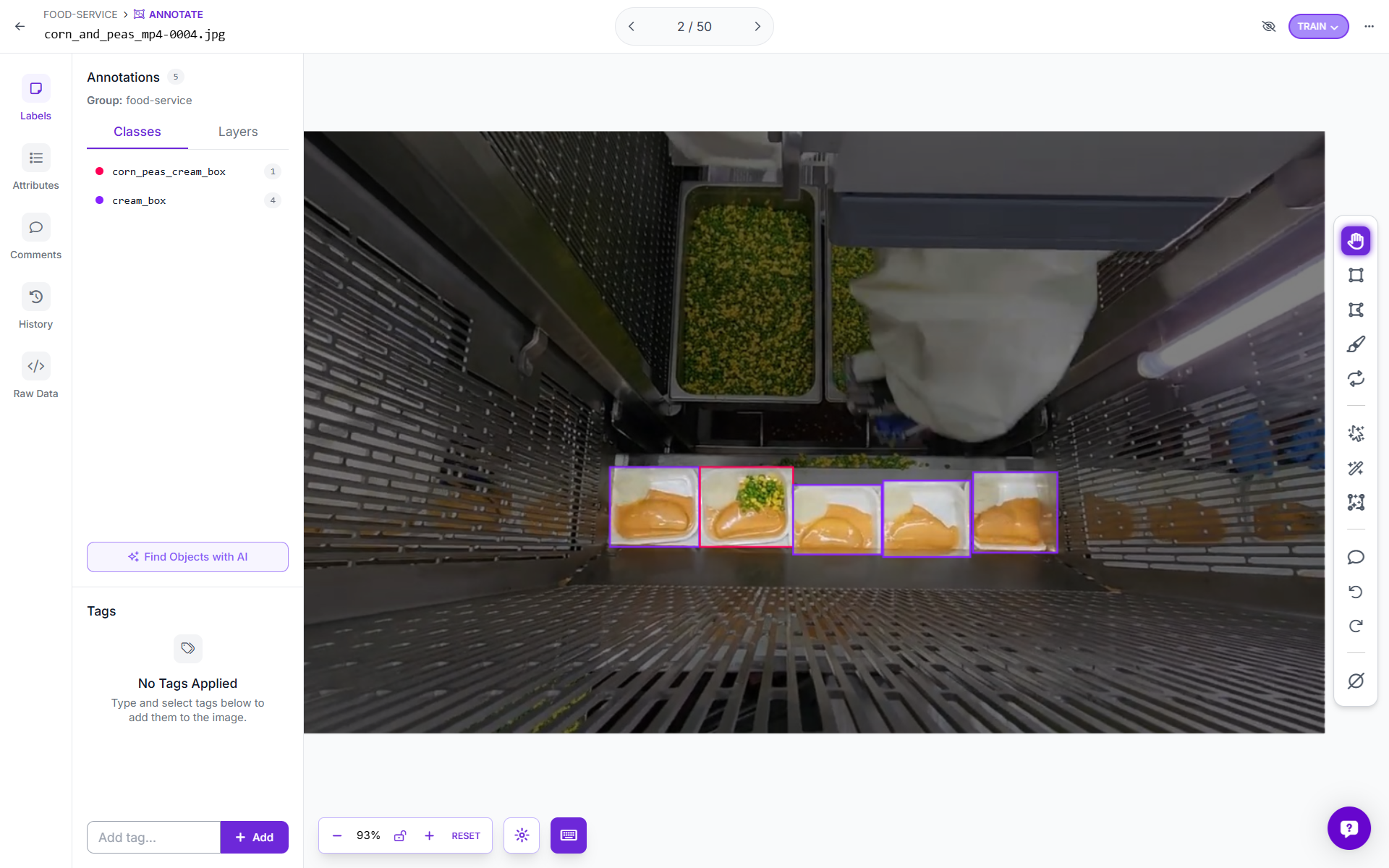
Draw tight bounding boxes around each box visible in the frame. Do not include the conveyor structure or background in the bounding box, because the model should learn to recognize the box contents, not the conveyor geometry. For boxes that are partially occluded at the frame edge, annotate them if more than roughly half the box is visible. Discard frames where the box contents are ambiguous or blurred.
A useful annotation rule for this dataset is to label based on what you can see from above. If corn and peas are clearly visible on the surface, the box is corn_peas_cream_box. If only a smooth cream surface is visible, the box is cream_box. Partially filled boxes, if they appear in your production line, should be assigned to the class that best matches their visual appearance from the camera angle. In most cases that will be cream_box until filling is complete.
Step 3: Training the Model
This system uses Roboflow's RF-DETR Object Detection (Small) model.
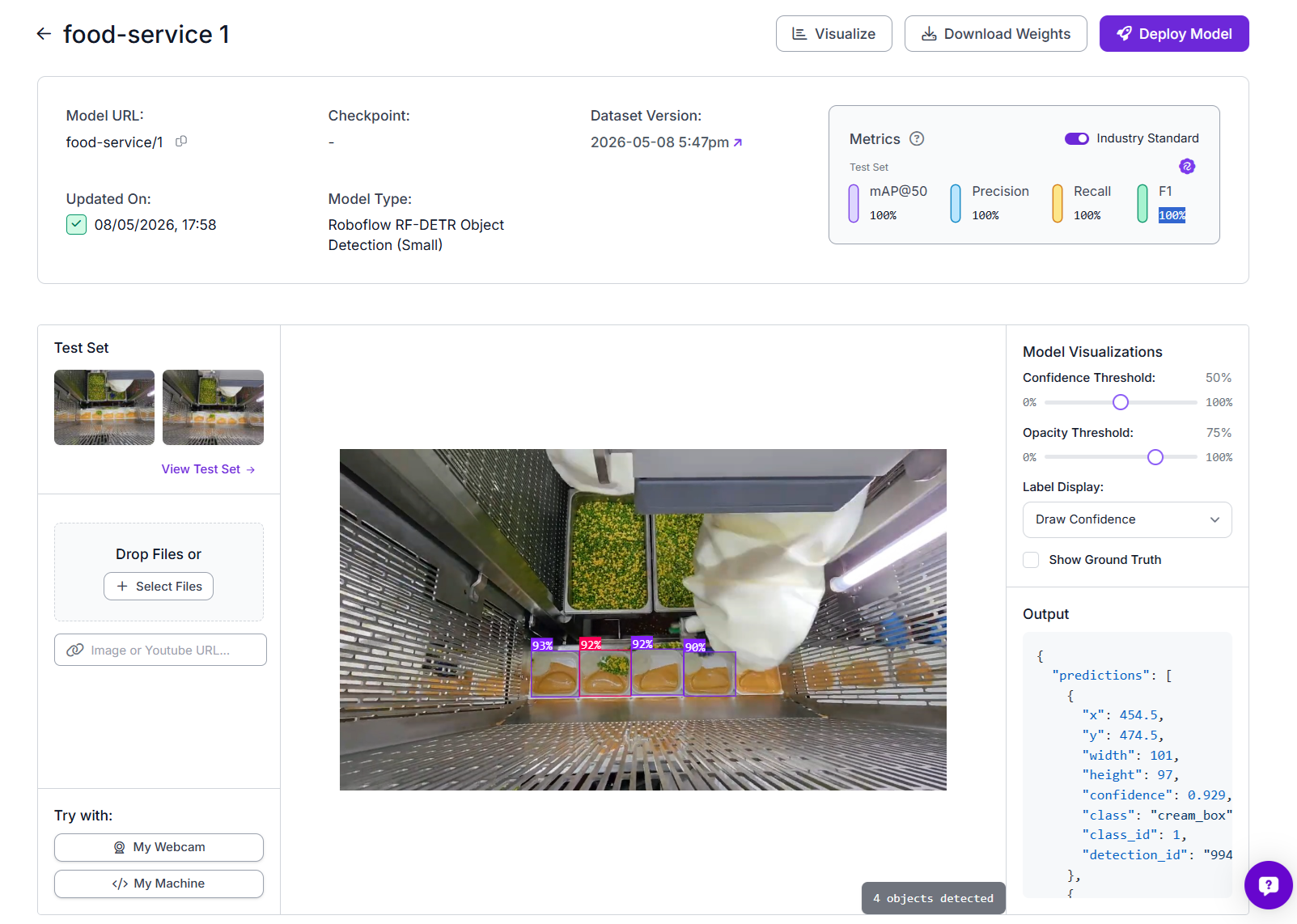
To train, upload your annotated dataset to Roboflow, create a dataset version with your chosen augmentations, and click Train. For this two-class problem on a fixed camera setup, default augmentations including horizontal flip, brightness variation, and slight rotation are sufficient. Once training completes, you will access the model through Roboflow inference API.
The high metrics on this model reflect the fact that the two classes are visually well separated when viewed from the correct camera angle, and the training images were captured under the same conditions as production. If you see lower metrics, the most likely causes are inconsistent lighting between training and production, or annotated images that include too much variation in camera angle.
Step 4: Building the Roboflow Workflow
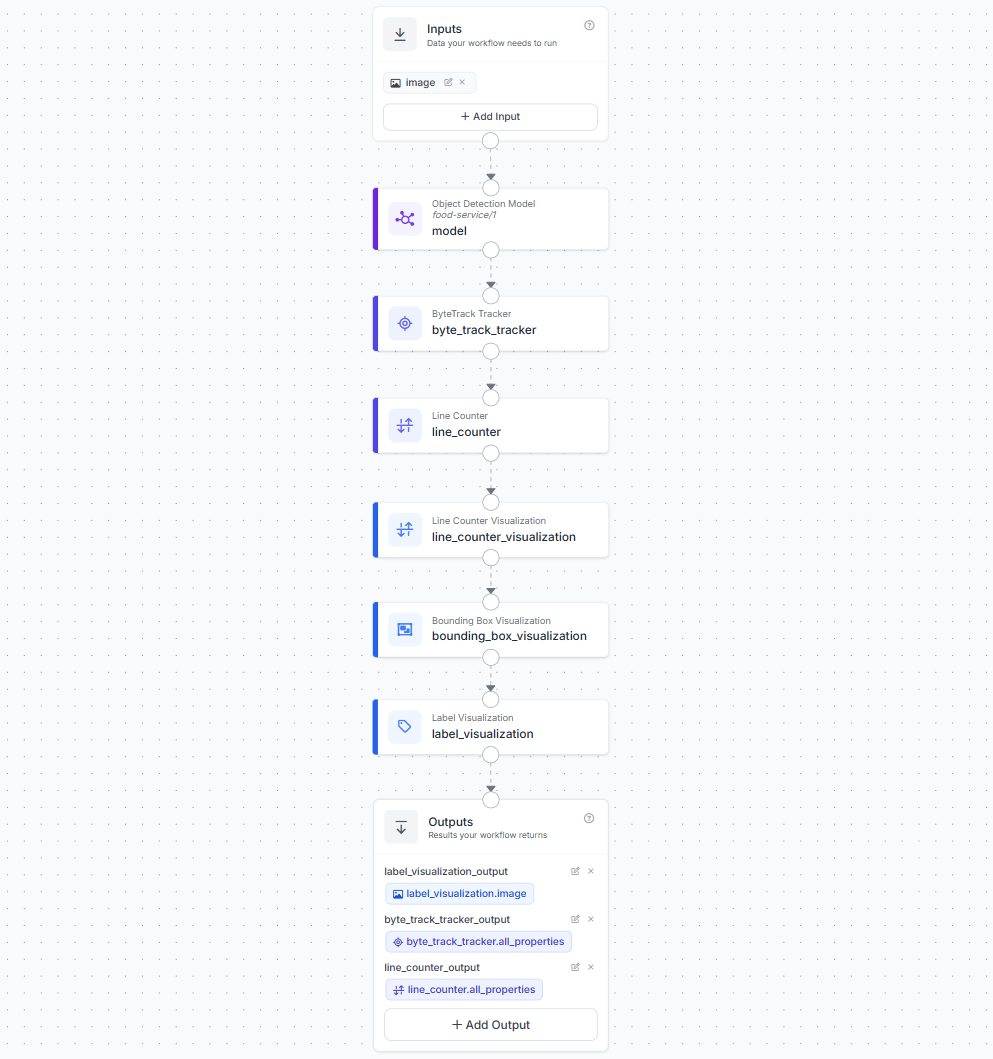
Create a workflow in the Roboflow dashboard with one image input. Add the following blocks in sequence.
The first block is an Object Detection Model block. Connect the image input to it and set the model to food-service/1. This block runs your trained RF-DETR model and returns bounding box predictions with class labels and confidence scores for every box detected in the frame.
The second block is a ByteTrack Tracker block connected to the model output. ByteTrack assigns a unique persistent tracker ID to each detected box and maintains that ID across frames as the box moves through the camera field of view. This is what allows the system to count each box exactly once regardless of how many frames it appears in.
The third block is a Line Counter block connected to the ByteTrack output. Configure the counting line to sit vertically across the conveyor, positioned after the filling station so that only boxes that have passed through the robot station are counted. The Line Counter fires a crossing event and increments count_in or count_out each time a tracked box moves across the line. It also populates detections_in and detections_out with the exact prediction dicts for the boxes that crossed, including their class label. This is how the deployment script knows whether each crossing was complete or incomplete.
The fourth block is a Line Counter Visualization block connected to the Line Counter output. This draws the counting line on the frame.
The fifth block is a Bounding Box Visualization block, and the sixth is a Label Visualization block. These draw the detection boxes and class labels on the frame.
In the Outputs block, add three outputs. Set label_visualization.image as label_visualization_output for the annotated frame. Set byte_track_tracker.all_properties as byte_track_tracker_output for the full tracker data. Set line_counter.all_properties as line_counter_output for the counter data including the crossing detections.
Step 5: Deploy the Workflow
Before looking at the code it helps to understand exactly what happens at each frame and why the counting logic works the way it does.
The camera delivers frames to the Roboflow workflow continuously via the WebRTC streaming session. For each frame, the model detects all boxes visible in the camera field and assigns a confidence score and class label to each. ByteTrack then matches each detection to an existing tracked ID or starts a new track for a box it has not seen before. The Line Counter checks whether any tracked box has crossed the configured vertical line since the last frame.
When a crossing is detected, the Line Counter populates detections_out.predictions with the exact prediction dicts for the boxes that crossed. Each dict contains the class label, the tracker ID, the bounding box coordinates, and the confidence score. The deployment script reads these dicts directly. It does not need to guess which tracked boxes crossed the line, because the Line Counter has already identified them precisely.
The class from that prediction dict determines whether the crossing is recorded as complete or incomplete. A corn_peas_cream_box detection crossing the line increments the complete counter.
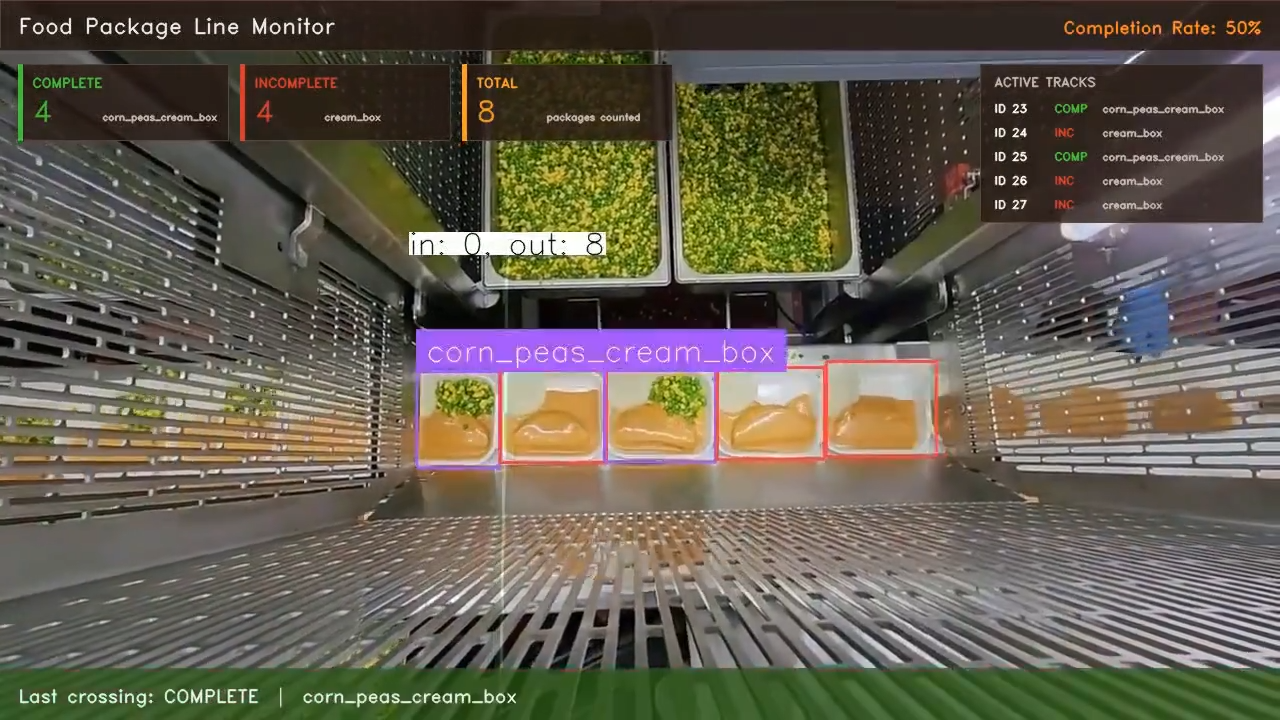
corn_peas_cream_box detection crossing the line counterA cream_box detection crossing the line increments the incomplete counter.
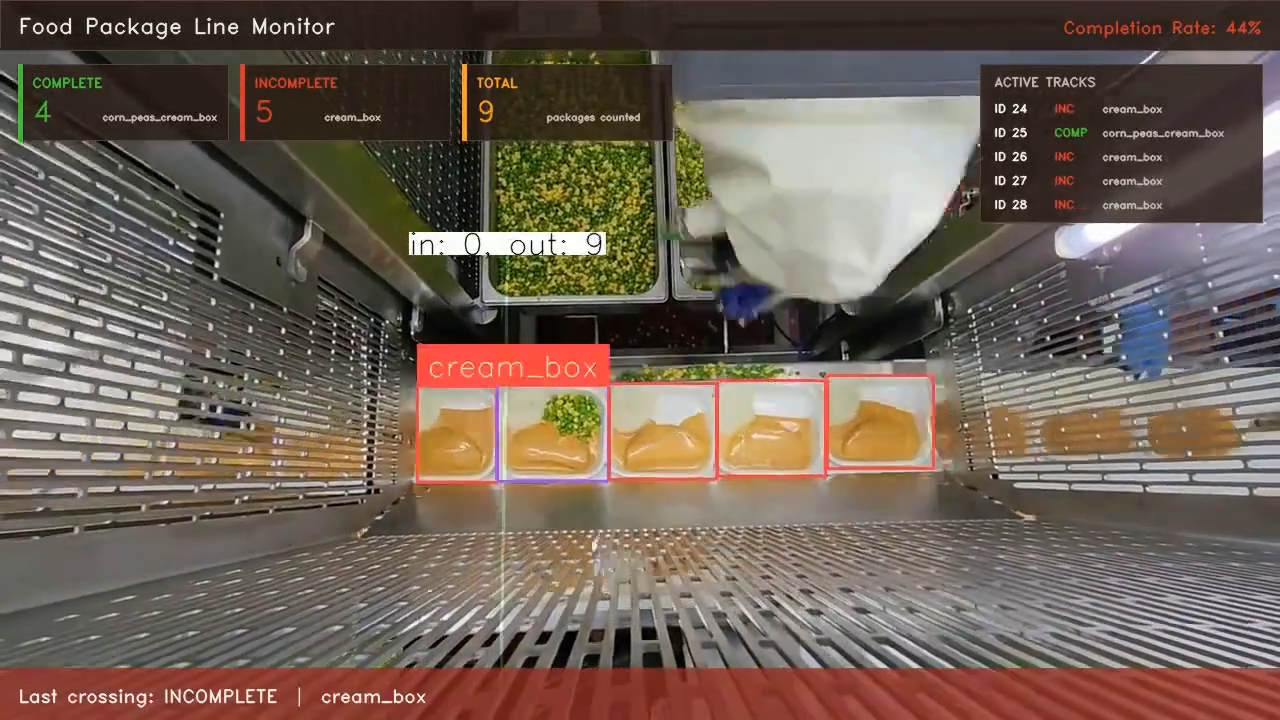
cream_box detection crossing the line counterEach tracker ID is counted at most once, because once a box crosses the line it leaves the camera field and ByteTrack stops tracking it.
Here's the complete deployment script that perform these operations.
import cv2
import base64
import json
import os
import queue
import threading
import numpy as np
from datetime import datetime
from inference_sdk import InferenceHTTPClient
from inference_sdk.webrtc import VideoFileSource, StreamConfig, VideoMetadata

API_KEY     = "ROBLFLOW_API_KEY"
WORKSPACE   = "tim-4ijf0"
WORKFLOW_ID = "food-package-ai"
VIDEO_PATH  = "corn_and_peas.mp4"

CLASS_COMPLETE   = "corn_peas_cream_box"
CLASS_INCOMPLETE = "cream_box"

COUNT_DIRECTION = "out"

state = {
    "complete":     0,
    "incomplete":   0,
    "last_class":   "",
    "crossing_log": [],
    "lock":         threading.Lock()
}

def get_predictions(container) -> list:
    if container is None:
        return []
    if isinstance(container, list):
        container = container[0] if container else {}
    if isinstance(container, dict):
        return container.get("predictions", [])
    return []


def get_class(pred: dict) -> str:
    return str(pred.get("class") or pred.get("class_name") or "")


def parse_line_crossings(raw_line) -> list:
    if raw_line is None:
        return []
    if isinstance(raw_line, list):
        raw_line = raw_line[0] if raw_line else {}
    if not isinstance(raw_line, dict):
        return []

    key = f"detections_{COUNT_DIRECTION}"
    return get_predictions(raw_line.get(key, {}))


def parse_active_tracks(raw_track) -> list:
    if raw_track is None:
        return []
    if isinstance(raw_track, list):
        raw_track = raw_track[0] if raw_track else {}
    if not isinstance(raw_track, dict):
        return []
    td = raw_track.get("tracked_detections", {})
    return get_predictions(td)


def decode_viz(raw_img):
    if raw_img is None:
        return None
    try:
        b64 = raw_img.get("value", "") if isinstance(raw_img, dict) else str(raw_img)
        if not b64:
            return None
        return cv2.imdecode(
            np.frombuffer(base64.b64decode(b64), np.uint8),
            cv2.IMREAD_COLOR
        )
    except Exception:
        return None

def draw_overlay(frame, complete, incomplete, last_class, active_tracks):
    out = frame.copy()
    fh, fw = out.shape[:2]

    total = complete + incomplete
    rate = round(complete / total * 100) if total else 0

    G = (50, 200, 70)
    R = (45, 55, 215)
    A = (25, 160, 255)

    W = (245, 245, 245)
    MUTED = (175, 180, 200)

    PANEL = (22, 26, 40)
    BORDER = (58, 64, 90)

    FONT = cv2.FONT_HERSHEY_DUPLEX


    def panel(x, y, w, h, alpha=0.80):
        overlay = out.copy()

        cv2.rectangle(
            overlay,
            (x, y),
            (x + w, y + h),
            PANEL,
            -1
        )

        cv2.addWeighted(
            overlay,
            alpha,
            out,
            1 - alpha,
            0,
            out
        )

        cv2.rectangle(
            out,
            (x, y),
            (x + w, y + h),
            BORDER,
            1
        )


    def text(
        s,
        x,
        y,
        scale=0.55,
        color=W,
        thickness=1
    ):
        cv2.putText(
            out,
            str(s),
            (x, y),
            FONT,
            scale,
            color,
            thickness,
            cv2.LINE_AA
        )


    panel(0, 0, fw, 50, alpha=0.86)

    text(
        "Food Package Line Monitor",
        18,
        33,
        scale=0.72,
        thickness=1
    )

    rate_color = G if rate >= 80 else (A if rate >= 50 else R)

    rate_text = f"Completion Rate: {rate}%"

    (tw, _), _ = cv2.getTextSize(
        rate_text,
        FONT,
        0.56,
        1
    )

    text(
        rate_text,
        fw - tw - 18,
        33,
        scale=0.56,
        color=rate_color,
        thickness=1
    )


    card_w = 210
    card_h = 76
    gap = 12

    cards = [
        ("COMPLETE", complete, CLASS_COMPLETE, G),
        ("INCOMPLETE", incomplete, CLASS_INCOMPLETE, R),
        ("TOTAL", total, "packages counted", A),
    ]

    for i, (title, value, subtitle, color) in enumerate(cards):

        x = 18 + i * (card_w + gap)
        y = 64

        panel(x, y, card_w, card_h)

        cv2.rectangle(
            out,
            (x, y),
            (x + 4, y + card_h),
            color,
            -1
        )

        text(
            title,
            x + 14,
            y + 23,
            scale=0.44,
            color=color,
            thickness=1
        )

        text(
            value,
            x + 14,
            y + 57,
            scale=0.98,
            color=color,
            thickness=1
        )

        text(
            subtitle,
            x + 84,
            y + 56,
            scale=0.32,
            color=MUTED,
            thickness=1
        )


    if active_tracks:
        px = fw - 300
        py = 64

        row_h = 24
        ph = 38 + min(len(active_tracks), 8) * row_h

        panel(px, py, 282, ph)

        text(
            "ACTIVE TRACKS",
            px + 14,
            py + 22,
            scale=0.42,
            color=MUTED,
            thickness=1
        )

        for i, pred in enumerate(active_tracks[:8]):

            cls = get_class(pred)
            tid = pred.get("tracker_id", "?")

            ok = cls == CLASS_COMPLETE

            color = G if ok else R
            status = "COMP" if ok else "INC"

            yy = py + 48 + i * row_h

            text(
                f"ID {tid}",
                px + 14,
                yy,
                scale=0.38,
                color=W,
                thickness=1
            )

            text(
                status,
                px + 74,
                yy,
                scale=0.38,
                color=color,
                thickness=1
            )

            text(
                cls[:20],
                px + 122,
                yy,
                scale=0.34,
                color=MUTED,
                thickness=1
            )


    if last_class:

        ok = last_class == CLASS_COMPLETE

        banner_color = (
            (20, 95, 45)
            if ok else
            (35, 35, 145)
        )

        label = (
            "COMPLETE"
            if ok else
            "INCOMPLETE"
        )

        overlay = out.copy()

        cv2.rectangle(
            overlay,
            (0, fh - 52),
            (fw, fh),
            banner_color,
            -1
        )

        cv2.addWeighted(
            overlay,
            0.76,
            out,
            0.24,
            0,
            out
        )

        text(
            f"Last crossing: {label}  |  {last_class}",
            18,
            fh - 18,
            scale=0.60,
            color=W,
            thickness=1
        )

    return out


def save_report(start_time, output_dir="reports"):
    os.makedirs(output_dir, exist_ok=True)
    sid      = start_time.strftime("%Y%m%d_%H%M%S")
    duration = int((datetime.now() - start_time).total_seconds())

    with state["lock"]:
        complete   = state["complete"]
        incomplete = state["incomplete"]
        log        = list(state["crossing_log"])

    total = complete + incomplete
    rate  = round(complete / total * 100) if total else 0

    json_path = os.path.join(output_dir, f"package_report_{sid}.json")
    txt_path  = os.path.join(output_dir, f"package_summary_{sid}.txt")

    with open(json_path, "w") as f:
        json.dump({
            "session_id":    sid,
            "video":         VIDEO_PATH,
            "start_time":    start_time.isoformat(),
            "duration_secs": duration,
            "summary": {
                "total":       total,
                "complete":    complete,
                "incomplete":  incomplete,
                "rate_pct":    rate,
            },
            "crossing_log": log
        }, f, indent=2)

    sep = "=" * 56
    with open(txt_path, "w") as f:
        f.write(f"{sep}\n  FOOD PACKAGE LINE REPORT\n{sep}\n\n")
        f.write(f"  Video    : {VIDEO_PATH}\n")
        f.write(f"  Duration : {duration}s\n\n")
        f.write(f"RESULTS\n{'-'*40}\n")
        f.write(f"  Total      : {total}\n")
        f.write(f"  Complete   : {complete}  ({rate}%)\n")
        f.write(f"  Incomplete : {incomplete}\n\n")
        f.write(f"CROSSING LOG\n{'-'*40}\n")
        if log:
            for e in log:
                f.write(
                    f"  [{e['time']}]  frame {e['frame_id']:>5}"
                    f"  {e['status']:<12}  ID {e['tracker_id']:<4}"
                    f"  {e['class']}\n"
                )
        else:
            f.write("  No crossings recorded.\n")
        f.write(f"\n{sep}\n")

    print(f"\n[REPORT] {json_path}\n         {txt_path}")

def main():
    start_time = datetime.now()
    print(f"\n{'='*56}")
    print(f"  FOOD PACKAGE MONITOR  |  {VIDEO_PATH}")
    print(f"  Counting direction: {COUNT_DIRECTION}")
    print(f"{'='*56}\n")

    display_q    = queue.Queue(maxsize=8)
    session_done = threading.Event()

    os.makedirs("reports", exist_ok=True)
    out_video_path = f"reports/output_{start_time.strftime('%Y%m%d_%H%M%S')}.mp4"
    video_writer   = cv2.VideoWriter(
        out_video_path,
        cv2.VideoWriter_fourcc(*"mp4v"),
        30.0,
        (1280, 720)
    )
    print(f"[INFO] Recording to: {out_video_path}")

    client = InferenceHTTPClient.init(
        api_url="https://serverless.roboflow.com",
        api_key=API_KEY
    )

    source = VideoFileSource(VIDEO_PATH, realtime_processing=True)

    config = StreamConfig(
        stream_output=[],
        data_output=[
            "label_visualization_output",
            "byte_track_tracker_output",
            "line_counter_output"
        ],
        requested_plan="webrtc-gpu-medium",
        requested_region="us",
    )

    session = client.webrtc.stream(
        source=source,
        workflow=WORKFLOW_ID,
        workspace=WORKSPACE,
        image_input="image",
        config=config
    )

    @session.on_data()
    def on_data(data: dict, metadata: VideoMetadata):
        if data is None:
            return

        fid      = metadata.frame_id
        raw_line = data.get("line_counter_output")
        raw_track= data.get("byte_track_tracker_output")

        crossed_preds = parse_line_crossings(raw_line)
        active_tracks = parse_active_tracks(raw_track)

        count_in  = raw_line.get("count_in",  0) if isinstance(raw_line, dict) else 0
        count_out = raw_line.get("count_out", 0) if isinstance(raw_line, dict) else 0
        active_summary = [
            f"ID{p.get('tracker_id')}={get_class(p)}" for p in active_tracks
        ]
        print(f"[F{fid:>5}]  in={count_in}  out={count_out}"
              f"  active={active_summary}"
              f"  crossed={[get_class(p) for p in crossed_preds]}")

        new_events = []
        with state["lock"]:
            for pred in crossed_preds:
                cls = get_class(pred)
                tid = pred.get("tracker_id", "?")
                if cls == CLASS_COMPLETE:
                    state["complete"] += 1
                    status = "COMPLETE"
                elif cls == CLASS_INCOMPLETE:
                    state["incomplete"] += 1
                    status = "INCOMPLETE"
                else:
                    continue

                state["last_class"] = cls
                state["crossing_log"].append({
                    "time":       datetime.now().strftime("%H:%M:%S"),
                    "frame_id":   fid,
                    "class":      cls,
                    "tracker_id": tid,
                    "status":     status,
                    "running_complete":   state["complete"],
                    "running_incomplete": state["incomplete"],
                })
                new_events.append((cls, tid, status))
                print(f"  >>> CROSSED  ID={tid}  {status}"
                      f"  C:{state['complete']}  I:{state['incomplete']}")

            complete   = state["complete"]
            incomplete = state["incomplete"]
            last_class = state["last_class"]

        frame = decode_viz(data.get("label_visualization_output"))
        if frame is None:
            return

        fh, fw = frame.shape[:2]
        if fw < 1280:
            frame = cv2.resize(frame, (1280, 720),
                               interpolation=cv2.INTER_LINEAR)

        rendered = draw_overlay(
            frame, complete, incomplete, last_class, active_tracks
        )

        video_writer.write(rendered)

        try:
            display_q.put_nowait(rendered)
        except queue.Full:
            pass

    def run_session():
        try:
            session.run()
        finally:
            session_done.set()

    sdk_thread = threading.Thread(target=run_session, daemon=True)
    sdk_thread.start()

    print("[INFO] Press Q to stop.\n")
    cv2.namedWindow("Food Package Monitor", cv2.WINDOW_NORMAL)
    cv2.resizeWindow("Food Package Monitor", 1280, 720)

    while not session_done.is_set():
        try:
            frame = display_q.get(timeout=0.05)
            cv2.imshow("Food Package Monitor", frame)
        except queue.Empty:
            pass
        if cv2.waitKey(1) & 0xFF == ord("q"):
            session.close()
            break

    while not display_q.empty():
        try:
            cv2.imshow("Food Package Monitor", display_q.get_nowait())
            cv2.waitKey(30)
        except queue.Empty:
            break

    sdk_thread.join(timeout=5)
    video_writer.release()
    cv2.destroyAllWindows()
    print(f"[INFO] Output video saved: {out_video_path}")

    with state["lock"]:
        c, i = state["complete"], state["incomplete"]
    t = c + i
    r = round(c / t * 100) if t else 0
    print(f"\n{'='*56}")
    print(f"  FINAL  Total={t}  Complete={c}({r}%)  Incomplete={i}")
    print(f"{'='*56}")
    save_report(start_time)


if __name__ == "__main__":
    main()
The script connects to the Roboflow WebRTC streaming session, processes every frame from the video file, and handles three data outputs simultaneously, the annotated visualization image, the ByteTrack tracker detections, and the line counter crossings. For each frame it reads detections_out.predictions directly from line_counter_output. These are the exact prediction dicts for boxes that crossed the line in that frame, each containing the class label and tracker ID. The tracker ID is a unique integer ByteTrack assigns to each box and maintains across frames as it moves along the conveyor, so you can follow any individual box from entry to crossing. When a crossing prediction contains corn_peas_cream_box the complete counter increments and when it contains cream_box the incomplete counter increments.
Two files are saved to a reports/ folder at the end of each session. The JSON report contains the full session metadata, a summary with total, complete, incomplete, and completion rate, and a crossing log with one entry per box that crossed the line. Each entry records the timestamp, frame ID, tracker ID, class, status, and running counts at the moment of crossing.
The plain text summary gives the same information in a format suited for shift handover notes or a production manager's daily review.
========================================================
  FOOD PACKAGE LINE REPORT
========================================================

  Video    : corn_and_peas.mp4
  Duration : 42s

RESULTS
----------------------------------------
  Total      : 12
  Complete   : 9  (75%)
  Incomplete : 3

CROSSING LOG
----------------------------------------
  [14:22:11]  frame    84  COMPLETE     ID 6    corn_peas_cream_box
  [14:22:13]  frame   102  INCOMPLETE   ID 7    cream_box
  [14:22:15]  frame   118  COMPLETE     ID 8    corn_peas_cream_box
  ...
========================================================
A 75% completion rate in a session means one in four boxes reached the inspection point without being filled. That is the kind of number that triggers an investigation into whether the robot filling station missed boxes, ran out of ingredient, or had a timing fault. Without this system that number does not exist. Production only knows something is wrong when a sealed incomplete box reaches the customer.
What the Food Package Monitoring System Produces
Food Package Monitoring system turns every package crossing the inspection line into a structured production record. Using ByteTrack tracking together with a line counter, the workflow monitors food packages moving through the conveyor and counts them only when they cross the defined inspection line. Packages detected as corn_peas_cream_box are treated as complete products, while packages detected as cream_box are treated as incomplete and flagged for rework or inspection. The system logs timestamps, frame IDs, tracker IDs, package class, completion status, and running production counts automatically for every crossing event.
Because counting happens only at the line crossing stage, the reported numbers represent actual production output rather than temporary detections inside the frame. This makes metrics such as completion rate, incomplete package frequency, and total packaged output much more reliable for production monitoring. The live results also displays active tracked packages, completion percentages, and the most recent crossing event directly on the workflow visualization video feed.
The system also creates production analytics that can be used for operational decision-making. A rise in incomplete cream_box detections may indicate problems in the filling or assembly stage, such as ingredient supply issues, robotic placement failures, or process timing problems. Since every event is timestamped and saved automatically into JSON and text reports, the workflow provides a continuous audit trail for quality assurance, production analysis, and shift-level reporting without requiring manual inspection or barcode scanning.
Scaling the Food Package Monitoring System
The example shown here processes a recorded production video, which is a practical starting point for testing tracking accuracy, package classification, and line-counting logic before deploying on a live line.
In production, the same architecture scales in two common ways. For continuous conveyor monitoring on meal-box packaging lines or automated food assembly stations, a WebRTC streaming pipeline runs continuously from a fixed overhead camera. ByteTrack, line counting, and package classification all operate in real time, with every crossing event appended to rolling CSV and JSON logs for the current shift.
For event-driven inspection systems, the workflow runs only when triggered by an external signal such as a conveyor sensor, a PLC event, a robotic packaging stage, or a sealing checkpoint. The trigger acts as the inspection event and the workflow processes only the relevant package frame or short video segment before writing its report.
Both patterns produce the same structured output format including package IDs, timestamps, completion status, tracker IDs, and production analytics. That consistency makes it straightforward to scale from a single inspection camera to multiple production lines or facilities without changing the reporting layer.
Automate Food Service with AI Conclusion
The two systems built in this post represent different points on the complexity spectrum. The breakfast plate inspector uses a VLM and a prompt, with no training data required, fast to adapt to a new menu, and deployable the same day you write the prompt. The packaging line monitor uses a custom-trained detection model that requires annotated images and a training run, but once trained it runs fast, works offline, and handles the kind of high-throughput conveyor environment where a VLM call per frame would be too slow and too expensive.
Choosing between the two approaches comes down to the nature of the task. If your standard can be described in plain language and the visual context is rich enough for a VLM to reason about, start with the Gemini approach. If you need high-speed detection of a specific set of objects with unique IDs and line-crossing counts, train a dedicated model.
Roboflow Workflows handles the orchestration for both. Roboflow Universe has food item and packaging datasets you can use as a starting point if you do not have your own annotated images yet.


Cite this Post
Use the following entry to cite this post in your research:
Timothy M. (May 12, 2026). Automate Food Service with AI. Roboflow Blog: https://blog.roboflow.com/automate-food-service/