

You can inspect diabetes devices (CGM sensors, insulin pens, test strips) for damage, contamination, and missing parts with Roboflow's vision AI.
In November 2025, Abbott Diabetes Care recalled more than three million FreeStyle Libre 3 and FreeStyle Libre 3 Plus sensors after a manufacturing defect caused incorrect low glucose readings. By the time the recall was issued, the issue had already been linked to hundreds of serious injuries resulting from incorrect treatment decisions. While not every device failure can be identified through visual inspection alone, the incident highlights the importance of quality control for diabetes devices that patients depend on every day.
Diabetes devices present a unique inspection challenge. Glucometers, insulin pens, insulin pumps, lancing devices, CGM sensors, and test strips all differ in appearance and can fail in different ways. Physical damage, contamination, missing components, packaging defects, and visible error indicators may all affect device quality, yet no single labeled dataset exists that covers this entire range of products. As a result, building and maintaining traditional device-specific detection models can be difficult and costly.
In this tutorial, we build a diabetes device inspection workflow in Roboflow Workflows using Gemini. The workflow analyzes images of diabetes devices and produces a structured inspection result that identifies the device, assesses its visible condition, and flags potential issues when they are present. Because the approach relies on a Vision Language Model rather than a task-specific trained detector, it can be applied across a wide range of diabetes devices without requiring a dedicated dataset or model fine-tuning.
Diabetes Device Inspection with Vision AI
Here's the workflow we'll build. The Workflow takes a single image as input and runs two parallel Gemini calls before merging into a shared visualization and logging pipeline.
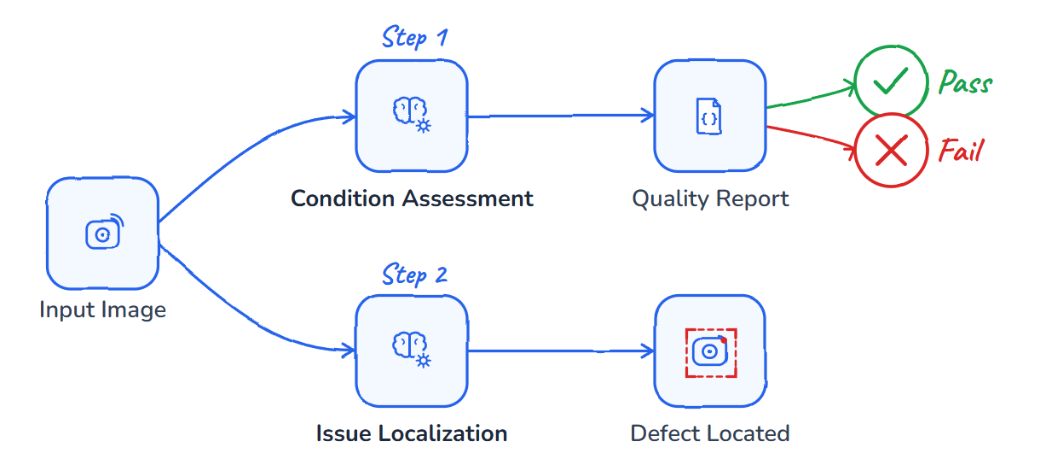
The first call uses Gemini 2.5 Flash in VQA mode to assess the device, returning a JSON with PASS/FAIL, confidence, failure type, summary, and visible issues. The second call uses Gemini to localize the same failure classes, converting its approximate findings into structured outputs for visualization. A Python block then validates the first JSON response, fixes any malformed fields, and outputs a clean report, overlay text, and the final PASS/FAIL status.
The Text Display block overlays the report onto the image from the detection branch, and Roboflow Vision Events logs each inspection with the input image, output image, predictions, and quality check result for monitoring and review.
Build the Workflow
Block List
- Google Gemini (device_inspector): It identifies the device and returns a PASS or FAIL result as structured JSON.
- Google Gemini (issue_detector): It uses Gemini’s object detection mode to locate visible issues in the image.
- VLM As Detector: converts the raw detection output into structured predictions
- Custom Python Block: It parses the JSON from the device inspector, validates it, and produces the report, overlay text, and quality result.
- Text Display: overlays the assessment text on the image from issue_detector_parser
- Roboflow Vision Events: logs each inspection result for monitoring and review
Step 1: Add the Device Inspector
Add a Google Gemini block and name it device_inspector. Connect it to the input image. Set the Task Type to VQA and the Model Version to Gemini 2.5 Flash, then paste the prompt below into the prompt field.
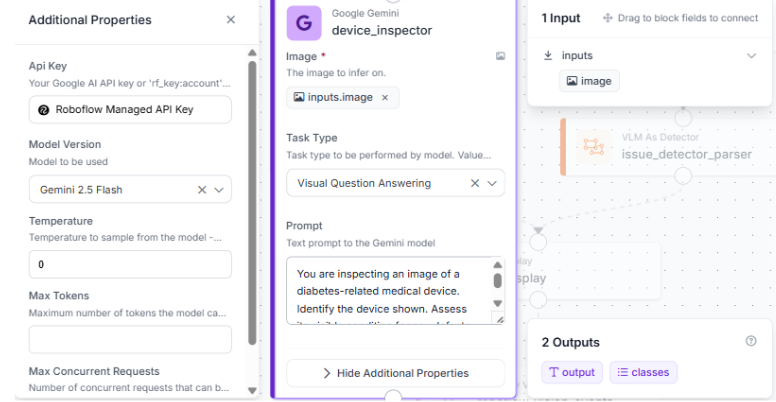
This block is the core of the inspection pipeline. Every assessment downstream depends on the JSON string it returns.
You are inspecting an image of a diabetes-related medical device.
Identify the device shown. Assess its visible condition for any defects, damage, contamination, missing parts, or error indicators.
Determine a status using these exact rules:
Return PASS if the device appears intact, clean, and free of visible issues.
Return FAIL if any defect, damage, contamination, foreign material, missing component, or error indicator is visible.
Return ONLY a valid JSON object with no markdown and no code fences, using exactly these fields:
"device_name": string, "status": PASS or FAIL, "inspection_confidence": a number between 0 and 1 reflecting your actual certainty, use lower values between 0.5 and 0.7 when the image quality is poor or the condition is unclear, and higher values between 0.85 and 1.0 only when the condition is clearly visible and unambiguous, "failure_type": null if status is PASS, otherwise one of Physical Damage, Contamination/Foreign Material, Missing or Incomplete Component, Error Indicator Displayed, Other, "summary": a brief explanation, "visible_issues": a list of strings, empty if PASS
Step 2: Add the Issue Detector
Add a second Google Gemini block named issue_detector, connect it to the same image, set task to unprompted object detection with Gemini 2.5 Flash, and define the classes list.
Physical Damage, Contamination/Foreign Material, Missing or Incomplete Component, Error Indicator Displayed, Other
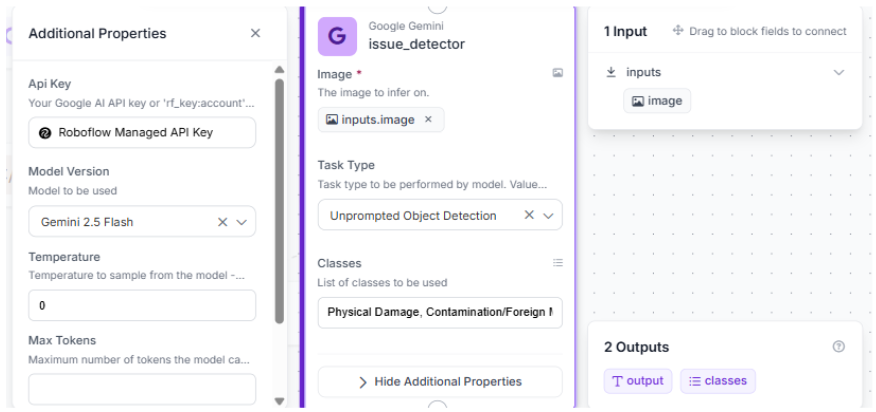
This block runs in parallel with device_inspector and handles the localization branch independently. Because it relies on a general-purpose VLM rather than a trained model, the bounding boxes it produces are indicative rather than precise.
Step 3: Add the VLM As Detector Parser
Add a VLM As Detector block named issue_detector_parser, connect outputs from issue_detector and the image input, set model to google-gemini, task to unprompted object detection, and use the same classes list.
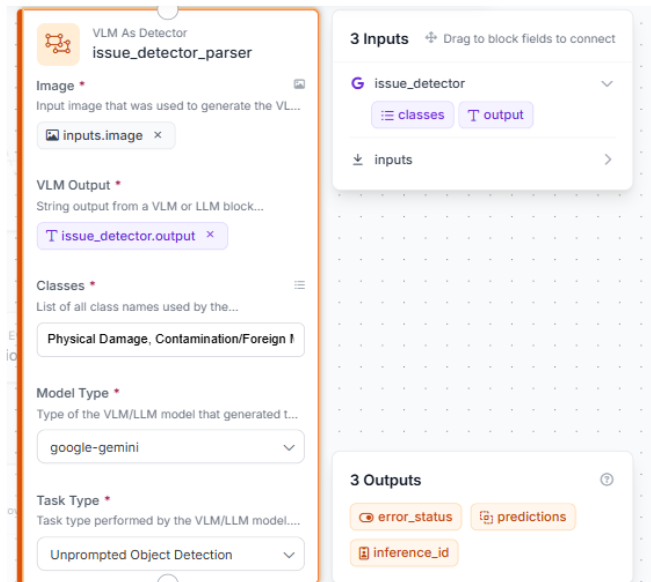
This block converts the raw Gemini detection response into structured predictions that the Text Display block can render onto the image.
Step 4: Add the Clean Report Block
Add a Custom Python Block named clean_report. Set raw_output (any) from device_inspector. Define outputs: report (dict), display_text (string), and qc_result (string). It validates the JSON, formats the report, and extracts the final decision.
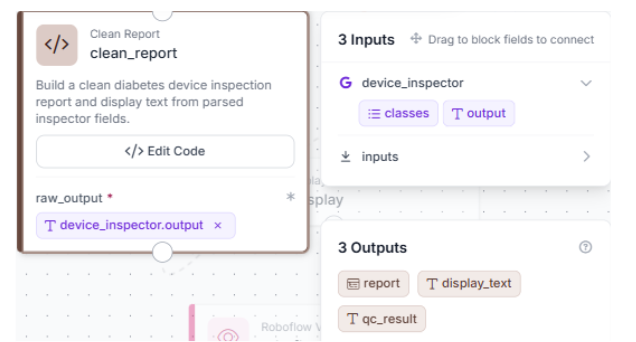
With inputs and outputs ready, open the code editor and add the parsing logic. It cleans Gemini’s raw output, parses the JSON, checks the status, clamps confidence between 0 and 1, handles missing fields, and builds the final report and display text.
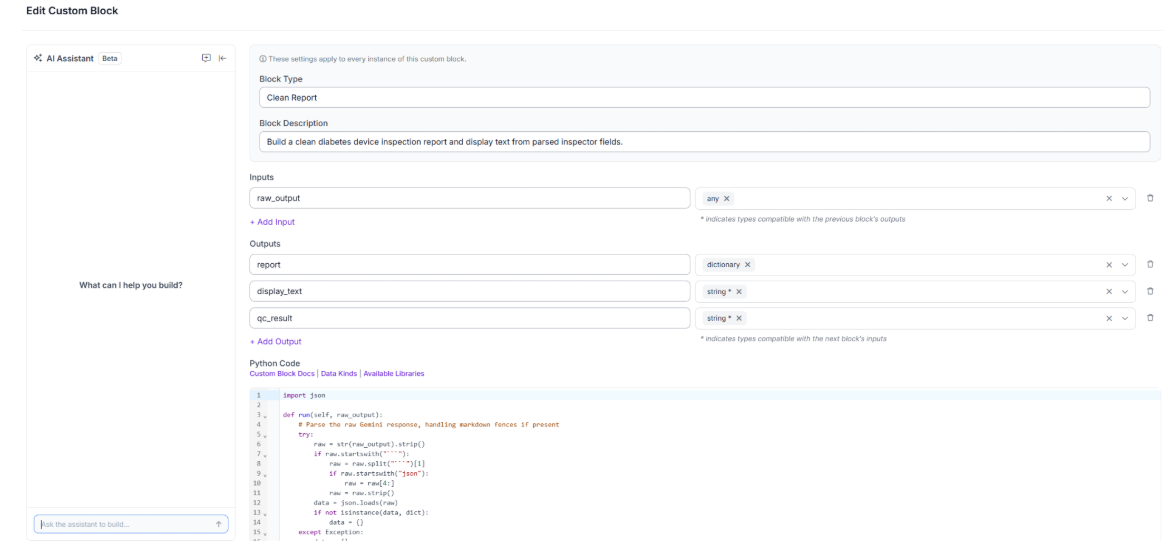
The code does four things: removes any markdown fences from Gemini output, parses and validates the JSON, builds the structured report, and creates the overlay text for the Text Display block.
import json
def run(self, raw_output):
    try:
        raw = str(raw_output).strip()
        if raw.startswith("```"):
            raw = raw.split("```")[1]
            if raw.startswith("json"):
                raw = raw[4:]
            raw = raw.strip()
        data = json.loads(raw)
        if not isinstance(data, dict):
            data = {}
    except Exception:
        data = {}
    device_name = str(data.get("device_name") or "Unknown device")
    status = str(data.get("status") or "FAIL").strip().upper()
    if status not in {"PASS", "FAIL"}:
        status = "FAIL"
    try:
        confidence = float(data.get("inspection_confidence") or 0.0)
    except Exception:
        confidence = 0.0
    confidence = max(0.0, min(1.0, confidence))
    failure_type = data.get("failure_type")
    if failure_type in (None, "", "null", "None") or status == "PASS":
        failure_type_value = None
    else:
        failure_type_value = str(failure_type)
    summary = str(data.get("summary") or "")
    visible_issues_raw = data.get("visible_issues")
    if visible_issues_raw is None or status == "PASS":
        issues = []
    elif isinstance(visible_issues_raw, list):
        issues = [str(i) for i in visible_issues_raw if i not in (None, "")]
    elif isinstance(visible_issues_raw, str):
        stripped = visible_issues_raw.strip()
        if not stripped:
            issues = []
        else:
            try:
                parsed = json.loads(stripped)
                issues = [str(i) for i in parsed if i not in (None, "")] if isinstance(parsed, list) else [str(parsed)]
            except Exception:
                issues = [p.strip() for p in stripped.split(",") if p.strip()]
    else:
        issues = [str(visible_issues_raw)]
    report = {
        "device_name": device_name,
        "status": status,
        "inspection_confidence": confidence,
        "failure_type": failure_type_value,
        "summary": summary,
        "visible_issues": issues,
    }
    lines = [
        f"Device: {device_name}",
        f"Status: {status}",
        f"Confidence: {confidence:.2f}",
    ]
    if failure_type_value:
        lines.append(f"Issue: {failure_type_value}")
    qc_result = "pass" if status == "PASS" else "fail"
    return {"report": report, "display_text": "\n".join(lines), "qc_result": qc_result}
Once the block is saved, the pipeline is ready to parse, validate, and pass the Gemini output through the rest of the workflow.
Step 5: Add the Text Display
Add a Text Display block named text_display. Connect the Text field to display_text from clean_report, and the Image field to the predictions image from issue_detector_parser.
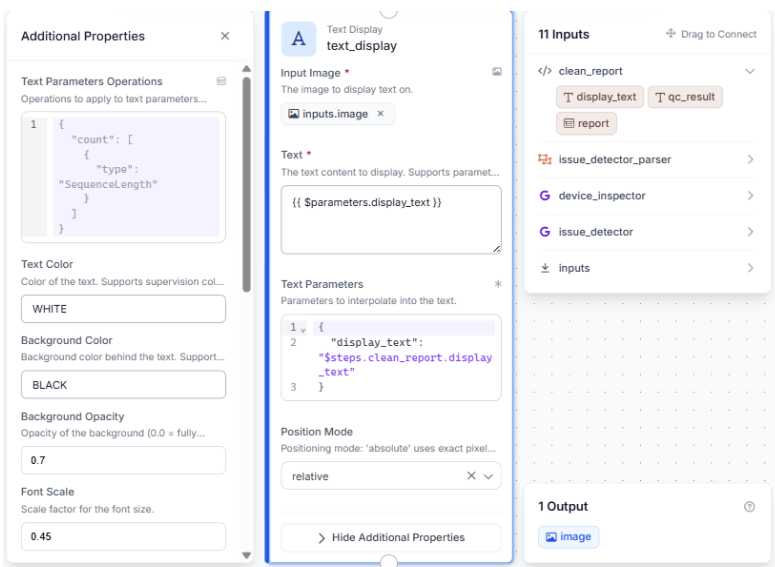
This block produces the final annotated image that gets passed to Vision Events and returned as the Workflow output.
Step 6: Add Vision Events and Outputs
Add a Roboflow Vision Events block. Set Input Image to the original image and Output Image to the result from text_display. Connect Predictions to issue_detector_parser. Set Event Type to Quality Check, Use Case to Medical Device Kit Verification, and Result to qc_result from clean_report.
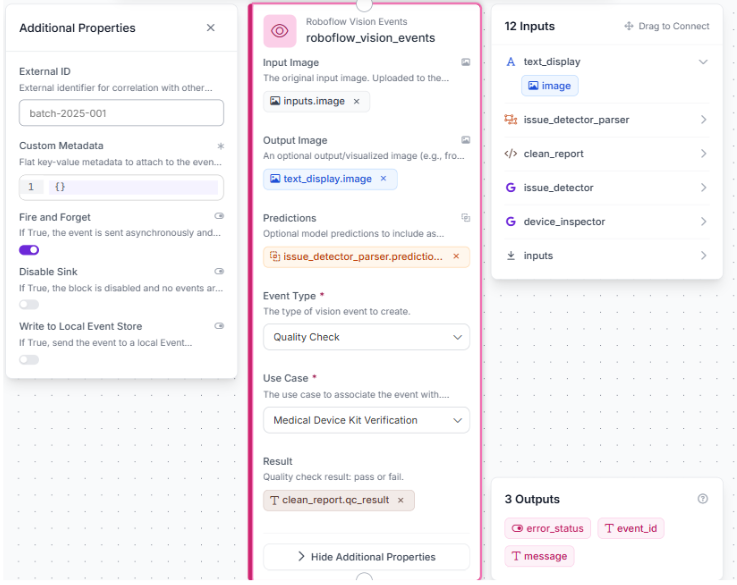
Open the Outputs block and add three outputs: output_image from text_display, quality_report from clean_report, and vision_events_message from roboflow_vision_events.
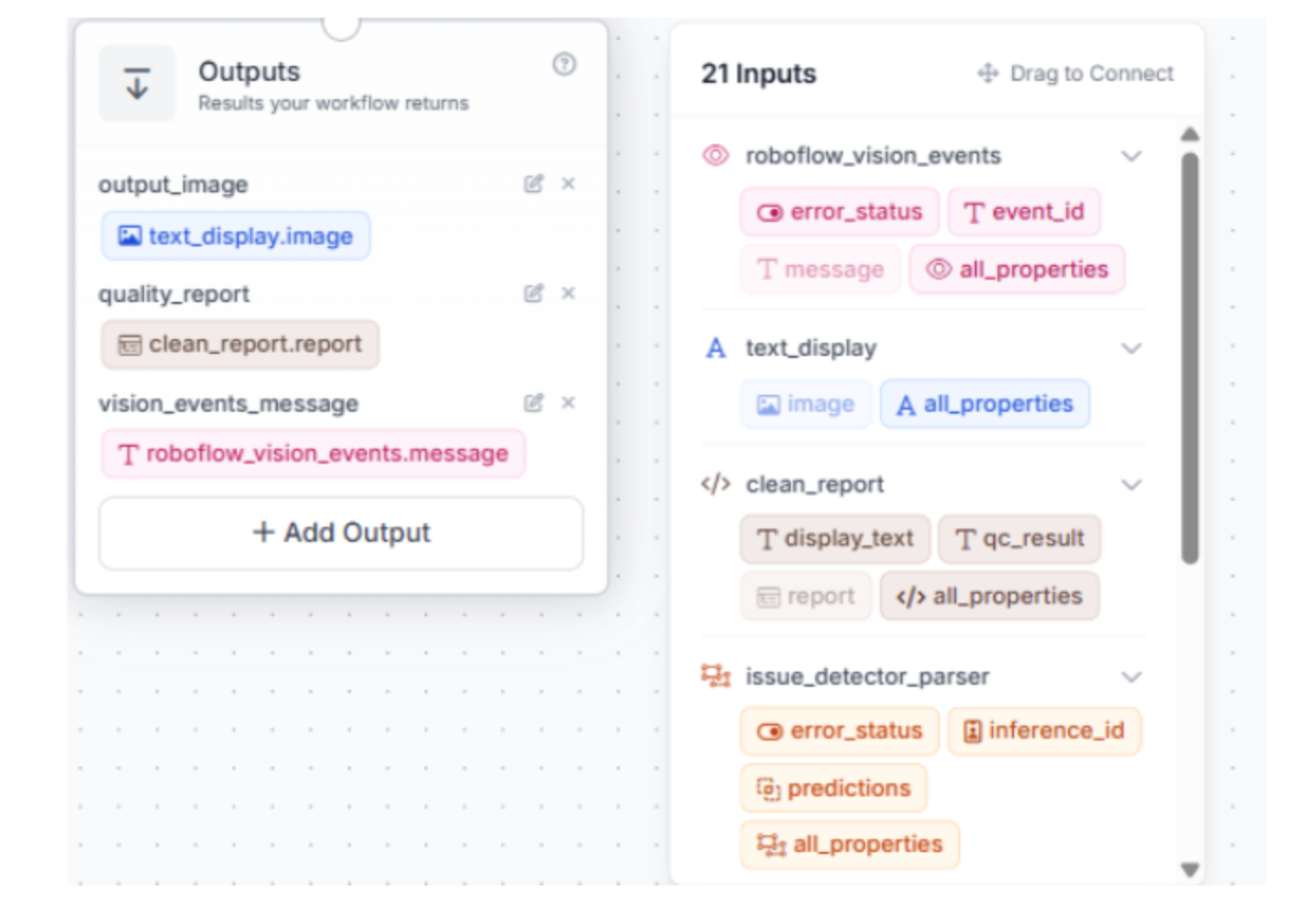
With all blocks connected, the Workflow is ready to test.
Step 7: Review the Full Workflow
All blocks are connected. The image splits into two Gemini branches: assessment and localization. They merge in text_display, go through Vision Events, and then reach Outputs.
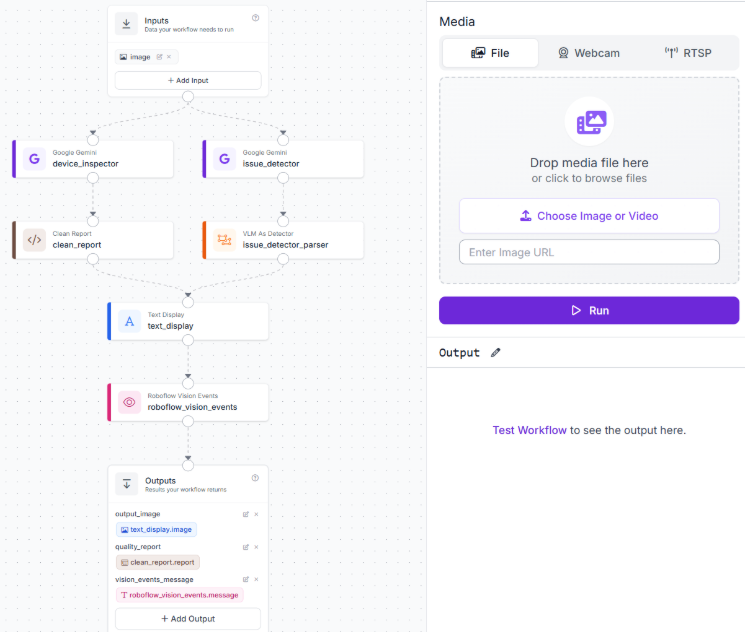
The Workflow is ready to test.
Results
Test 1: PASS
The first test used a Dexcom CGM sensor in good condition. Gemini correctly identified the device, found no visible defects, contamination, or missing components, and returned a clean PASS with a confidence of 0.95.
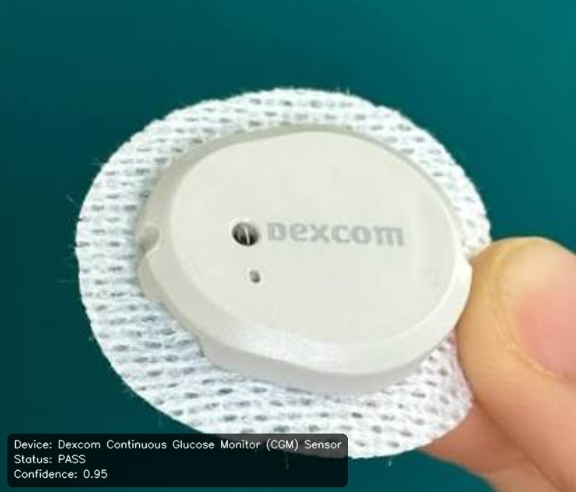
The failure type and visible issues fields came back empty as expected, confirming the device cleared inspection with no issues flagged.
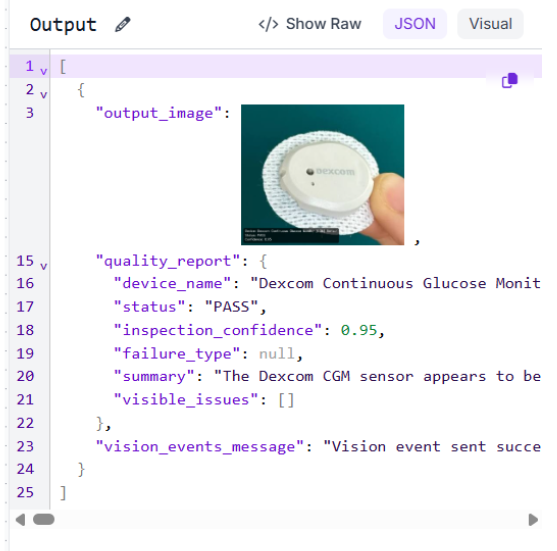
For a clean device, the report is minimal by design: device name, status, confidence, and two empty fields. The overlay on the output image reflects the same information without the summary, keeping the display readable at a glance.
Test 2: FAIL
The second test used a Mounjaro KwikPen with visible cracking inside the glass medication cartridge. Gemini identified the device correctly and classified the defect as Physical Damage with a confidence of 0.95.
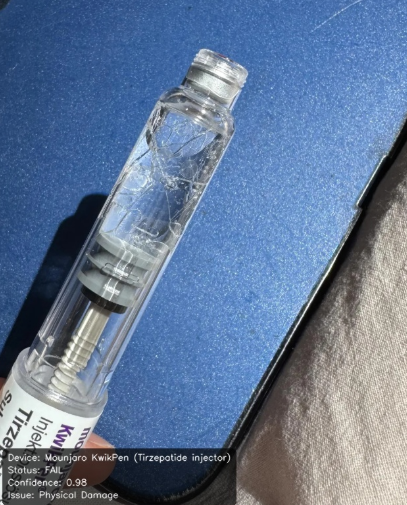
The visible issues field captured the specific defect, and the failure type field provides the routing signal a production system would use to direct the device to the appropriate rejection queue.
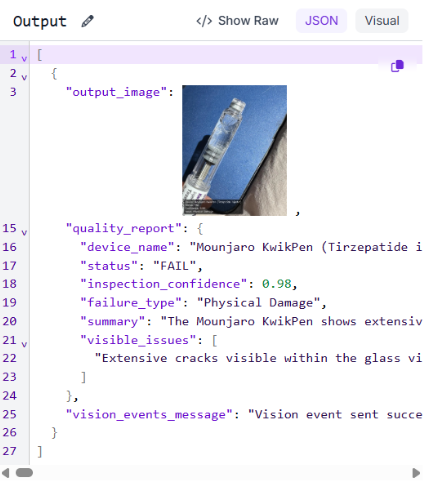
Across both tests, the Workflow correctly identified the device type without any prior training on device-specific data, which is the core advantage of the VLM approach for a category this varied.
Diabetes Device Inspection Production Deployment
Because the assessment uses a general-purpose VLM instead of a trained model, the workflow generalizes across device types. Adding a new category does not require retraining or a new dataset, only a quick test run to confirm reliable performance.
In a production line, the PASS or FAIL result and the failure type drive routing. PASS goes to packaging. FAIL is sent to the correct rejection path: Physical Damage to damage review, Contamination to cleaning or disposal, and Error Indicator Displayed to functional testing.
The quality report JSON is returned as a Workflow output on every run, making it straightforward to push results into a downstream database, quality management system, or alerting pipeline via the Roboflow API or Roboflow Inference.
Roboflow Vision Events logs every inspection automatically with the input image, output image, predictions, and quality check result. This gives quality teams a searchable audit trail and makes it possible to spot patterns over time, such as a spike in Physical Damage results from a specific production batch or device supplier.
For high-throughput environments, the Workflow can be deployed as a REST endpoint and called from existing line control systems, requiring only an image and returning a structured JSON result in under two seconds per device.
Build It Faster with the Roboflow Agent
If you'd rather not add each block by hand, use Roboflow Agent. Instead of configuring blocks one at a time, you describe the pipeline you want in plain text and the Agent builds it for you. Here's an example:
Diabetes Device Inspection AI Conclusion
This workflow demonstrates how an AI-driven approach can streamline visual quality inspection. By standardizing failure types and parsing the response directly through a custom script, the pipeline delivers consistent, structured results across various devices. This approach naturally extends to other product categories with high variety, making any visually identifiable object a strong candidate for automated inspection.
For further reading:


Cite this Post
Use the following entry to cite this post in your research:
Mostafa Ibrahim. (May 25, 2026). Diabetes Device Inspection. Roboflow Blog: https://blog.roboflow.com/diabetes-device-inspection/