

EXIF orientation metadata lets cameras store pixel data in a fixed layout and flag the correct display rotation separately, but computer vision pipelines that ignore this metadata silently train on inconsistently oriented images, causing annotation misalignment and degraded model accuracy. Auto-orientation normalizes every image to a consistent pixel-level orientation before training, and Roboflow enables it with a single toggle in preprocessing settings. The post explains when to use it (almost always) and the narrow cases where it should be skipped.
Image orientation issues are one of the most common but overlooked problems in computer vision pipelines. A dataset may look correct when viewed in a browser or annotation tool, but still contain images that are technically rotated or misinterpreted due to hidden metadata.
This mismatch can silently degrade model performance and lead to inconsistent training data. Auto-orientation solves this by ensuring every image follows a single, consistent pixel-level orientation before it enters the training pipeline.
In this blog, we will discuss when and why auto-orientation matters in computer vision pipelines, and how you can easily auto-orient entire datasets with a single toggle through Roboflow.
When should you auto-orient your images? Almost always.
When an image is captured, it includes metadata that specifies how it should be displayed relative to how its pixel data is stored on disk.
This information is stored in the EXIF orientation field. It allows cameras to save images efficiently at capture time, without physically rotating pixel data, which helps avoid unnecessary processing and potential artifacts.
As a result, many cameras store pixel data in the same layout regardless of whether the photo was taken in landscape or portrait mode. Instead of rotating the pixels, they simply set a flag indicating how the image should be displayed, such as rotating it by 90 or 180 degrees at render time.
Problems arise when an application ignores this metadata and displays the image as-is. In such cases, the visual orientation becomes incorrect, even though the underlying pixel data has not changed.
This can lead to subtle but serious issues, especially in computer vision pipelines. For example, annotations like bounding boxes may no longer align with the objects in the image.
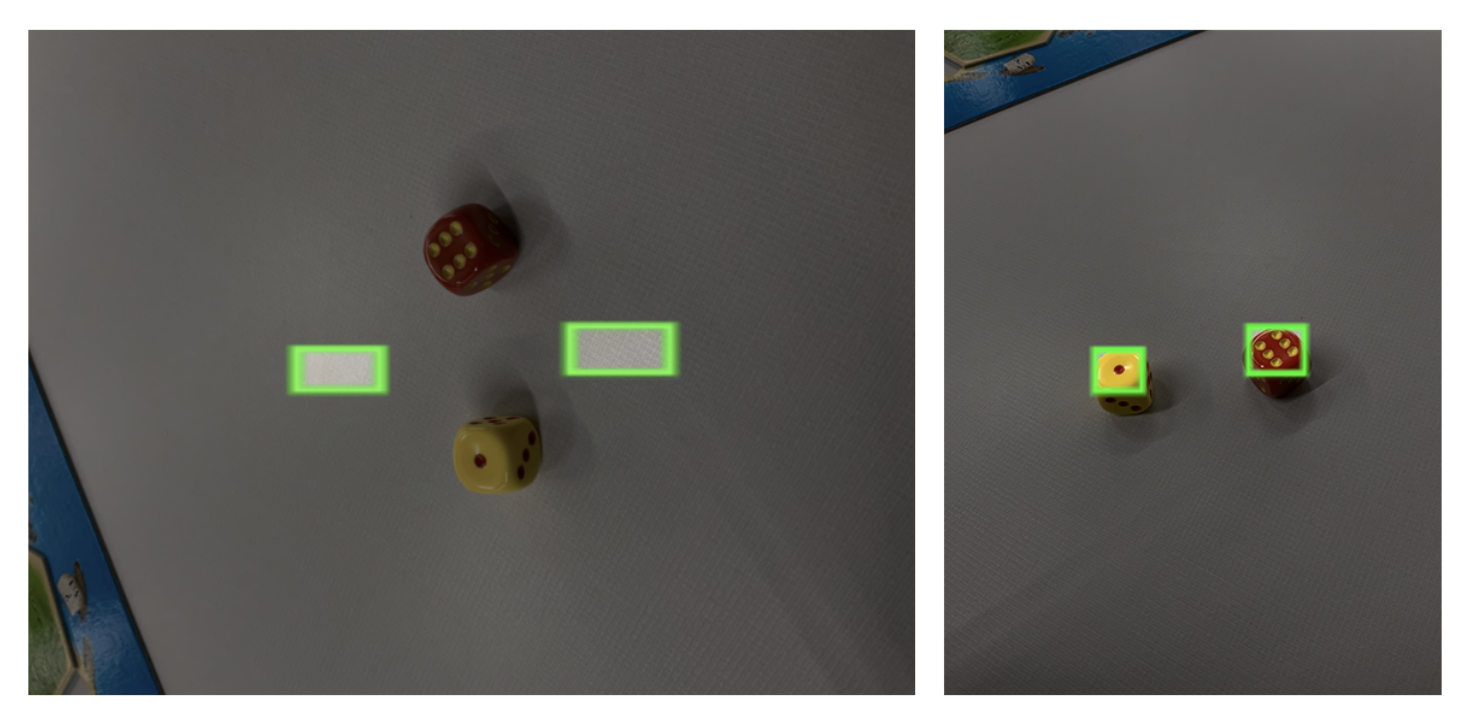
This type of bug is common and easy to overlook when building vision data pipelines.
If some images are effectively treated as (x, y) while others behave like (y, x), your model ends up learning from inconsistent and incorrect data.
Fortunately, tools provided by Roboflow handle this automatically. By enabling Auto-Orient in your preprocessing settings, all images are normalized to the correct orientation, and the EXIF data is stripped before further processing, ensuring consistency across your dataset.
How to easily auto-orient images?
Roboflow Train makes it easy to auto-orient entire datasets with a single toggle during data preparation for training.
After selecting a model architecture in Roboflow Train, you can apply auto-orient preprocessing by simply toggling it on, as shown below.
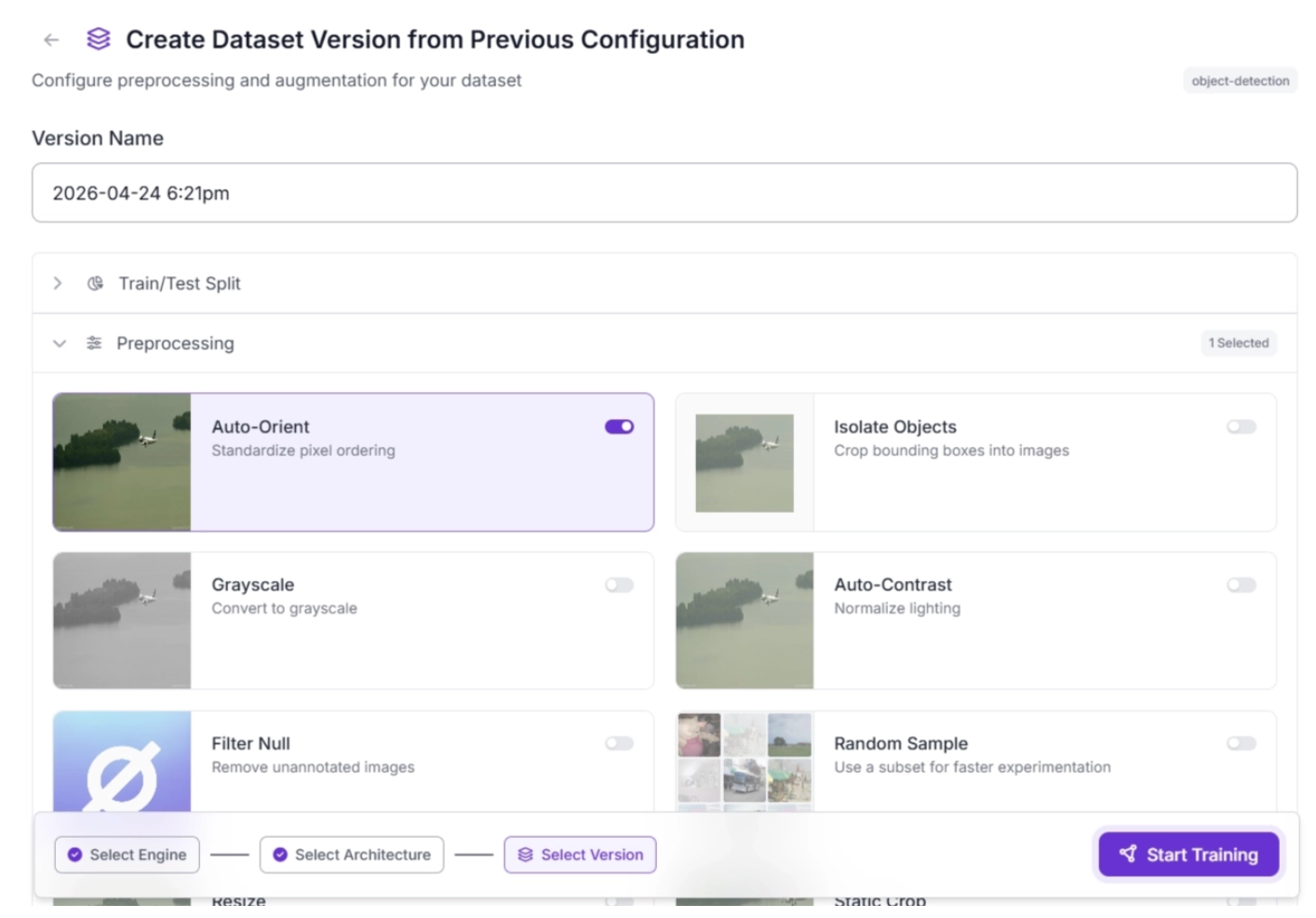
You can also create a new dataset version with this preprocessing step alone, or combine it with additional preprocessing steps, applied consistently across all images in the dataset.
When not to auto-orient?
There are a few specific cases where disabling auto-orientation can be useful for performance.
One example is when building a mobile or embedded application that runs on a controlled device where all images are guaranteed to share the same EXIF orientation. In this case, you may prefer to avoid rotating pixel data at runtime and instead keep everything in a consistent coordinate system. This can slightly improve preprocessing speed and reduce overhead.
As long as your model is trained on images with the same orientation behavior and your annotation pipeline handles it consistently, this approach should work without issues.


Cite this Post
Use the following entry to cite this post in your research:
Brad Dwyer. (Mar 2, 2026). When Should I Auto-Orient My Images?. Roboflow Blog: https://blog.roboflow.com/exif-auto-orientation/