

Poor shelf execution is more expensive than most retailers realize. According to Infilect, planograms fall out of compliance at a rate of roughly 10% per week, and improper product placement alone can reduce in-store sales by as much as 20%, according to OmniShelf. As products get restocked incorrectly or placed in the wrong brand zone, shelves drift from their intended layout, and sales quietly follow.
Planogram compliance ensures products are correctly placed, stocked in proper quantities, and aligned with their assigned brand zones. Traditionally, this is done manually by staff inspecting shelves in-store, which doesn’t scale across many locations or frequent shifts.
In this tutorial, you will build a planogram compliance workflow in Roboflow Workflows using an RF-DETR model and two Gemini analysis steps. The model detects empty shelf zones with bounding boxes, while Gemini identifies products and checks for issues like brand mixing, uneven facings, and misplacement without needing a fixed planogram. Rather than comparing against a predefined layout document, the system audits general shelf organization and flags visible violations in real time. Here's the workflow we'll build.
Planogram Compliance Detection with Robfolow
Start with Roboflow Universe. Home to more than 250,000 open-source datasets, it is often the fastest way to find the data needed for a computer vision project.
1. Build your dataset
For this tutorial, search for the Supermarket Empty Shelf dataset. It contains real supermarket shelf images annotated for empty shelf zones across different store layouts and lighting conditions.
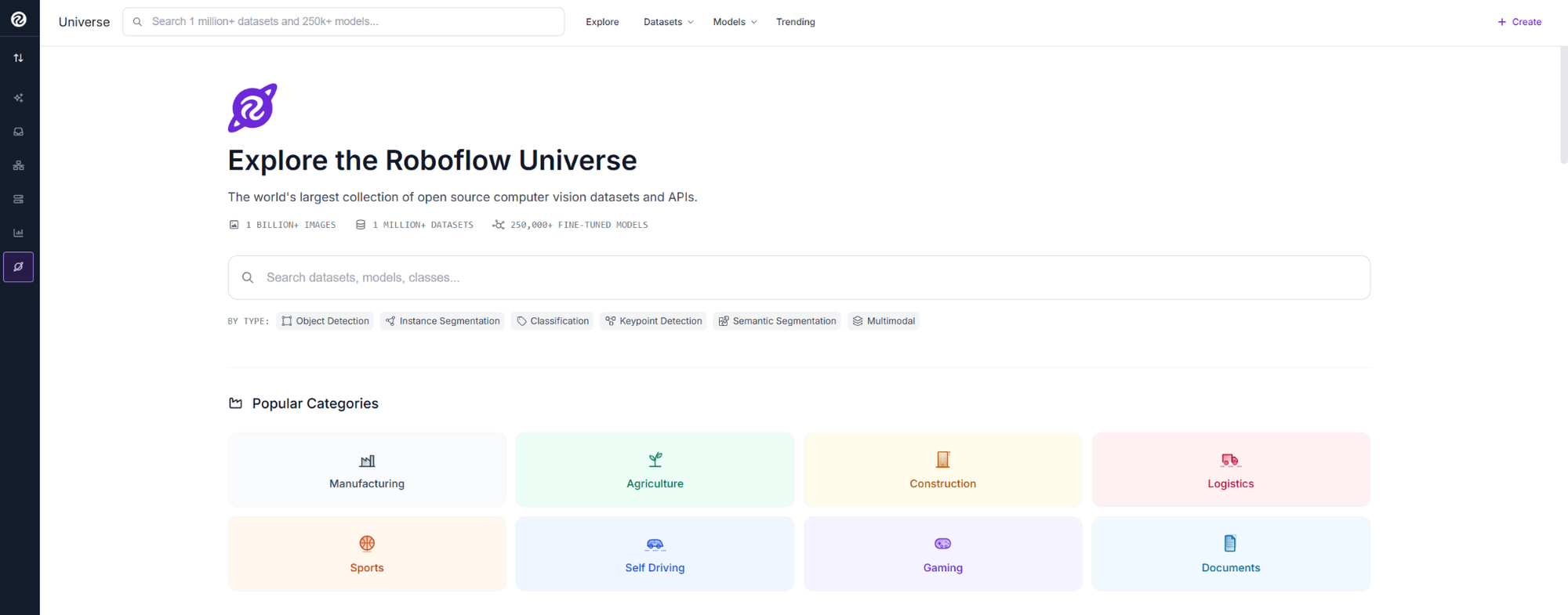
Click Fork Dataset to copy it into your own workspace.
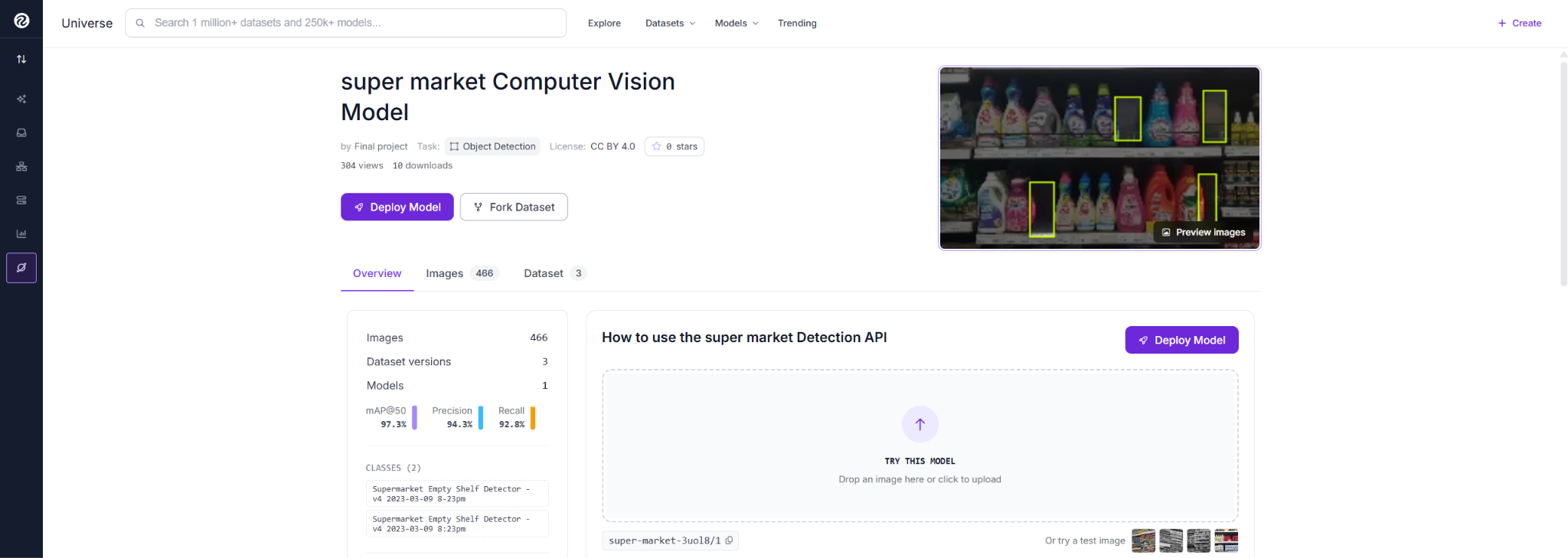
With the dataset forked, you are ready to train the empty shelf detection model that will power the localization branch of the workflow.
2. Train the Model
Open the forked dataset and create a new version with default preprocessing and no augmentations. Generate it, go to the Train tab, select RF-DETR, and start training. Roboflow runs training automatically.
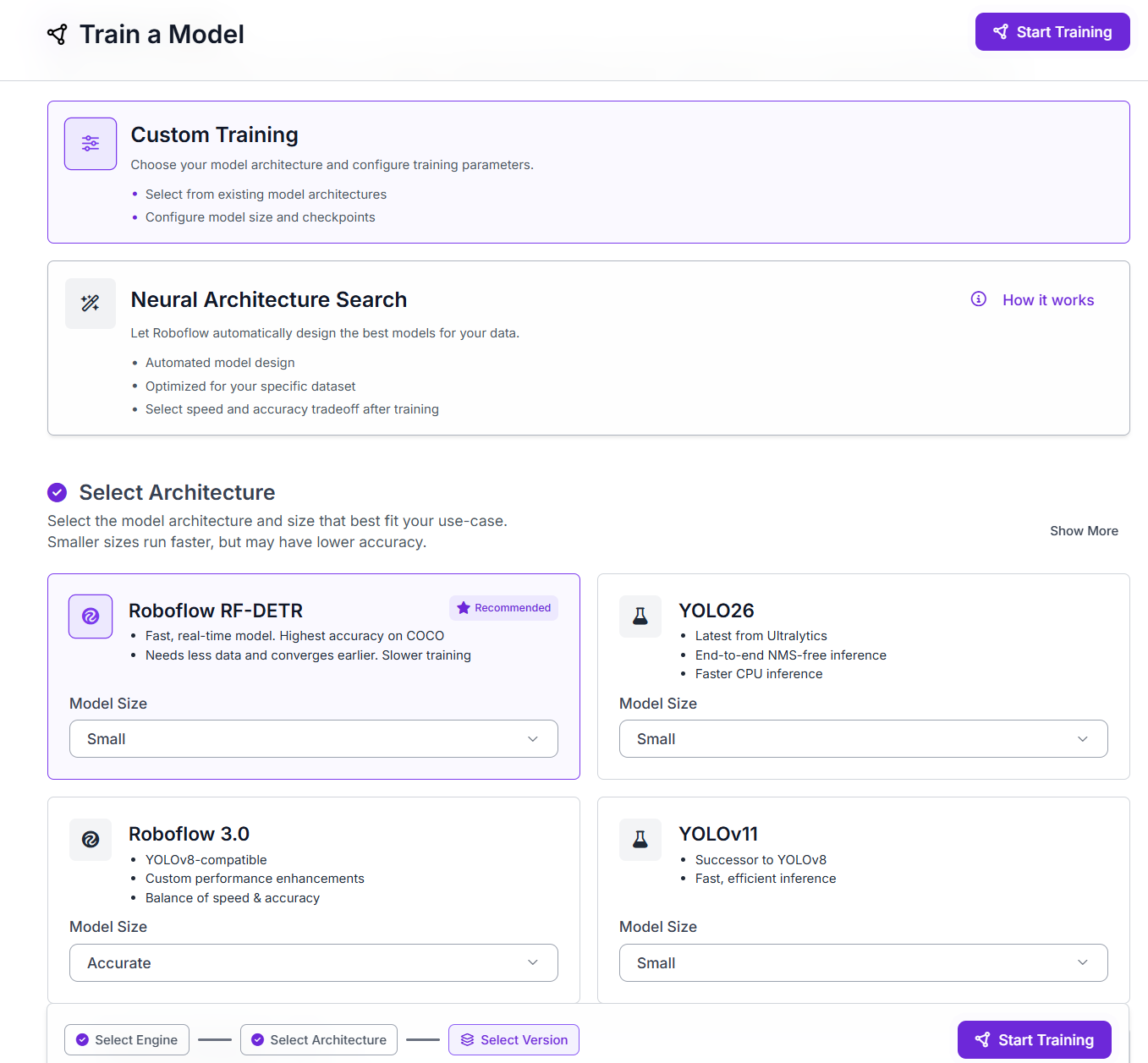
Training takes about 30-45 minutes, depending on early stopping. Once finished, check the results page for metrics. For this single-class dataset, you should see a high mAP.

Copy the model ID from the results page. You will need it when configuring the Object Detection block.
3. Build the Workflow
Block List
- Google Gemini (identify_shelf_products): Identifies shelf products and returns structured JSON.
- JSON Parser (parse_product_list): Extracts the product list.
- Custom Python (format_compliance_input): Prepares the audit payload.
- Object Detection Model (detect_empty_shelves): Detects empty shelf zones.
- Custom Python (relabel_empty_zones): Renames detections for display.
- Custom Python (count_empty_zones): Counts empty shelf zones.
- Bounding Box Visualization (draw_empty_zones): Draws boxes around empty zones.
- Label Visualization (label_empty_zones): Label empty zones.
- Google Gemini (generate_compliance_report): Generates the shelf compliance audit.
- JSON Parser (parse_compliance_report): Extracts audit results.
- Custom Python (inject_empty_violations): Adds empty shelf violations deterministically.
- Roboflow Vision Events (log_compliance_event): Logs each audit run.
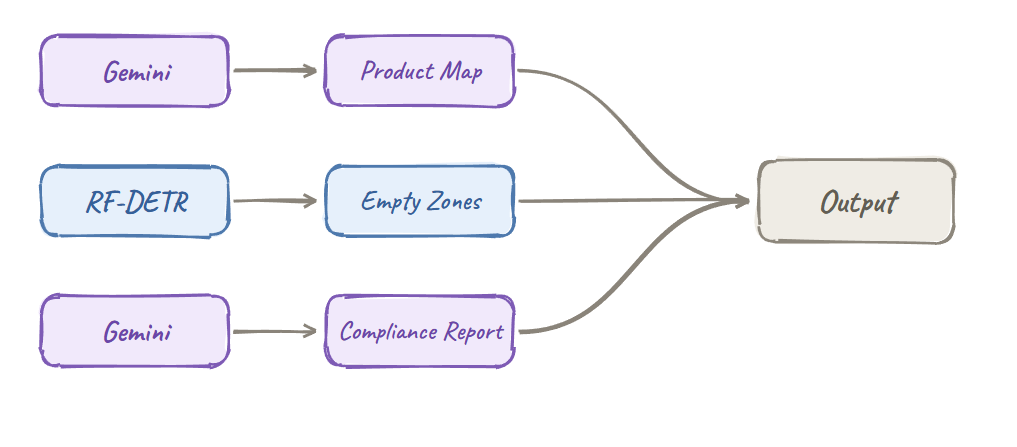
Step 1: Create the Workflow
Open Roboflow Workflows and create a new workflow. The image input is created by default and serves as the single entry point for the entire pipeline.
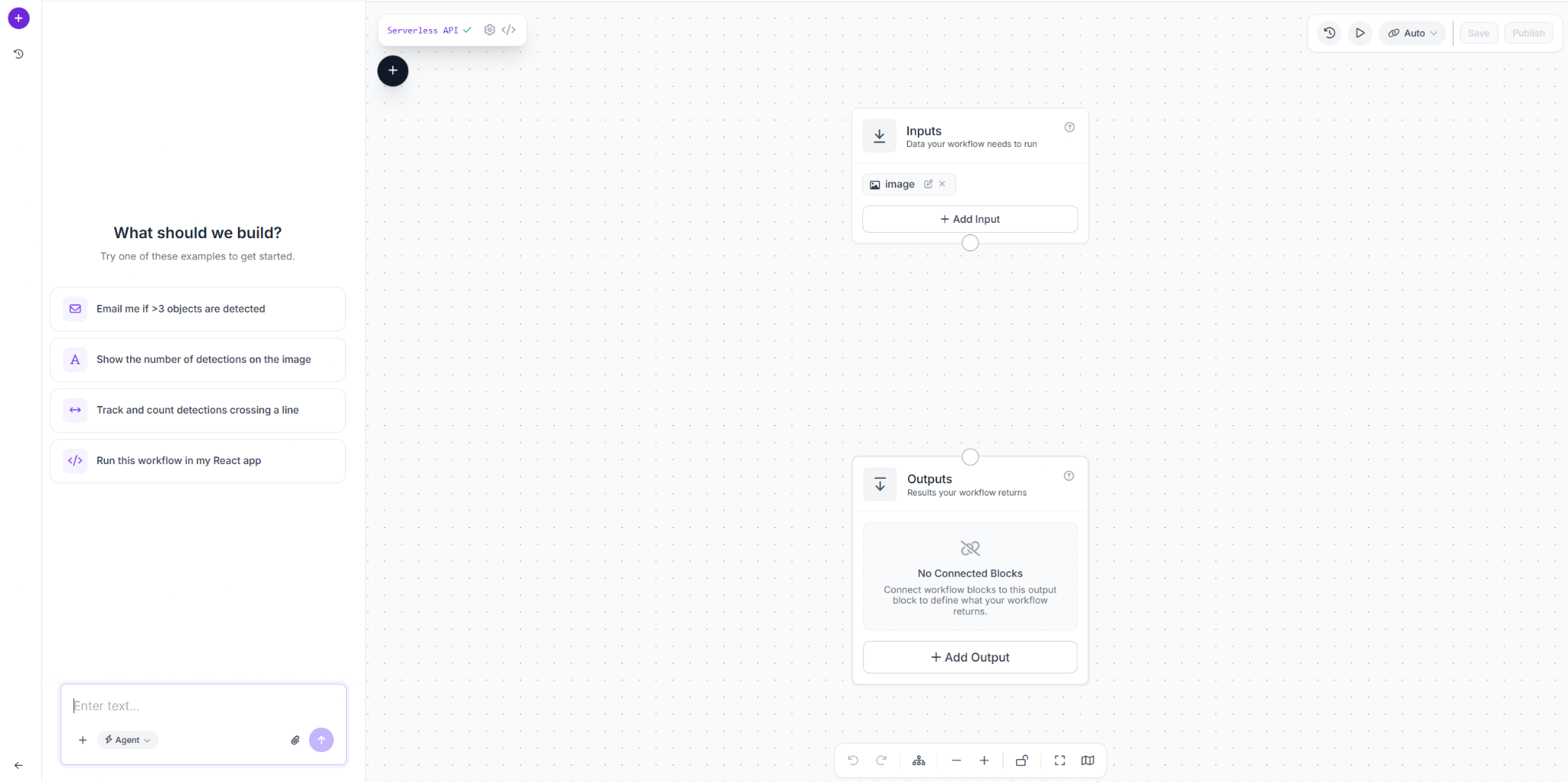
All three branches, product identification, empty shelf detection, and compliance auditing, receive their data from this block.
Step 2: Add the Product Identifier
Add a Google Gemini block named identify_shelf_products. Connect it to the input image, set Task Type to Visual Question Answering and Model Version to Gemini 2.5 Flash, then paste the prompt.
You are a retail shelf analyst. Analyze this shelf image and identify every visible product. For each product return product_name, brand, row (top/middle/bottom), position_index (left to right starting at 1), and facing_count. Return ONLY valid JSON with no markdown and no code fences using this schema: {"products": [{"product_name": "string", "brand": "string", "row": "string", "position_index": integer, "facing_count": integer}]}The prompt instructs Gemini to return only valid JSON with a fixed schema, which keeps the output clean for the parser in the next step.
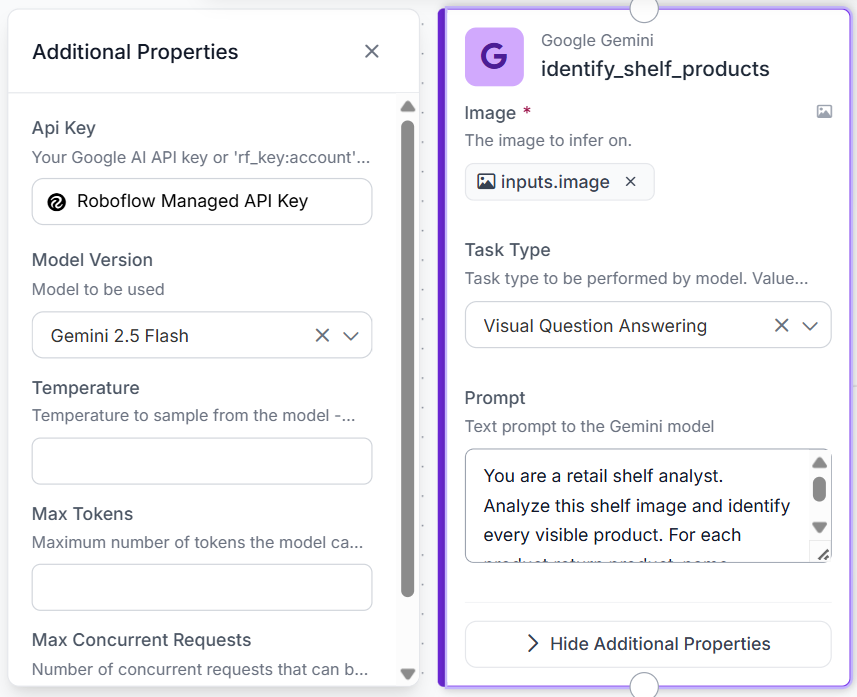
First stage. All downstream steps depend on its JSON output.
Step 3: Add the Product List Parser
Add a JSON Parser block named parse_product_list, connected to identify_shelf_products, extracting products.
Sends a clean product list to the next block.
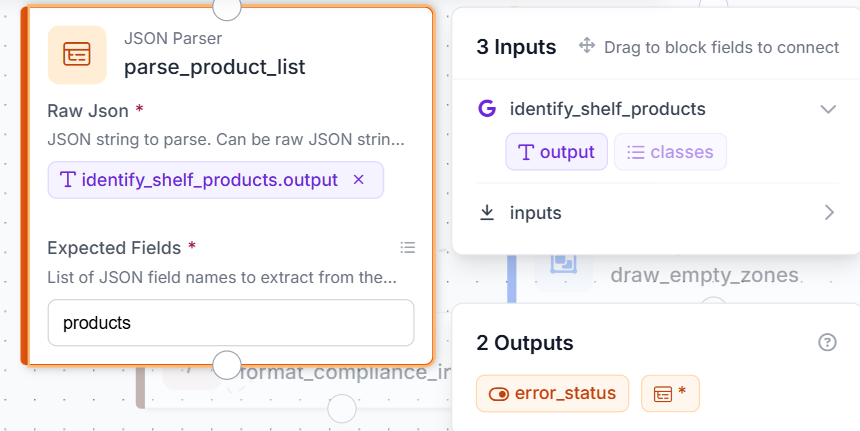
This block is what allows the compliance auditor later in the pipeline to reason over a structured list rather than a raw text string.
Step 4: Add the Empty Shelf Detector
Add the Object Detection Model block detect_empty_shelves. Connect the input image, set model ID.
Detects empty shelf zones.
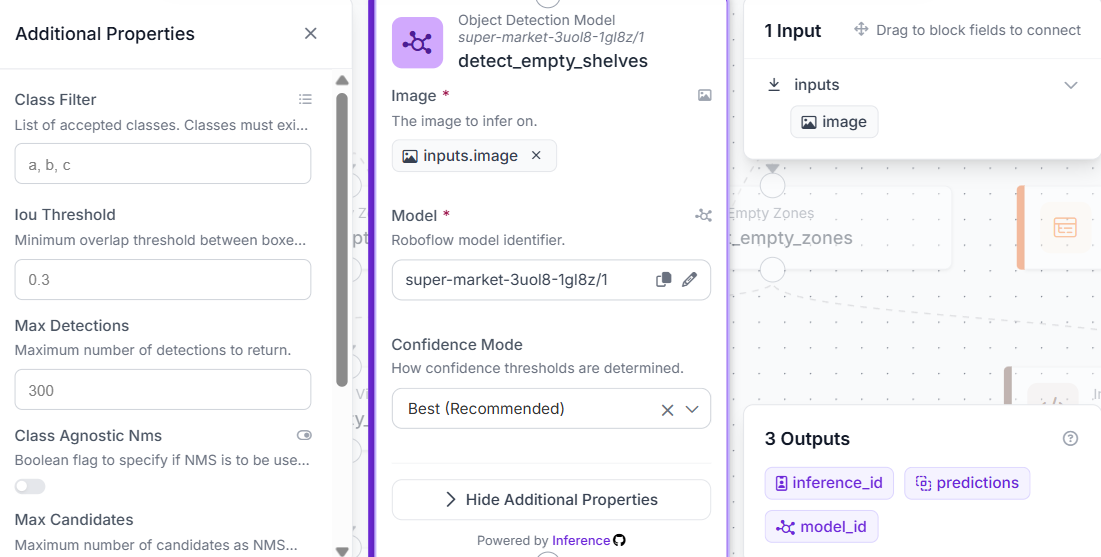
With the detector in place, the next three steps handle relabeling, counting, and visualizing the detections before they feed into the compliance pipeline.
Step 5: Relabel Empty Zones
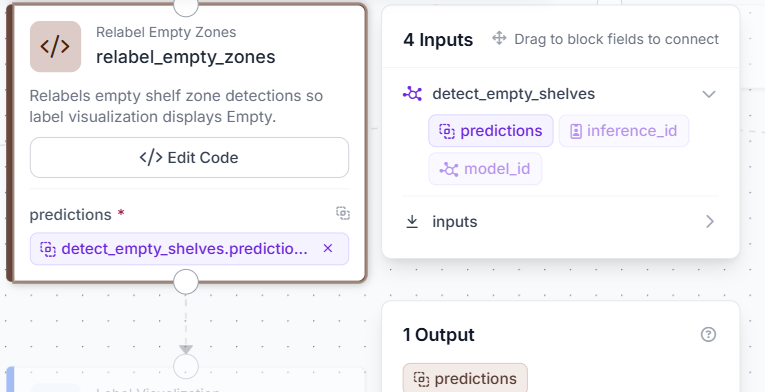
Add a Custom Python block named relabel_empty_zones. Connect it to the predictions output of detect_empty_shelves. Define one input, predictions (any), and one output, relabeled_predictions (any).
def run(self, predictions):
    if predictions is None:
        return {"relabeled_predictions": []}
    if isinstance(predictions, list):
        for pred in predictions:
            pred["class"] = "Empty"
        return {"relabeled_predictions": predictions}
    return {"relabeled_predictions": predictions}
This block renames every detection class to "Empty" so the label visualization block displays the correct text on each bounding box.
With detections relabeled, the next step is to count them before passing the number into the compliance pipeline.
Step 6: Count Empty Zones
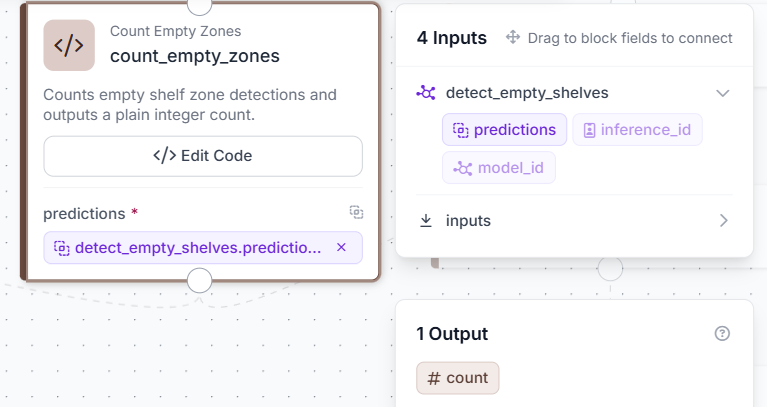
Add a Custom Python block and name it count_empty_zones. Connect it to the predictions output of detect_empty_shelves. Define one input, predictions (any), and one output, empty_count (integer).
def run(self, predictions):
    count = 0
    try:
        if predictions is None:
            count = 0
        elif isinstance(predictions, list):
            count = len(predictions)
        elif isinstance(predictions, dict):
            count = len(predictions.get("predictions", []))
        elif hasattr(predictions, "predictions"):
            count = len(predictions.predictions)
    except Exception:
        count = 0
    return {"empty_count": int(count)}
Rather than passing the full predictions object downstream and risking format mismatches, this block extracts a plain integer that the compliance pipeline can use directly.
With the count ready, the next two steps handle the visual output for the empty zones.
Step 7: Draw Empty Zone Boxes
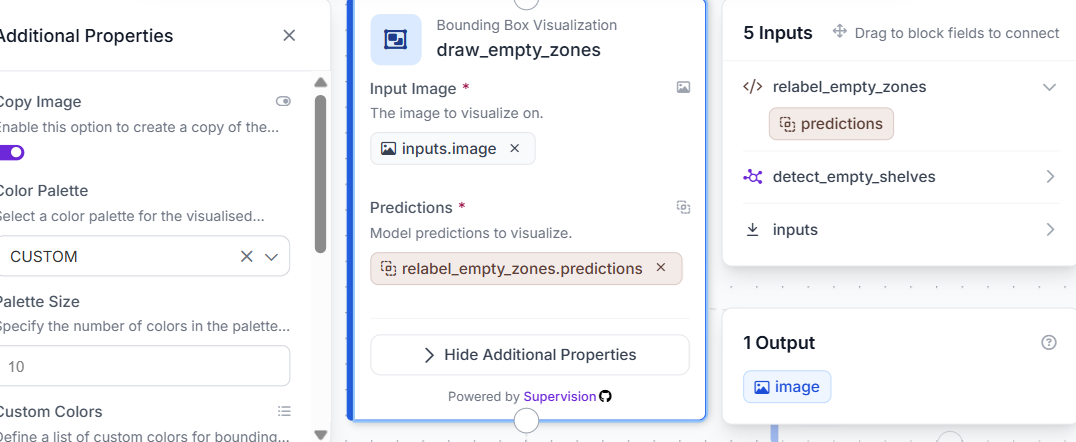
Add Bounding Box Visualization block draw_empty_zones. Connect predictions from detect_empty_shelves, image from inputs.image. Set color red.
Draws red boxes on empty zones.
With the boxes drawn, the next step is to add the Empty label to each one.
Step 8: Label Empty Zones
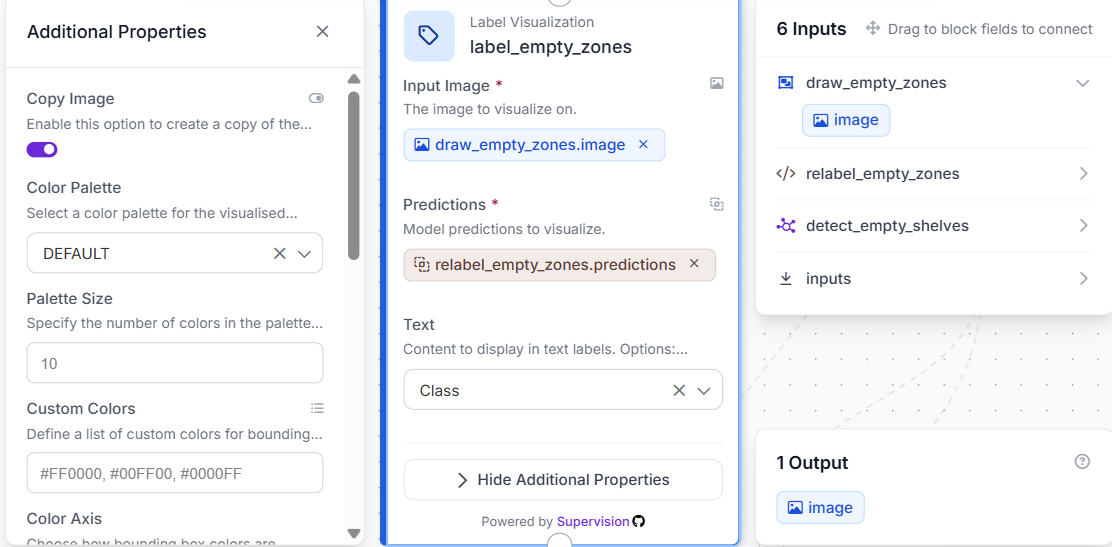
Add a Label Visualization block named label_empty_zones. Connect predictions from detect_empty_shelves and image from draw_empty_zones.image. Set label text to "Empty" and font scale to 1.2.
With the empty zone visualization complete, the next step is to prepare the compliance audit payload for Gemini.
Step 9: Add the Compliance Input Formatter
Add a Custom Python block named format_compliance_input. Connect product_list from parse_product_list.products and empty_count from count_empty_zones.empty_count. Define a single output, formatted_input (string).
import json
def run(self, product_list, empty_count):
    payload = {
        "detected_products": product_list,
        "empty_shelf_zones_detected": int(empty_count) if empty_count else 0,
        "audit_role": "retail planogram compliance auditor",
        "checks": [
            "brand blocking violations",
            "inconsistent facing counts",
            "unexpected visual gaps",
            "products in illogical positions"
        ],
        "output_schema": {
            "compliance_status": "pass or fail",
            "violations": [{"type": "brand_mixing|inconsistent_facings|gap|wrong_position", "product": "string", "message": "string"}],
            "summary": "one-line summary"
        },
        "instructions": [
            "Return valid JSON only. No markdown, no code fences.",
            "Set compliance_status to exactly 'pass' or 'fail'.",
            "Only include clearly visible violations.",
            "Keep the summary to one line."
        ]
    }
    return {"formatted_input": json.dumps(payload, ensure_ascii=False)}
This block combines the product list, empty zone count, audit role, required checks, and output rules into a single structured payload, giving Gemini all the necessary context in one input.
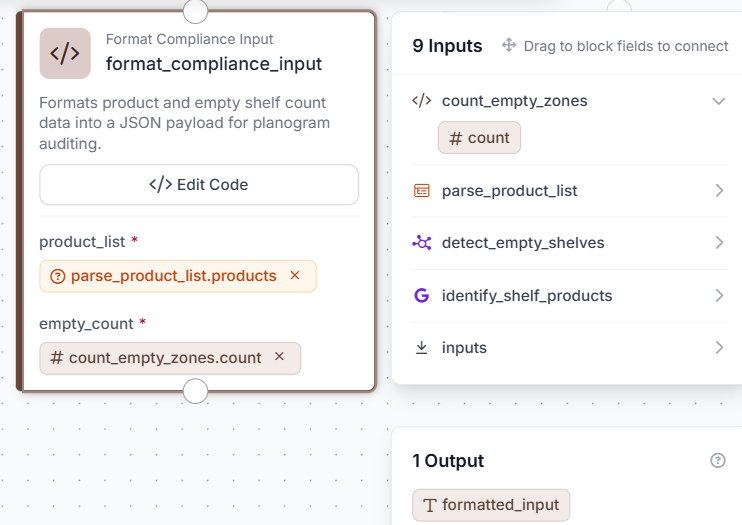
With the payload ready, the next step sends it to the compliance auditor.
Step 10: Add the Compliance Auditor
Add a Google Gemini block named generate_compliance_report, connected to the input image. Set Task Type to Open Prompt, Model to Gemini 2.5 Flash, Thinking Level to low, Max Tokens to 4096, and paste the prompt below:
You are a retail planogram compliance auditor. Analyze this shelf image and the visible product arrangement. Evaluate whether this shelf follows good planogram practices. Check for brand blocking violations including mixed brands in the same zone, inconsistent facing counts, unexpected gaps, and products in illogical positions. Return structured JSON only, no markdown, no commentary, no code fences. Schema: {"compliance_status":"pass|fail","violations":[{"type":"brand_mixing|inconsistent_facings|gap|wrong_position","product":"string","message":"short description"}], "summary":"one-line summary"}. Set compliance_status to exactly "pass" or "fail".The prompt keeps the output schema strict so the parser in the next step can extract the fields cleanly every time.
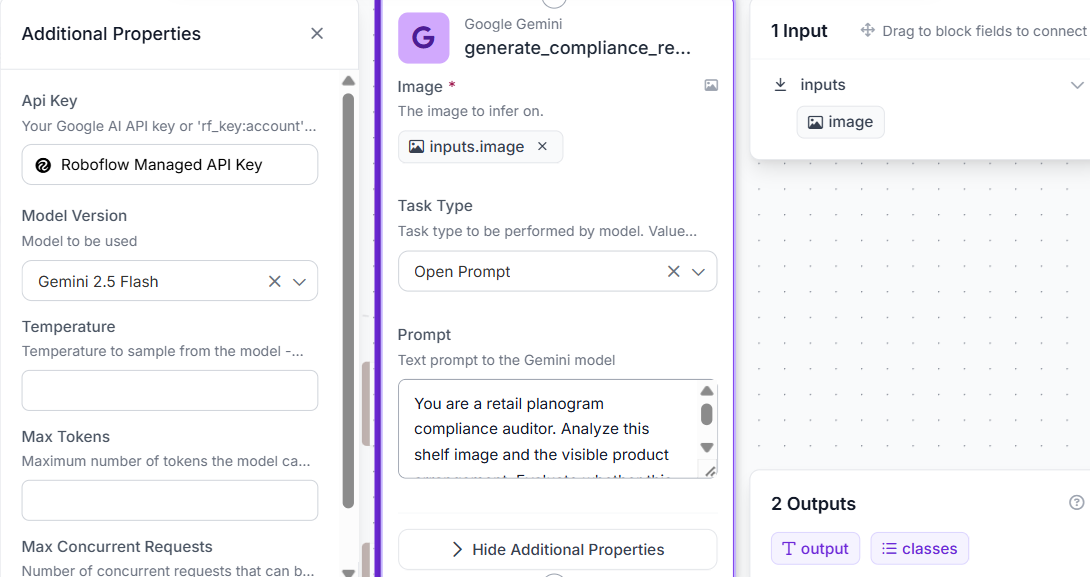
This block is the compliance brain of the pipeline. It evaluates the shelf against standard planogram practices and returns a structured audit report.
Step 11: Add the Compliance Report Parser
Add JSON Parser block parse_compliance_report, connected to generate_compliance_report, extracting compliance_status, violations, and summary.
Outputs clean fields for the next blocks.
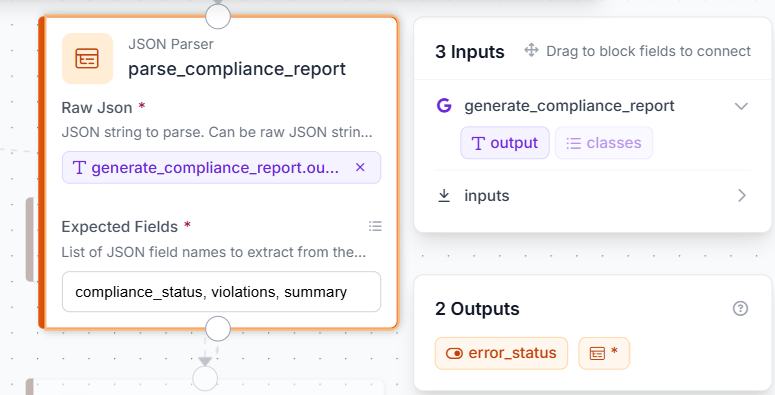
With the compliance report parsed, the next step is to merge the empty zone violations into the final list.
Step 12: Inject Empty Violations
Add a Custom Python block named inject_empty_violations. Connect violations from parse_compliance_report.violations, compliance_status from parse_compliance_report.compliance_status, and empty_count from count_empty_zones.empty_count. Define two outputs: final_violations (list) and final_status (string).
def run(self, violations, compliance_status, empty_count):
    count = int(empty_count) if empty_count else 0
    final_violations = violations if isinstance(violations, list) else []
    if count > 0:
        final_violations = [{
            "type": "empty_shelf",
            "product": "Multiple shelf zones",
            "message": f"{count} empty shelf zones detected across the shelf."
        }] + final_violations
    final_status = "fail" if (count > 0 or compliance_status == "fail") else "pass"
    return {
        "final_violations": final_violations,
        "final_status": final_status
    }
Adds empty shelf violations from detector output. If RF-DETR finds empty zones, they are always included.
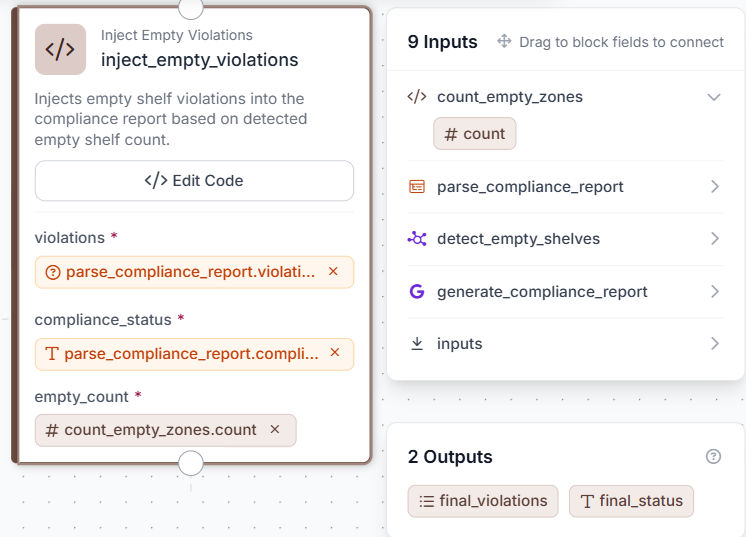
With the final violations list ready, the next step formats it for display on the image
Step 13: Add Vision Events
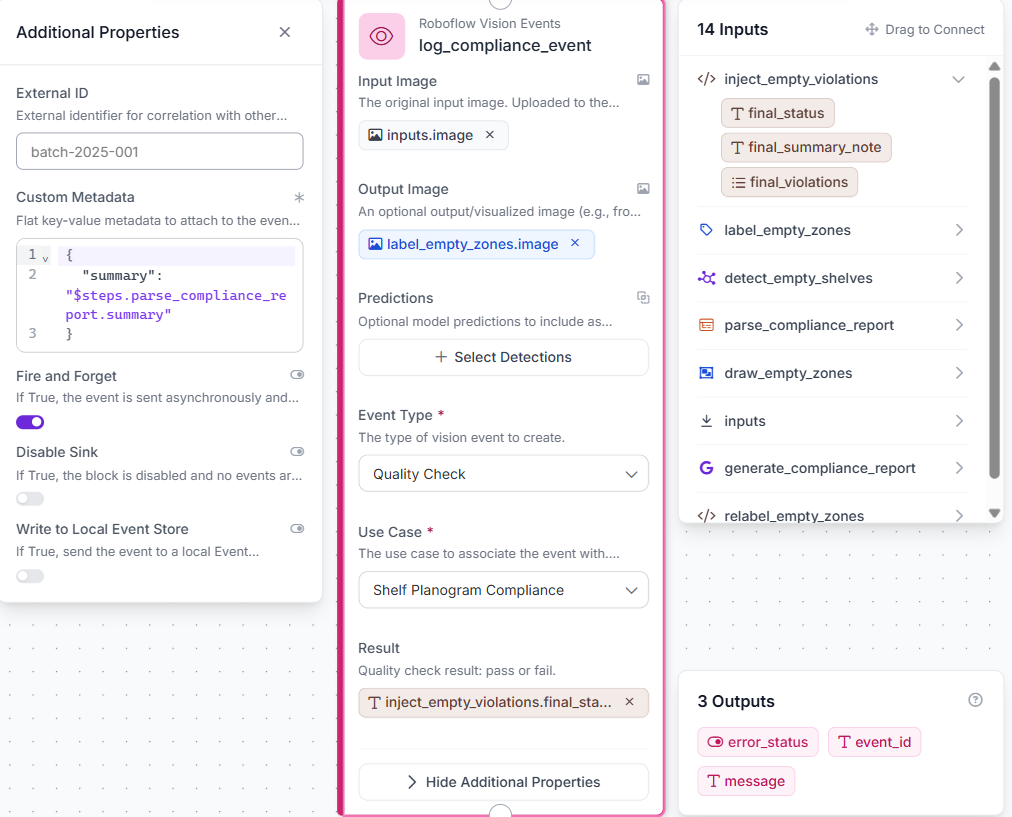
Add a Roboflow Vision Events block named log_compliance_event. Set the input image to inputs.image, Output Image to label_empty_zones.image, Event Type to Quality Check, Use Case to Planogram Compliance, and Result to inject_empty_violations.final_status.
With Vision Events configured, the final step is to wire up the outputs
Step 14: Configure Outputs
Open the Outputs block and add: output_image from label_empty_zones.image, compliance_status from inject_empty_violations.final_status, violations from inject_empty_violations.final_violations, and summary from parse_compliance_report.summary.
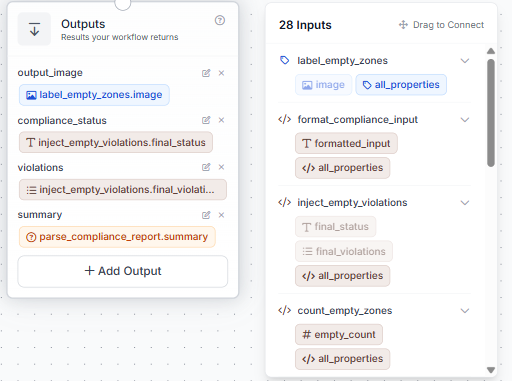
With all outputs configured, the workflow is complete and ready to test.
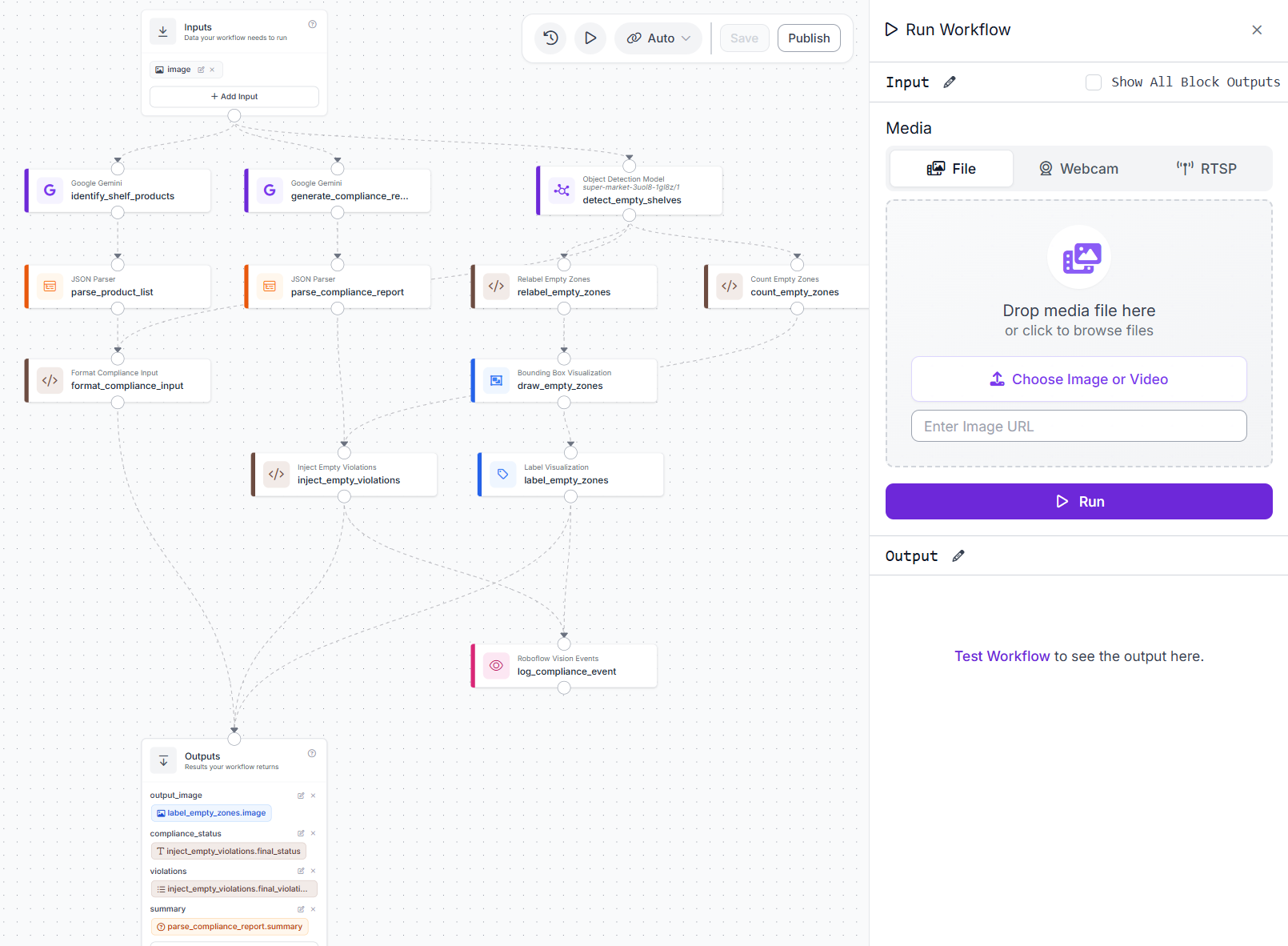
Image splits into detection and audit; outputs merge; Vision Events logs run.
Results
Test 1: FAIL
The first test used a personal care shelf stocking Aveeno, Dial, Equate, and Olay body wash products. The workflow returned a FAIL with three violations.
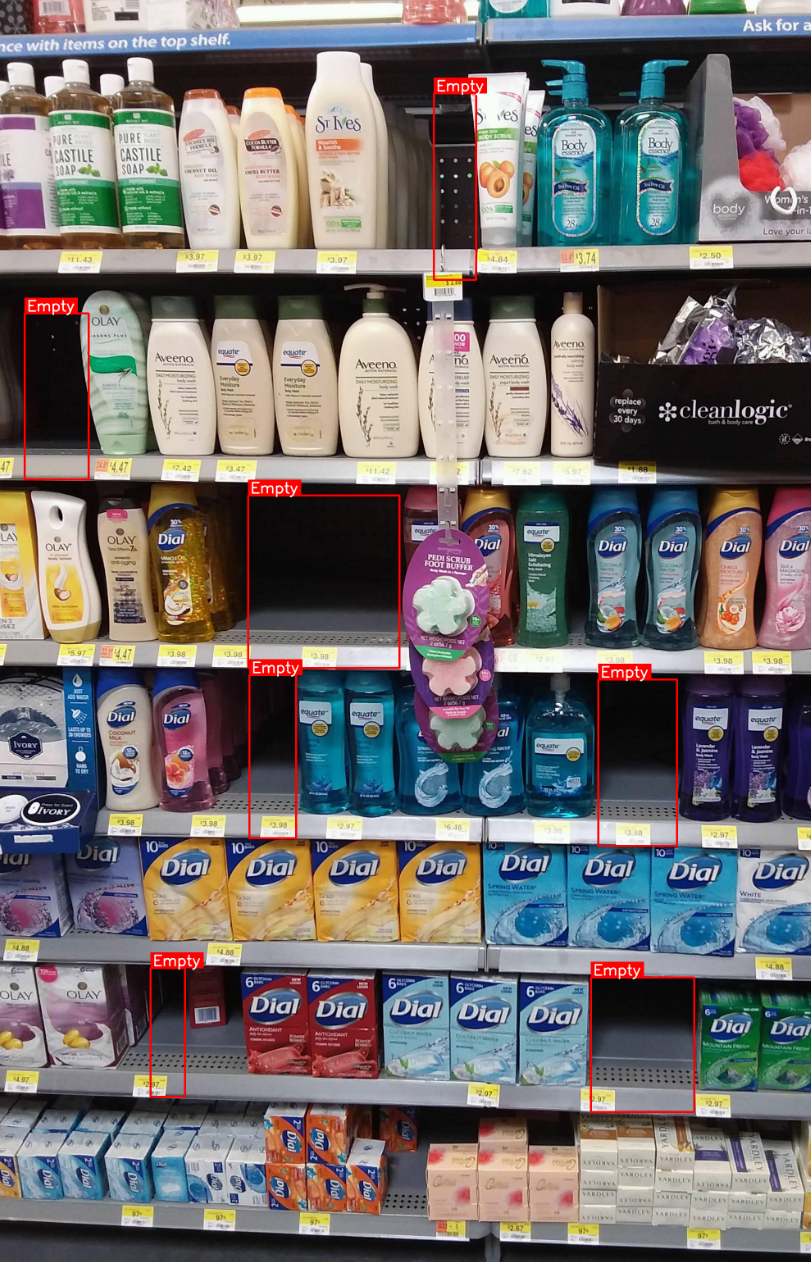
RF-DETR detected 7 empty shelf zones across multiple rows, marking each one with a red bounding box.
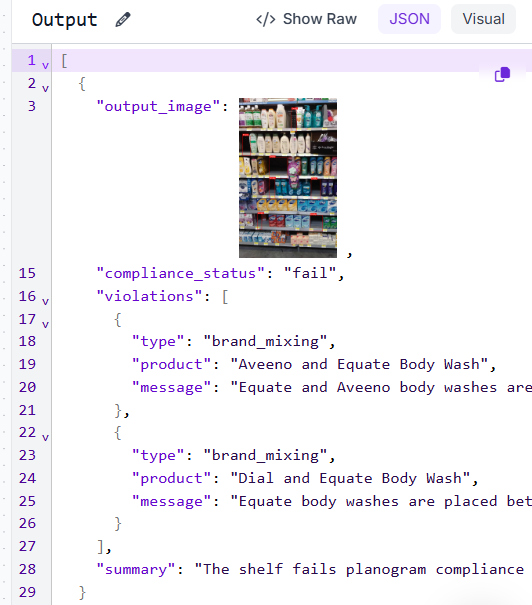
Gemini flagged two brand mixing violations with Equate bottles in the Dial section and one placement issue with mismatched Dial soap pack sizes.
Test 2: PASS
The second test used a single-brand nutrition shelf with PediaPro 3-5 Years across two rows. The workflow returned a PASS with no violations.
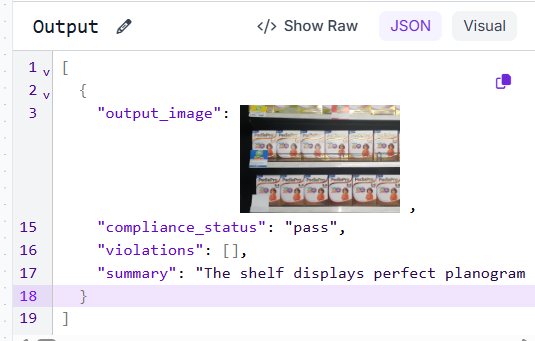
Gemini found no issues; the single-brand shelf is compliant.
Planogram Compliance Detection Production Deployment
The workflow runs as a REST endpoint out of the box. Pass a shelf image, and it returns output_image, compliance_status, violations, and summary as structured JSON ready to pipe into any audit tool, dashboard, or alerting system.
A fail routes the violations list to a store manager or brand rep. A pass is logged, and the run moves on. Vision Events stores every run automatically with the input image, output image, and result for review.
For lower latency, deploy on an edge device using Roboflow Inference to avoid sending images over the network on every run.
Empty zone detections and brand mixing violations are separate in the output. Route empty zones to a restocking queue and brand violations to a compliance team.
Build It Faster with the Roboflow Agent
If you'd rather not add each block by hand, use Roboflow Agent. Instead of configuring blocks one at a time, you describe the pipeline you want in plain text and the Agent builds it for you. Here's an example:
Planogram Compliance Detection Conclusion
This workflow pairs a trained RF-DETR model with two Gemini calls to handle the two main planogram failure types. The detector localizes empty shelf zones with precise bounding boxes. Gemini handles brand mixing and wrong-zone placements without a hardcoded spec or store-specific configuration.
The same pipeline works across product categories. Point it at a personal care shelf, a beverage aisle, or a nutrition section, and it runs without modification.
Further Reading


Cite this Post
Use the following entry to cite this post in your research:
Mostafa Ibrahim. (Jun 22, 2026). Planogram Compliance Detection with Roboflow. Roboflow Blog: https://blog.roboflow.com/planogram-compliance-detection/