

Professional tennis players have access to Hawk-Eye, SwingVision, and dedicated analytics teams. Everyone else relies on memory, intuition, and the occasional phone-recorded match. Most match footage is captured but never analyzed, leaving patterns in shot selection, positioning, and tactical decisions invisible to the players who could most benefit from seeing them.
This tutorial demonstrates how to build an automated player positioning analysis system that combines Roboflow's RF-DETR model with GPT-5.1's tactical reasoning.
How to Automate Tennis Player Performance Analytics with AI
You'll train a custom detection model, deploy it through Roboflow Workflows, and integrate a Vision Language Model that reads bounding boxes around players and describes their court positioning, producing a single annotated image with AI commentary burned into the corner. Here's the workflow we're going to build.
Step 1: Prepare the Dataset
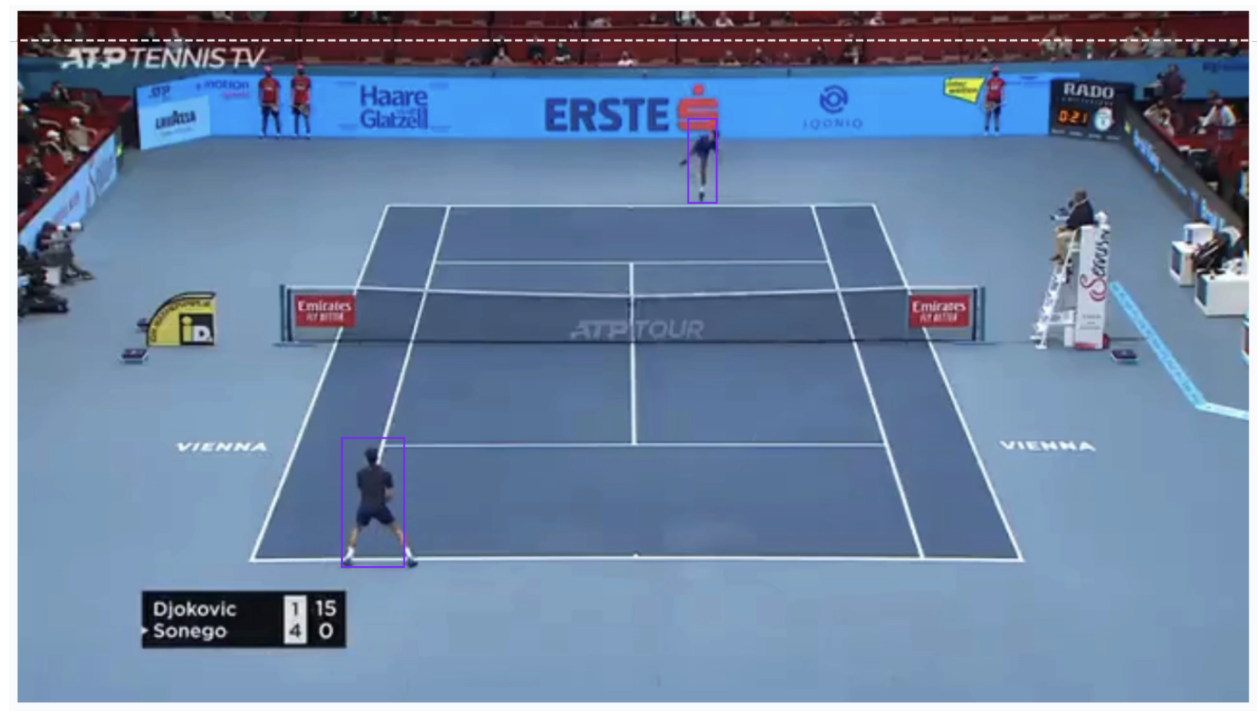
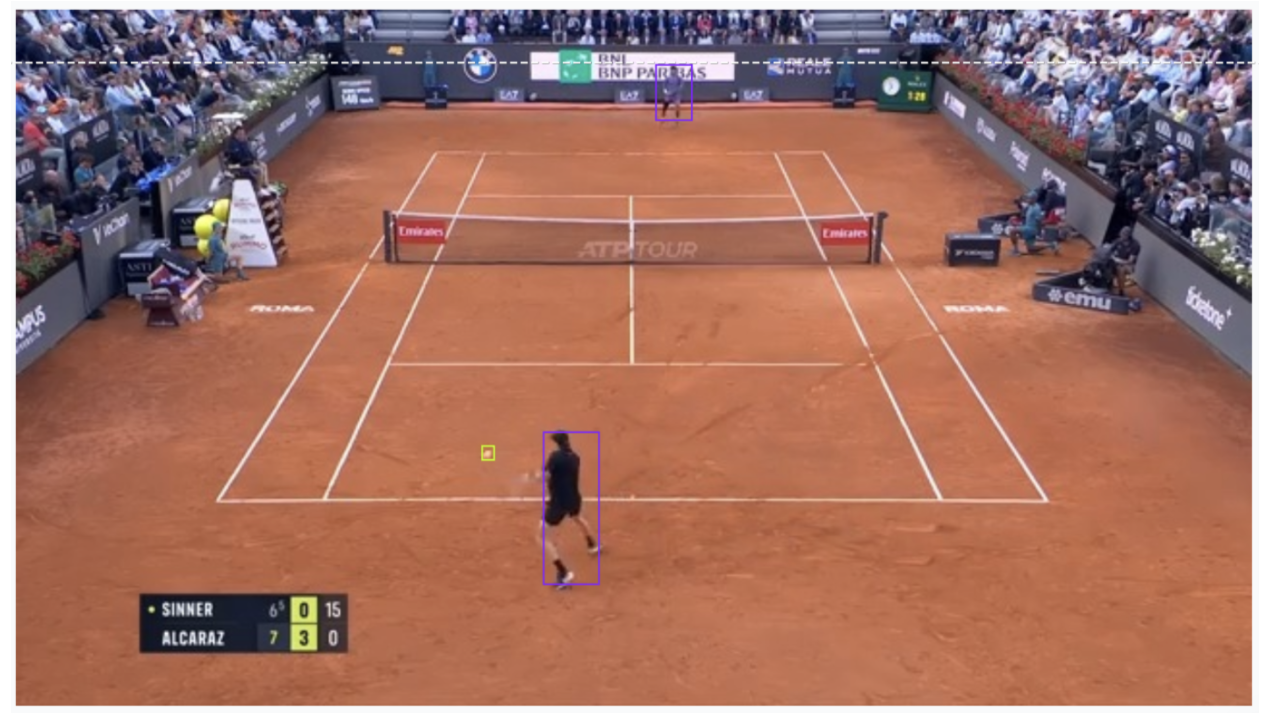
We'll use the Tennis Match dataset from Roboflow Universe, which contains 85 annotated images across two classes: person and tennis.
The images capture broadcast tennis match footage with an upward angle, with different court surfaces, and lighting conditions. Here are examples of the detection targets:
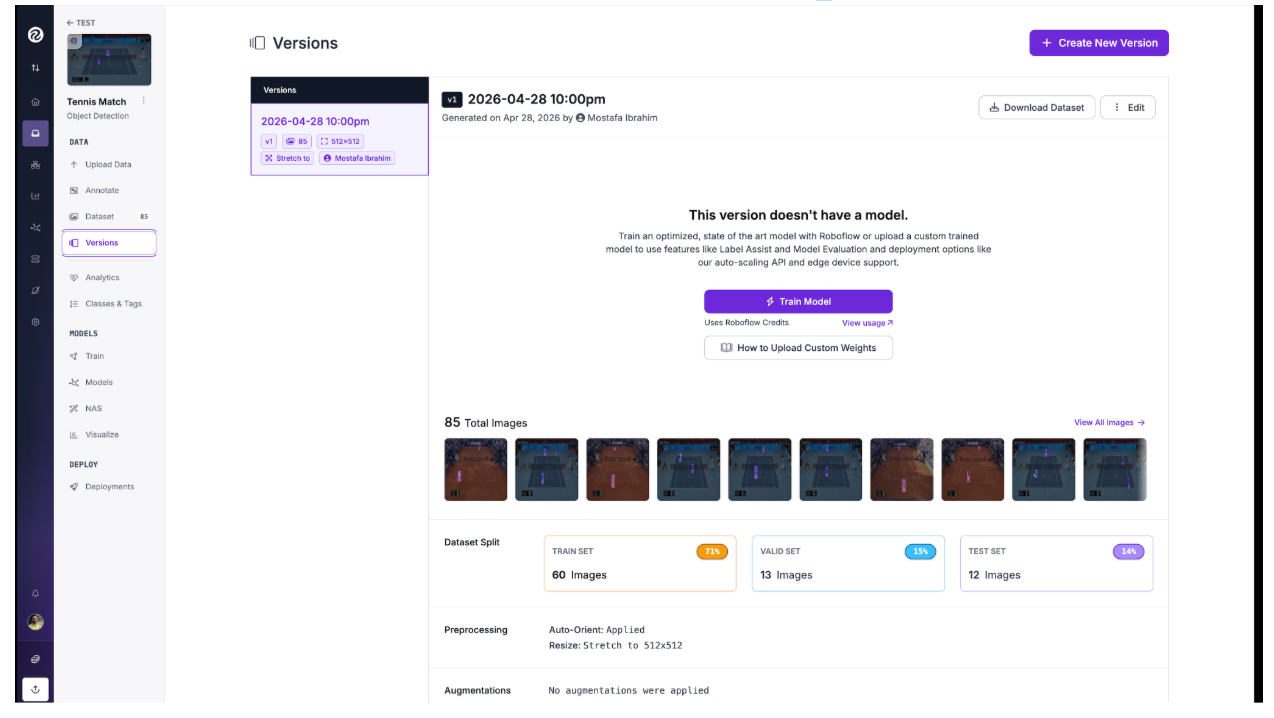
To begin training, navigate to the dataset in your Roboflow workspace and create a new version. Configure an 70/15/15 split for training, validation, and testing.
Step 2: Train the RF-DETR Model
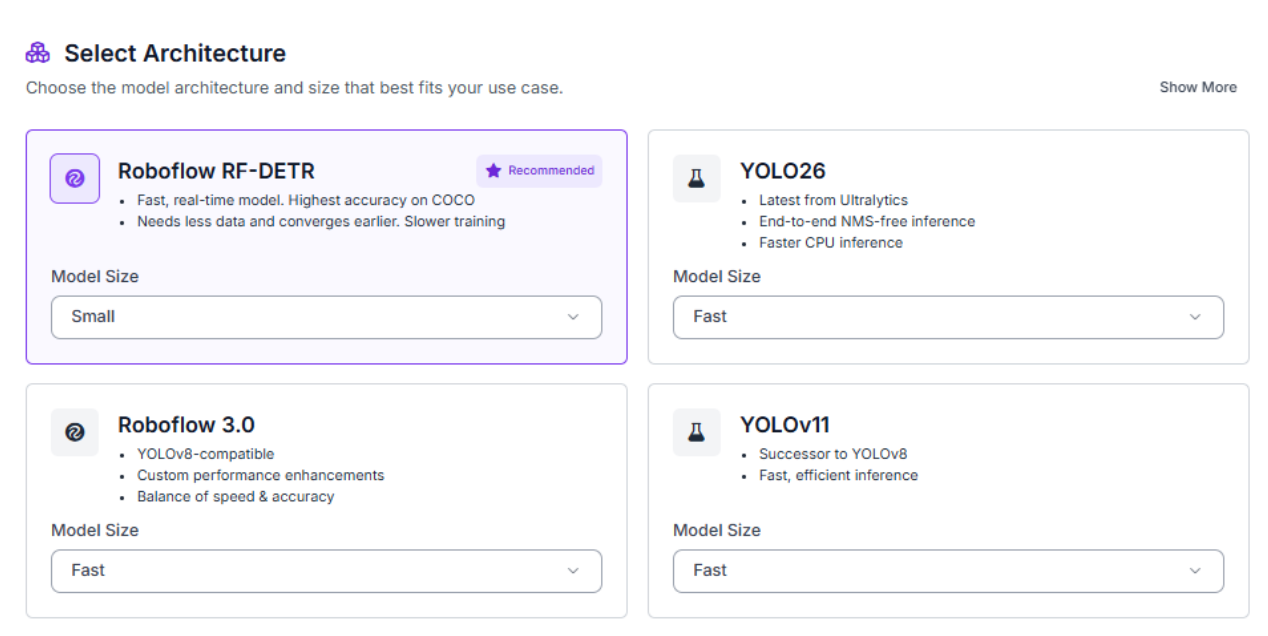
With your dataset version ready, click "Train Model" to configure your training job. Select RF-DETR, Roboflow's state-of-the-art object detection model that delivers exceptional accuracy while maintaining real-time inference speeds.
For model size, choose Small. While larger models might achieve slightly higher accuracy, Small provides an excellent balance between performance and computational efficiency. It trains quickly, runs on mid-range hardware, and delivers strong results on tennis footage.
Training typically completes within 30-45 minutes. The platform will email you when training finishes.
Step 3: Evaluate Metrics
Once training completes, review your model's performance metrics. Our RF-DETR Small model achieved solid results on this detection task:
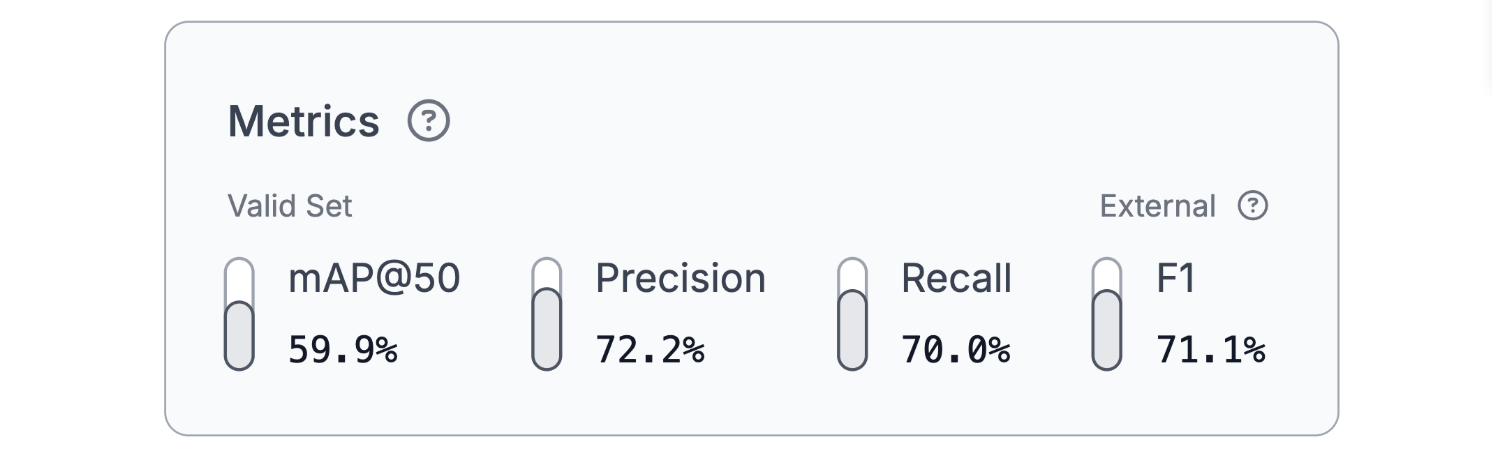
The 59.9% mAP@50 demonstrates reliable detection performance across both classes, with balanced 72.2% precision and 70.0% recall and a 71.1% F1 score. The balanced precision and recall indicate the model isn't over-aggressive or over-conservative, which is exactly what you want for downstream analysis. Tennis ball detection is particularly challenging because the ball occupies only a few pixels in most frames and moves at high speed, so this performance level reflects strong fundamentals on a difficult task.
For production deployment, this means coaches can trust the system to locate players in nearly every frame, the foundation the downstream tactical analysis depends on.
Step 4: Deploy to Workflows
After validating your model's performance, deploy it as an interactive workflow. Roboflow Workflows provides a visual interface for building computer vision applications that combine detection, filtering, and language understanding.
Our final workflow connects eight blocks: the RF-DETR model identifies players and the ball, bounding box and label visualization blocks annotate the frame, a GPT-5.1 VLM block reads the annotated image and generates tactical commentary, a custom Python block word-wraps that commentary, a text overlay block burns it onto the final image, and a filter and counter track player counts in parallel.
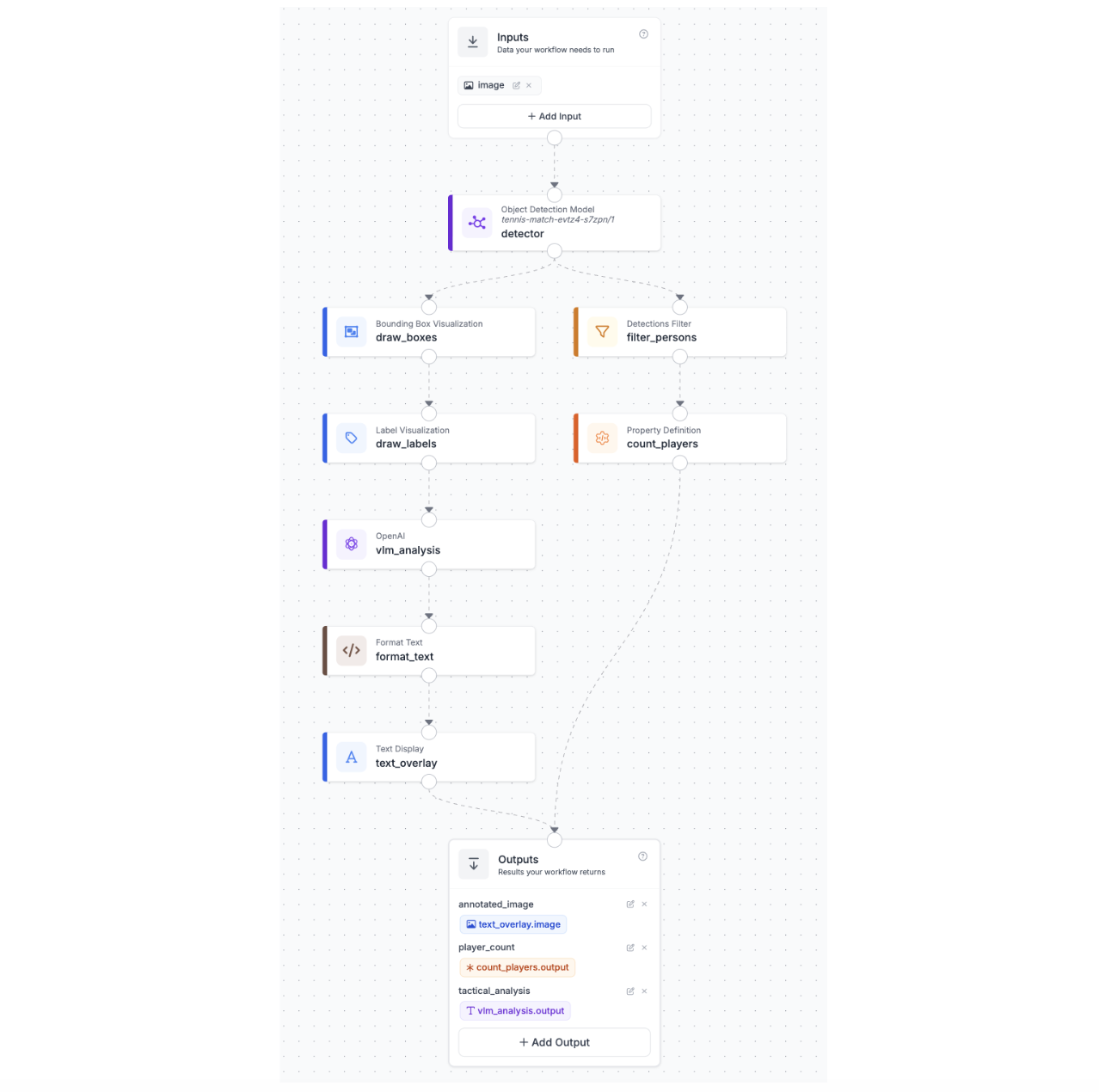
To create this workflow, click "Try Workflows" when viewing your trained model's deployment options. From the template gallery, select "Detect, Count, and Visualize" as your starting point.
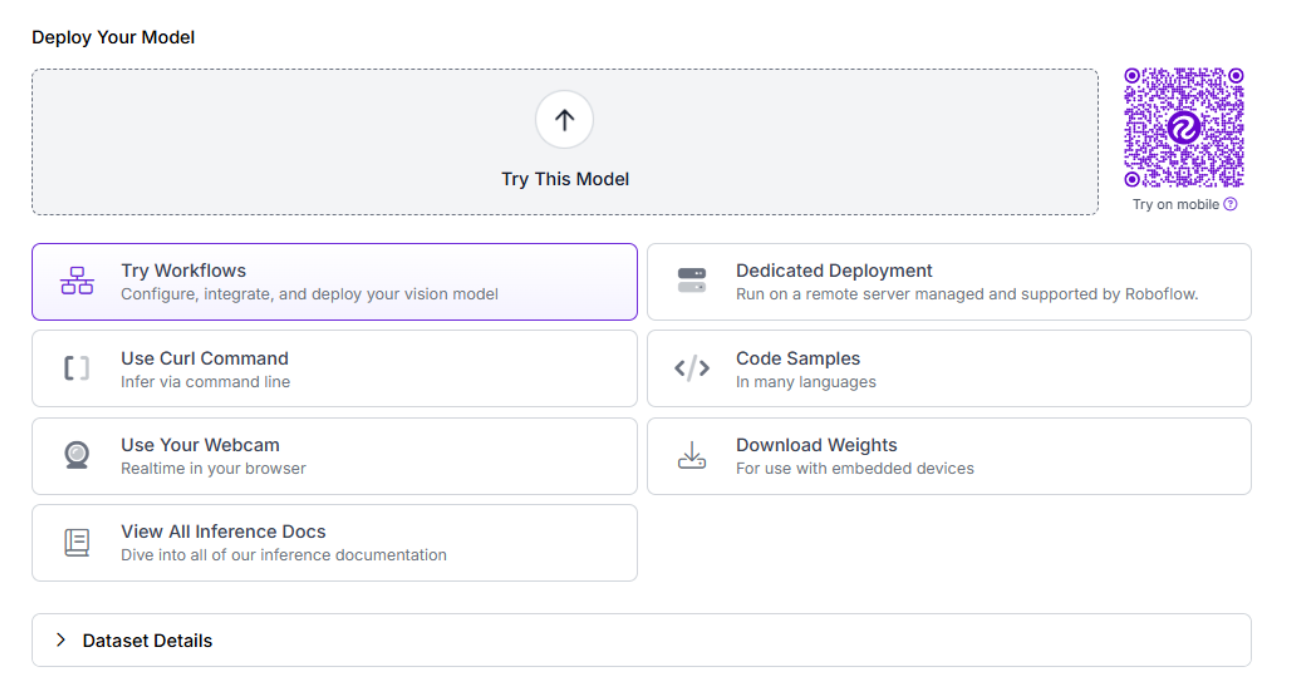
Step 5: Configure the VLM Block
Add an OpenAI VLM block to transform the annotated image into tactical commentary. Click the "+" button, search for "OpenAI," and select the block.
Configure the block with these settings:
- Image: Pass the labeled image from Step 4 to the VLM
- Model: Choose GPT-5.1, OpenAI's flagship multimodal model that excels at visual reasoning. It interprets player and ball positions from the bounding boxes and translates them into natural language tactical observations.
- Task Type: Select "unconstrained" for free-form tactical commentary
- Temperature: 0.3 to keep responses focused on observable patterns rather than speculative narrative
- Max Tokens: 200
- Prompt:
Analyze this tennis match frame. There are bounding boxes showing player and tennis ball positions. Describe: (1) where each player is positioned on court (net, baseline, left, right), (2) any notable tactical observations based on player spacing and court coverage. Keep it concise, 2-3 sentences max.
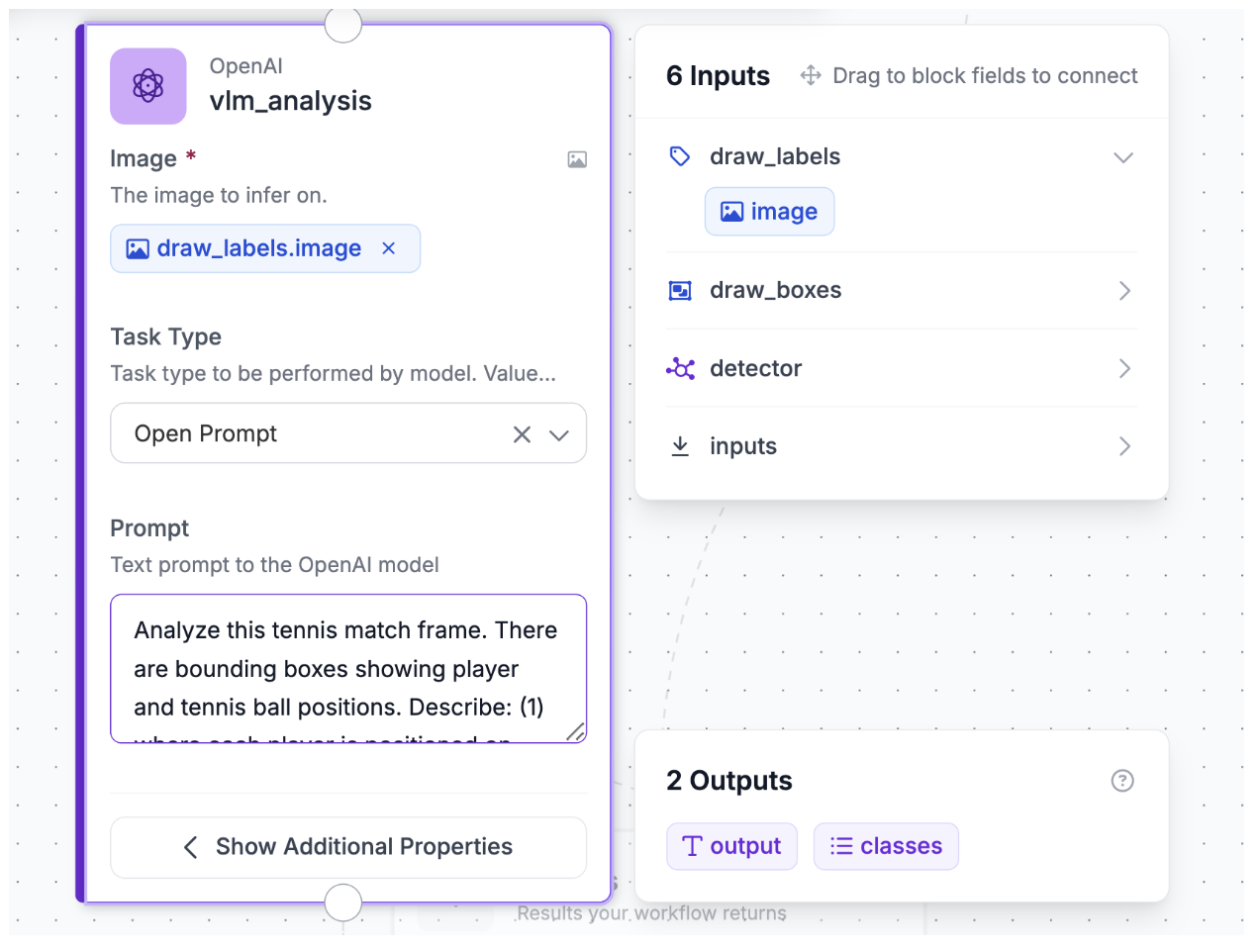
This configuration is the key to the workflow's accuracy. GPT-5.1 does not receive a raw photo; it receives the annotated image with bounding boxes and class labels from Step 5. The custom detection model grounds the VLM with exact player and ball locations, so the VLM doesn't have to guess positions from pixels and can focus entirely on tactical interpretation.
Step 6: Format the VLM Output
Add a custom Python block after the VLM to word-wrap the commentary into multiple lines so it fits cleanly when overlaid on the image. Without this step, GPT-5.1's response would render as a single long line that runs off the edge of the frame.
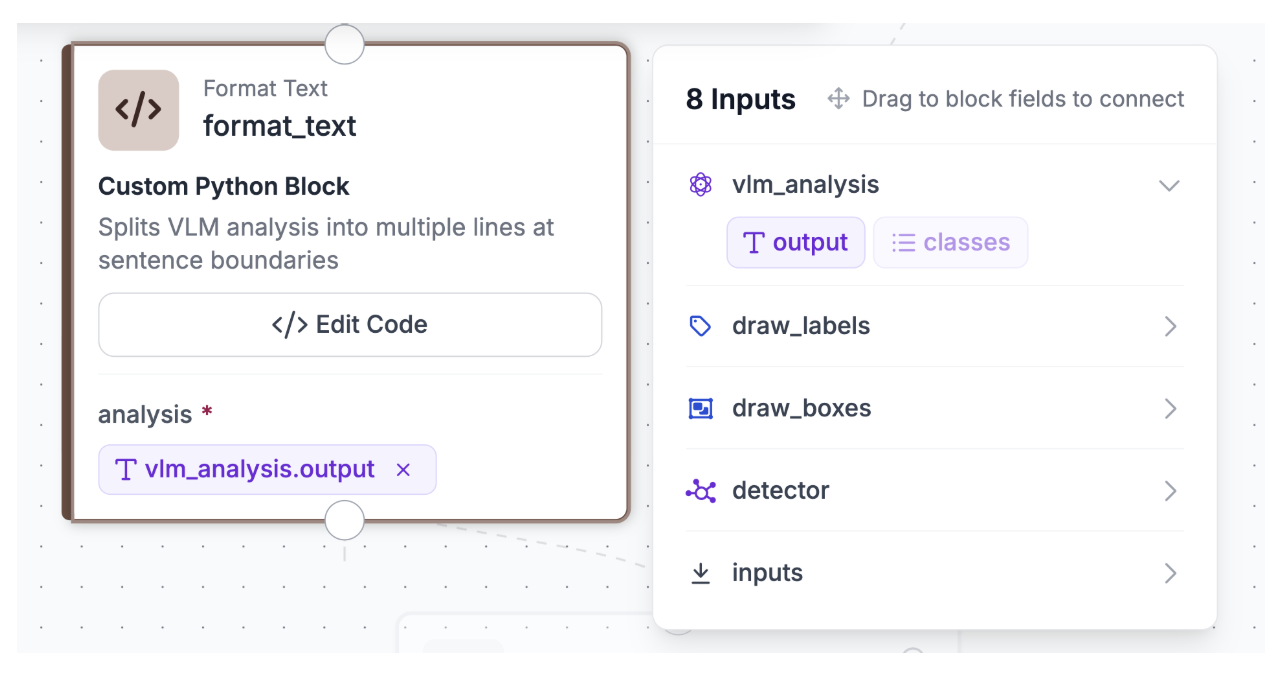
Open the above “format_text” block, click on “Edit Code” and add the below code:
def run(self, analysis):
    words = analysis.split()
    lines = []
    current_line = []
    for word in words:
        current_line.append(word)
        if len(' '.join(current_line)) > 90:
            lines.append(' '.join(current_line))
            current_line = []
    if current_line:
        lines.append(' '.join(current_line))
    formatted = '\n'.join(lines)
    return {'formatted_text': formatted}
The block splits the VLM output into chunks of approximately 90 characters per line and returns a multi-line string ready for overlay.
Step 7: Burn Commentary onto the Image
Add a text display block to render the wrapped commentary directly on the annotated image. Configure the block to overlay the formatted text in the bottom-left corner of the image with white text on a semi-transparent black background, using a font scale of 0.4, font thickness of 1, and padding of 15 pixels.
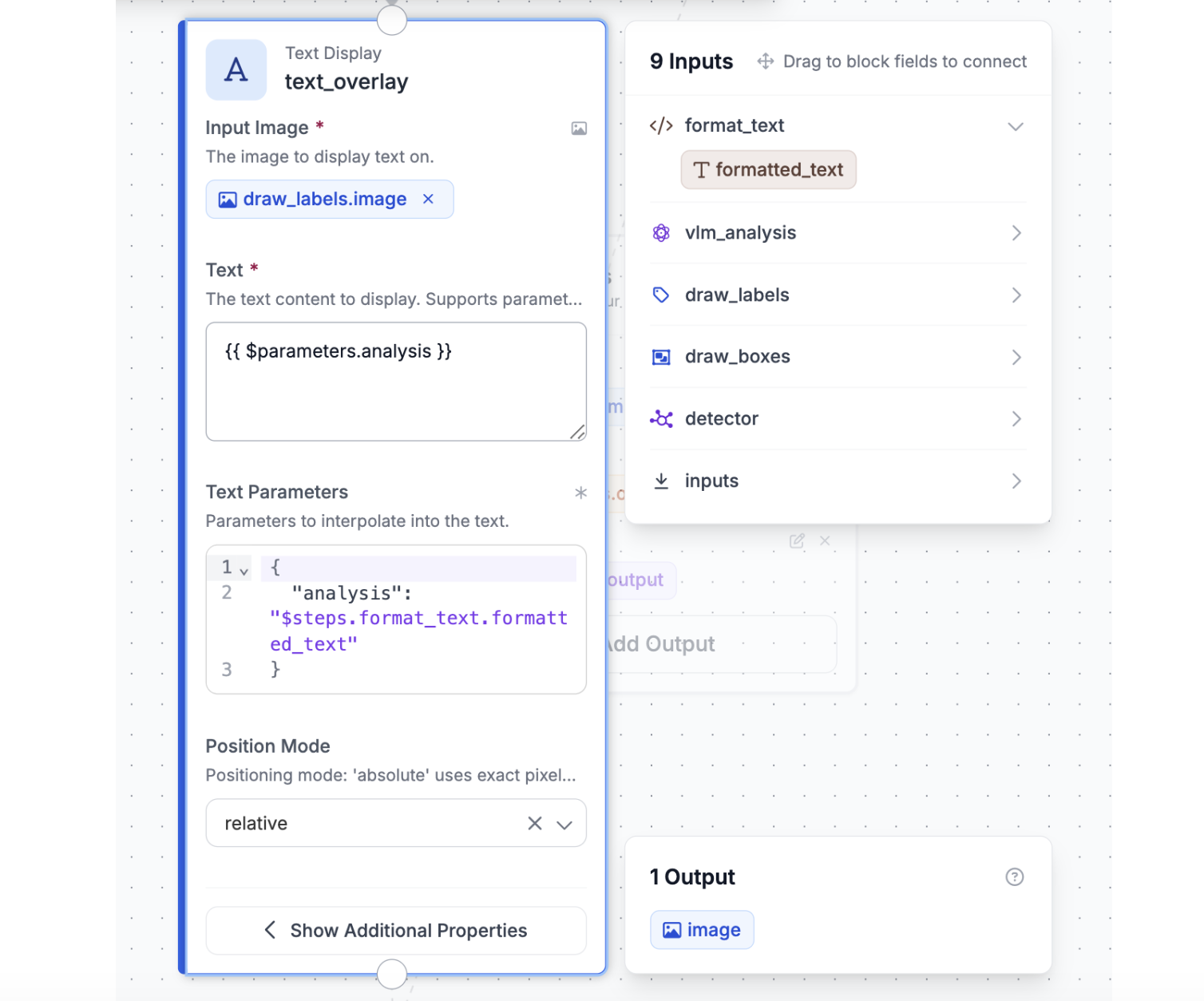
In parallel with the VLM and overlay path, add a detections filter block that keeps only person-class detections, then a property definition block to count those detections. This produces a separate player count output useful for quality monitoring and verifying the model is detecting the right number of people in the frame.
Step 8: Test the Workflow
Click "Run" in the top-right corner to validate your pipeline. Upload a test image of a tennis match, ideally one that captures both players and the ball during a rally.
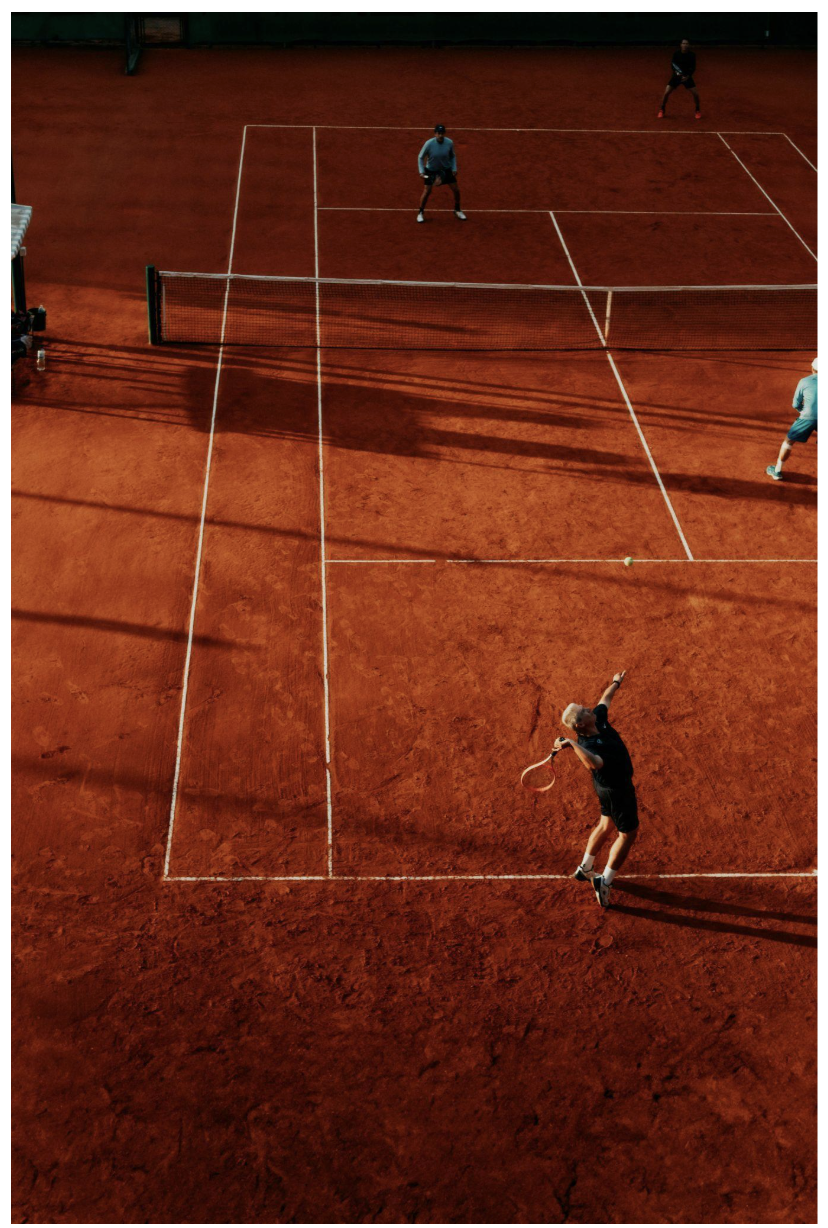
Within seconds, you'll receive three outputs: the final annotated image with bounding boxes, class labels, and AI commentary text in the bottom-left corner; the player count showing how many person detections were found; and the raw GPT-5.1 tactical analysis as a text string before formatting.
A representative tactical analysis output looks like:
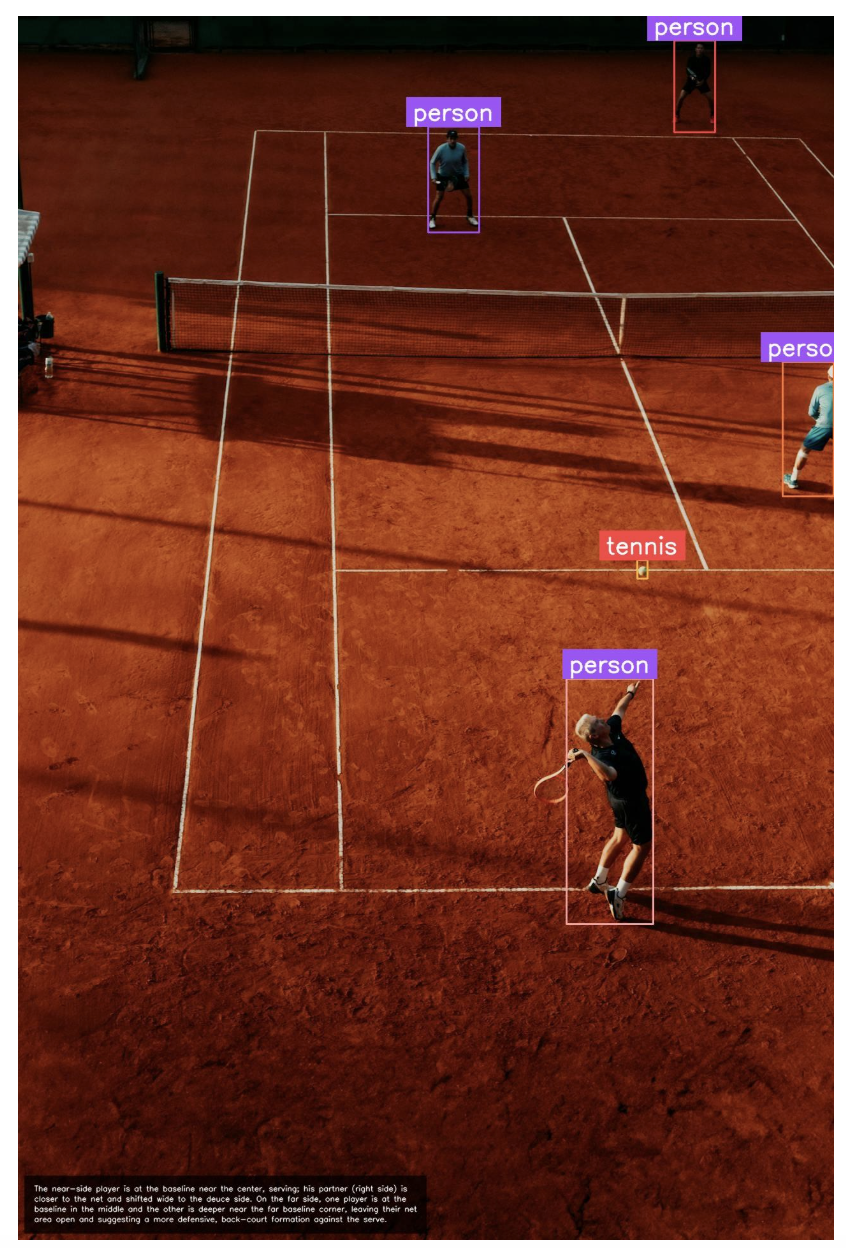
"The near-side player is at the baseline near the center, serving; his partner (right side) is closer to the net and shifted wide to the deuce side. On the far side, one player is at the baseline in the middle and the other is deeper near the far baseline corner, leaving their net area open and suggesting a more defensive, back-court formation against the serve."
This response demonstrates the power of the detect-then-reason pattern. A fast, specialized detector localizes the players and ball, then a general-purpose VLM analyzes the boxed image to interpret what the positioning means tactically. Coaches receive not just bounding boxes, but tactical interpretations of court coverage and player spacing.
Note that the workflow faithfully displays whatever the detection model outputs, so occasional false positives (such as a shoe detected as a person or tennis ball) will be passed through to the VLM. Improving precision in these cases is a matter of expanding the training dataset and retraining the model.
Use Roboflow Agent to Track Tennis Analytics
Roboflow Agent - easily accessible on the Roboflow app homepage - acts as a conversational layer on top of Roboflow’s tools, including models, datasets, and workflows. You can describe what you want in plain English, and it handles the process of building it for you making it easier to create, test, and deploy computer vision applications without needing to write complex code. Here's an example of how you can use it to build your tennis analytics workflow.
Automate Tennis Player Performance Analytics Conclusion
You've built a tennis player performance analytics system that combines RF-DETR's object detection with GPT-5.1's tactical reasoning to deliver coaching-grade insights from a single match frame. This workflow transforms photographs into annotated images with bounding boxes, class labels, and AI-generated tactical commentary in one glance-ready output.
For production deployment, consider running the workflow across multiple frames of a match to aggregate positioning patterns over time, integrating tracker IDs to follow players across frames, or connecting the system to a coaching dashboard.
Further reading
Below are a few related topics you might be interested in:


Cite this Post
Use the following entry to cite this post in your research:
Contributing Writer. (May 6, 2026). Tennis Player Performance Analytics with Roboflow. Roboflow Blog: https://blog.roboflow.com/automate-tennis-analytics/