

Automatically find batch and expiry strips, read them, and auto-validate lot codes and dates on medical packaging lines with this vision AI pipeline.
Pharmaceutical packaging lines print batch numbers and expiry dates on every pack that leaves the line. A wrong digit, a smudged field, a date that never printed correctly. Those get through manual inspection more often than they should.
Medical device recalls hit a four-year high in 2024, with 1,059 events recorded in the US alone. Roughly 25% trace back to mislabeling. The stakes are the same across the industry.
Catching these on a packaging line is harder than it sounds. Batch and expiry fields sit in different positions across label layouts, ink density shifts between printhead passes, and some strips run vertically while others run horizontally. A human checker moving at line speed is going to miss some.
This guide walks through building a print verification pipeline in Roboflow Workflows. You'll train a localization model to find the batch and expiry strip, crop it, read the text with Google Gemini, and run format and expiry validation automatically.
This pipeline is not limited to pharmaceutical packaging. Surgical kit pouches, IVD reagent boxes, and implant labels all carry the same fields. Swap the dataset, retrain the localization model on your label layout, and this Workflow carries over unchanged.
OCR Lot Code and Expiry Date Verification for Medical Packaging
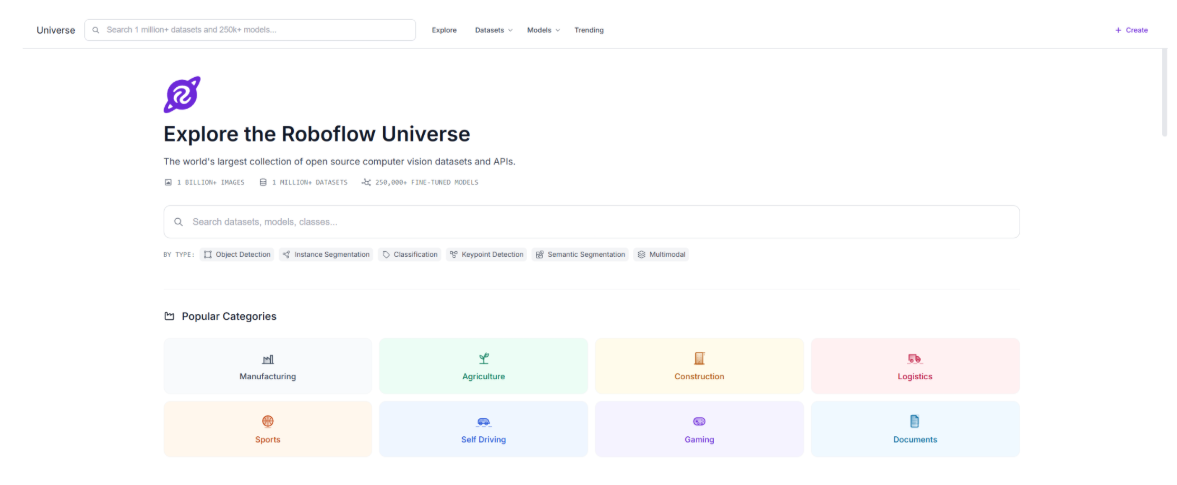
Go to Roboflow Universe and search for the major project dataset. Roboflow Universe hosts over 250,000 open source datasets across industries.
This dataset has 1,716 images of pharmaceutical packaging with two annotated classes: name for the product label region and date for the batch and expiry strip.
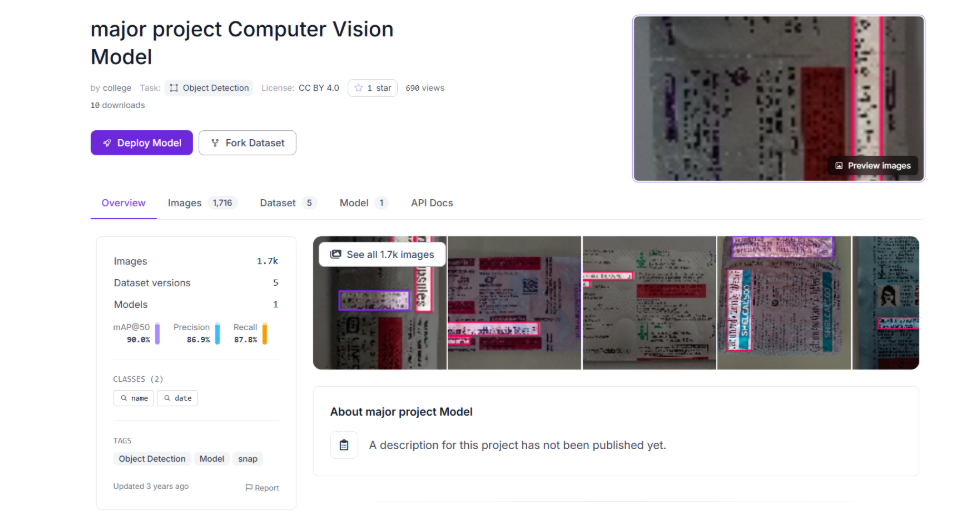
The variation covers ink density shifts, vertical and horizontal strip orientations, and partial occlusion from fold overlap. That is what makes your localization model robust before it sees a single production image.
Click Fork Dataset to copy it into your workspace with all annotations intact.
Build the Workflow
Here is the workflow we will build. Before building, here is what each block does and why it is in the chain.

- Image Input: entry point for every image
- Object Detection Model: locates the batch and expiry strip on the full image
- Detections Filter: passes only date class detections downstream
- Dynamic Crop: isolates the strip as a tight crop
- Google Gemini: extracts batch_number and expiry_date from the crop
- Gemini Result Parser: makes both fields addressable
- Python Validation: checks format and expiry date, returns PASS or FAIL
- Bounding Box Visualization: draws detected regions on the output image
Step 1: Train the Object Detection Model
After forking the dataset, open it in your workspace, Select Custom Training to configure your model settings.
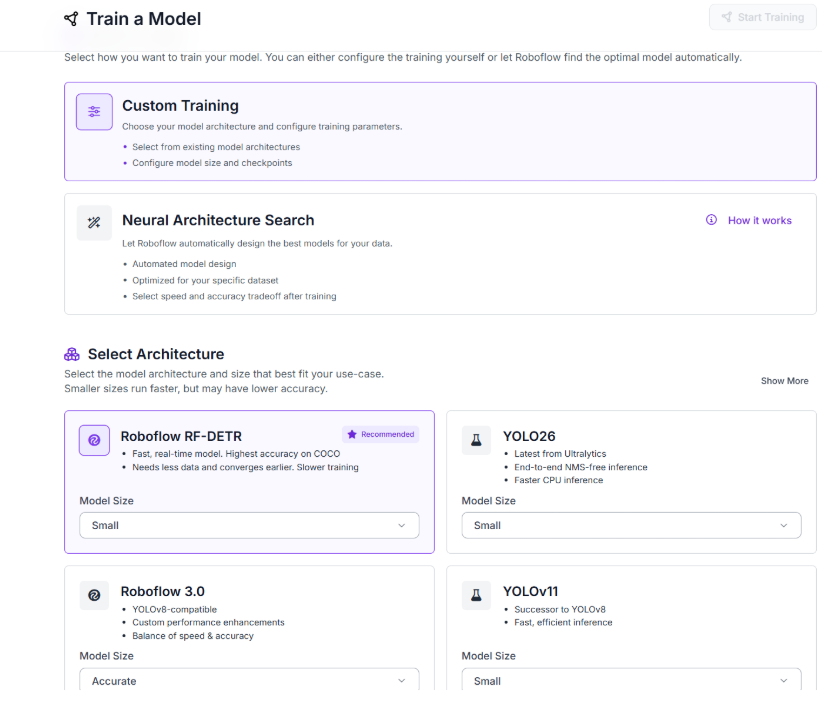
Choose Roboflow RF-DETR as your model architecture. RF-DETR is Roboflow's real-time object detection model that delivers high accuracy with faster convergence, which makes it a strong fit for label region detection.
Adjust the train/valid/test split. The default 80/10/10 works well here: 1,373 images for training, 172 for validation, and 171 for testing.
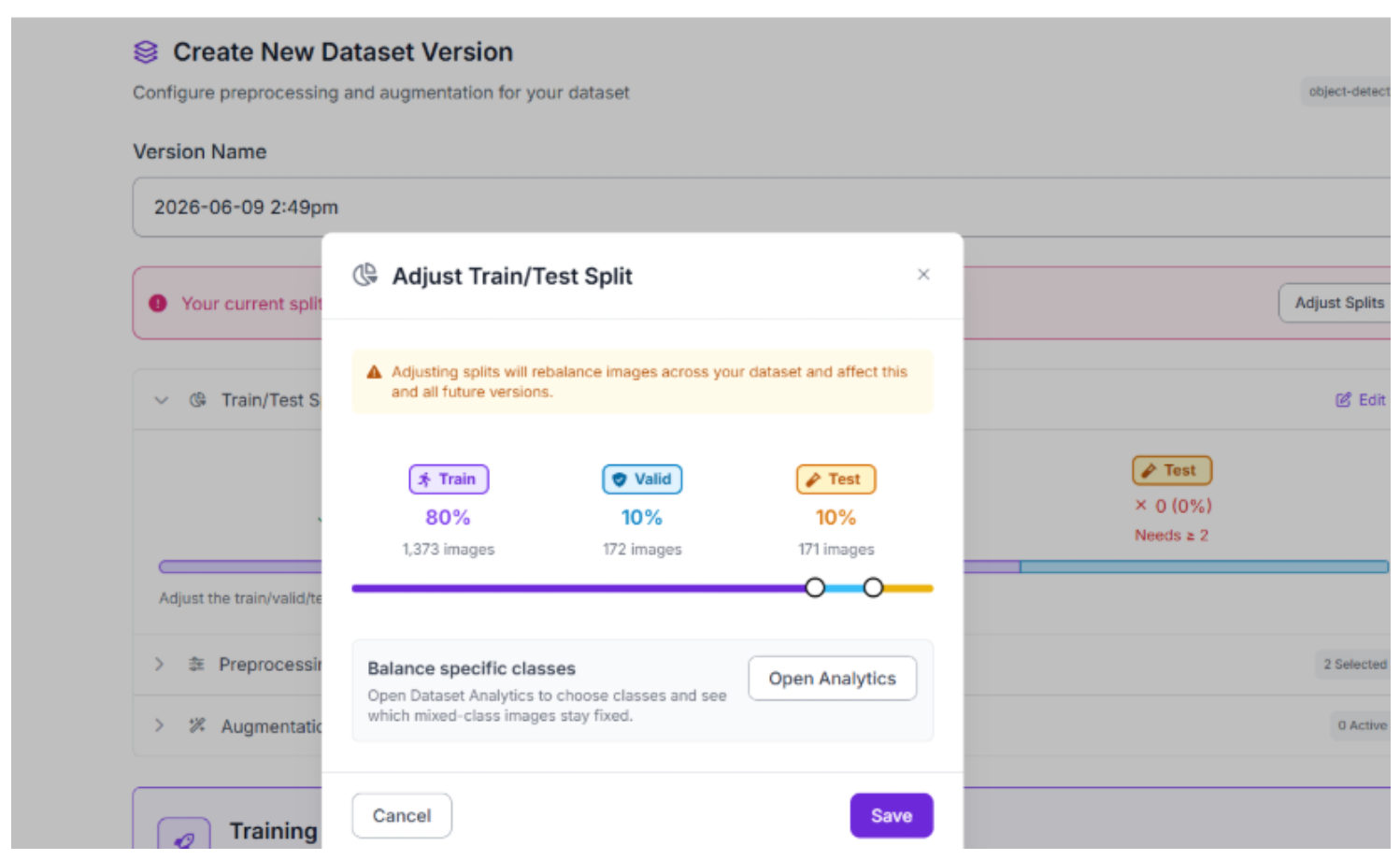
Click Save to confirm your split. If you want to control how long the model trains, open Advanced Options before starting and adjust the number of epochs.
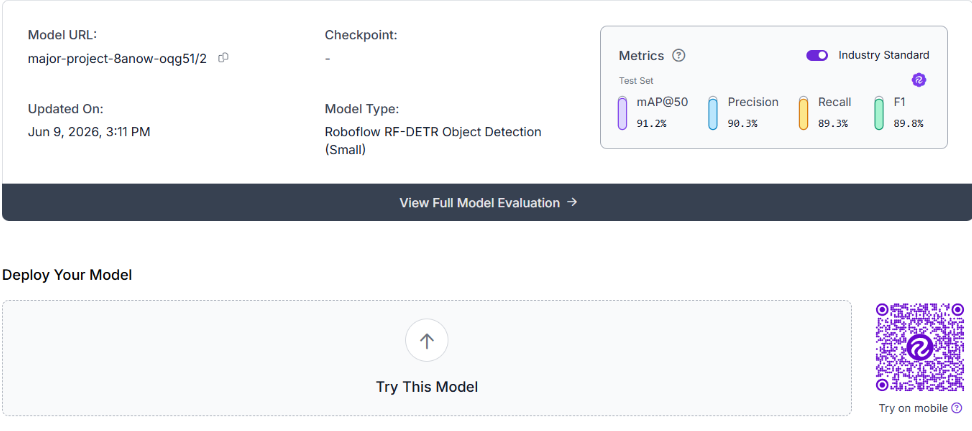
Click Start Training. When training finishes, the model card shows mAP, Precision, Recall, and F1. This model achieved 91.2% mAP with 90.3% precision across both classes.
With your model trained, you are ready to build the Workflow.
Step 2: Add the Object Detection Model
Go to Workflows from the side panel and create a new Workflow from scratch. To add a block, click the black + in the canvas and search for the block by name.
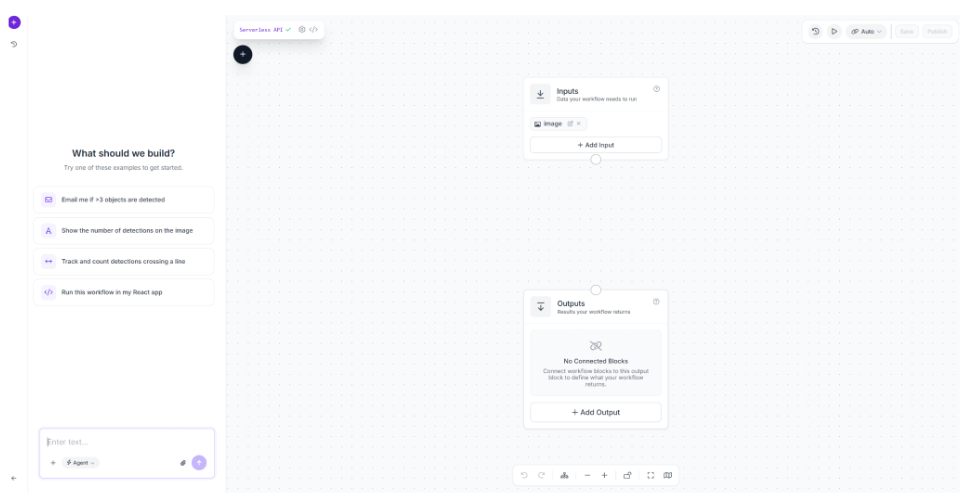
Under the Image section, connect inputs.image. This tells the block which image to run detection on.
Under the Model section, paste your model identifier from the training page. You can find it on your model card after training completes. It looks like this: major-project-8anow-oqg51/2.
Leave Confidence Mode on Best (Recommended).
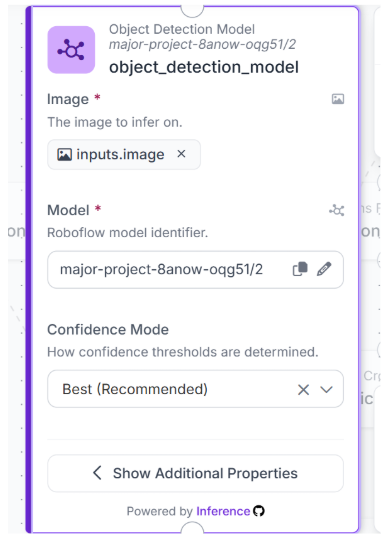
This block forms the core of the pipeline, as every downstream step relies on the bounding boxes it produces.
Step 3: Add the Detections Filter
Click + and search for Detections Filter. Under Predictions, connect object_detection_model.predictions.
Under Operations, click Edit and configure the filter to pass only detections where class equals date. This drops the name detections and sends only the batch and expiry strip downstream to Gemini.
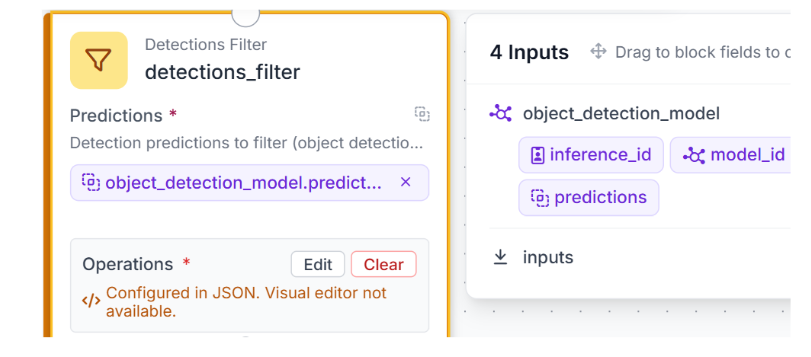
Without this block, Gemini receives crops from all detected regions, including the product name, which returns no useful batch or expiry data.
Step 4: Add Dynamic Crop
Click + and search for Dynamic Crop. Under Image to Crop, connect inputs.image. Under Regions of Interest, connect detections_filter.predictions.
Leave Mask Opacity at 0 and Background Color at 0,0,0.
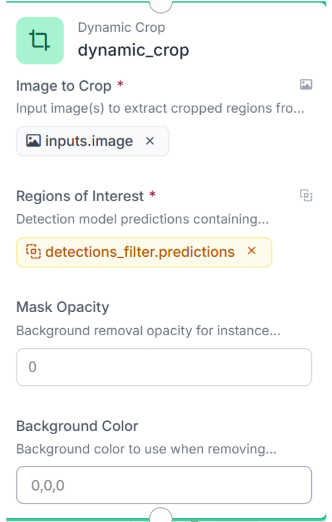
This block cuts the detected batch and expiry strip out of the full packaging image and passes a tight crop to Gemini, giving it a clean region to read from.
Step 5: Add Google Gemini
Click + and search for Google Gemini. Under Image, connect dynamic_crop.crops. Set Task Type to Visual Question Answering.
Under Prompt, paste the following:
Extract batch_number and expiry_date from this cropped label.
Return ONLY a valid JSON object with exactly these two fields:
{"batch_number": "", "expiry_date": ""}.
Do not include markdown, explanation, or extra text.
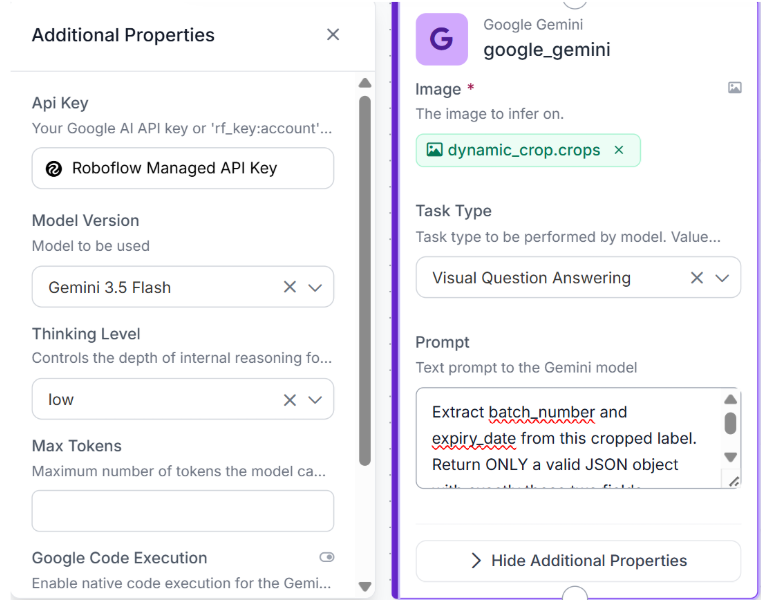
Gemini reads the printed text directly from the crop and returns a clean JSON object with both fields. No OCR model training required.
Step 6: Add the Gemini Result Parser
Click + and search for Gemini Result Parser. Under gemini_json_string, connect google_gemini.output.
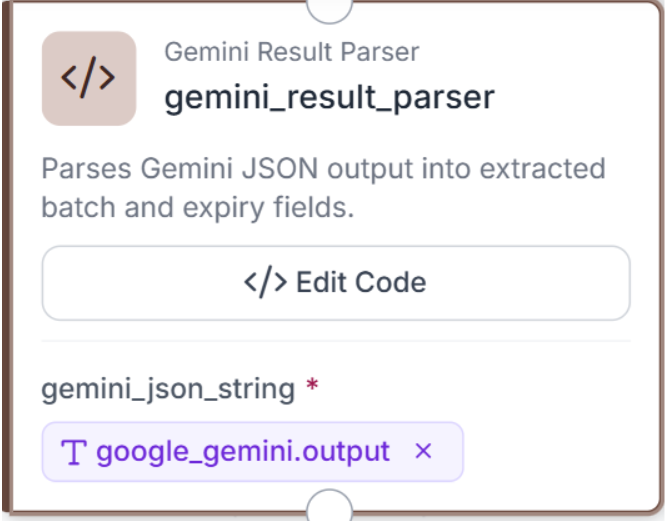
Click Edit Code and paste the following:
def run(self, gemini_json_string):
    import json, re
    raw = str(gemini_json_string or "")
    clean = re.sub(r"```json|```", "", raw).strip()
    try:
        data = json.loads(clean)
    except:
        m = re.search(r"\{.*\}", clean, re.DOTALL)
        data = json.loads(m.group(0)) if m else {}
    batch = str(data.get("batch_number") or "").strip()
    expiry = str(data.get("expiry_date") or "").strip()
    return {
        "batch_number": batch,
        "expiry_date": expiry,
        "parsed_results": {"batch_number": batch, "expiry_date": expiry}
    }
This strips any markdown formatting that Gemini occasionally adds and returns batch_number and expiry_date as clean addressable fields.
Step 7: Add the Python Validation Block
Click + and search for Python Block. Under parsed_results, connect gemini_result_parser.parsed_results.
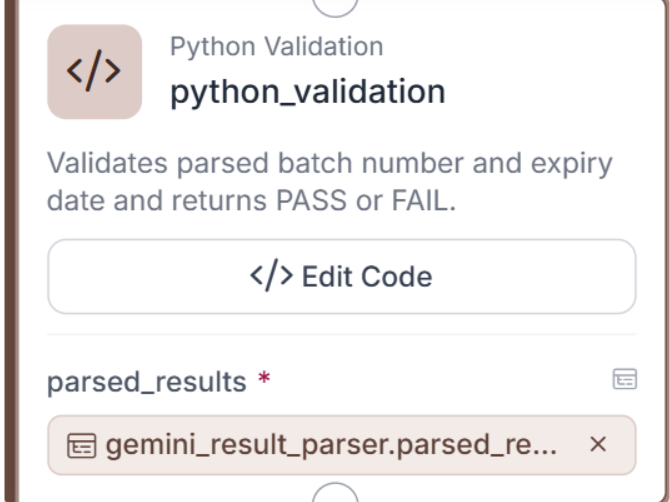
Python Validation
Click Edit Code and paste the following:
def run(self, parsed_results):
    import re
    from datetime import datetime
    data = parsed_results or {}
    batch_number = str(data.get("batch_number", "") or "").strip()
    expiry_date = str(data.get("expiry_date", "") or "").strip()
    batch_valid = bool(re.match(r"^[A-Za-z0-9\-\.\/]{4,}$", batch_number))
    fmt1 = re.match(r"^(JAN|FEB|MAR|APR|MAY|JUN|JUL|AUG|SEP|OCT|NOV|DEC)\.\d{4}$", expiry_date.upper())
    fmt2 = re.match(r"^(0[1-9]|1[0-2])/\d{4}$", expiry_date)
    fmt3 = re.match(r"^\d{4}:(0[1-9]|1[0-2])$", expiry_date)
    expiry_format_valid = bool(fmt1 or fmt2 or fmt3)
    expiry_valid = False
    if expiry_format_valid:
        try:
            if fmt1:
                exp = datetime.strptime(expiry_date.upper(), "%b.%Y")
            elif fmt2:
                exp = datetime.strptime(expiry_date, "%m/%Y")
            else:
                exp = datetime.strptime(expiry_date, "%Y:%m")
            exp_end = datetime(exp.year + 1, 1, 1) if exp.month == 12 else datetime(exp.year, exp.month + 1, 1)
            expiry_valid = exp_end > datetime.today()
        except Exception:
            expiry_valid = False
    status = "PASS" if batch_valid and expiry_valid else "FAIL"
    return {
        "status": status,
        "results": {
            "batch_number": batch_number,
            "expiry_date": expiry_date,
            "batch_valid": batch_valid,
            "expiry_format_valid": expiry_format_valid,
            "expiry_valid": expiry_valid,
            "status": status
        }
    }
The block validates the batch number as an alphanumeric string of four or more characters and accepts three expiry date formats: MMM.YYYY, MM/YYYY, and YYYY:MM. If the expiry date is in the past the pack returns FAIL regardless of format. The comparison runs against datetime.today(), so the result always reflects the current date when the Workflow runs.
Step 8: Add Bounding Box Visualization
Click + and search for Bounding Box Visualization. Under Input Image, connect inputs.image. Under Predictions,
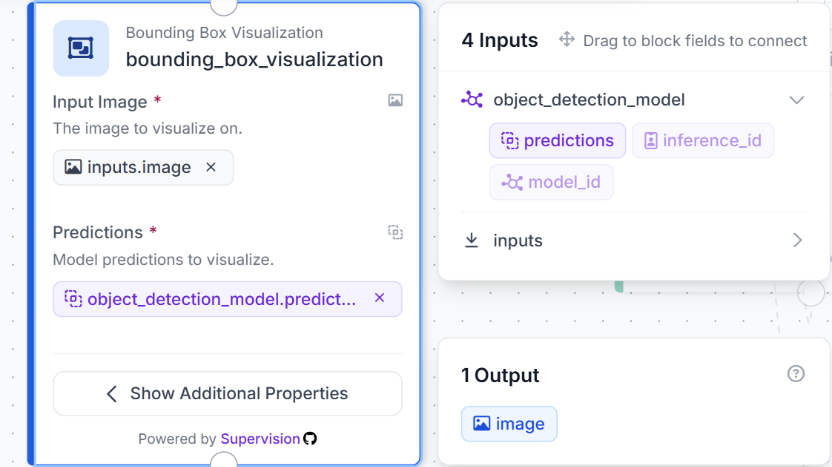
connect object_detection_model.predictions. Leave Color Palette on DEFAULT.
Step 9: Configure the Outputs
Click the Outputs block and add three outputs:
- output_image pointed at bounding_box_visualization.image
- validation_results pointed at python_validation.results
- predictions pointed at object_detection_model.predictions
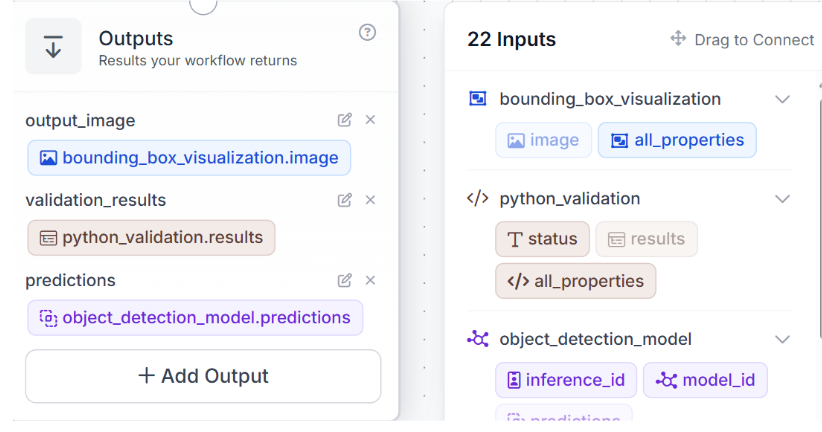
Click Save. Your Workflow is ready to run.
Step 10: Test in the Workflow Editor
Open the Workflow editor and upload a test image from your forked dataset. Click New Run to run the pipeline.
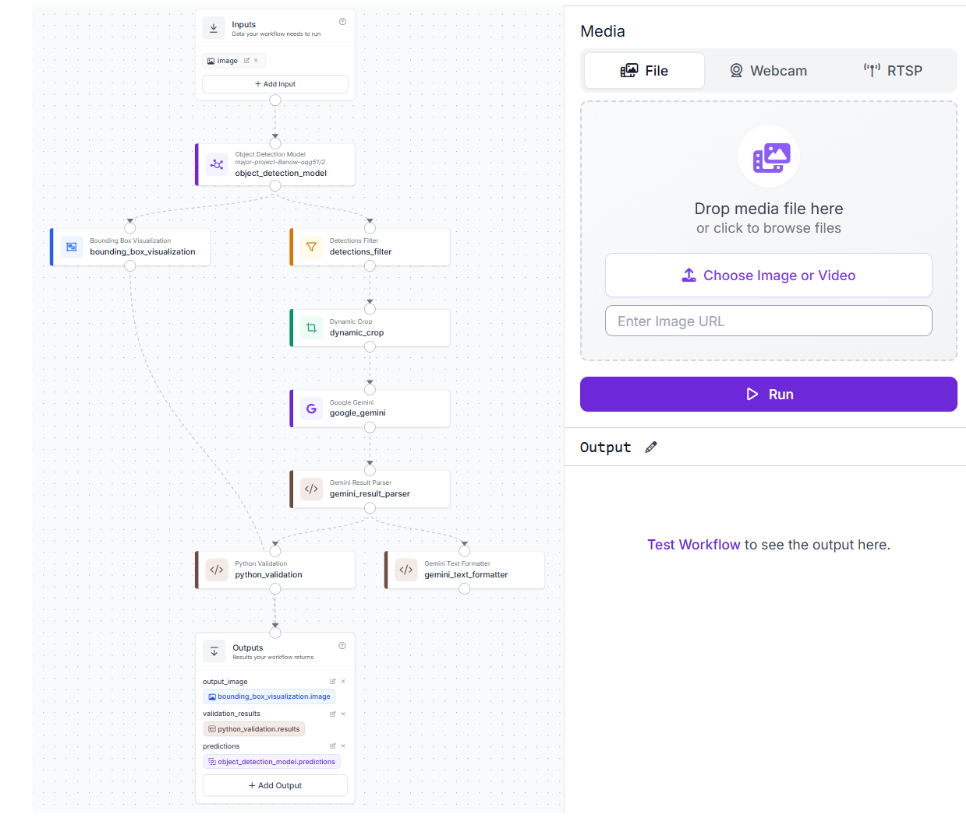
Your pipeline is fully wired and running. Head to the Results section to see what comes out.
Workflow Results
Test case 1: Clean label, status PASS
A pharmaceutical packaging box with a clearly printed batch and expiry strip. The localization model detects the region, Gemini extracts both fields, and the validation block confirms the batch number is valid and the expiry date is in the future.
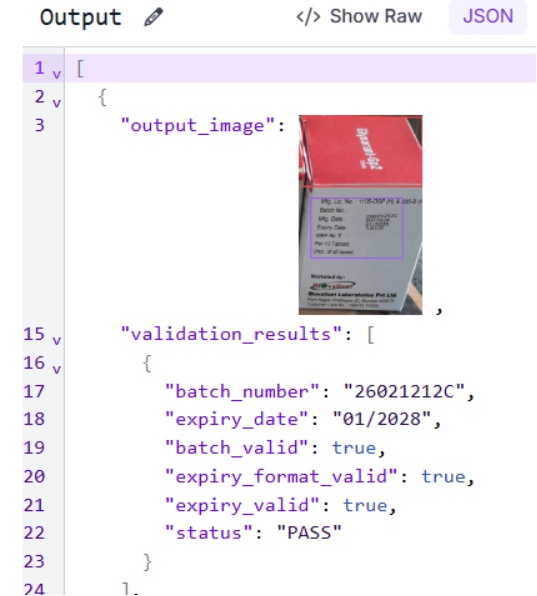
Both fields present, format correct, expiry date valid. The pack clears verification.
Test case 2: Expired product, status FAIL
A sterile medical device pouch with a lot and expiry strip printed on the right edge. The localization model detects the strip, Gemini extracts both fields, and the validation block correctly flags the product as expired.
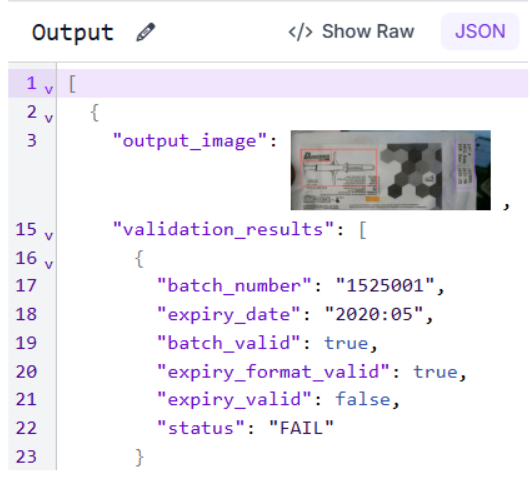
The batch number passes validation, but the expiry date is over five years in the past. The pack fails verification before it reaches the next stage.
Automate OCR Lot Code and Expiry Date Verification with Roboflow Agent
Want more help? You could also just describe the problem you want to solve to Roboflow Agent in plain language and it creates the workflow for you. Watch the video below to see the Agent assemble the pipeline from prompts.
OCR Lot Code and Expiry Date Verification for Medical Packaging Conclusion
Medical device manufacturing lines run under strict traceability requirements. Surgical kit pouches, IVD reagent boxes, implant labels, and sterile barrier packaging all carry lot numbers and expiry dates. The same Workflow you built handles this without any structural changes.
What changes is the dataset. Fork or build a dataset of your specific label layout and retrain the localization model on your date and name regions. Label positions vary across device types so the model needs to learn your layout. Everything downstream in the Workflow stays identical.
For MES or quality system integration, pass validation_results directly to your batch record database at the point of packaging. A FAIL status triggers a line stop before the pack moves to sterilization or final packaging, with no manual review step.
If your label carries a UDI field, extend the Gemini prompt with no retraining required:
Extract batch_number, expiry_date, and udi from this cropped label.
Return ONLY a valid JSON object with exactly these three fields:
{"batch_number": "", "expiry_date": "", "udi": ""}.
Do not include markdown, explanation, or extra text.
The Python validation block then adds a UDI format check alongside the existing batch and expiry logic.
Further reading:


Cite this Post
Use the following entry to cite this post in your research:
Mostafa Ibrahim. (Jun 11, 2026). OCR Lot Code and Expiry Date Verification for Medical Packaging. Roboflow Blog: https://blog.roboflow.com/ocr-lot-code-and-expiry-date-verification/