

Automate empty shelf detection by training an RF-DETR model, then using a Roboflow Workflow to classify each shelf as stocked, partially stocked, or empty based on how much of the frame the gaps cover. The retail store item detection pipeline returns an annotated image showing exactly where restocking is needed and logs every scan as a Vision Event.
Out-of-stocks cost global retailers an estimated $1.2 trillion in lost sales every year. Even a single empty shelf can go unnoticed long enough for customers to leave without buying what they came for. In large stores with dozens of aisles, manually checking every shelf is time-consuming and difficult to do consistently.
Computer vision offers a practical way to automate this process. Empty shelf spaces have a distinct visual appearance that sets them apart from fully stocked shelves. The gaps left by missing products create noticeable changes in color, texture, and depth, allowing a vision model trained on labeled examples to recognize them reliably.
Inventory Empty-Shelf Detection
In this tutorial, you'll train an RF-DETR model on a public dataset of retail shelf images annotated with empty spaces. You'll then build a Roboflow Workflow that uses the model to classify each shelf as stocked, partially stocked, or empty. By the end, you'll have an automated inspection pipeline that identifies empty shelf spaces and returns an annotated image highlighting exactly where restocking is needed.
Empty Shelf Dataset
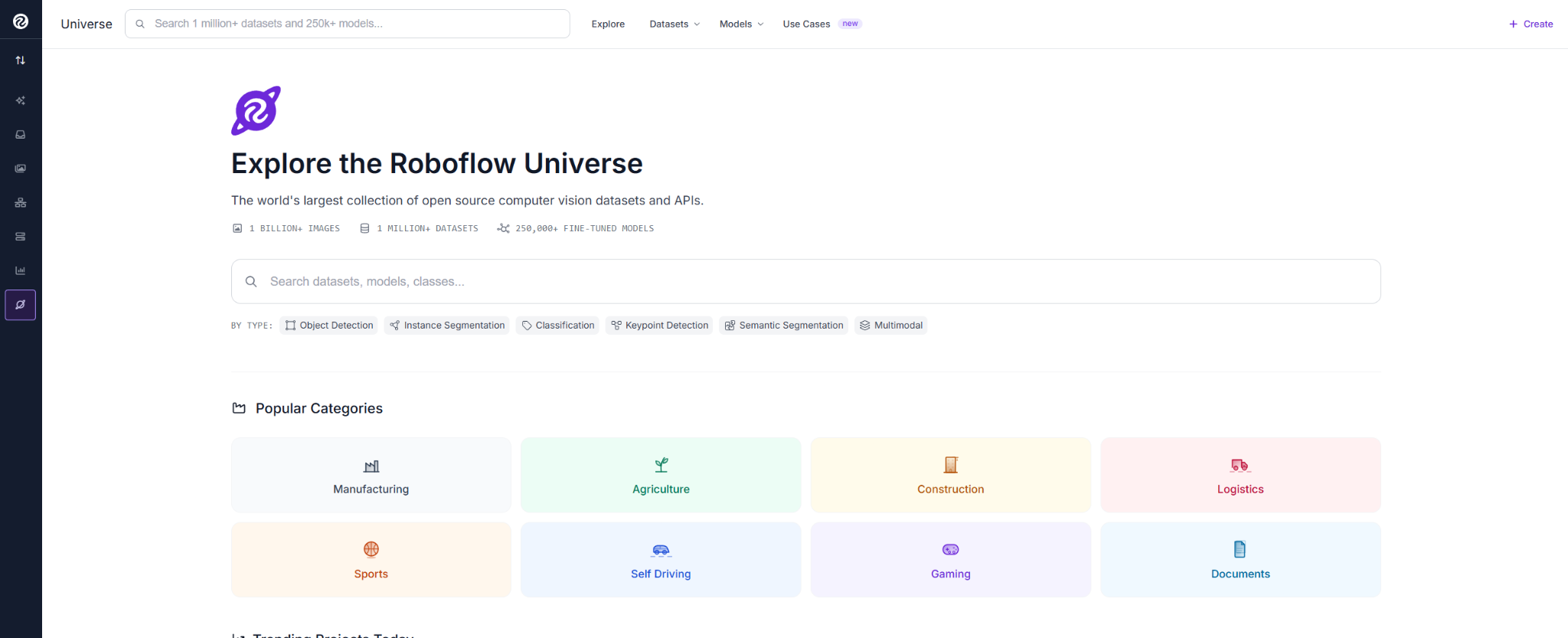
Go to Roboflow Universe and search for the empty shelf detection dataset by Policenta.
The dataset contains 1,050 retail shelf images with one class: Empty-space. Each missing product area is labeled with bounding boxes across different shelves, lighting, and product types.
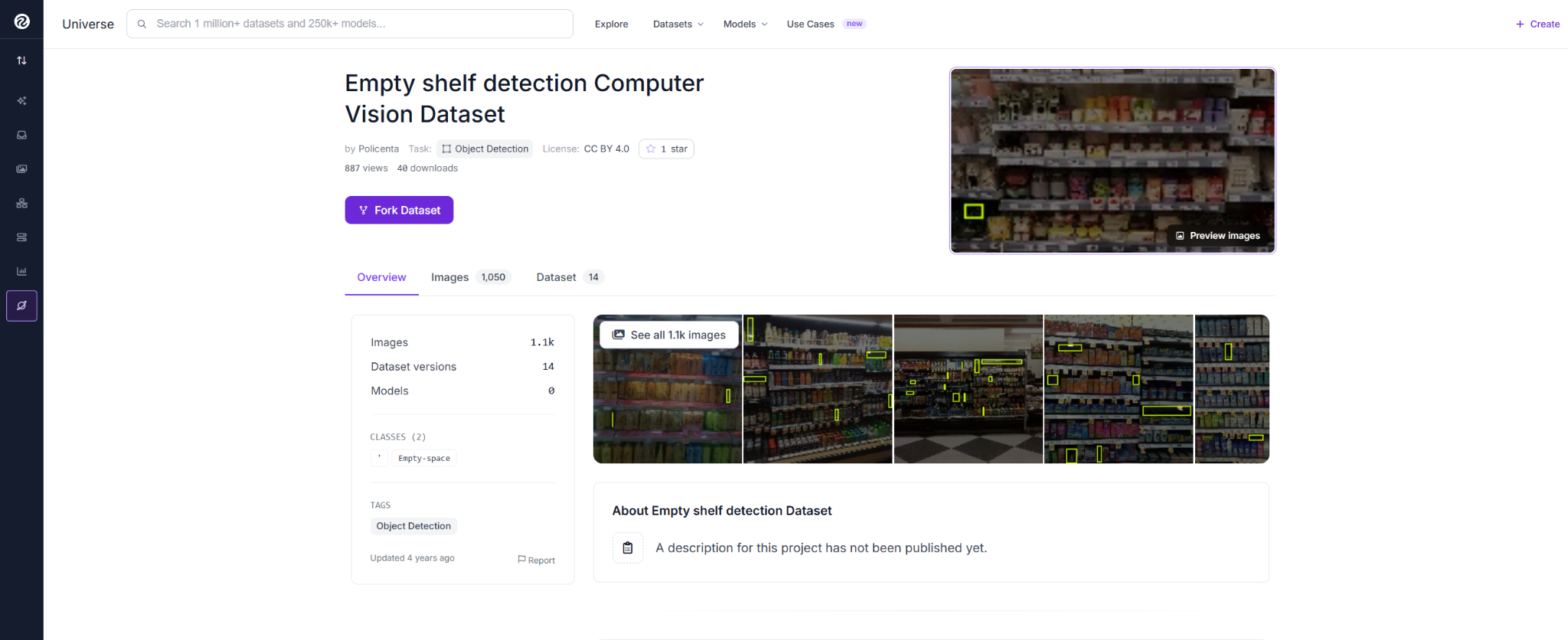
The dataset covers different aisle layouts, shelf depths, and gap sizes, giving the model real-world variation. Fork it into your workspace with the annotations to create your own version for training.
Train RF-DETR
Fork the dataset, create a new version from the Versions tab, then click Custom Train. Choose Custom Training to manually select the model architecture instead of using Neural Architecture Search.
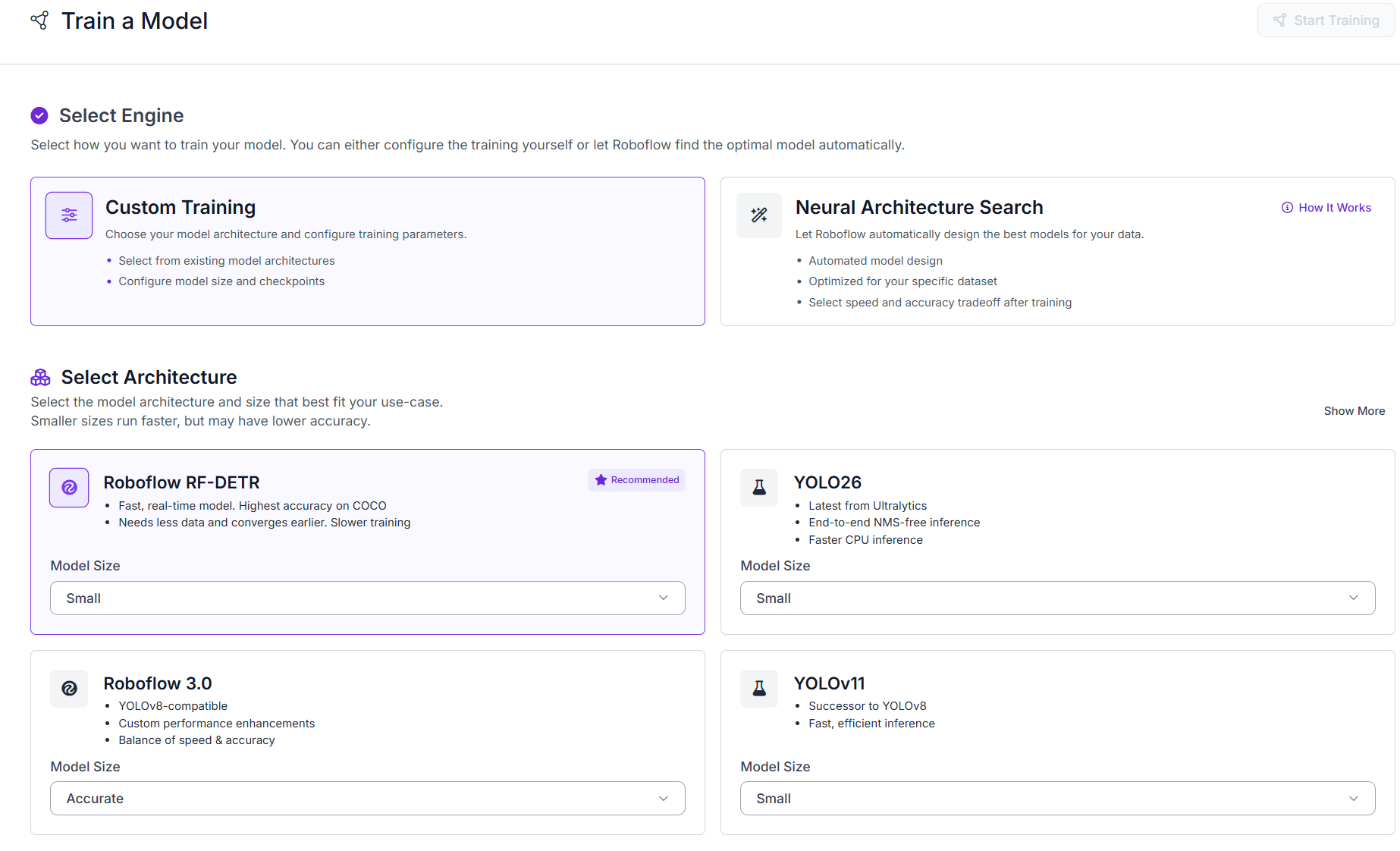
Select RF-DETR (Small) from the list of available models. It provides a good balance of speed and accuracy, making it well suited for this retail shelf inspection task.
Before you start training, Roboflow displays a summary of the training configuration, including the selected model, dataset version, train/validation/test split, and estimated training time. Review these settings to confirm everything looks correct, then launch the training job.

Training runs entirely on Roboflow's infrastructure; no local GPU or environment setup needed. You can watch the loss curves from the Training tab as epochs complete.
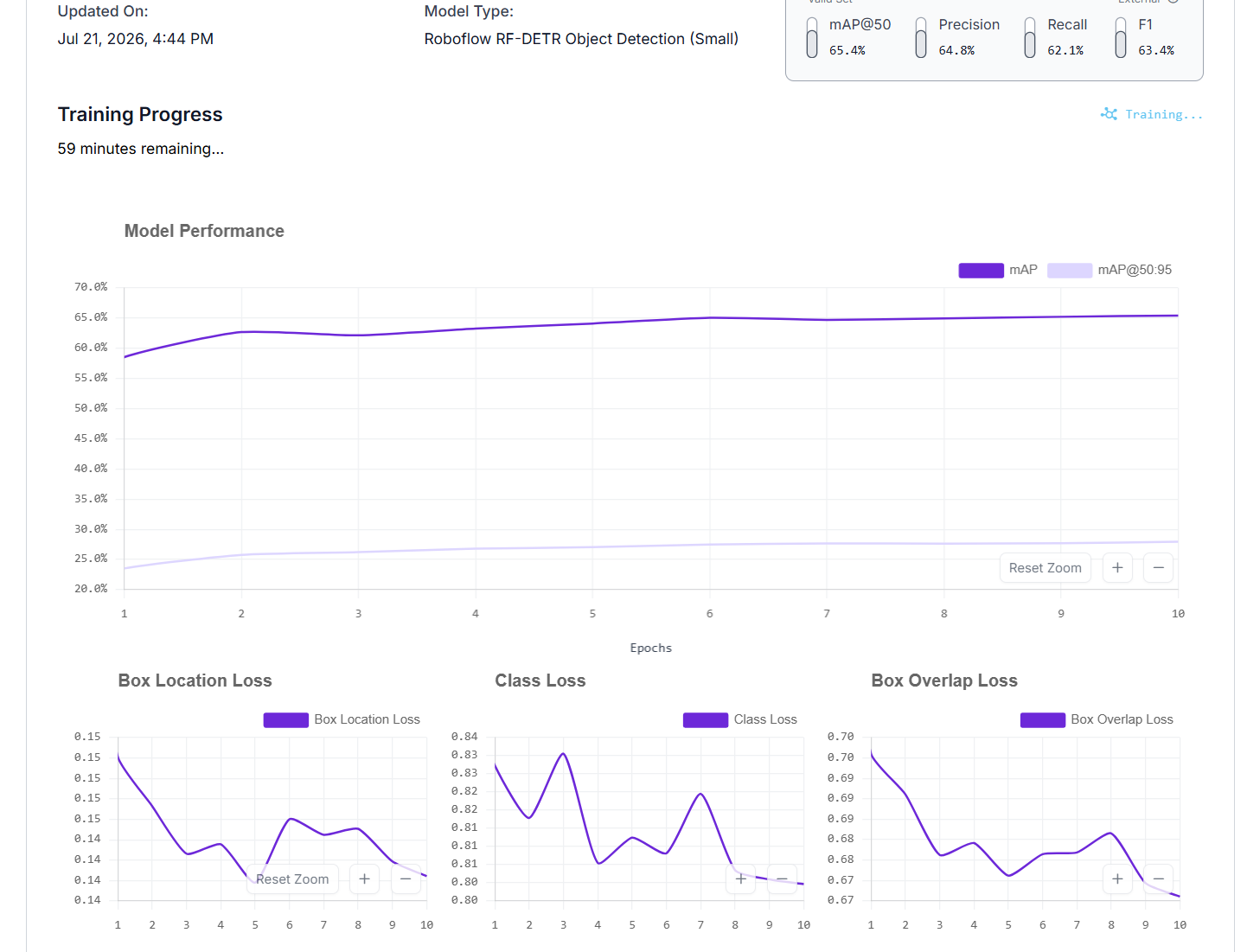
When training finishes, the model is ready to connect to a Workflow.
Build the Retail Object Detection Workflow
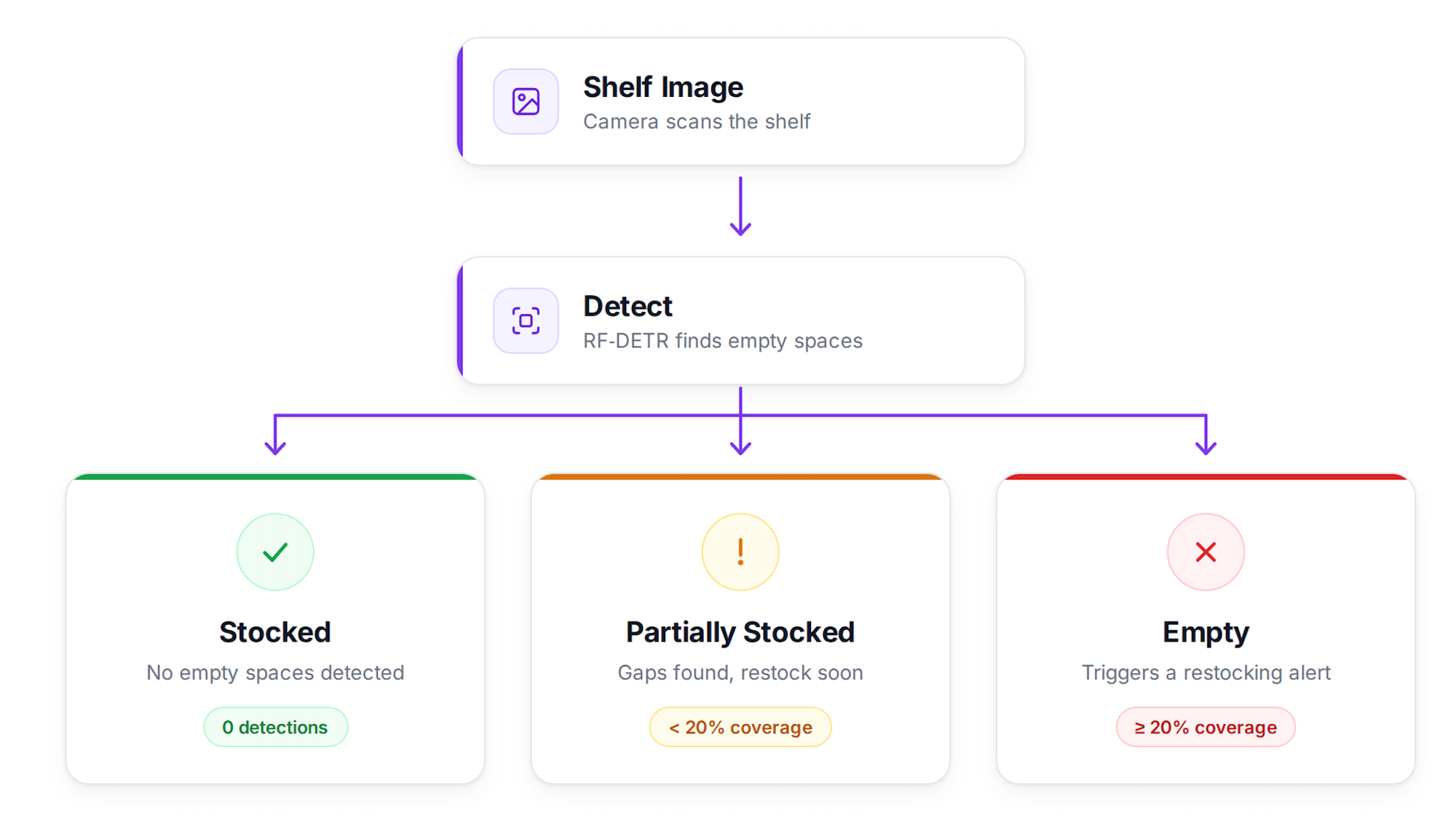
Here's the Workflow we'll build. Here's what each block does in this Workflow.
- Object Detection Model: Runs the trained RF-DETR model and detects empty shelf spaces with bounding boxes.
- Shelf Status: Classifies the shelf as stocked, partially stocked, or empty based on detection coverage.
- Rename Empty Space: Replaces raw labels with a cleaner class name.
- Bounding Box Visualization: Draws boxes around detected empty areas.
- Label Visualization: Adds class names to each box.
- Text Display: Shows the shelf status on the image.
- Roboflow Vision Events: Logs scans, images, and results for monitoring.
- Outputs: Returns the labeled image and JSON report.
Step 1: Add the trained model as an Object Detection block
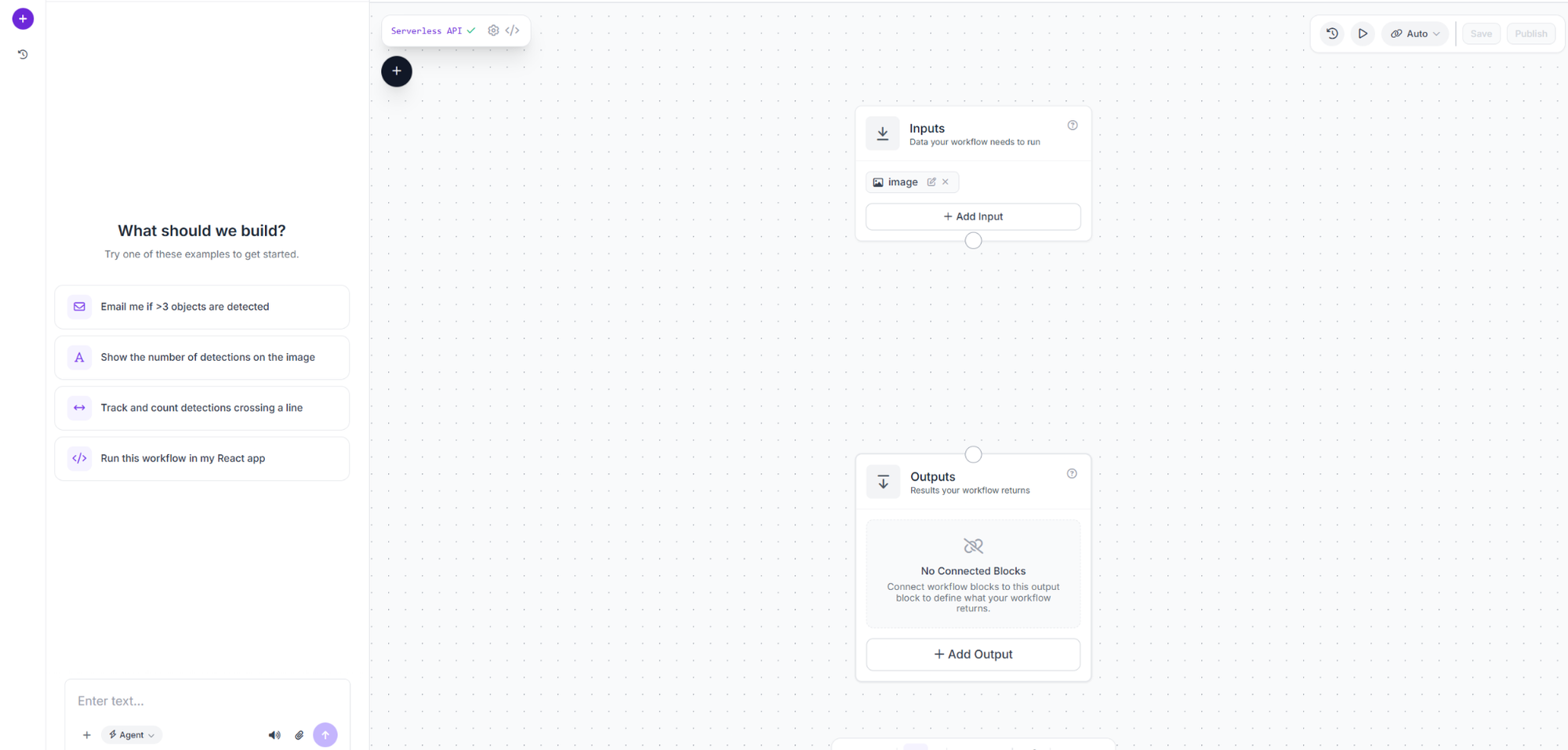
Open the Workflows tab and create a new Workflow. Roboflow automatically adds the Image Input and Outputs blocks.
Add an Object Detection Model block named shelf_detector, connect the image input, and paste your trained model URL. Set Confidence Mode to Custom with a 0.4 threshold so detections above 40% confidence are passed for further classification.
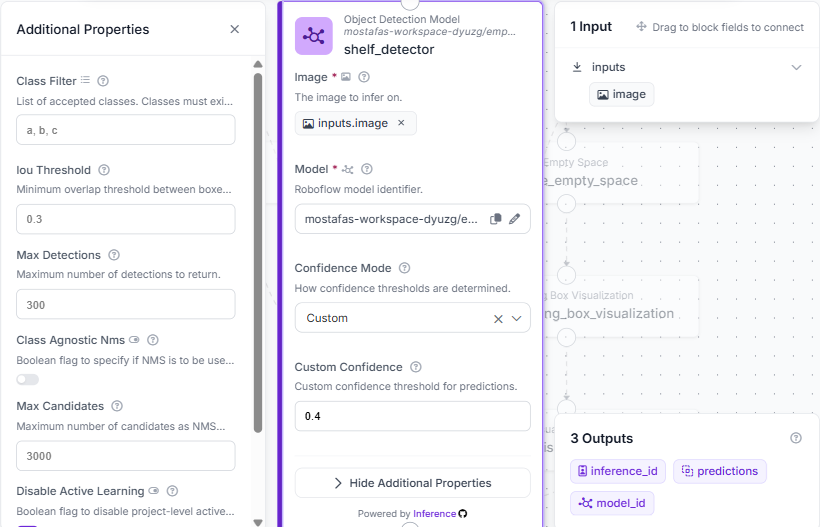
This block returns a bounding box and confidence score for each empty space it finds above 0.4. What happens next depends on those detections, handled by the two custom blocks coming up.
Step 2: Add the Shelf Status block (triage logic)
Add a Custom Python Block named shelf_status. Connect one input, predictions, to shelf_detector.predictions, kind object_detection_prediction. Add three outputs: report (dictionary), display_text (string), and status (string).
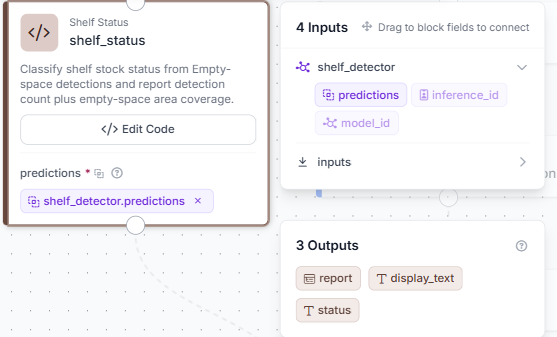
Click Edit Code to open the full editor and write the code:
def run(self, predictions):
    detection_count = 0 if predictions is None else len(predictions)
    total_bbox_area = 0.0
    image_area = None
    if predictions is not None and detection_count > 0:
        boxes = predictions.xyxy
        for box in boxes:
            x1, y1, x2, y2 = [float(v) for v in box]
            w = max(0.0, x2 - x1)
            h = max(0.0, y2 - y1)
            total_bbox_area += w * h
        data = getattr(predictions, "data", {}) or {}
        dims = data.get("image_dimensions") if isinstance(data, dict) else None
        if dims is not None:
            try:
                first = dims[0] if hasattr(dims, "__len__") and len(dims) > 0 else dims
                if isinstance(first, dict):
                    width = first.get("width") or first.get("w")
                    height = first.get("height") or first.get("h")
                    if width and height:
                        image_area = float(width) * float(height)
                elif hasattr(first, "__len__") and len(first) >= 2:
                    image_area = float(first[0]) * float(first[1])
            except Exception:
                image_area = None
        if image_area is None or image_area <= 0:
            try:
                max_x = float(np.max(boxes[:, 2]))
                max_y = float(np.max(boxes[:, 3]))
                image_area = max_x * max_y if max_x > 0 and max_y > 0 else None
            except Exception:
                image_area = None
    coverage_percent = 0.0
    if image_area is not None and image_area > 0:
        coverage_percent = float((total_bbox_area / image_area) * 100.0)
    if detection_count == 0:
        status = "STOCKED"
    elif coverage_percent < 20.0:
        status = "PARTIALLY STOCKED"
    else:
        status = "EMPTY"
    display_text = f"Shelf Status: {status}\nEmpty space detections: {detection_count}\nEmpty coverage: {coverage_percent:.1f}%"
    report = {
        "status": status,
        "detection_count": int(detection_count),
        "empty_space_area_px": float(total_bbox_area),
        "image_area_px": float(image_area) if image_area is not None else None,
        "empty_space_coverage_percent": round(float(coverage_percent), 2),
        "empty_threshold_percent": 20.0,
        "logic": "0 detections = STOCKED; detections with coverage below 20 percent = PARTIALLY STOCKED; coverage at or above 20 percent = EMPTY"
    }
    return {"report": report, "display_text": display_text, "status": status}
The logic runs in two steps: it counts detections and calculates their total image coverage. The status is based on coverage percentage rather than count, since a large gap matters more than multiple small ones.
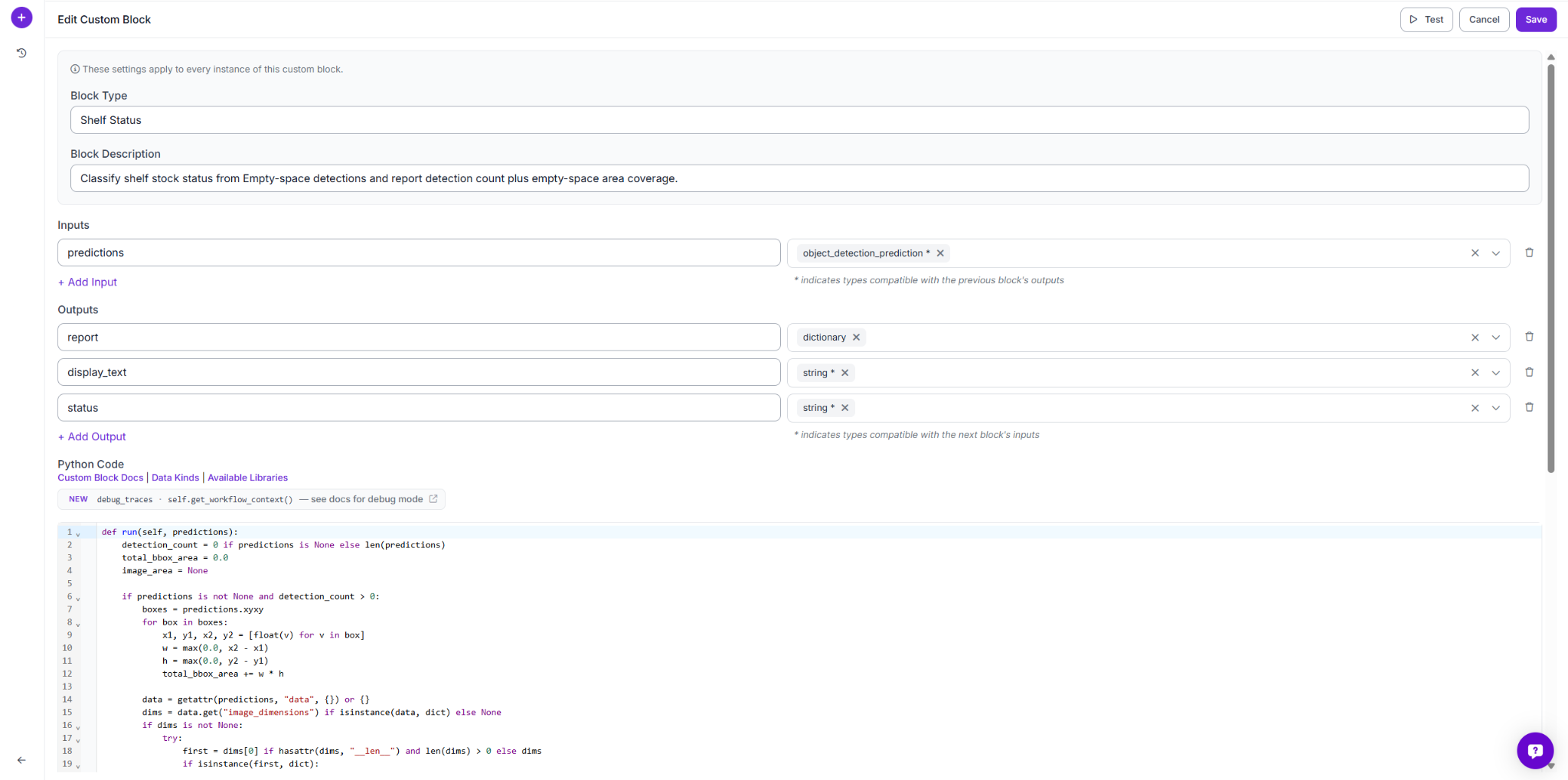
This block makes the final decision: no detections means stocked, under 20% coverage means partially stocked, and 20% or more means empty. display_text shows the result on the image, while report stores detailed metrics.
Step 3: Add the Rename Empty Space block
Add a Custom Python Block named rename_empty_space. Connect one input, predictions, to shelf_detector.predictions, kind object_detection_prediction. The output is also predictions, same type.
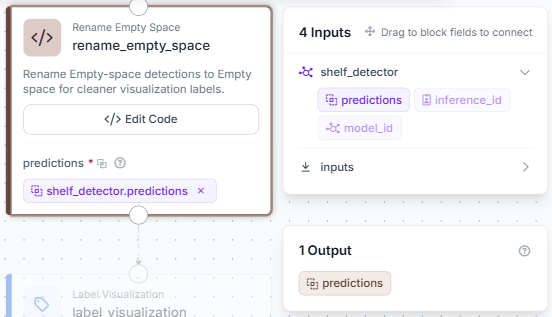
Click Edit Code and write the code:
def run(self, predictions):
    if predictions is None:
        return {"predictions": predictions}
    count = len(predictions)
    try:
        if getattr(predictions, "data", None) is None:
            predictions.data = {}
        predictions.data["class_name"] = np.array(["Empty space"] * count)
        predictions.class_id = np.zeros(count, dtype=int)
    except Exception:
        pass
    return {"predictions": predictions}
This block replaces the raw class label with a clean Empty space label before visualization, making the detected areas easier to understand on the image.
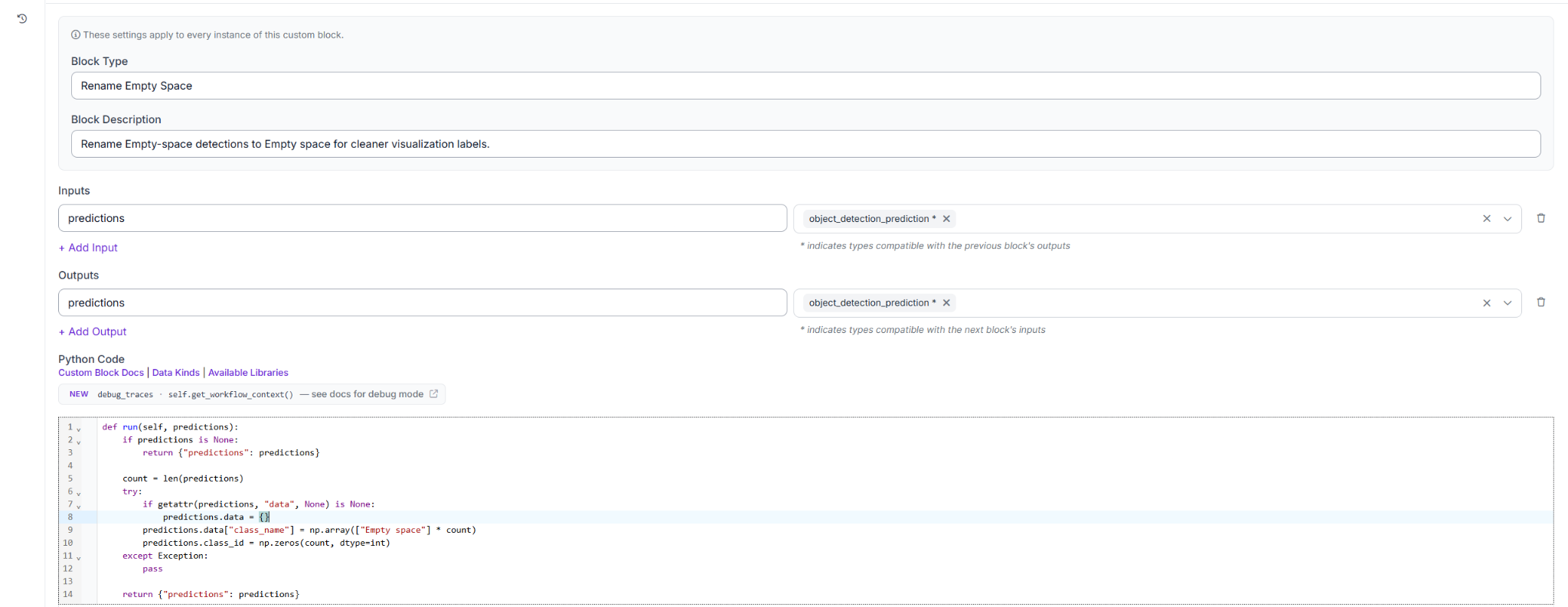
From here, the predictions are clean and ready to draw on the image.
Step 4: Add Bounding Box Visualization
Add a Bounding Box Visualization block. Connect Image to inputs.image and Predictions to rename_empty_space.predictions. This draws a box around each detected empty space using the cleaned labels from the previous step.
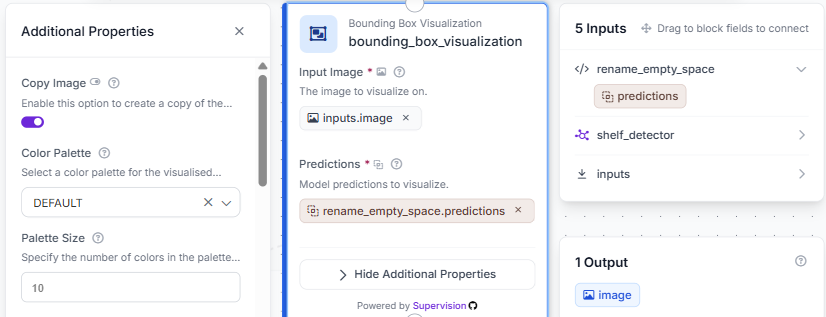
At this point, the image has boxes drawn around every empty zone the model found. The next step adds the class name to each one.
Step 5: Add Label Visualization
Add a Label Visualization block. Connect Image to bounding_box_visualization.image and Predictions to rename_empty_space.predictions. Set Text to Class so the label on each box shows the class name.
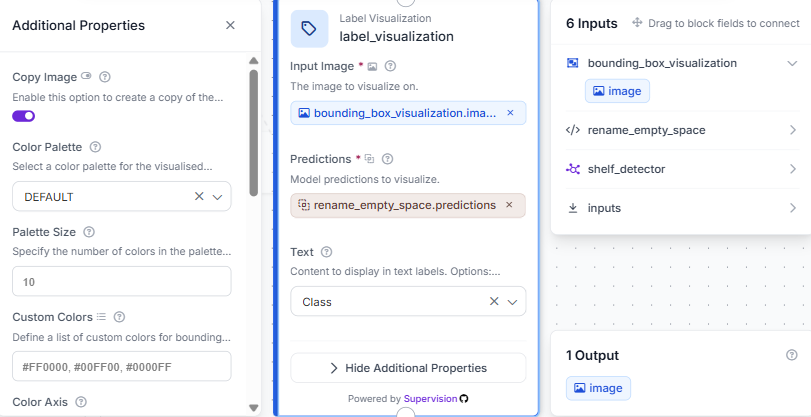
The image now shows both the boxes and the Empty space label on each one. The next step writes the shelf status onto the image.
Step 6: Add Text Display
Add a Text Display block, connect the image output, and map the text to display_text. Set the display style with white text, black background, 45% opacity, and a 0.55 font scale.
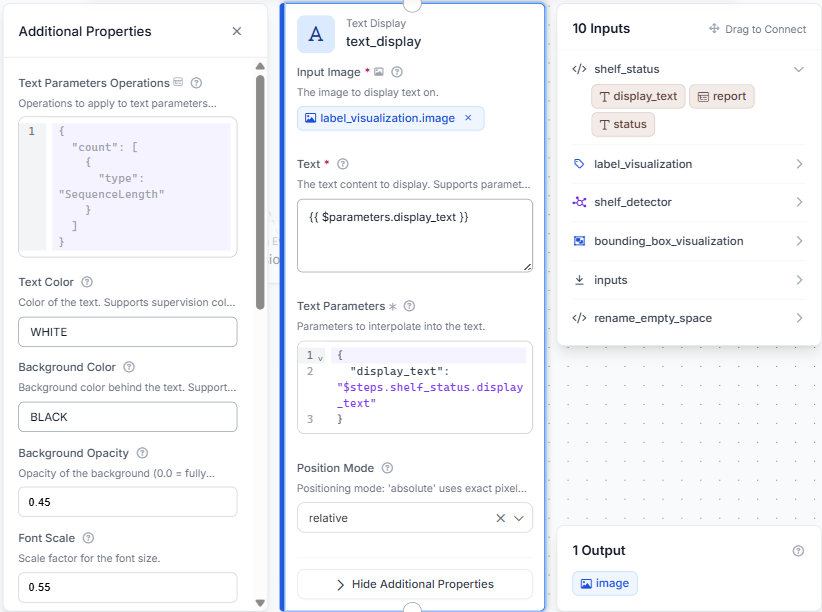
The image now shows the detected boxes, the class labels, and the shelf status all in one frame.
Step 7: Add Vision Events and configure Outputs
Add a Roboflow Vision Events block, connect the image, output image, and predictions, then configure it as a custom Empty Shelf Detection event using the shelf status as the value. Add an external ID and metadata to store each classification result.
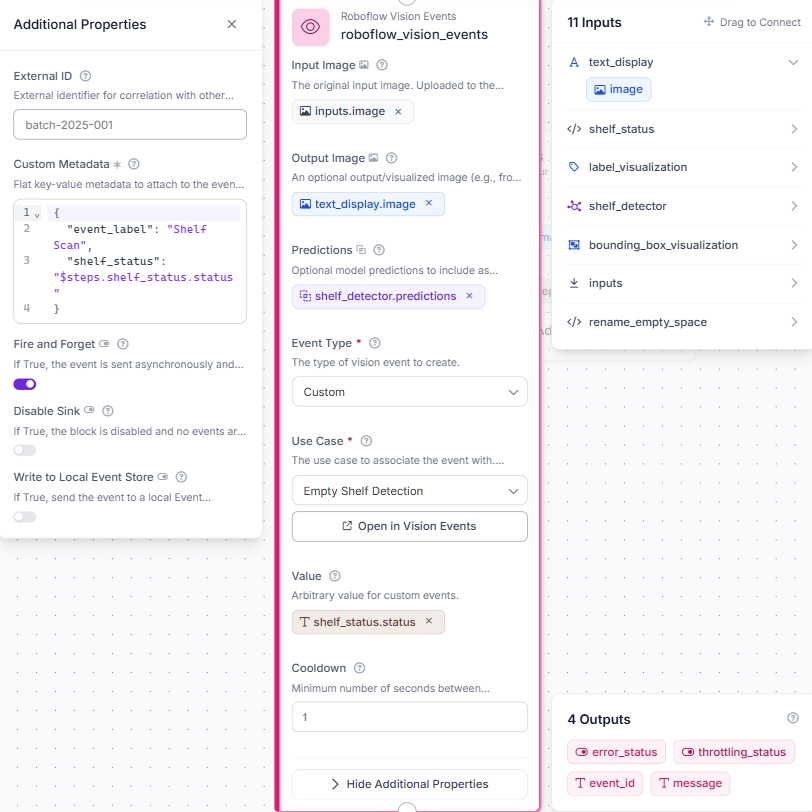
This logs each scan with the original image, labeled output, detections, and final status while keeping the Workflow output unchanged. Set output_image to text_display.image and shelf_report to shelf_status.report.
Step 8: Configure Outputs
Set two outputs: output_image from text_display.image and shelf_report from shelf_status.report.
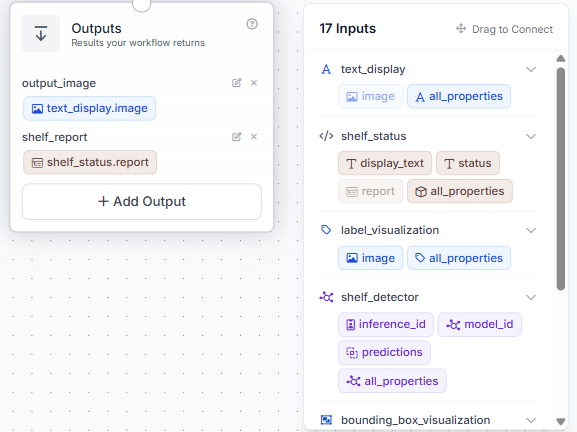
With everything connected, the full Workflow looks like this:
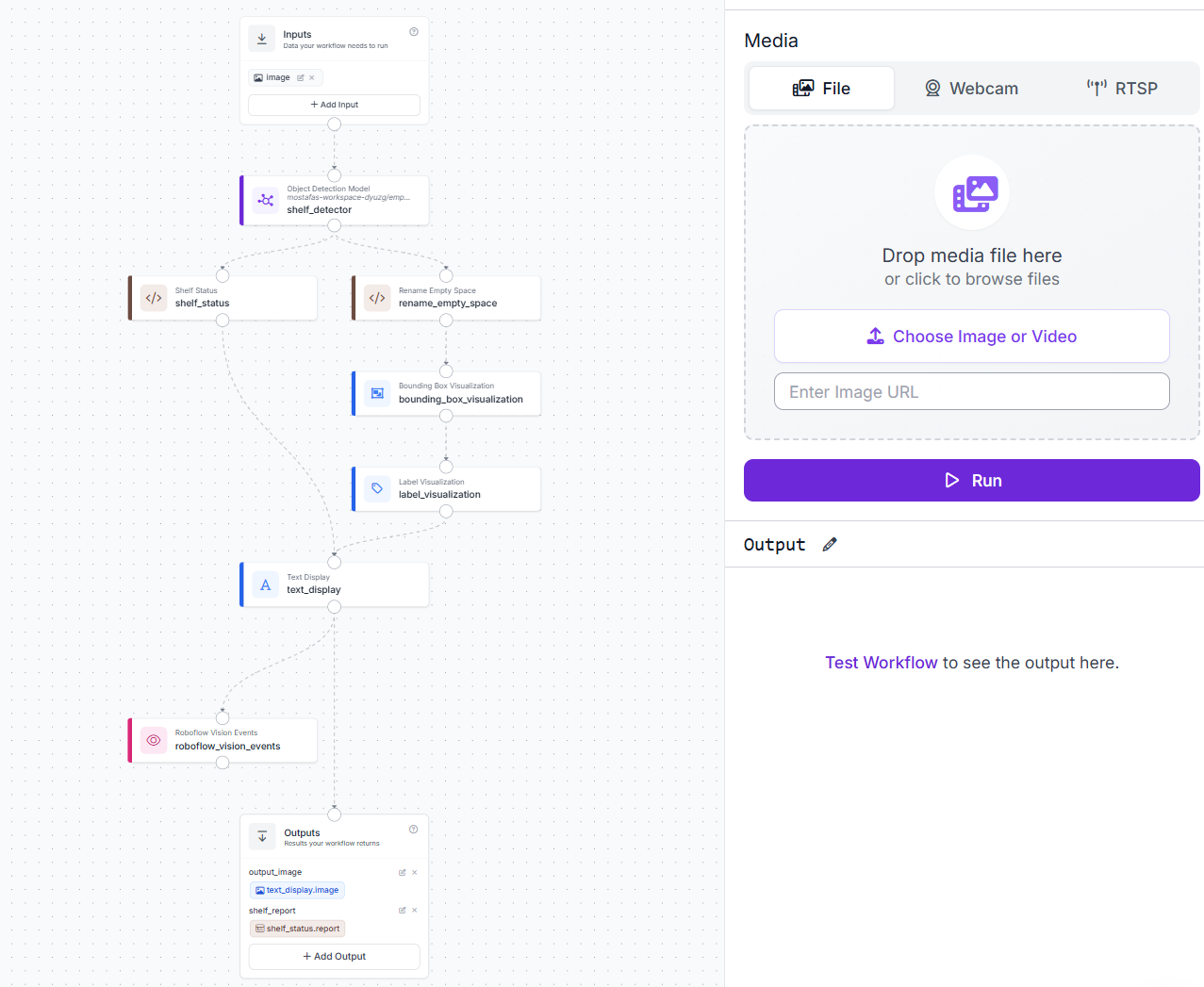
From here, every image that comes in gets a labeled result, a structured report, and a logged record, no extra steps needed.
Retail Empty Shelf-Space Detection Results
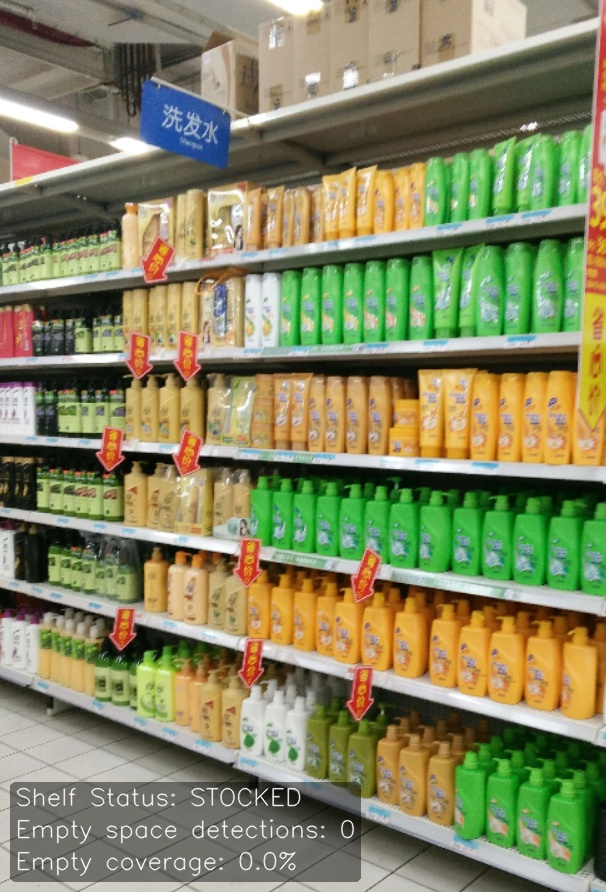
Test case 1: Fully stocked shelf, status stocked
A shelf with no visible empty spaces returns zero detections, 0.0% coverage, and a stocked status.
The JSON report confirms what the image shows: zero detections, zero coverage, and a clean stocked result.
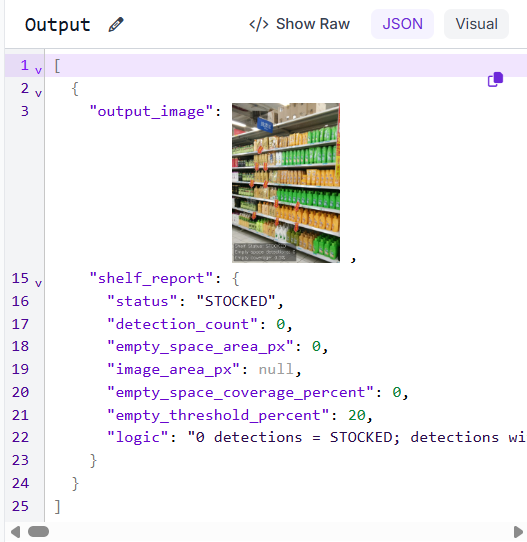
This is the ideal case: every slot is occupied, nothing for the model to flag, and the report confirms it with an empty defects list and zero coverage.
Test case 2: Partially stocked shelf, status partially stocked
Fourteen empty spaces are detected across multiple shelf rows, but the total coverage comes in at 14.7%, just under the 20% threshold, so the shelf is classified as partially stocked.
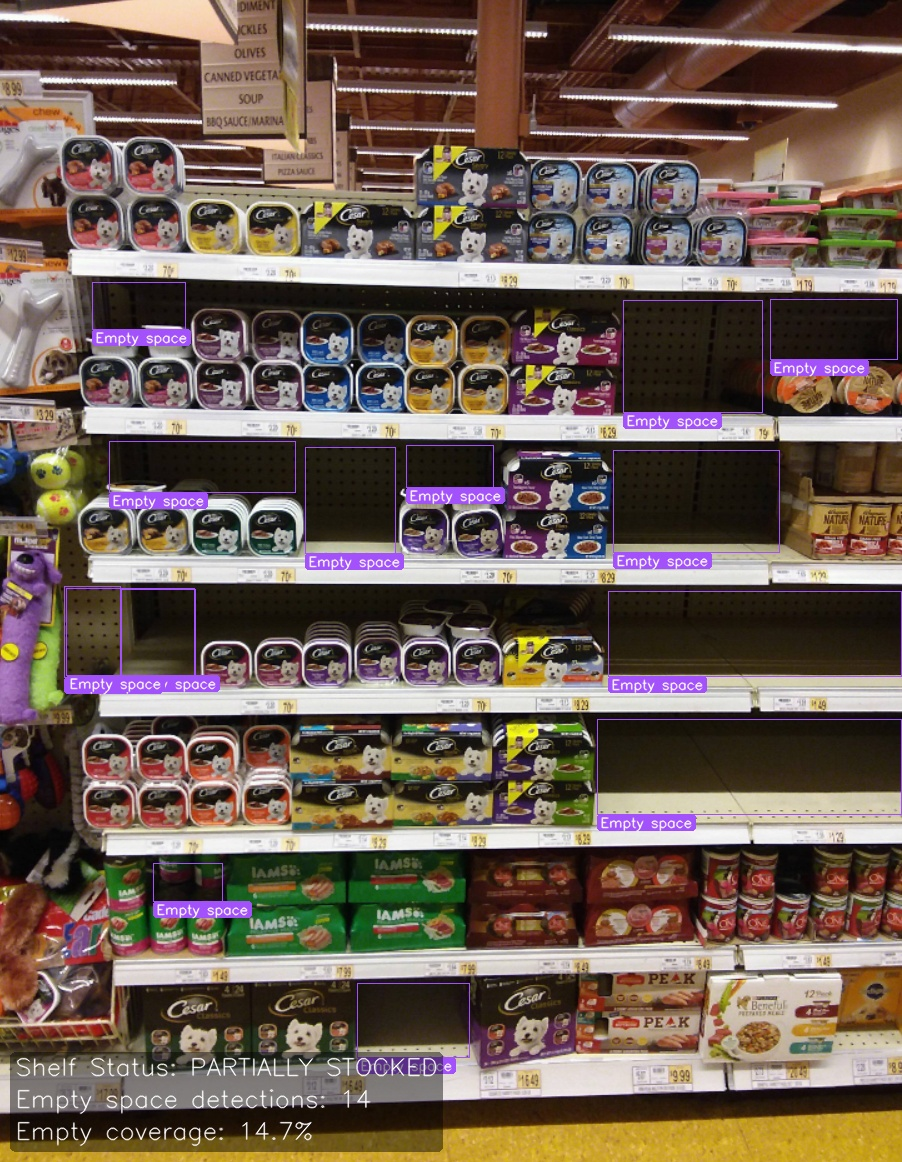
The report shows 14 detections covering 154,462 pixels out of a total image area of 1,048,124 pixels, landing at 14.74% coverage, below the threshold for an empty call.
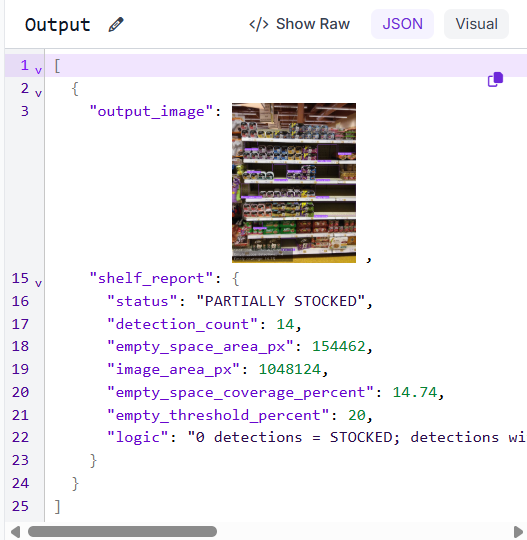
The gaps are real and visible, but not severe enough to trigger an empty status. This is exactly the case where a restocking alert puts the shelf on someone's list before it gets worse.
Test case 3: Empty shelf, status empty
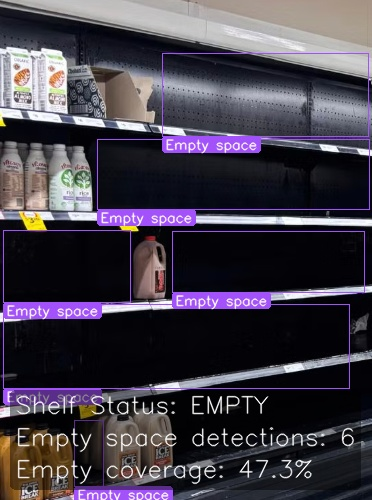
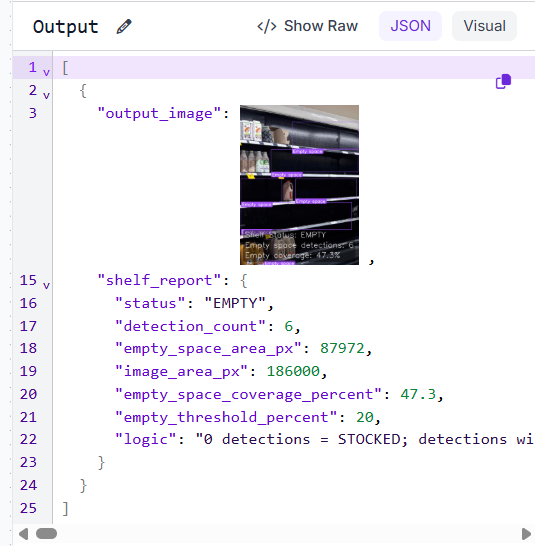
Six empty spaces are detected with a total coverage of 47.3%, well above the 20% threshold, and the shelf is classified as empty.
The report shows 6 detections covering 87,972 pixels out of a total image area of 186,000 pixels, more than double the threshold needed to trigger an empty call.
With fewer products left on the shelf, the empty zones dominate the frame. The model catches it, the coverage calculation confirms it, and the status routes it for immediate action.
Empty Shelf Item Detection Production Deployment
The 20% coverage threshold is a good starting point, but it should be adjusted for your environment. A specialty store with widely spaced products needs a different threshold than a grocery aisle packed edge to edge. Test the Workflow on your own shelf images and tune the threshold in the Custom Python Block until the results match what your staff would consider stocked, partially stocked, or empty.
Vision Events logs every inspection, including the shelf image, detected products, coverage percentage, and final status. Over time, this data can reveal which shelves empty most often, helping identify areas that need more frequent restocking.
The Workflow runs through the Roboflow API or on-device with Roboflow Inference, making it suitable for overhead cameras, handheld scanners, and shelf-scanning robots. Every deployment produces the same stocked, partially stocked, or empty output, making it easy to integrate with downstream inventory systems.
How to Use Roboflow Agent for Retail Inventory Tracking
You can also build this pipeline without assembling each block by hand: the Roboflow Agent, an in-app agent connected to your workspace, can build, run, and debug Workflows from a plain-language description. Describe the goal, such as detecting empty shelf spaces and classifying each shelf as stocked, partially stocked, or empty, and the agent assembles the detection model, custom logic, and visualization blocks for you to review and refine.
Retail Object Detection Conclusion
This Workflow takes a single shelf image, runs it through a custom-trained RF-DETR model, and classifies it as stocked, partially stocked, or empty. It also returns an annotated image highlighting missing products, giving staff clear visual feedback instead of a simple pass/fail result.
The Workflow is easy to maintain over time. You can expand the dataset, adjust the coverage threshold, or retrain the model as more shelf images become available. Each new example helps improve the model's performance without requiring changes to the overall pipeline.
The same approach can be applied to other inventory monitoring tasks. Simply replace the detection model with one trained for a different use case while keeping the same Workflow structure, visualization, and decision logic.
Further Reading


Cite this Post
Use the following entry to cite this post in your research:
Mostafa Ibrahim. (Jul 27, 2026). Retail Object Detection with RF-DETR. Roboflow Blog: https://blog.roboflow.com/retail-store-object-detection/