

The Roboflow OPC UA Writer Sink block (available on Enterprise plans) lets a Roboflow Workflow push detection results directly to an OPC UA server as live tags, making computer vision outputs visible in SCADA platforms, PLCs, and dashboards alongside other plant sensor data. This guide walks through starting the inference server with enterprise blocks enabled, configuring destination tags on Ignition, Kepware, or any standards-compliant server, building the workflow, and verifying that tag values update correctly after deployment. Teams without an existing OPC UA server can use the built-in server included on Roboflow edge devices for testing.
This guide shows how to push Roboflow Workflow detections to an OPC UA server, making them available as live tags to dashboards, PLCs, and SCADA platforms alongside any other plant sensor.
Prerequisites
- Roboflow Enterprise plan — the OPC UA Writer Sink is enterprise-only
- Docker Desktop
- An existing OPC UA server — Ignition, Kepware, or any standards-compliant server. (No server yet? Roboflow's edge devices ship with a built-in OPC UA server you can use for testing, covered in Step 2.)
Step 1: Start the inference server with enterprise blocks enabled
Enterprise blocks (including the OPC UA Writer Sink) aren’t loaded by default. Without this step, the block shows “Server Configuration Required” in the workflow editor and never runs.
# 1. Create and activate a virtual environment
python -m venv venv
source venv/bin/activate

# 2. Install inference (pulls enterprise blocks + dependencies)
pip install inference

# 3. Create .env with the critical flag
echo "LOAD_ENTERPRISE_BLOCKS=True" > .env

# 4. Launch the inference server
inference server start -e .env
The inference server start command auto-detects your hardware and pulls the matching image: CPU on most laptops, GPU when CUDA is available (Jetson, NVIDIA-equipped server).
Step 2: Configure folders and tags on your OPC UA server
Before the workflow can write anything, the destination tags need to exist on your OPC UA server. Use the server’s native interface to create them:
- Ignition — open Designer, navigate to your tag provider, right-click → New Tag. Default port:
62541. - Kepware — use the Configuration tool to add tags under a channel/device
- Other servers — follow your vendor’s documentation
Collect three pieces of info you’ll need in Step 4:
- The endpoint URL (e.g.,
opc.tcp://<server-host>:62541) - The namespace (URI string or numeric index)
- The NodeId format the server uses. String-based NodeIds (Ignition-style) require
Node Lookup Mode: directin the workflow block.
The data type on each tag must match the Value Type field on the workflow block.
Alternative: use Roboflow’s built-in OPC UA server
If you don’t have an OPC UA server already, Roboflow’s edge devices ship with one you can add as a managed service. This path requires the Roboflow Deployment Manager, which is an Enterprise feature. On a Roboflow-managed edge device:
- From the device dashboard, click Add Service → select OPC UA Server → submit
- On the OPC UA Server card that appears, click Configure
- Note the Namespace URI (defaults to
http://opcua.roboflow.run) - + Add Folder, then + Add Tag inside it (set the data type to match what the workflow will write)
- Click Save Configuration
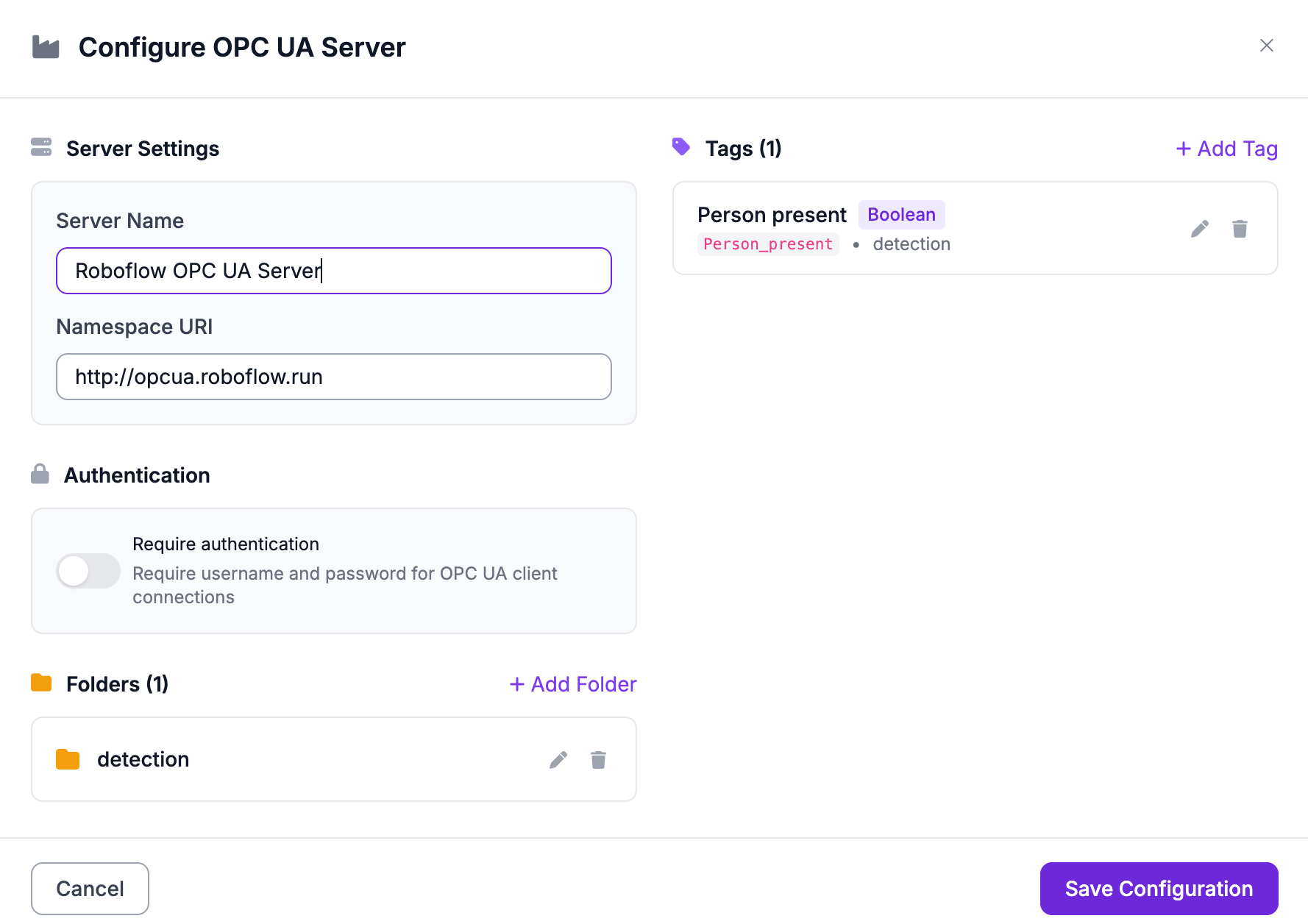
Use the endpoint URL on the card (opc.tcp://<device-ip>:4840/opcua/server) in your workflow.
Step 3: Build the workflow
Image input → Model → (Optional Filter) → Property Definition → OPC UA Writer Sink
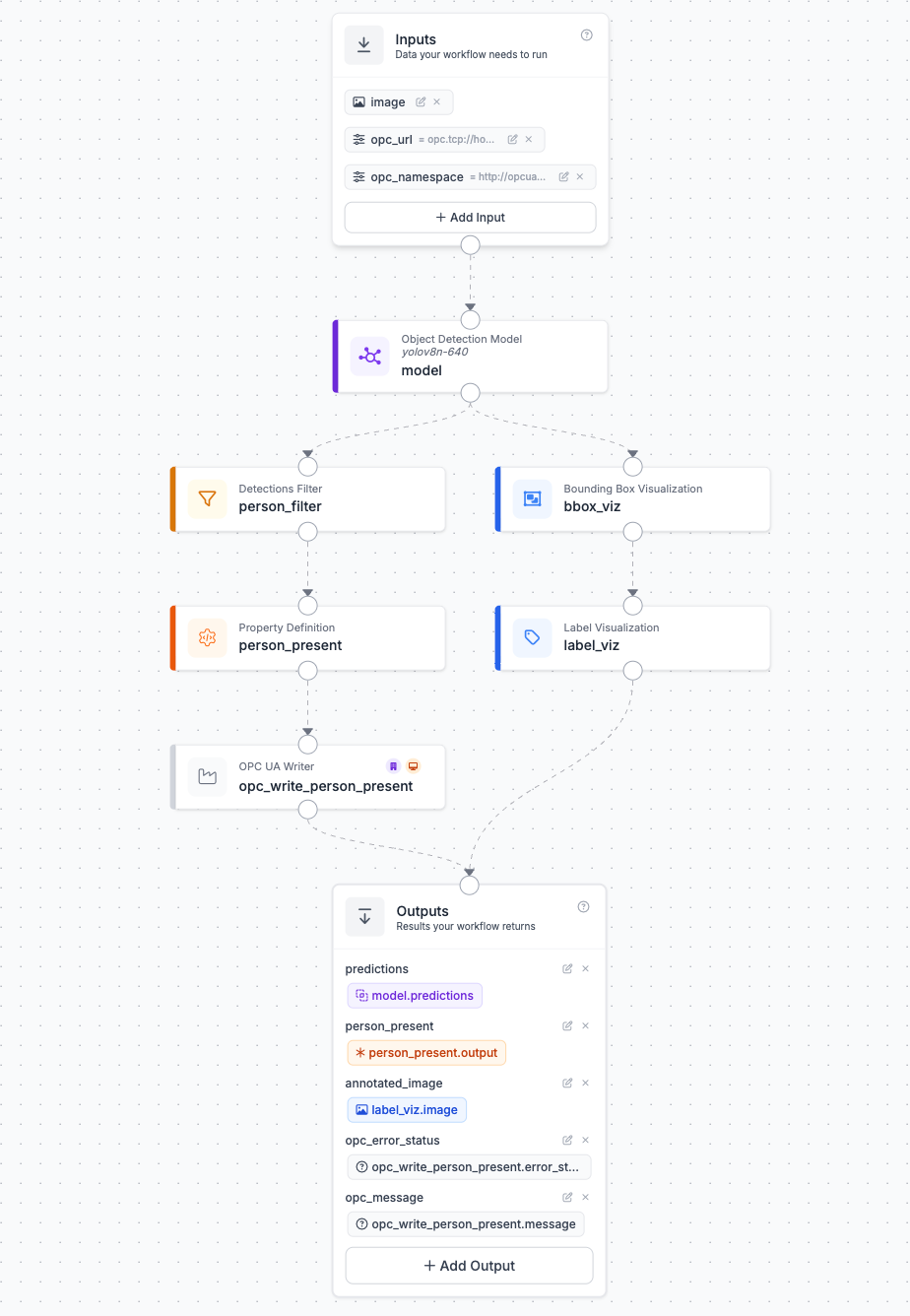
The Property Definition block reduces predictions to a single value that OPC UA can store, like a count or a boolean. Each value gets its own OPC UA Writer Sink block: one block per tag.
Tag names must match exactly. Folder, tag name, casing, and separators all matter. A mismatch (e.g., person_present vs Person_present, or / when the server expects .) returns BadNoMatch and silently drops the write.
Step 4: Configure the OPC UA Writer Sink block
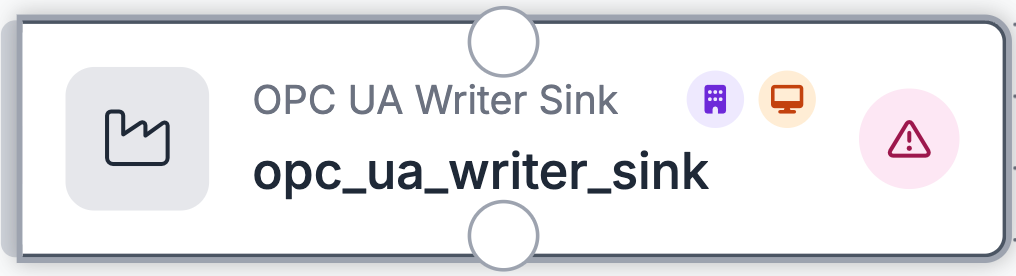
| Field | Value |
|---|---|
| URL | URL of the OPC UA server to which data will be written. |
| Namespace | The OPC UA namespace URI or index used to locate objects and variables. For Roboflow's built-in OPC UA server: http://opcua.roboflow.run. |
| Object Name | For Ignition / string-NodeId servers: the bracketed parent path (e.g., [Sample_Tags]/Production). For Roboflow's built-in OPC UA server: the full folder.tag path (e.g., production.defect_count). |
| Variable Name | The name of the variable within the target object to be updated. For Ignition / string-NodeId servers: the tag name. For Roboflow's built-in OPC UA server: empty (the full path went in Object Name). |
| Value | The value to be written to the target variable on the OPC UA server. $steps.<property_definition_step>.output |
| Value Type | The type of the value to be written to the target variable on the OPC UA server. Must match the tag's declared type on the server. Supported types: Boolean, Double, Float, Int16, Int32, Int64, Integer (Int64 alias), SByte, String, UInt16, UInt32, UInt64. |
| Node Lookup Mode | Method to locate the OPC UA node: hierarchical uses path navigation, direct uses NodeId strings (for Ignition-style string-based tags). |
| Cooldown Seconds | The minimum number of seconds to wait between consecutive updates to the OPC UA server. |
Keep Fire And Forget off (False) while you're setting things up. It surfaces real errors in the error_status output. Turn it on for production.
Step 5: Deploy and verify
In the workflow editor, click Deploy → Local Server, enter http://localhost:9001 (or your inference server's address), and click Connect. Run an image through the deployed workflow, or if you're on a Roboflow edge device, point a camera stream at it from the device dashboard.
Run the workflow against a test image. If everything is wired correctly:
- The OPC UA Writer Sink block's
error_statusoutput isFalse - Its message output says the write succeeded
- The tag value updates on your OPC UA server, visible in Ignition Designer, any OPC UA client, or the Roboflow device dashboard (if using the built-in server)
Testing constraints
- The inference server must have network access to your OPC UA server. If they’re on different networks, bridge them via SSH tunneling or Tailscale before testing.
- For testing, the easiest setup is running inference on the same network as your OPC UA server


Cite this Post
Use the following entry to cite this post in your research:
Kevin Seyedan. (May 21, 2026). Integrate Roboflow with OPC UA. Roboflow Blog: https://blog.roboflow.com/roboflow-opc-ua-integration/