

This tutorial builds a two-stage shipping label extraction pipeline inside Roboflow Workflows: a pretrained detector first locates label regions in the image, a Dynamic Crop block isolates each one, and a Qwen 3.5 VL block (running on a local GPU via Roboflow Inference) extracts structured JSON fields including tracking ID, recipient address, carrier, weight, and customs code. The Qwen 3.5 VL block supports 39-language OCR natively, which makes it practical for international labels without external API keys. When requirements change, only the prompt needs updating, with no model retraining or pipeline rebuilding required.
Documentation inefficiencies drain billions from global shipping operations annually. A study by McKinsey showed that delays caused by inefficiencies in documentation and clearance can lead to shippers losing as much as USD $30 billion (annually) in lost cargo time, detention fees, and missed sailings. Shipping labels sit at the center of this problem. Manual data entry of tracking IDs, recipient addresses, carrier information, and customs codes remains slow and error-prone.
Roboflow Workflows now includes a Qwen 3.5 VL block that runs on Roboflow Inference with native support for 39-language OCR. This makes it capable of handling international shipping labels without requiring external API keys or separate OCR engines.
Using Qwen 3.5 in Roboflow Workflows
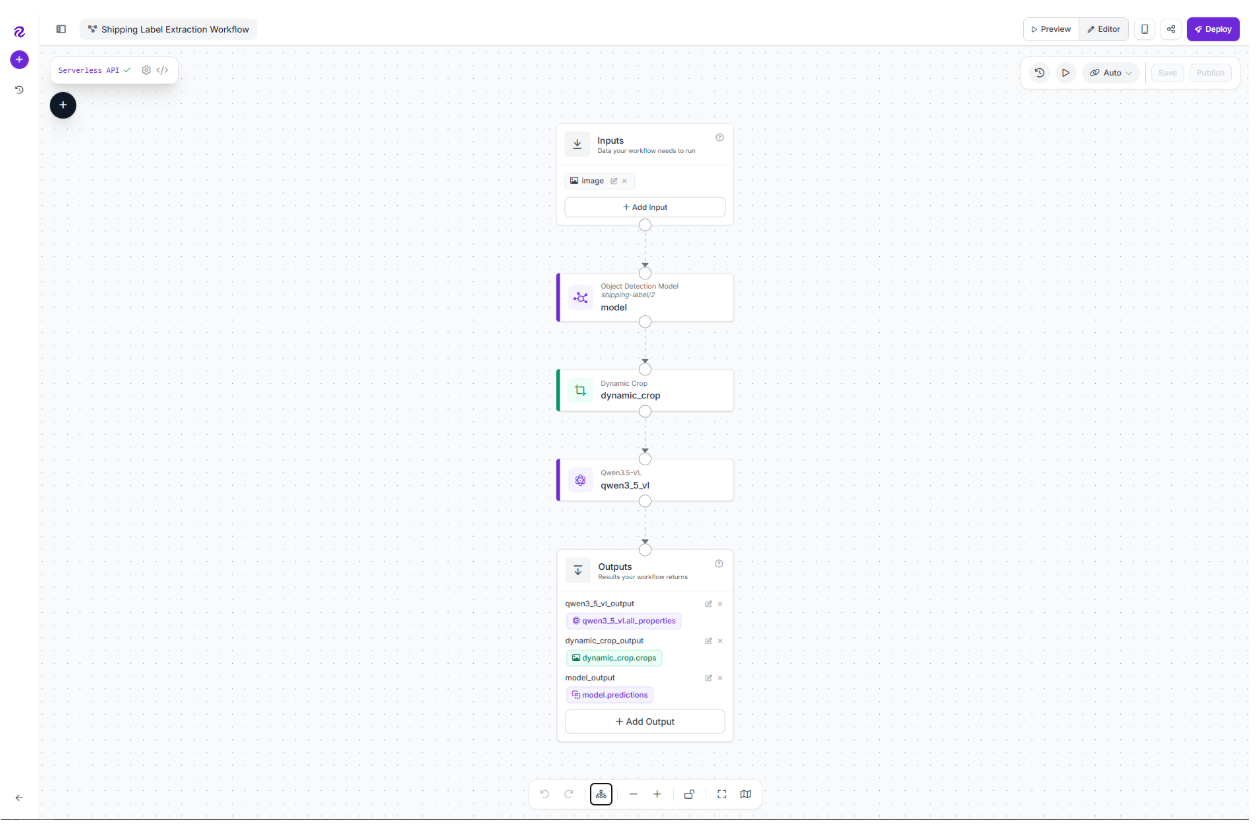
This tutorial demonstrates how to build a complete shipping label extraction pipeline. A photo of a label becomes structured JSON containing tracking_id, carrier, recipient_name, recipient_address, origin_country, destination_country, weight_value, weight_unit, declared_value_usd, and customs_code, all ready for downstream warehouse operations. Here's the workflow we'll build.
Start with a Baseline Dataset
We'll use the Shipping Label dataset from Roboflow Universe. The dataset contains 272 images of shipping labels and is an ideal starting point for this tutorial: it's publicly available, includes a pretrained detection model with strong accuracy metrics, and uses a single clean object-detection class (shipping-label) that maps perfectly to our two-stage workflow.
The dataset includes a pretrained model with near-perfect detection metrics. We'll use that pretrained detector to locate label regions in images, then feed the cropped regions to Qwen 3.5 VL for field extraction. This two-stage approach handles multi-label photos (like pallets with stacked packages) and wide-angle warehouse scans where the label occupies less than 20% of the frame.
Build the Shipping Label Extraction Workflow
Qwen 3.5 VL requires GPU acceleration, so we'll run the workflow on a local inference server. We'll build the complete extraction pipeline using Roboflow's local Workflows Builder, a visual interface that runs entirely on your machine. The workflow consists of three blocks: a pretrained object detection model to locate labels, a dynamic crop to isolate each label region, and Qwen 3.5 VL to extract structured data from the cropped images.
Prerequisites
Before you begin, ensure you have:
- An NVIDIA GPU with ≥6 GB VRAM for Qwen 3.5 VL 0.8B
- Docker Desktop with the NVIDIA Container Toolkit installed and configured
- Python 3.9+ installed
Step 1: Start the Local Inference Server
Install the Roboflow Inference CLI and start the local server:
pip install inference-cli
inference server start --dev
The `--dev` flag enables the local Workflows Builder UI at `localhost:9001/build`. The CLI will automatically pull the GPU-enabled Docker image on first run (this download is ~10-15 GB and takes 20-45 minutes). When you see `Uvicorn running on http://0.0.0.0:9001`, the server is ready.

Step 2: Open the Workflows Builder and Connect to Cloud
Navigate to `http://localhost:9001/build` in your browser. You'll see the Workflows Builder interface.
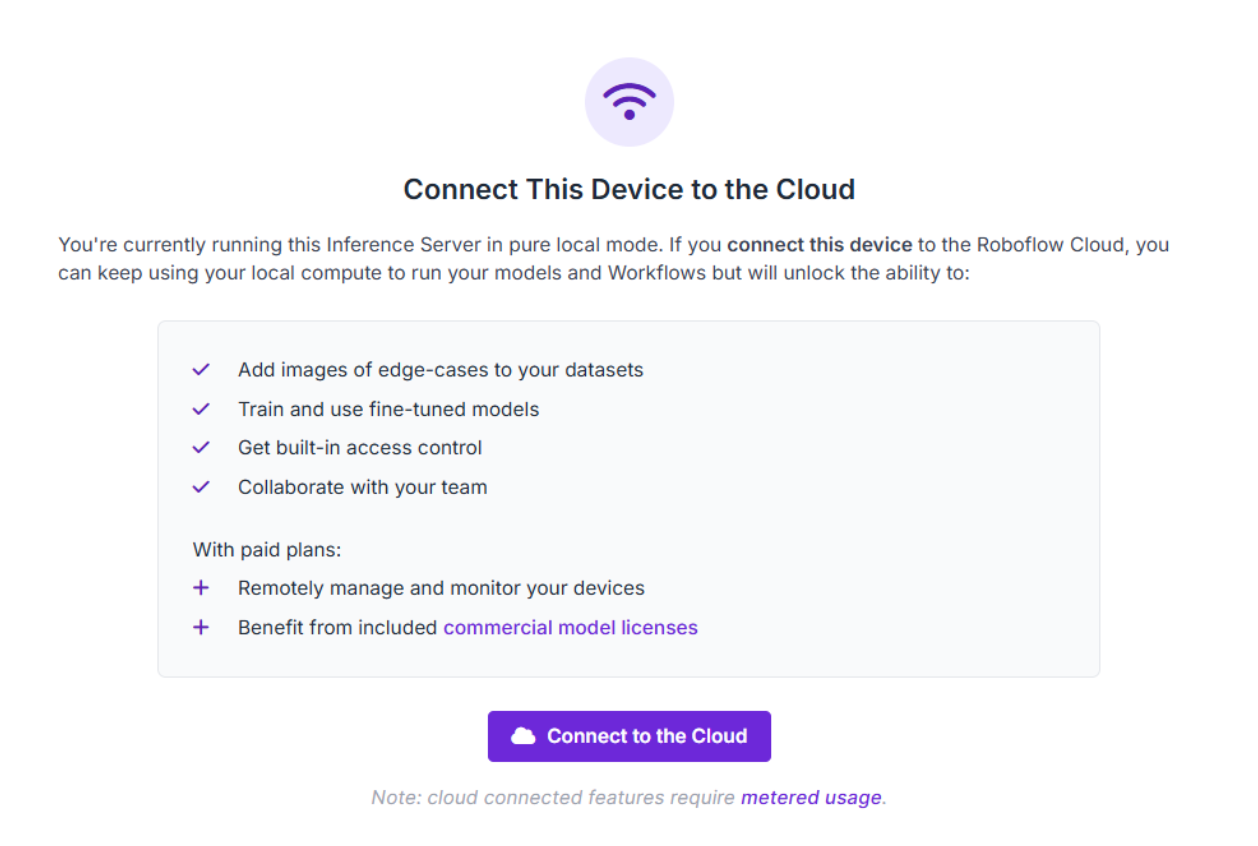
Click "Create a Workflow" and give it a name (e.g., `shipping-label-extraction`). Before adding blocks, you need to connect your local server to your Roboflow account, this is required to access pretrained models from Universe.
Look for the "Connect This Device to the Cloud" prompt in the UI and follow the authentication flow to link your Roboflow account. Without this connection, you'll encounter API key errors when trying to load Universe models, even in the local environment.
Step 3: Add the Object Detection Block
With your account connected, add the Object Detection Model block to your workflow:
- Add a block to the workflow
- Search for "Object Detection Model" and select it
- In the Model field, open the model configuration panel. Switch to the Public models tab, then paste the model ID `shipping-label/2` in the search bar
This loads the pretrained shipping label detector from Universe directly into your local workflow. Configure the block:
- Image: Connect to `$inputs.image` (the workflow's image input)
The block will now detect all shipping labels in the input image and output bounding box coordinates for each one.
Step 4: Add the Dynamic Crop Block
Now, after the Object Detection block, add a Dynamic Crop block. This isolates each detected label into its own image. Configure:
- Image: Connect to `$inputs.image` (the original full image)
- Predictions: Connect to the Object Detection block's output
The Dynamic Crop block produces one cropped image per detected label, even if the original photo contains multiple packages.
Step 5: Add the Qwen 3.5 VL Block
Click + on the Dynamic Crop block and search for Qwen 3.5 VL. Configure:
- Model version: 0.8B (lighter variant, runs on most modern GPUs)
- Images: Connect to the Dynamic Crop block's output
- System prompt:
You are a logistics data extractor. Given an image of a shipping label,
return ONLY a JSON object with the fields below. If a field is not visible, set it to null. Do not include any text outside the JSON.
- Prompt:
Extract the shipping label fields:
{
  "tracking_id": string | null,
  "carrier": string | null,
  "recipient_name": string | null,
  "recipient_address": string | null,
  "origin_country": string (ISO 3166-1 alpha-2) | null,
  "destination_country": string (ISO 3166-1 alpha-2) | null,
  "weight_kg": number | null,
  "declared_value_usd": number | null
}
Step 6: Test the Workflow
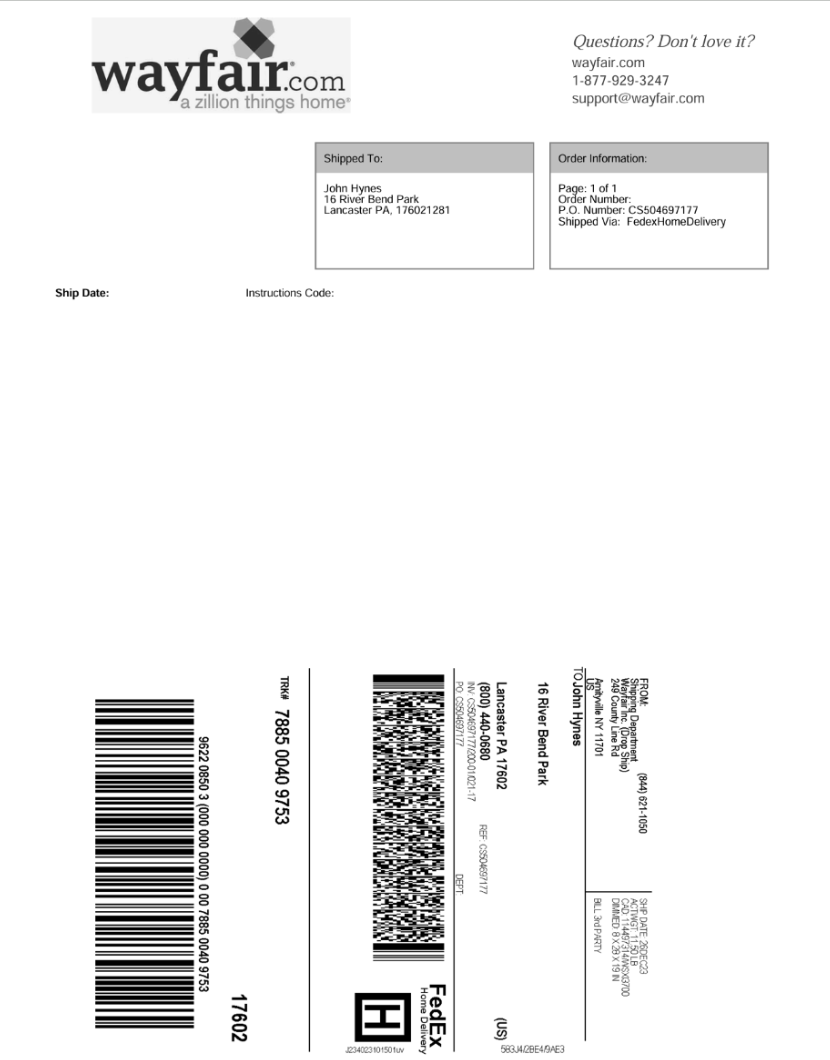
Click on the run symbol in the top-right corner. Upload a sample shipping label image from the dataset (or any shipping label photo). Click "Run" and watch the workflow execute:
- The Object Detection block draws bounding boxes around detected labels
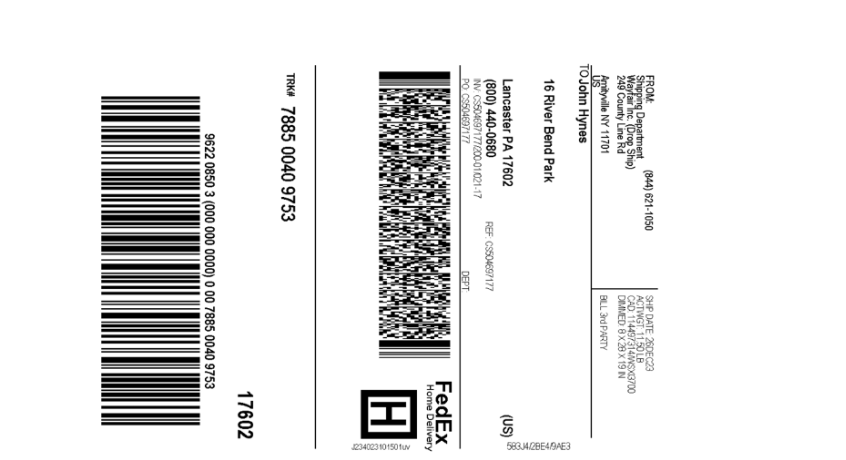
- Dynamic Crop isolates each label
- Qwen 3.5 VL processes the cropped labels and returns extracted data
Below is an example test image:
The cropped label:
The model output:
"qwen3_5_vl_output": [
      {
        "parsed_output": "```json
{

\"tracking_id\": \"7885 0040 9753\",
\"carrier\": \"FedEx\",
\"recipient_name\": \"John Hynes\",
\"recipient_address\": \"16 River Bend Park\",
\"origin_country\": \"US\",
\"destination_country\": \"US\",
\"weight_kg\": null,
\"declared_value_usd\": null
}
```",

 "thinking": ""
      }
]
Scaling and Production Considerations
The workflow you've built locally can scale to production with minimal changes. The same workflow definition transfers to different deployment targets: an NVIDIA Jetson at the warehouse scanner, a cloud GPU instance, or Roboflow Dedicated Deployments, without code modifications.
Integration Points
Route extracted data to downstream systems based on field values. Push tracking_id and recipient_name directly to your WMS for fulfillment processing. Send labels where customs_code equals "unknown" to a manual review queue. Flag shipments where declared_value mismatches the invoice amount for investigation. These conditional routing patterns turn raw extraction into actionable warehouse workflows.
Field Extensibility
Adding new extraction fields requires only a prompt update, not model retraining. Need to capture hazmat_flag, fragile_marker, or return_to_sender_reason? Edit the Qwen prompt to include the new field in the output schema, redeploy the workflow, and the extraction pipeline adapts immediately. This prompt-level configurability is the leverage VLMs provide over traditional OCR pipelines that lock you into fixed schemas.
Hardware Requirements
Production deployment requires GPU infrastructure. Options include NVIDIA Jetson devices for edge deployment at scanning stations, cloud GPU instances (AWS, GCP, Azure) for centralized processing, or Roboflow Dedicated Deployments for managed GPU infrastructure with automatic scaling. The 0.8B Qwen variant runs comfortably on mid-range GPUs (6GB+ VRAM), while the 2B variant delivers higher accuracy on labels with complex multilingual text at the cost of more memory (12GB+ recommended).
How to Use Qwen 3.5 in Roboflow Conclusion
A pretrained detector locates labels, Dynamic Crop isolates each one, and Qwen 3.5 VL turns pixels into structured JSON, all running on your own GPU. The workflow you built in the visual Workflows Builder transfers directly to production: deploy the same workflow definition to an NVIDIA Jetson at the warehouse edge or push it to Roboflow Dedicated Deployments for managed cloud infrastructure. No code changes required.
The extraction schema lives entirely in the Qwen prompt. When business requirements shift (new carriers launch, customs regulations change, or warehouse operations need additional fields), update the prompt and redeploy. No model retraining, no dataset labeling, no pipeline rebuilding. This is the operational leverage vision-language models bring to document extraction workflows.
Further reading
Below are a few related topics you might be interested in:


Cite this Post
Use the following entry to cite this post in your research:
Contributing Writer. (May 4, 2026). Shipping Label Extraction with Qwen 3.5 VL in Roboflow Workflows. Roboflow Blog: https://blog.roboflow.com/use-qwen-3-5-vl-in-roboflow/