

Qwen3-VL is the latest vision-language model in Alibaba Cloud’s Qwen series (as of January 2026), designed for advanced multimodal tasks such as visual question answering, OCR, object grounding, etc., that integrate text, images, and video.
It supports a native 256K token context length (expandable to 1M), enabling processing of long documents, books, or hours-long videos with precise recall and timestamp indexing.
In this blog, I will demonstrate how to utilize Qwen3-VL by creating a simple image-understanding workflow with the Qwen3-VL model in Roboflow Workflows, generating outputs as shown below:
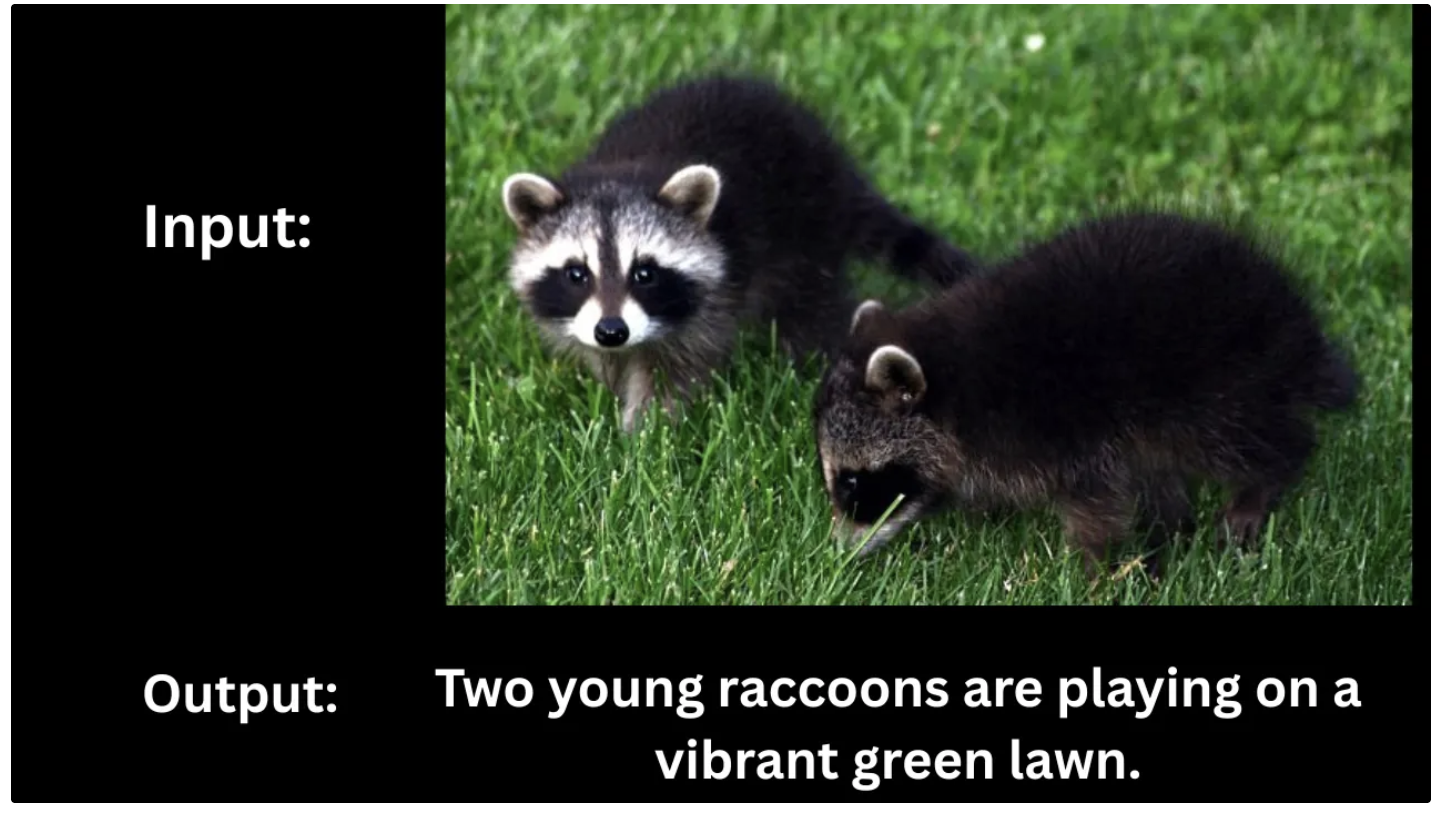
Building an Image Understanding Workflow with Qwen3-VL
We'll be using Roboflow Workflows, a web-based tool for building visual AI applications.
Roboflow Workflows lets us chain together multiple computer vision tasks such as object detection, image blurring, or advanced Vision-Language Models (VLMs) like Qwen3-VL, all within a no-code interface.
This is the image understanding workflow we’ll build.
Step 1: Setup Your Roboflow Workflow
To get started, create a free Roboflow account and log in. Then, create a workspace, click “Workflows” in the left sidebar, and click the “Create Workflow” button to get started.
This will open a modal like the one shown below, where you can choose from various templates for segmentation, OCR, object detection, and more. To use Qwen3-VL for image understanding, select “Build My Own” and click “Create Workflow,” as shown below:
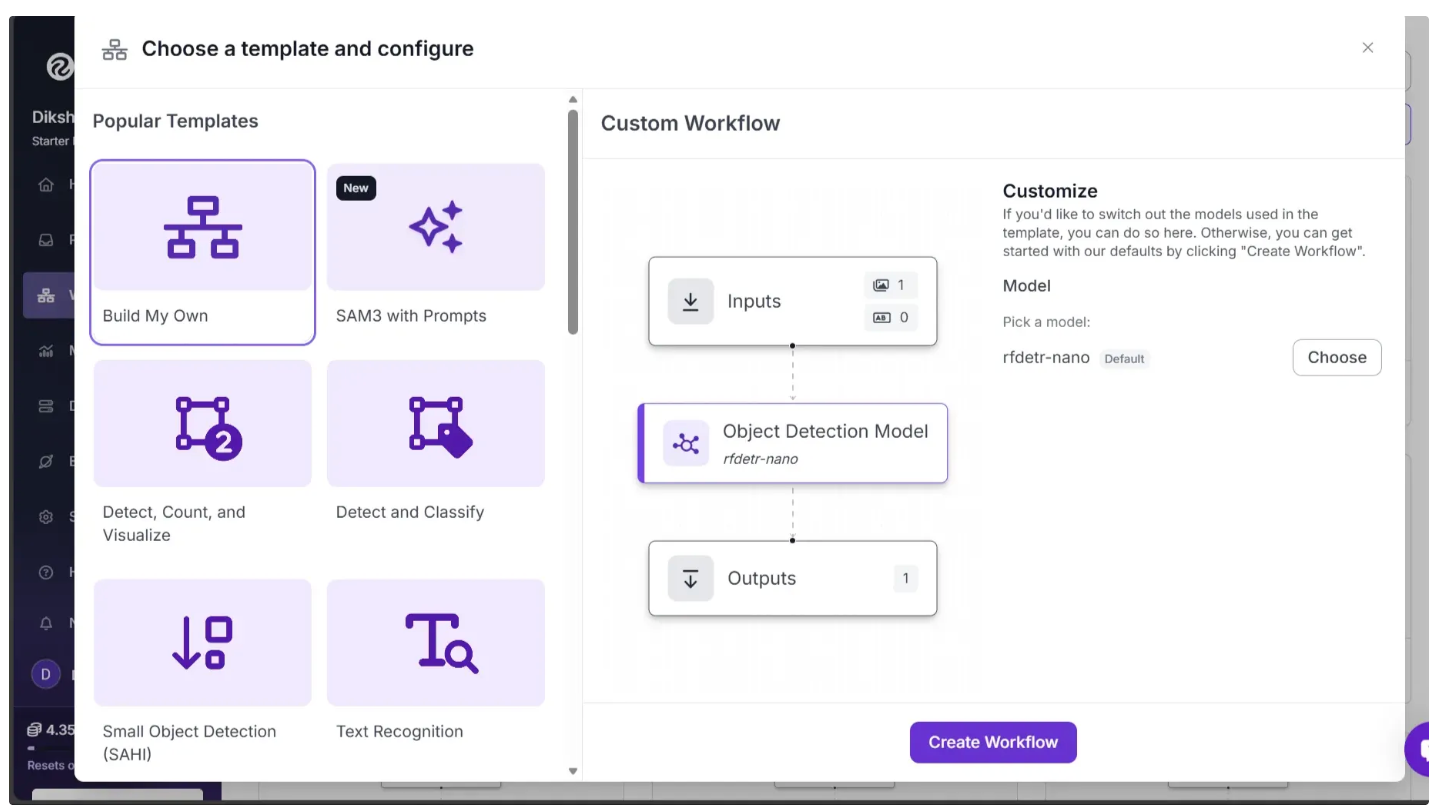
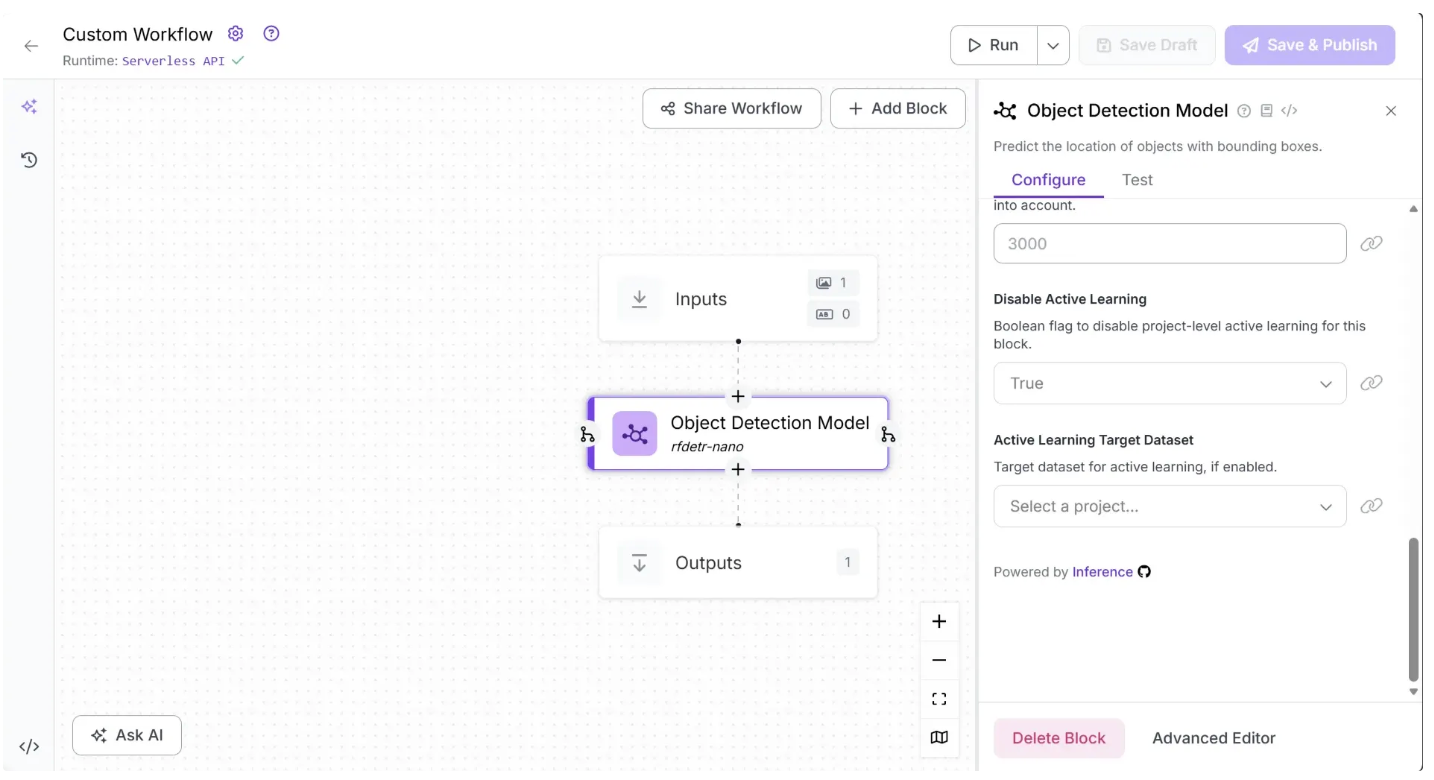
Then you’ll be taken to a blank workflow editor, ready to build your AI-powered workflow, where you’ll see three workflow blocks: Inputs, Outputs, and an Object Detection Model.
In our image understanding workflow, we do not require an Object Detection Model, so you can delete it by selecting it and clicking the “Delete Block” button, as shown below:
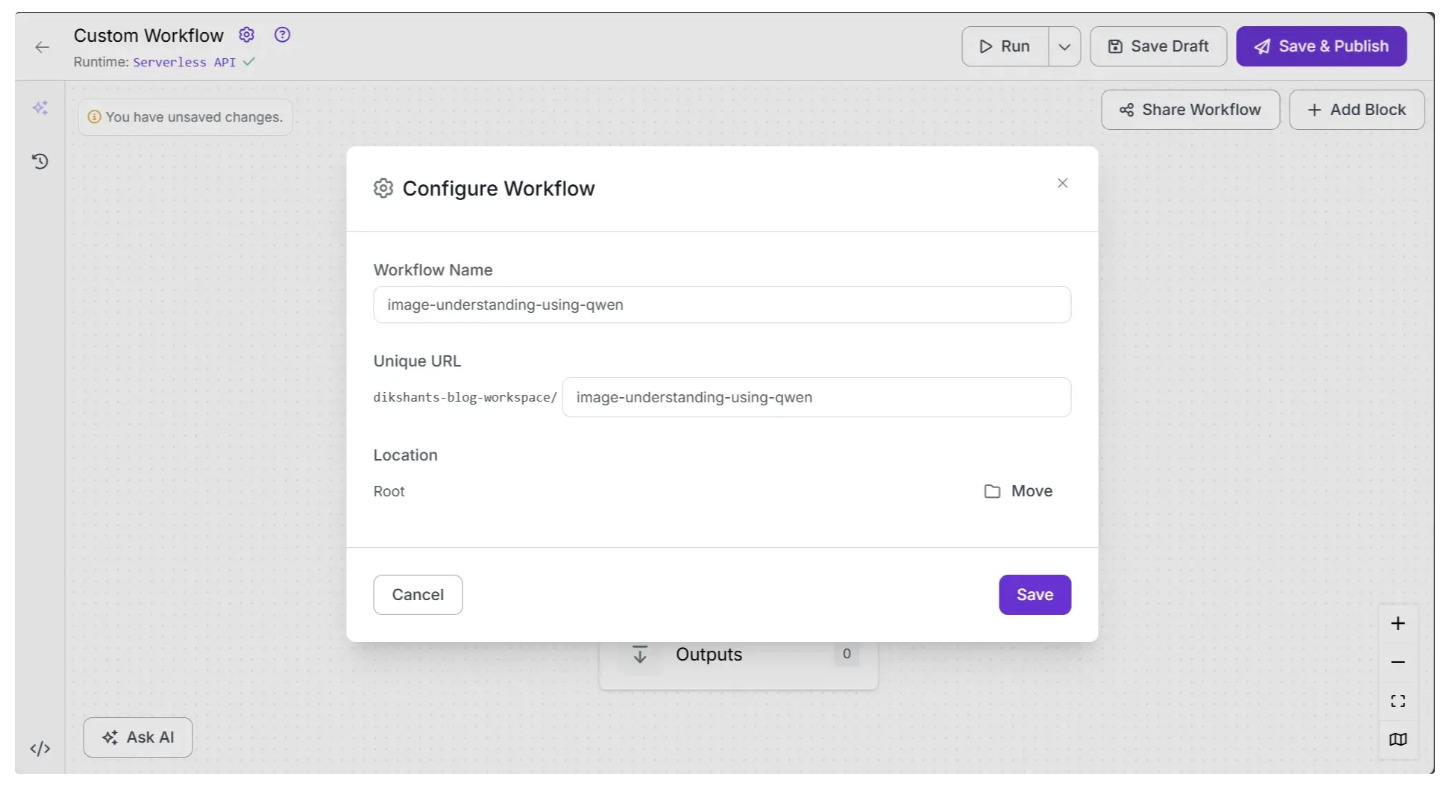
You can also configure the workflow name by clicking the ⚙️ icon in the top-left corner. This opens the workflow configuration modal, as shown below:
Step 2: Add an Qwen3-VL Block
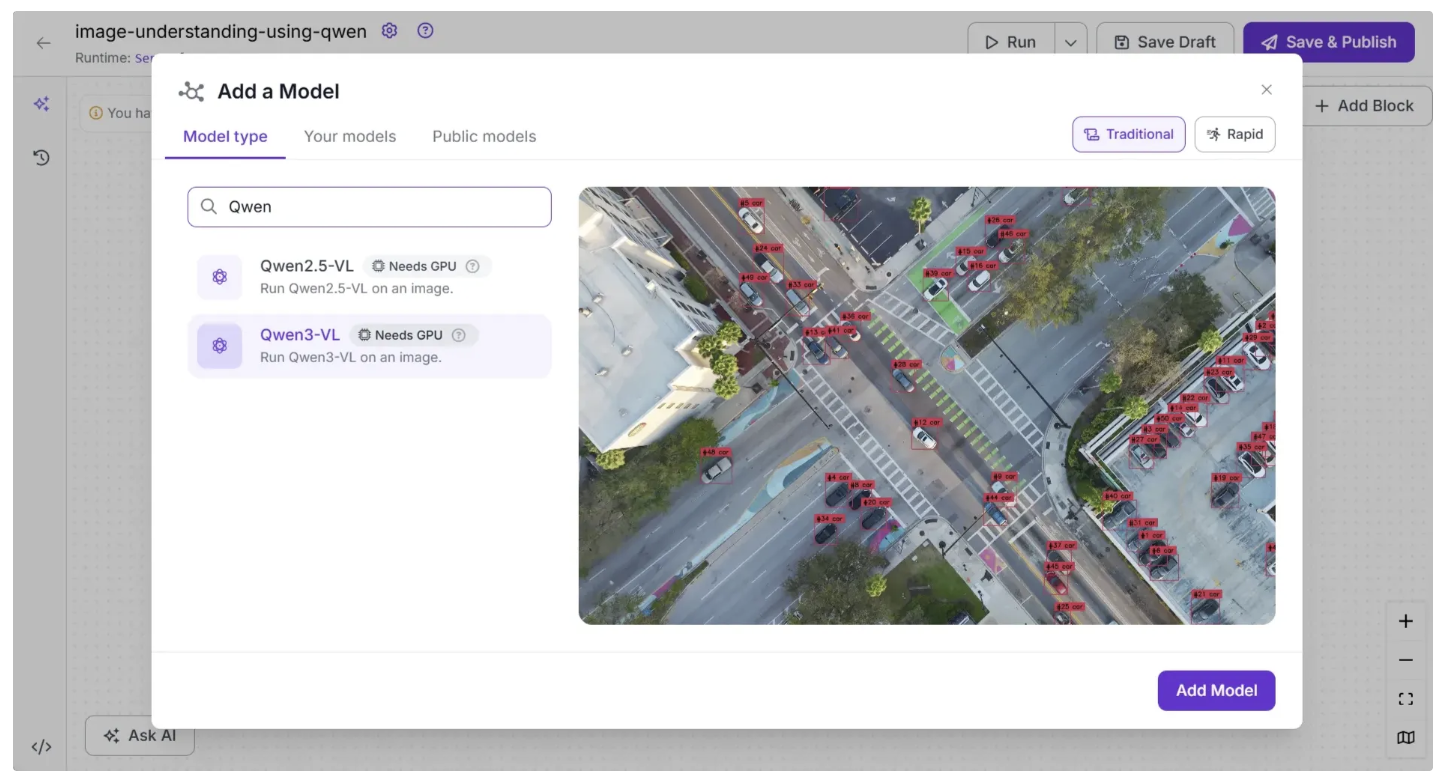
Next, add a Qwen3-VL block to the workflow. This block enables the workflow to run the Qwen3-VL model without requiring you to set up or manage the model yourself. To add it, click “Add a Model” in the workflow editor, search for “Qwen”, select “Qwen3-VL”, and then click “Add Model”, as shown below:
Your workflow should now look like this:
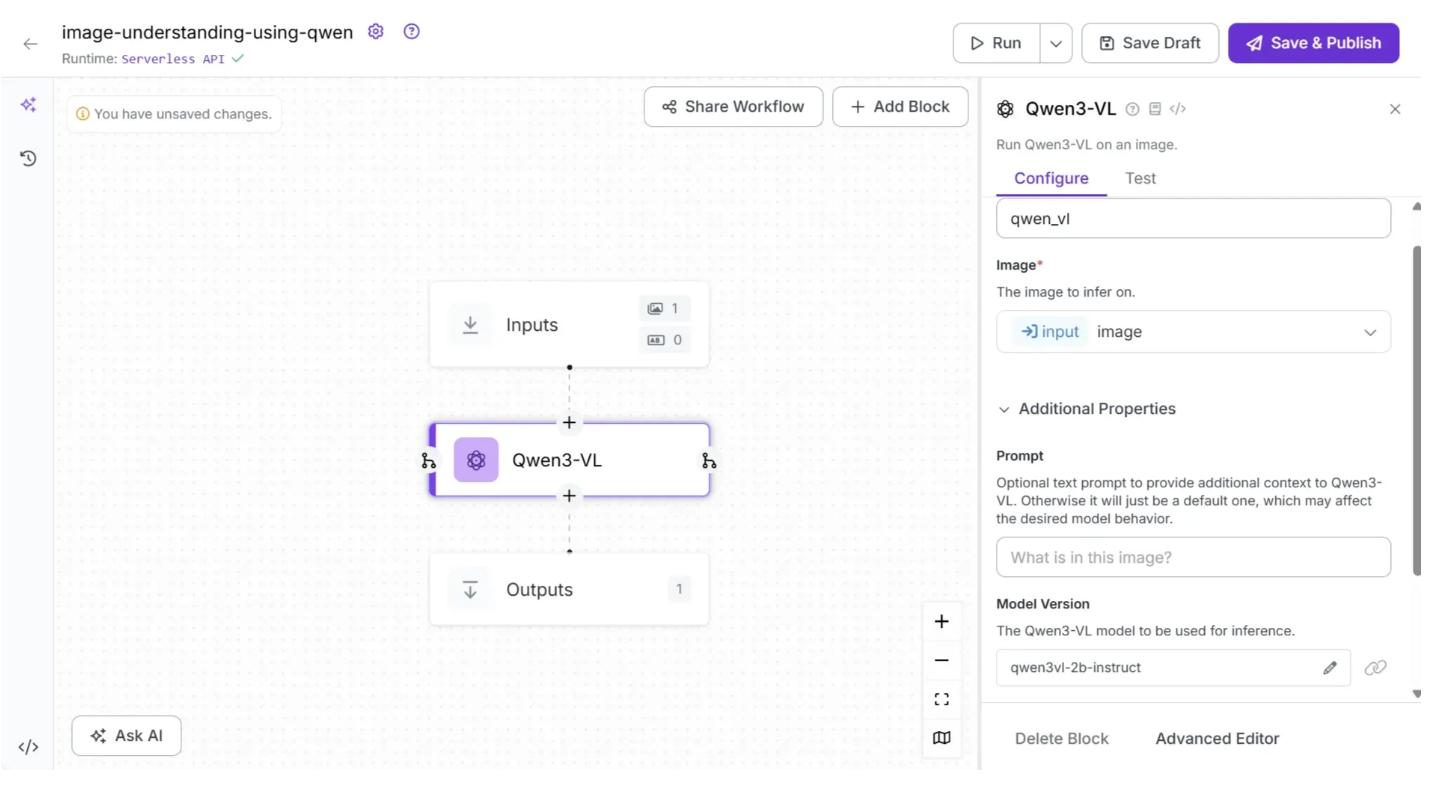
You can also configure the ‘Prompt’ and ‘System prompt’ within the Qwen3-VL block to guide the model’s outputs by selecting the Qwen3-VL block, opening its configuration tab, and then updating it, as shown below:
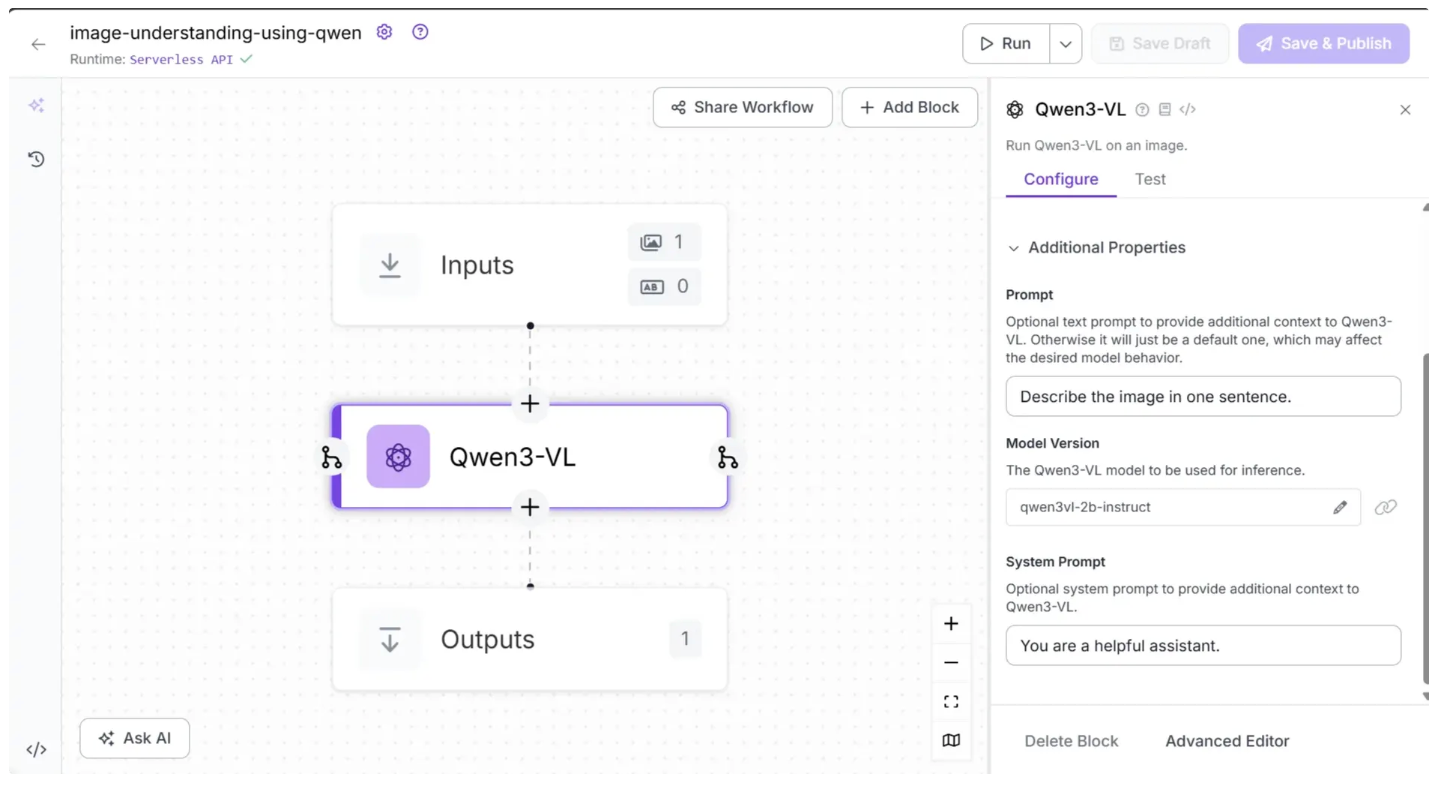
The ‘Prompt’ parameter is a user input that asks Qwen3-VL to perform a task, while the ‘System Prompt’ provides instructions that guide how Qwen3-VL should respond.
Step 3: Setup Outputs
To configure the workflow’s output, click on the Outputs block, as shown below, and set up the workflow outputs as illustrated:
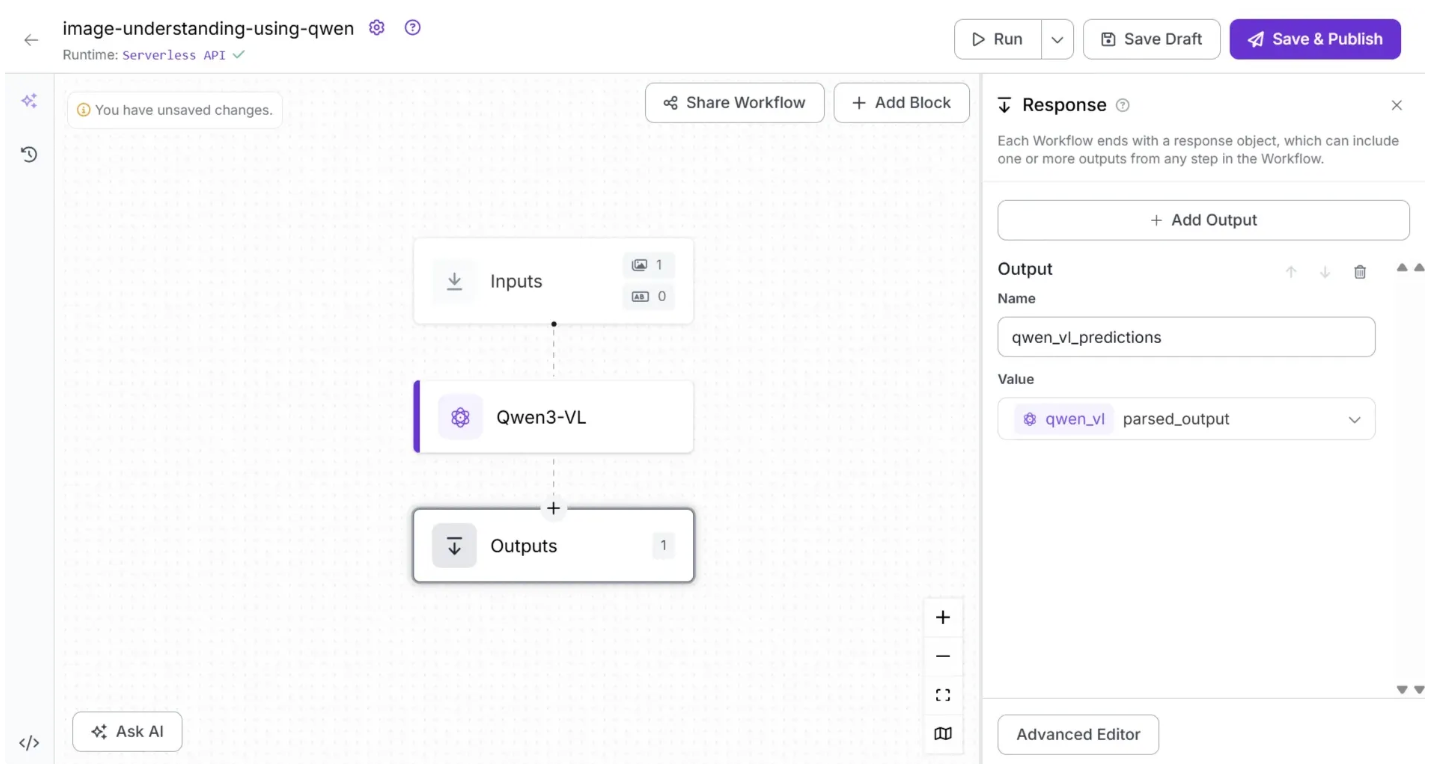
In the workflow outputs, ‘qwen_vl_predictions’ is the variable name representing the workflow’s output, and it contains the ‘parsed_output’ from Qwen3-VL.
Step 4: Running the Workflow
Your workflow is now complete. To run it, click the “Test Workflow” button in the top-right corner and select “Run,” as shown below:
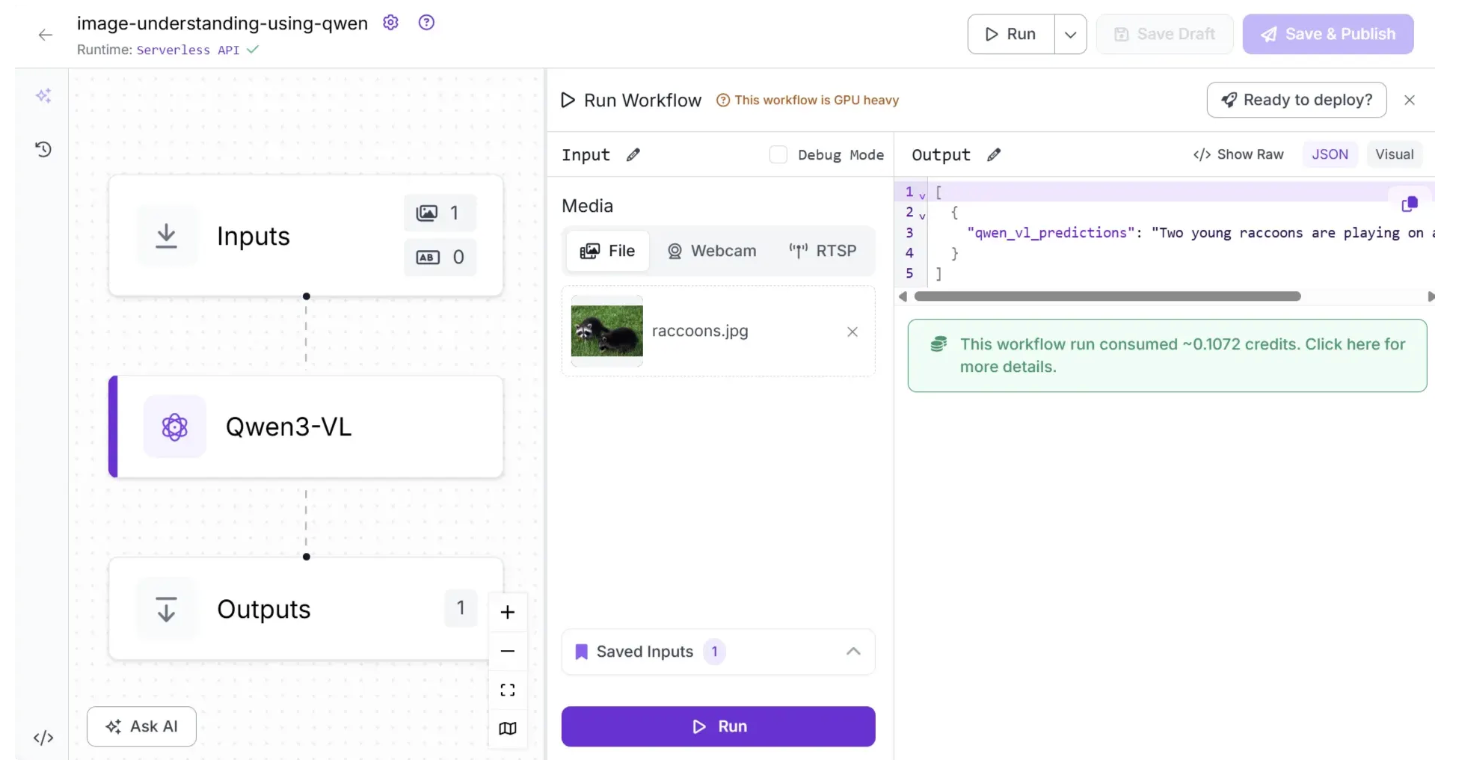
To run the workflow as an API using Python, start by installing the required package with the following command:
pip install inference-sdk
Then, run the script below:
from inference_sdk import InferenceHTTPClient
import base64

client = InferenceHTTPClient(
    api_url="https://serverless.roboflow.com",
    api_key="YOUR_ROBOFLOW_API_KEY"
)

result = client.run_workflow(
    workspace_name="your-workspace", # Replace with your workspace name
    workflow_id="image-understanding-using-qwen", # Replace with your workflow ID
    images={
        "image": "YOUR_IMAGE.jpg"
    },
    use_cache=True # Speeds up repeated requests
)

print(result[0]['qwen_vl_predictions'])
For the above script, you can find your Roboflow API key by following this guide.
You can access various versions of the script for running locally in different environments by navigating to “Deploy” in the drop-down menu attached to the “Run” button, then selecting “Images” and “Run on Your Server or Computer.”
Step 5: Running on Self-Hosted Runtime Environment
Qwen3-VL requires heavy GPU acceleration, so running it on the default “Serverless API” runtime environment may result in slow responses or failed executions. To improve reliability, try reducing the length of your input prompts and output text, and scaling down the image size before processing.
Alternatively, you can self-host your own Roboflow Inference server and connect your workflow to this self-hosted inference environment.
It is recommended that the device hosting the Roboflow Inference server have a high-memory GPU, such as an L4 or A100, in order to run Qwen3-VL.
To self-host your own Roboflow Inference server and connect your workflow to it, click the text that follows ”Runtime:” in the top-left corner, then select ”Local Device” as shown below:
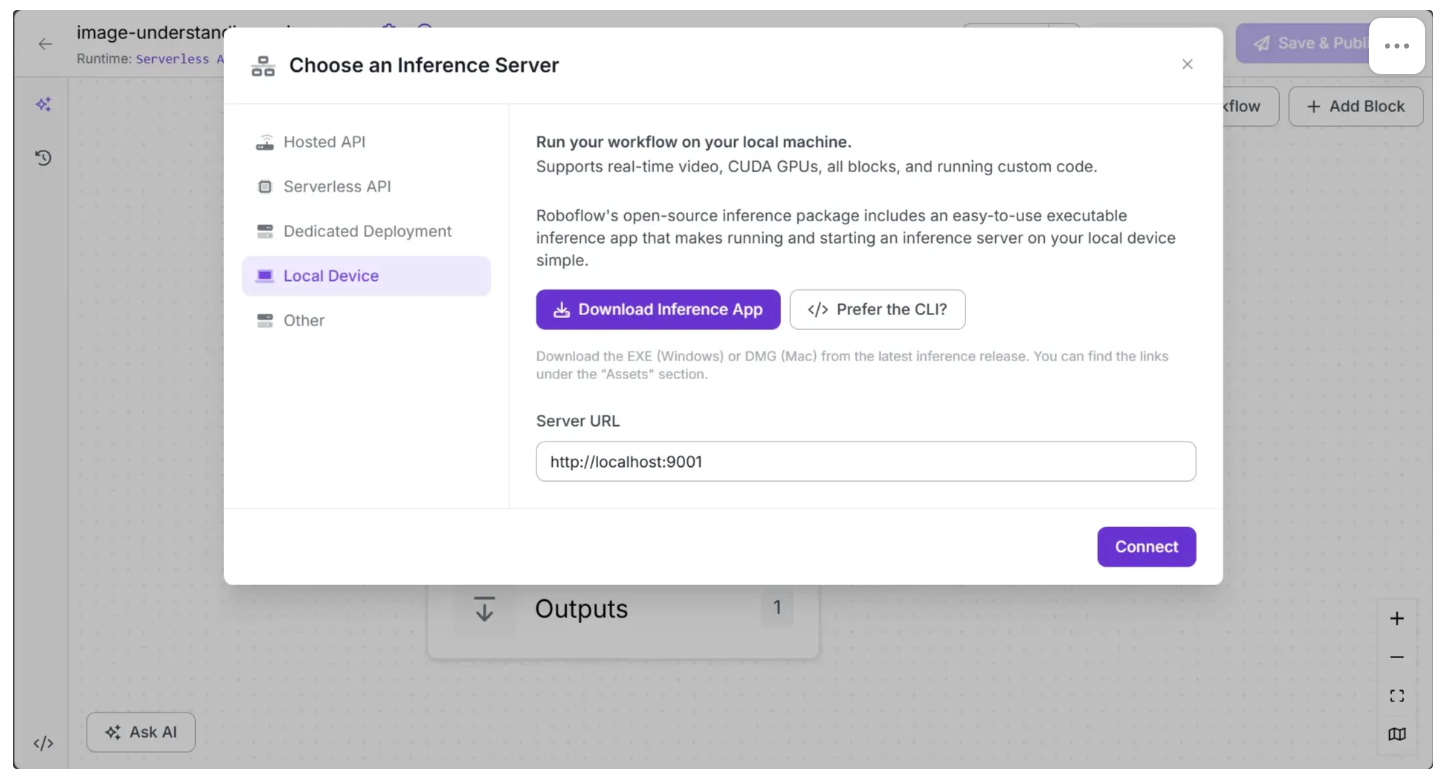
Before connecting to ’http://localhost:9001’, you need to run an inference server on your local device. You can do this by downloading the inference app using the “Download Inference App” button and running it after installation.
Once running, a local server will start on port 9001 after a few minutes, as shown below:
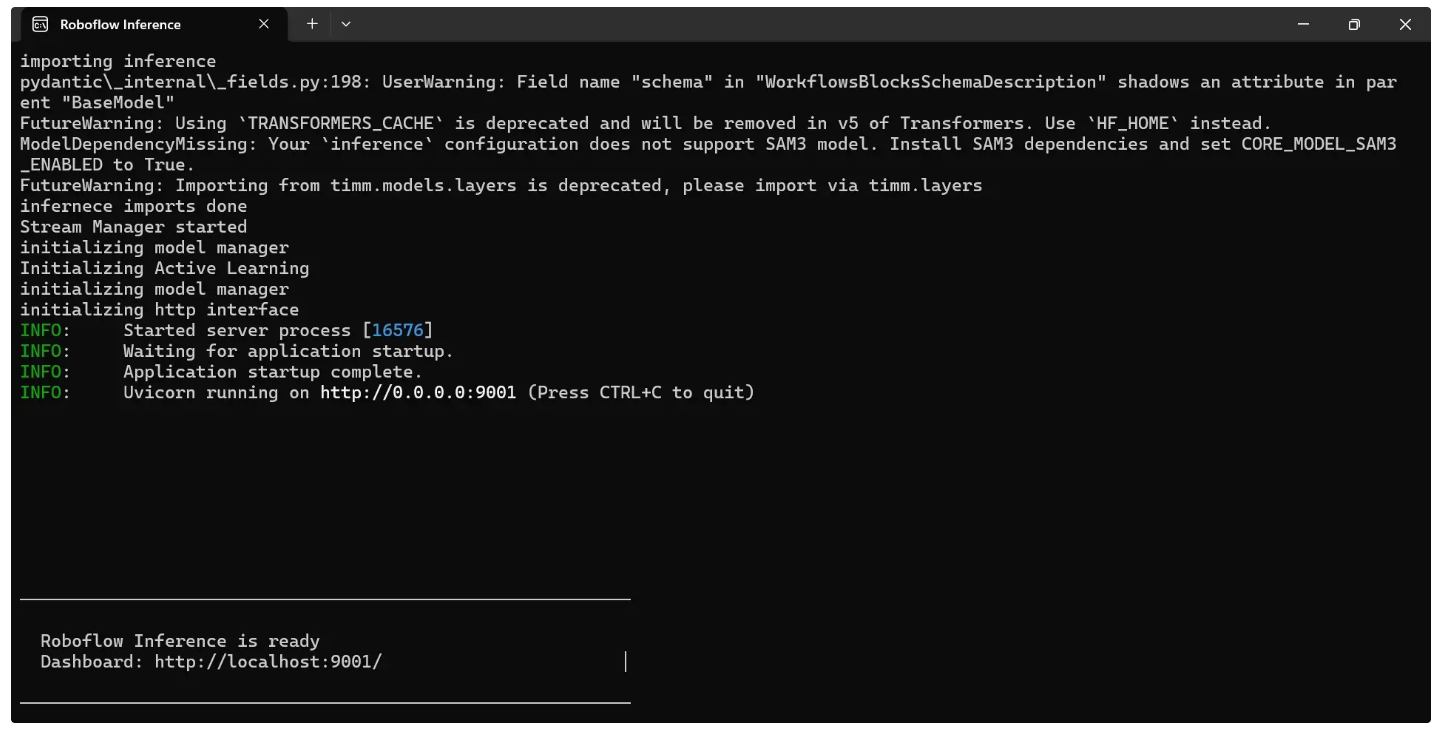
Once the “Roboflow Inference is ready” message appears, as shown above, click “Connect”. The Runtime should then display as “Locally,” as shown below:
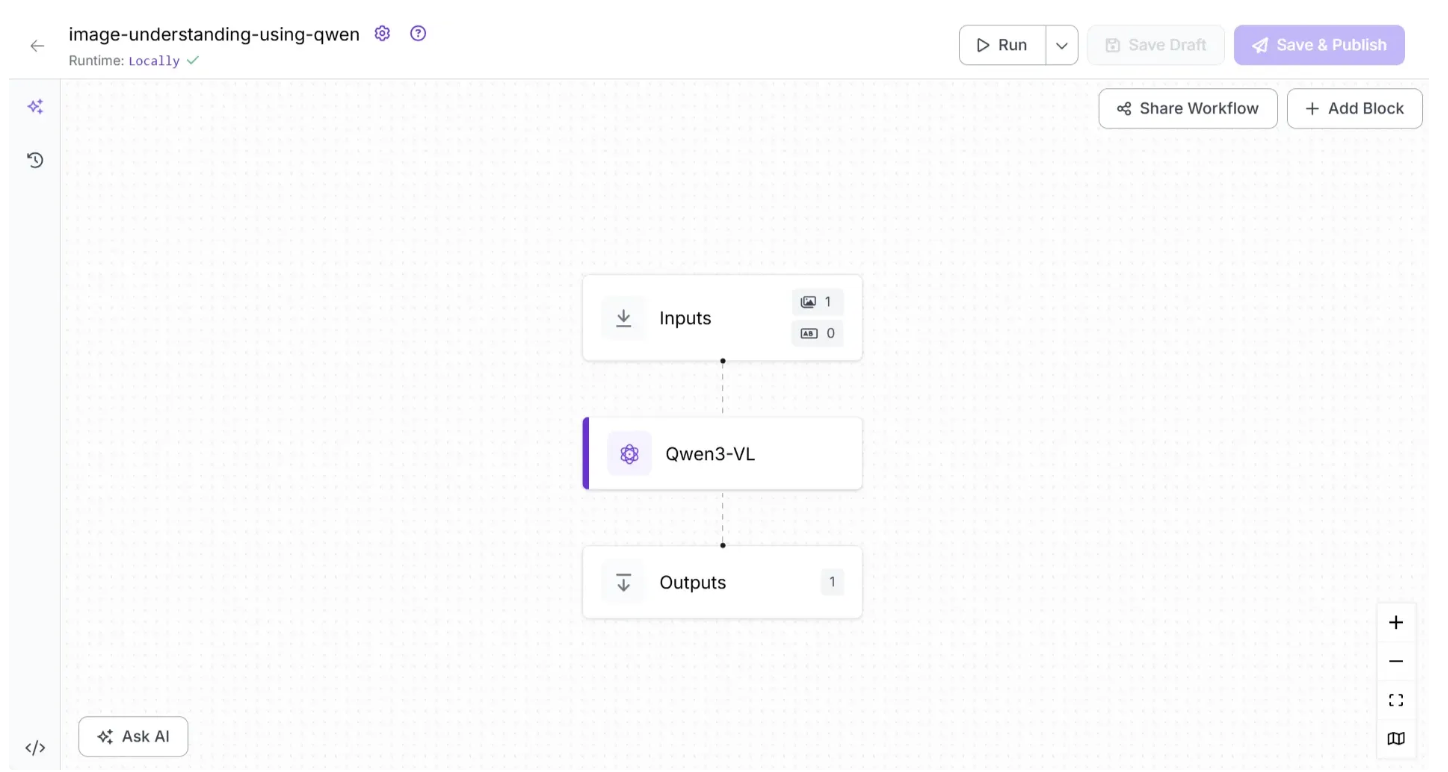
You can now run the workflow directly from the user interface or through the Python inference script, as before. If you use the Python inference script, you need to update the ‘api_url’ value from ‘https://serverless.roboflow.com’ to ‘http://localhost:9001’.
Note: The device hosting the Roboflow Inference server must have a GPU available; otherwise, a runtime error will occur when running the Qwen3-VL workflow.
What else can Qwen3-VL do?
Beyond simple image understanding, Qwen3-VL offers the following capabilities:
- Document Parsing and OCR: OCR in 39 languages with high accuracy. Parses complex layouts into Markdown, HTML, or LaTeX. Preserves fine visual details with DeepStack integration.
- Spatial Intelligence and Grounding: Supports 2D localization and 3D bounding boxes. Understands spatial relationships, object affordances, and fine details via dynamic resolution input.
- Agentic Capabilities and Tool Use: Navigates GUIs, performs multimodal coding, and integrates external tools for visual search and fact verification.
- Multi-Image Understanding: Compares images, follows sequential visual narratives, and performs multi-hop reasoning across multiple visual inputs.
- Advanced Multimodal Reasoning ("Thinking"): Uses Long Chain-of-Thought reasoning for complex problems. Excels in STEM tasks, multi-step inference, and maintains strong text understanding.
Qwen3-VL with Roboflow Conclusion
Qwen3-VL combines advanced multimodal reasoning, OCR, spatial understanding, and agentic capabilities into a single, powerful model.
Through Roboflow Workflows, even users with minimal coding experience can build sophisticated image-understanding pipelines that handle complex tasks across text, images, and video by leveraging Qwen3-VL’s capabilities.
Roboflow also provides the option to run the model on a self-hosted GPU environment, which can further maximize performance and efficiently process large inputs with long-context understanding.
Written by Dikshant Shah
Cite this Post
Use the following entry to cite this post in your research:
Contributing Writer. (Jan 21, 2026). How to Use Qwen3-VL in Roboflow. Roboflow Blog: https://blog.roboflow.com/how-to-use-qwen3-vl/