

To preprocess data for RF-DETR, upload and label your images in Roboflow, create a dataset version, apply preprocessing steps like auto-orient, resize, and tile, then generate the version and train RF-DETR with one click or export to any of 30+ formats.
Before you train a model, you may want to apply various preprocessing steps to your dataset. For example, you may want to resize your images to a specific resolution, or apply tiling.
Adding preprocessing steps ensures your data is consistent before it is used in training.
In this guide, we are going to show how to preprocess data for RF-DETR models using Roboflow.
To generate preprocessing steps for a RF-DETR model, you will:
1. Import data into Roboflow
2. Open the Versions tab
3. Select the preprocessing steps you want to apply
4. Generate your dataset
5. (Optional) Train a model or export your data
Let's get started!
Why Preprocessing Matters for RF-DETR
RF-DETR ships in several sizes, and each one trains and runs at a fixed input resolution. Nano runs at 384x384, Small at 512x512, Medium at 576x576, and Large at 704x704.
If your images arrive at 4000x3000, the model will resize them anyway. Doing that resize yourself, on purpose, means you control how it happens and you make training a heck of a lot faster.
The same logic applies to orientation. Phone cameras store rotation in EXIF metadata rather than in the pixels, so a photo that looks upright on your laptop can reach the model sideways. Ae bad rotation on a labeled image means your bounding boxes won't line up with the objects.
And for small objects in big images, aerial imagery, circuit boards, and wide shots of a production line, a straight resize to 576 pixels can shrink a defect down to nothing. Tiling keeps the pixels the model needs.
Step 1: Import data into Roboflow Annotate
Create a free Roboflow account and start a new project. Choose Object Detection as the project type.
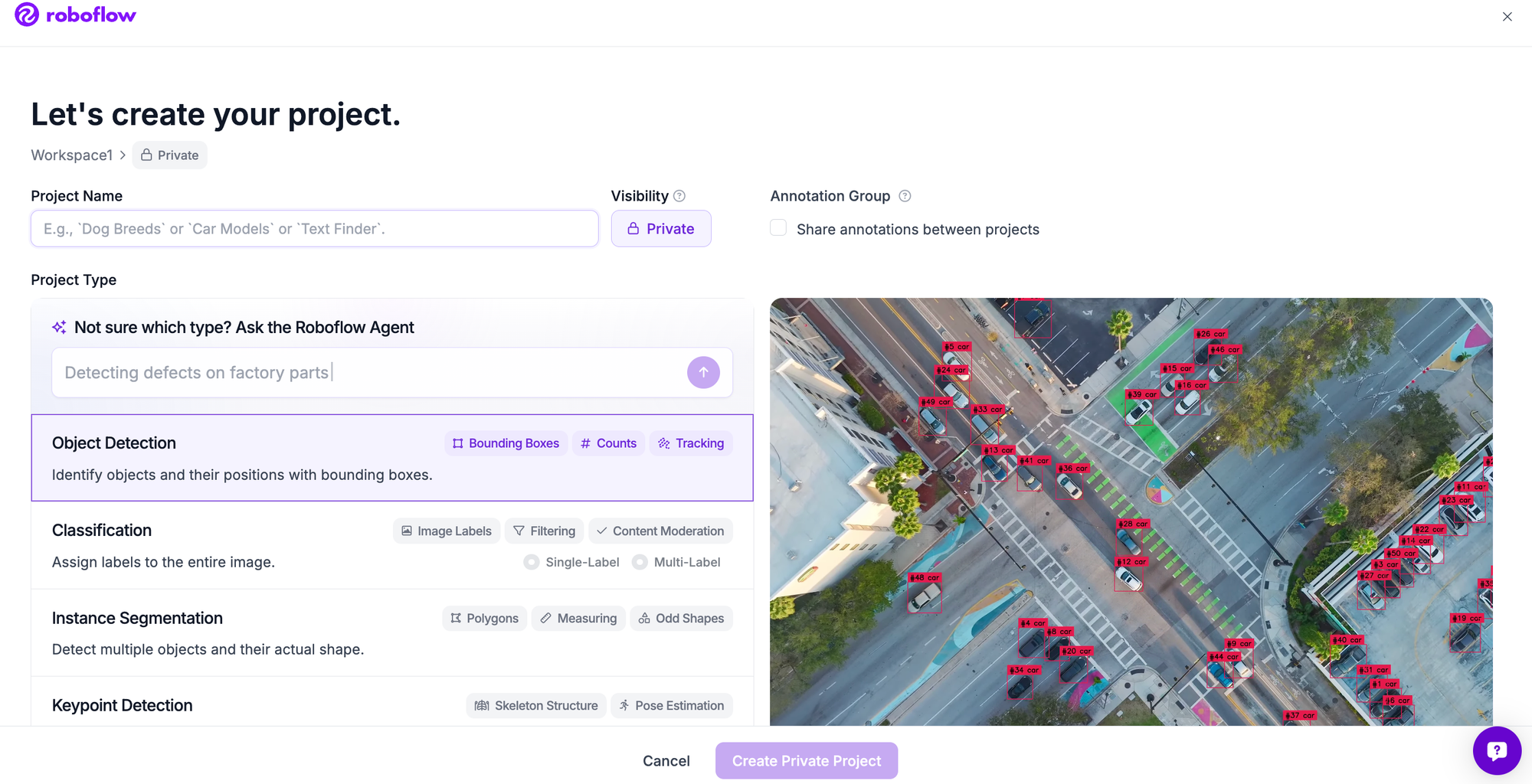
Drag and drop your images into the upload window. If you already have annotations in COCO JSON, Pascal VOC, YOLO TXT, or another common format, drop those in alongside the images and Roboflow will match them up automatically.
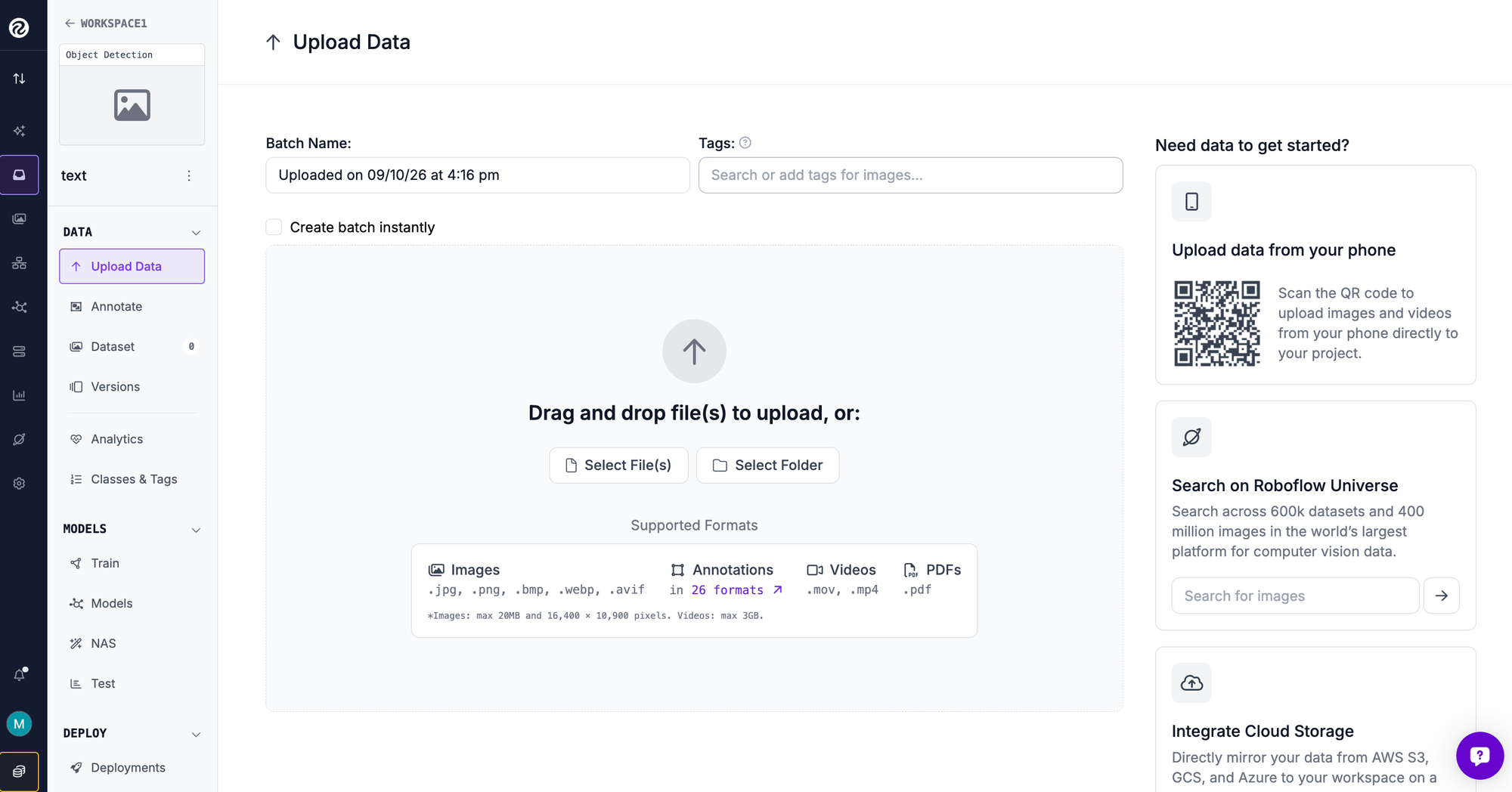
If you are starting from raw images, label them in Roboflow Annotate. Label Assist and Auto-Label will draft the first boxes for you so you spend your time reviewing rather than drawing.
You can also fork one of the 200,000+ datasets on Roboflow Universe if you want data to experiment with before collecting your own.
Step 2: Create a dataset version
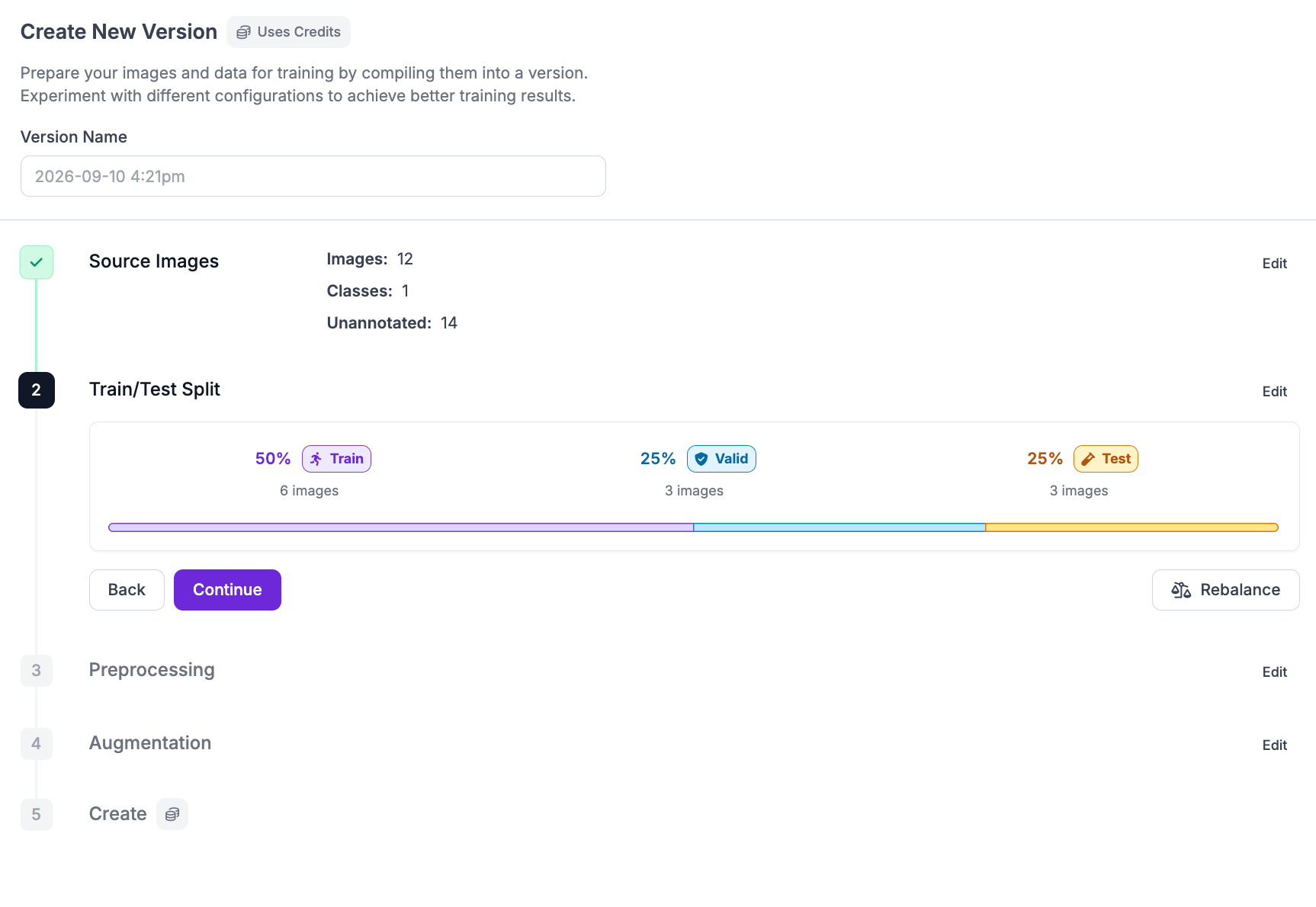
A dataset version is a frozen-in-time snapshot of your data plus the preprocessing and augmentation steps applied to it. Versions are what let you track changes over time.
Open the Versions tab in your project sidebar and click Create New Version. Roboflow will first ask you to confirm the train, validation, and test split.
Step 3: Select preprocessing steps
Roboflow automatically selects a few preprocessing steps that we recommend for most projects. If you need to, however, you can remove the default steps.
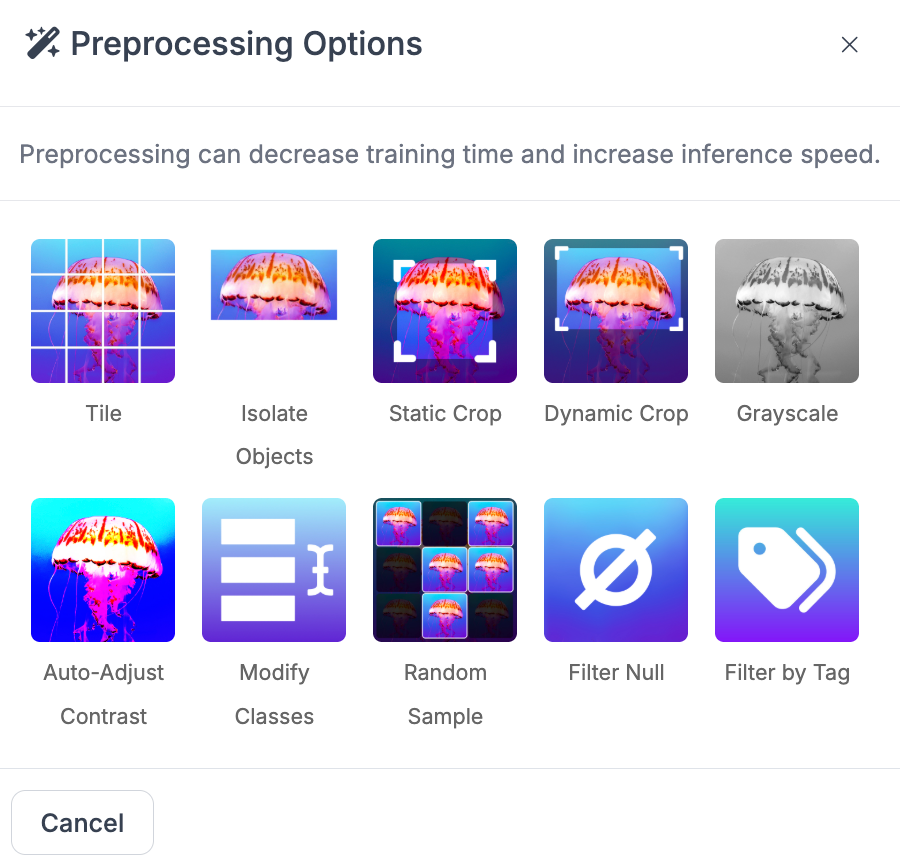
To add more preprocessing steps to your dataset, click on the "Preprocessing" section of the dataset generation page. Then, click the "Add Preprocessing Step" button. A pop up will appear showing all of the options available. You can add as many augmentations as you would like including:
- Auto-orient: reads the EXIF rotation tag, rotates the pixels to match, and strips the tag so every downstream tool sees the same image.
- Resize: sets a fixed output size. For RF-DETR, match the resolution of the variant you plan to train (576x576 for Medium, for example). Choose Stretch when aspect ratio does not matter, Fit (with black or white edges) when it does, and Fill (with center crop) when your subject sits in the middle of the frame.
- Tile: splits each image into a grid of smaller images and splits the annotations with it. Use it for large images with small objects. A 4000x3000 aerial photo tiled 3x3 gives RF-DETR nine images where the objects are big enough to learn.
- Static crop: trims a fixed percentage from each edge of every image. Handy when your camera is mounted in one place and the region of interest never moves.
- Dynamic crop: crops each image to its annotations, producing one image per labeled object. This is the standard way to build a classification dataset from detection labels.
- Isolate objects: cuts each annotated object out of its image, so each object becomes its own training example.
- Grayscale: converts images to a single channel. Useful if your production cameras are monochrome, so the model never learns to depend on color.
- Auto-adjust contrast: normalizes lighting with contrast stretching, histogram equalization, or adaptive equalization. Good for footage from a plant floor where the lights vary shift to shift.
You can also filter your dataset to only include images that are not marked as null in your Roboflow dataset, or include only images that match specific tags that you have added in Roboflow.
Here is an example showing how to apply a Tile augmentation to a dataset:
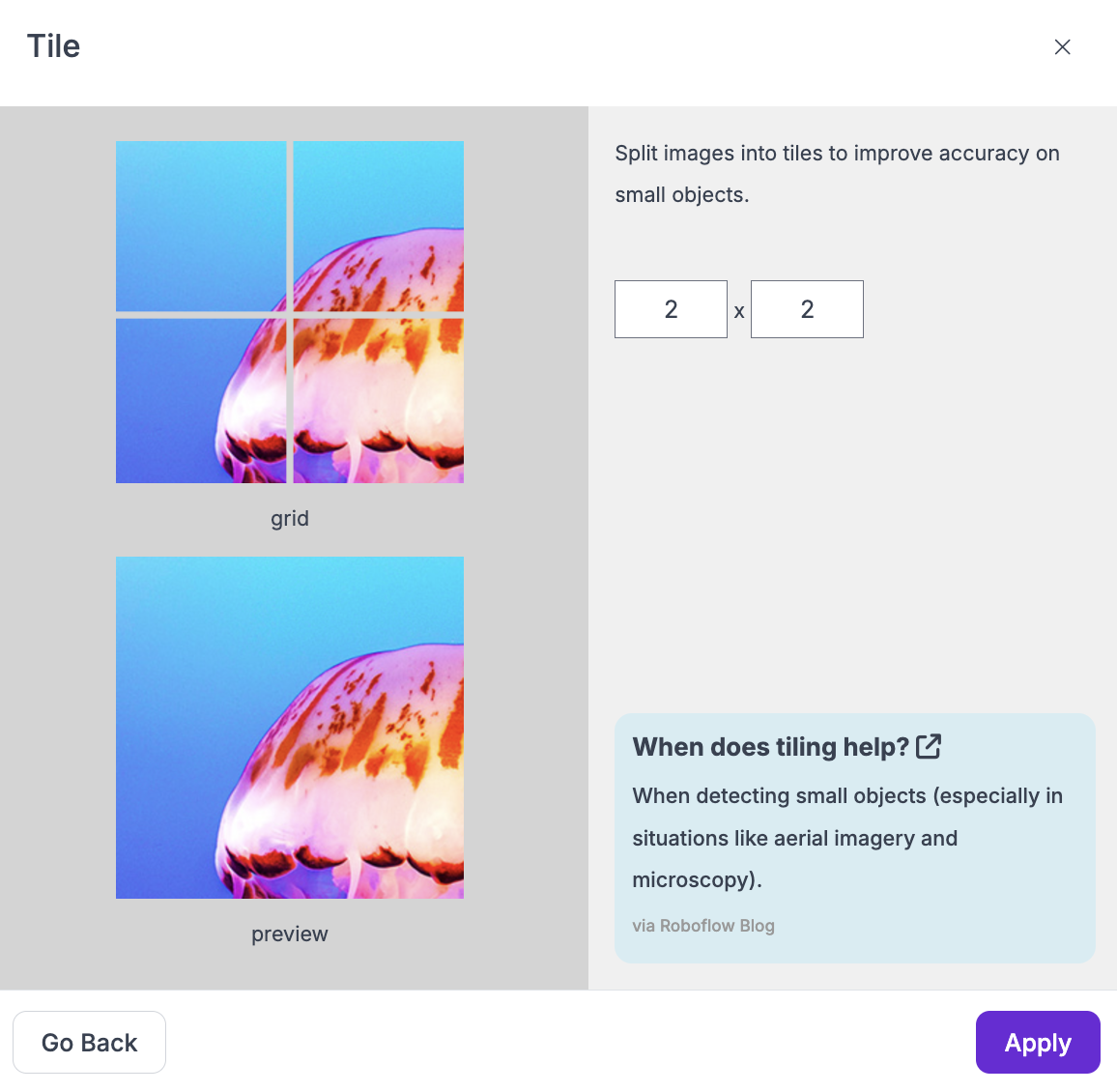
To add the preprocessing step, click "Apply". The change will appear in the list of augmentations to apply when generating your dataset version:
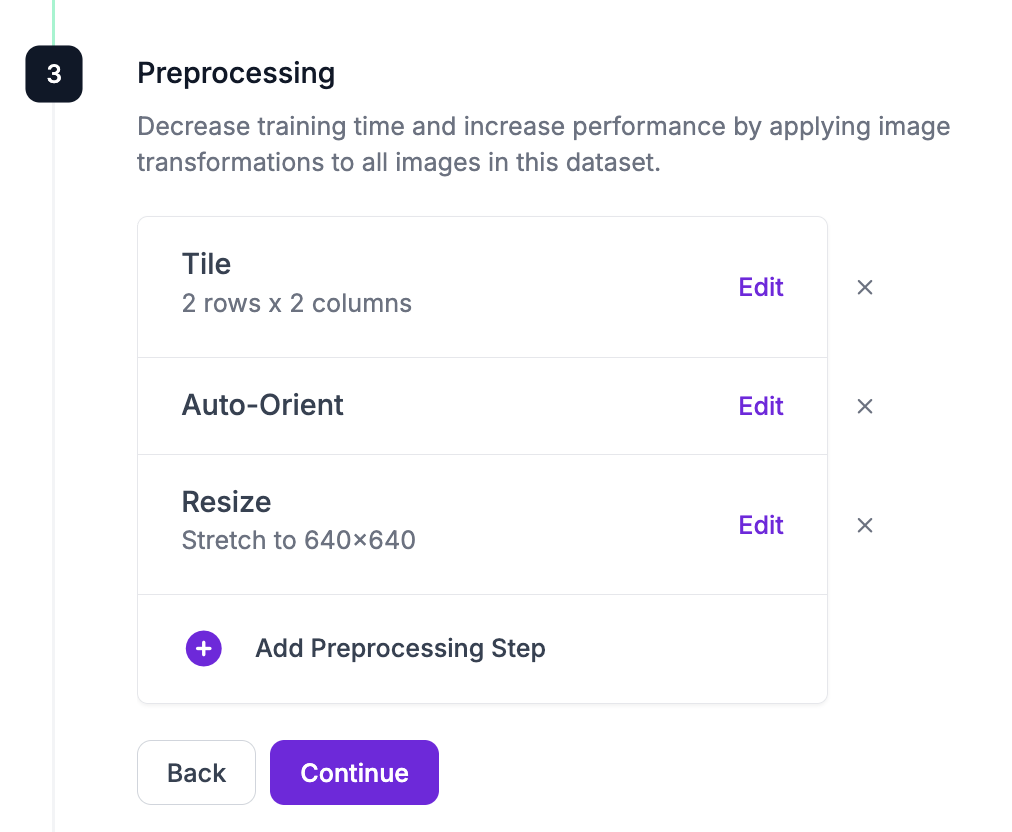
Once you have added all of the preprocessing and augmentation steps you want to apply, click "Generate" at the bottom of the page to generate your dataset.
You can then use your dataset for training a model on Roboflow. Or, you can export your dataset for use in a custom training process.
Step 4: Train RF-DETR or export
To train in Roboflow click Custom Train, choose RF-DETR, and start from the COCO public check
point. Training runs in our cloud, so there is no GPU to set up. When it finishes you get mAP, precision, and recall per class, and the model is live on the Serverless Hosted API as soon as training completes.
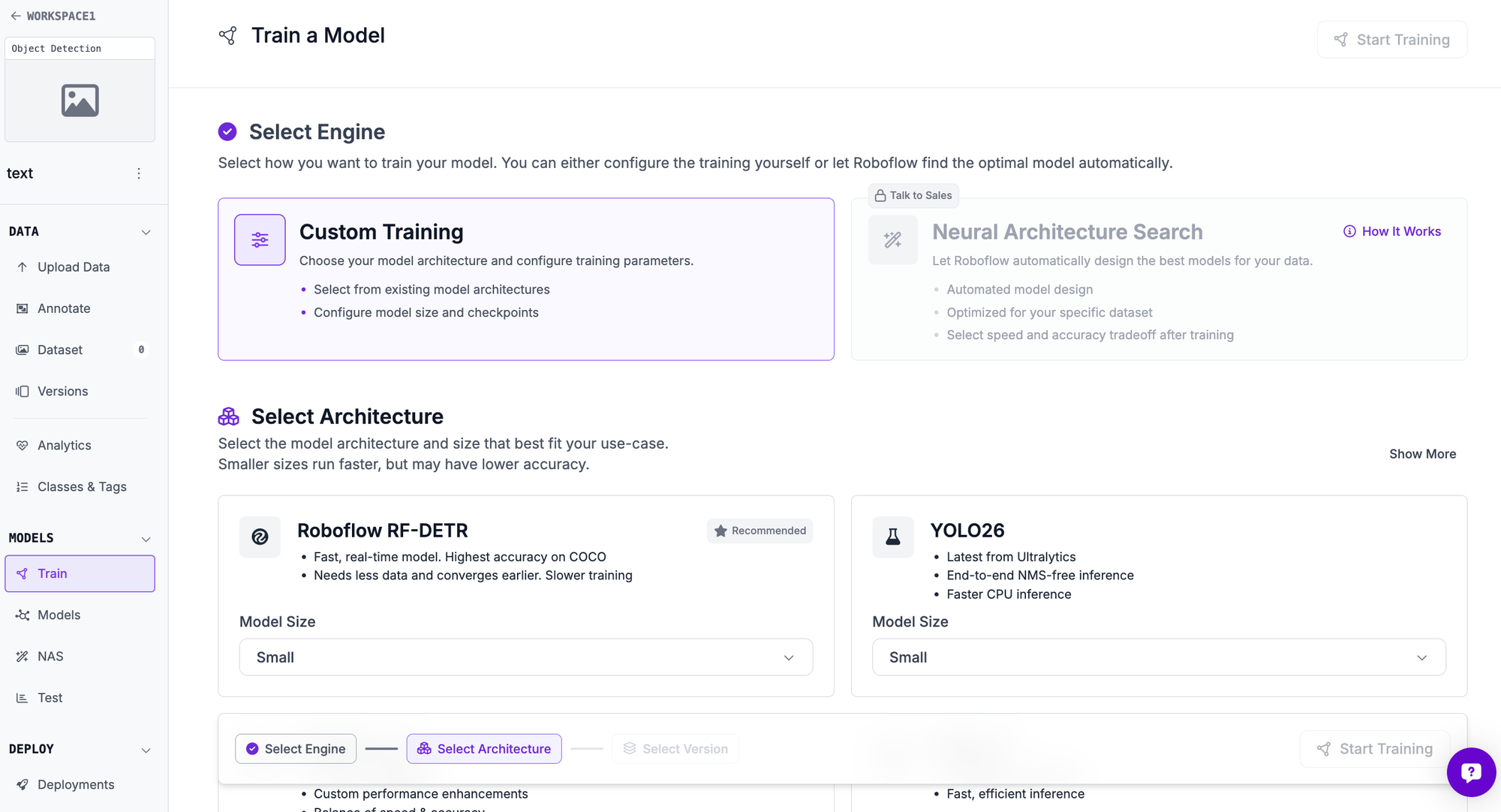
If you would rather train on your own hardware, export the version in any of over 30 formats. RF-DETR trains from COCO JSON, so pick that one and follow the RF-DETR training guide.
Create a free Roboflow account and generate your first RF-DETR-ready dataset version today.


Cite this Post
Use the following entry to cite this post in your research:
Erik Kokalj. (Jun 1, 2026). How to Preprocess Data for RF-DETR Training. Roboflow Blog: https://blog.roboflow.com/how-to-preprocess-data-for-rf-detr-training/