

Ultralytics HUB is being deprecated. According to the Ultralytics HUB GitHub repository, Ultralytics HUB will be wound down at the end of July 2026, and existing users should migrate active datasets, trained models, and workflows before the shutdown date.
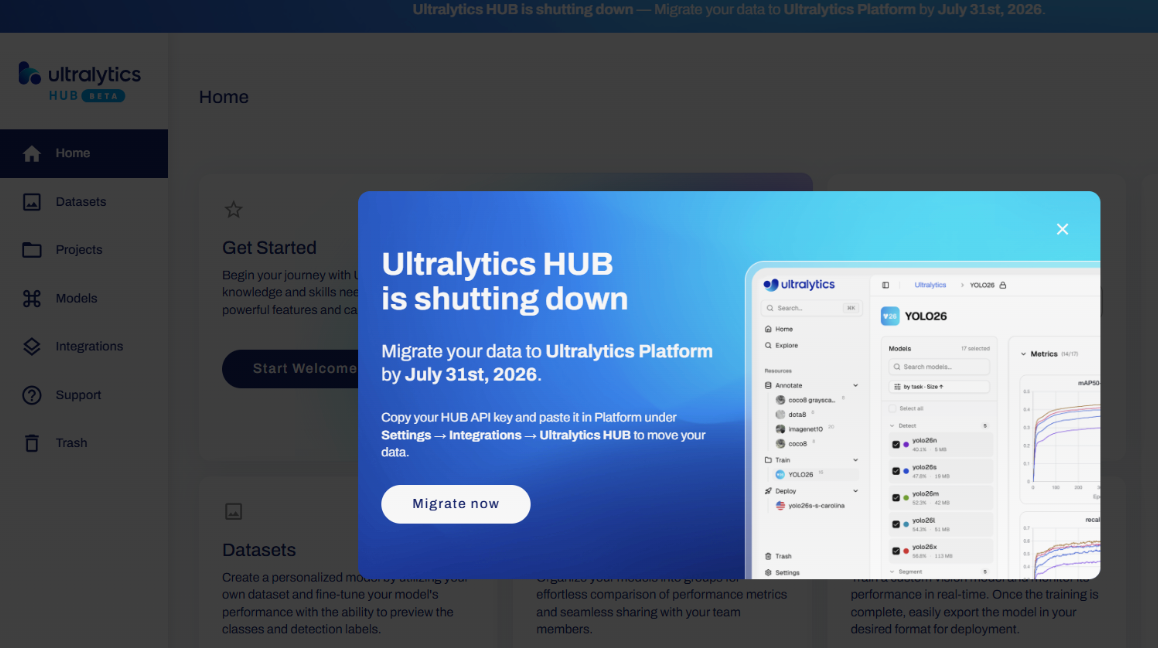
For teams that trained YOLO models in Ultralytics HUB, this creates an important migration decision:
- Move datasets and models into Roboflow to manage data, train models, build Workflows, and deploy to cloud, edge, private, or offline environments.
- Move existing HUB assets into the new Ultralytics Platform.
- Or use both.
This guide explains both migration paths. First, I will show how to export datasets and trained models from Ultralytics HUB and import them into Roboflow. Then, I will show the Ultralytics HUB to Ultralytics Platform migration flow. I'll also reveal why many engineers bring Ultralytics HUB projects into Roboflow.
So let's get started.
Why Ultralytics HUB Users Need to Migrate
Ultralytics HUB was an online platform for training and managing YOLO models. It helped users upload datasets, train YOLO models on those datasets, and export trained weights.
My Trained Model on Ultralytics HUB
However, Ultralytics now directs users to Ultralytics Platform for new work. The Ultralytics HUB repository states that HUB is being deprecated and will be shutdown at the end of July 2026. It also says that existing users should migrate datasets and models to Ultralytics Platform before that date.
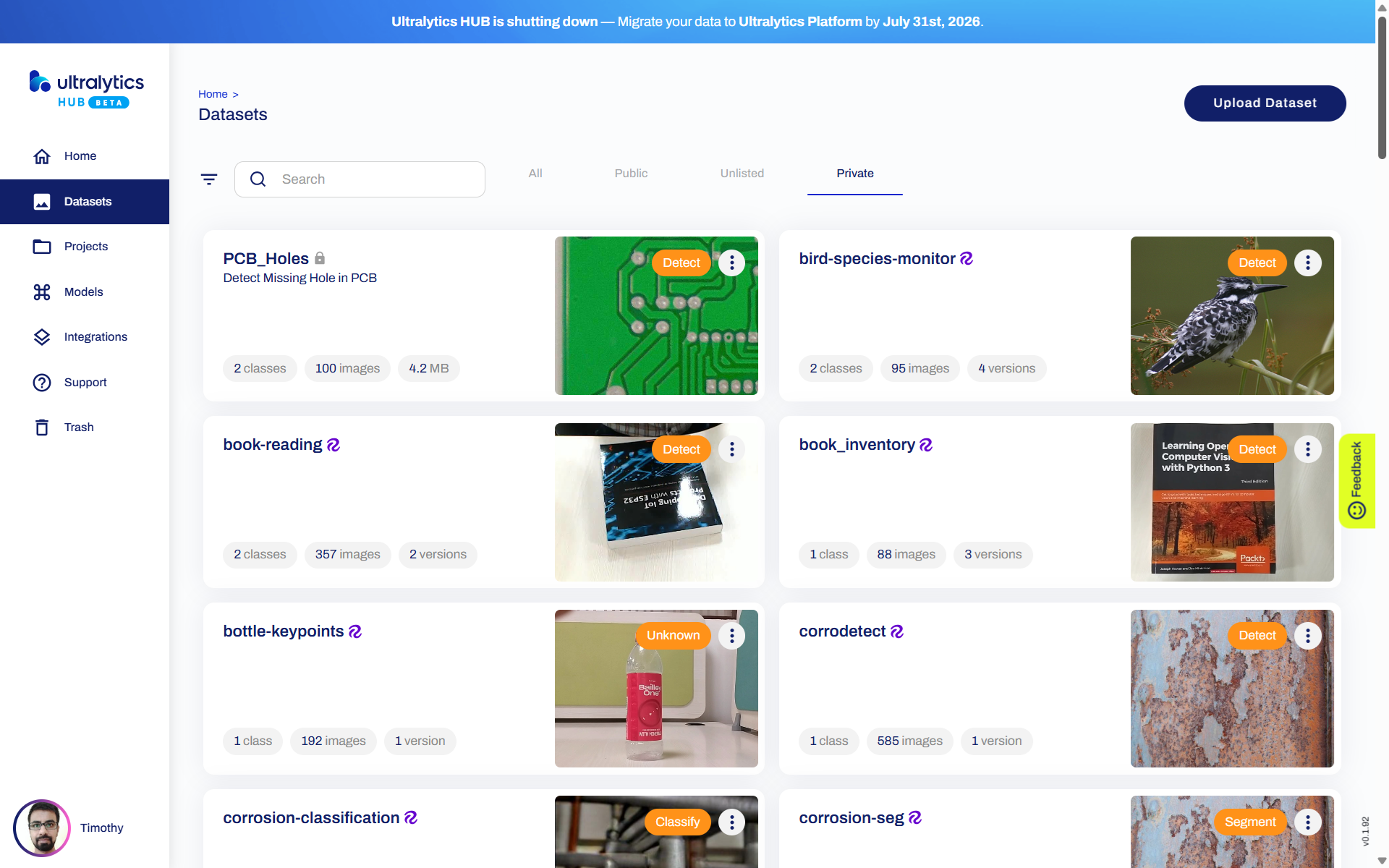
This means teams using Ultralytics HUB should not wait until the shutdown date. Before migrating, you should make an inventory of:
- Datasets stored in HUB
- Trained YOLO model weights
Once you know what needs to move, you can decide whether each dataset or model should go to Roboflow, Ultralytics Platform, or both.
Steps to Migrate from Ultralytics HUB to Roboflow
Now we will learn how to do transition from Ultralytics HUB to Roboflow.
Export datasets from Ultralytics HUB
Before importing into Roboflow, you need to get your dataset out of Ultralytics HUB. The preferred dataset format for this migration is YOLO format, because it is widely supported and can be imported into Roboflow. A typical YOLO object detection dataset looks like this:
dataset/
├── data.yaml
├── train/
│   ├── images/
│   │   ├── image1.jpg
│   │   └── image2.jpg
│   └── labels/
│       ├── image1.txt
│       └── image2.txt
├── valid/
│   ├── images/
│   └── labels/
└── test/
    ├── images/
    └── labels/
The data.yaml file contains the class names and dataset paths. Depending on how your HUB account is configured, you may see a download or export option on the dataset page. Use that option to export the dataset in YOLO format where available. A safe migration process is:
- Sign in to your Ultralytics HUB account.
- Open the dataset you want to migrate.
- Look for a dataset download or export option.
- Click to Download the ZIP file.
- Unzip it locally.
- Confirm that the dataset contains images, labels, and a
data.yamlfile. - Check that class names in
data.yamlmatch your expected ontology.
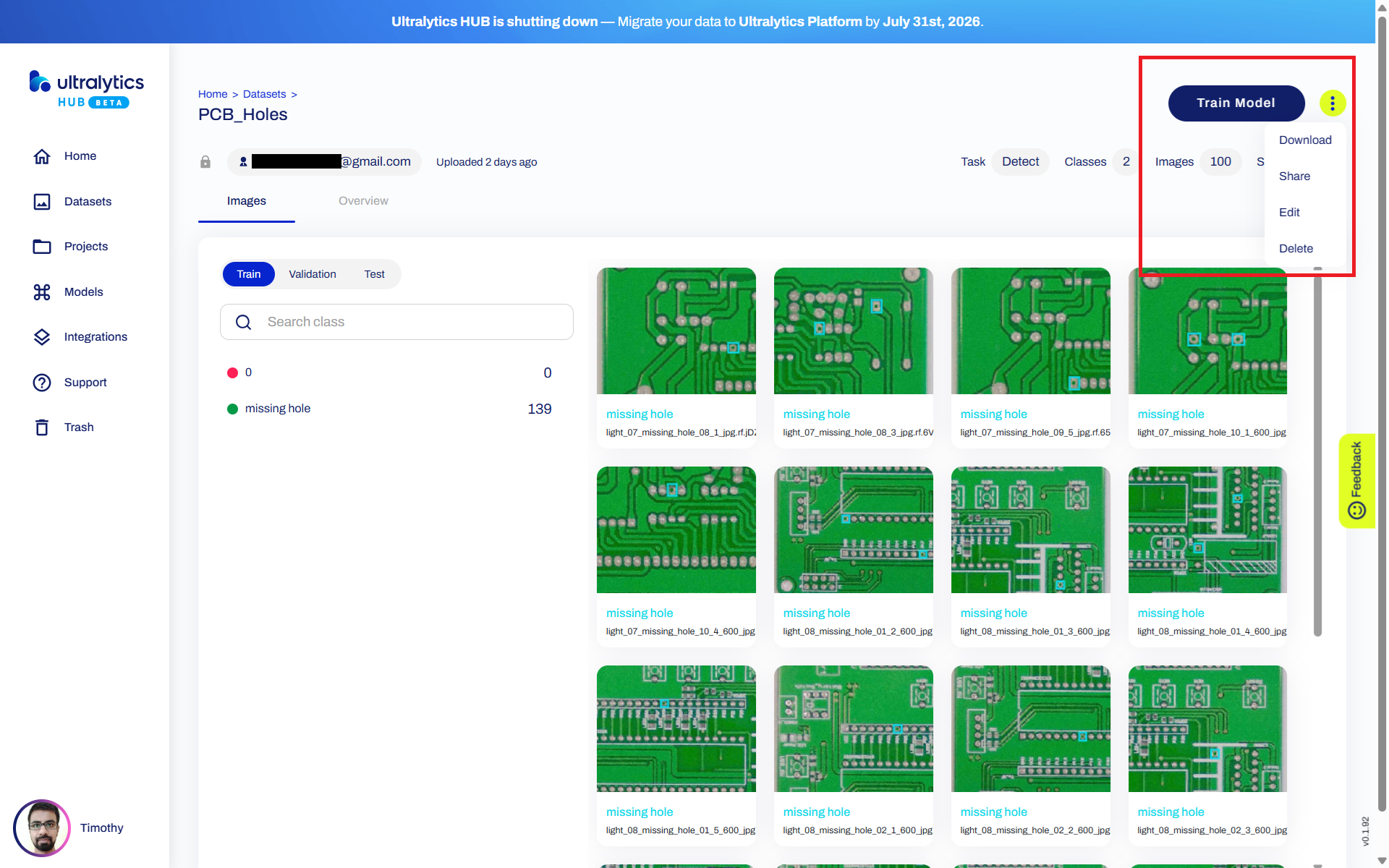
What if you cannot directly export from HUB?
If your HUB workspace does not expose the dataset export option, use the Ultralytics migration path. First get your HUB API KEY,
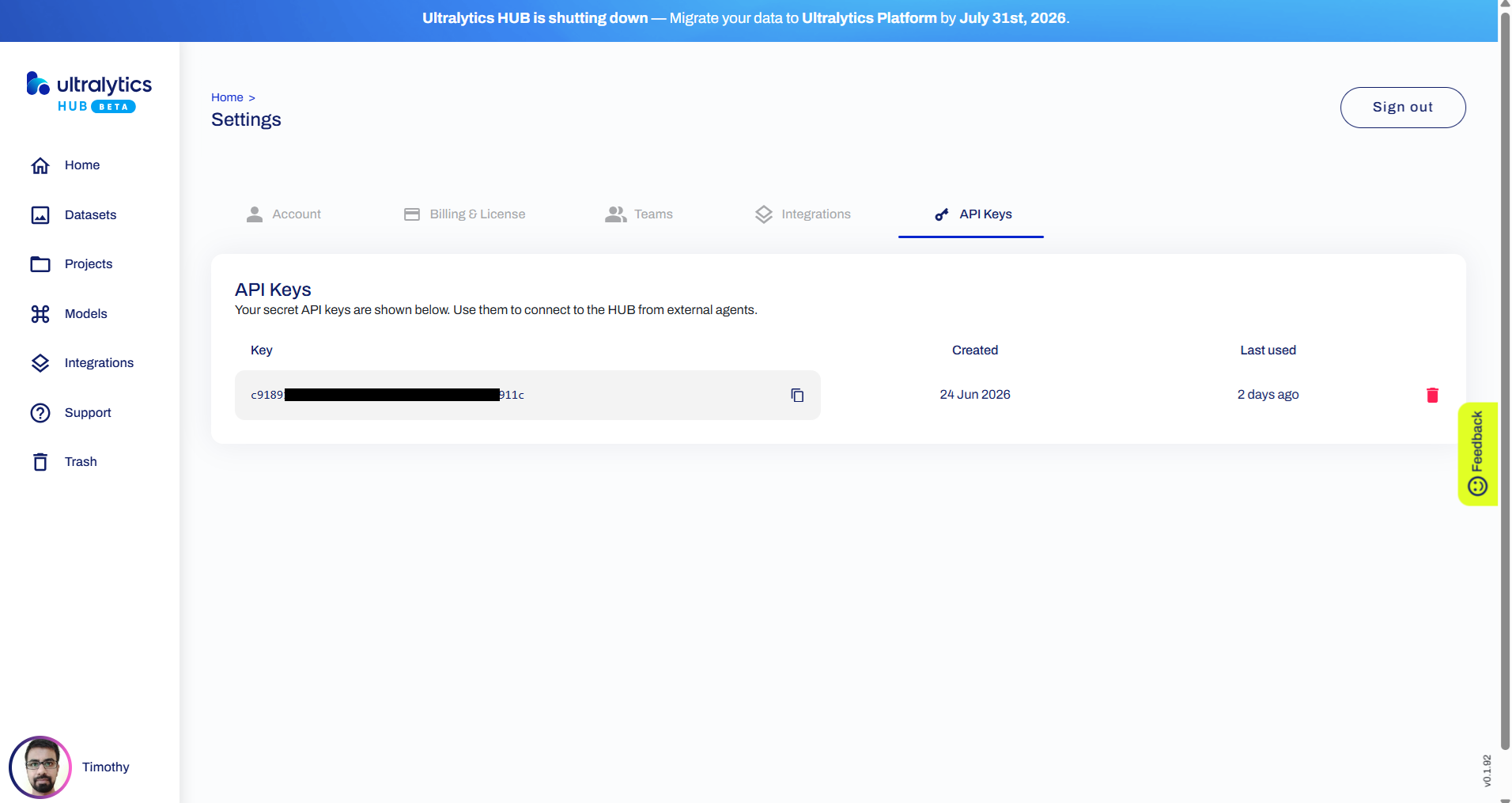
Then,
- Create an account on Ultralytics Platform.
- Go to Settings > Integrations > Ultralytics HUB.
- Paste your HUB API key.
- Migrate your HUB datasets and models into Ultralytics Platform.
After the dataset is available in Ultralytics Platform, you can export the dataset from Platform.
Migrating HUB dataset and models in new Ultralytics Platform and downloading the dataset
Ultralytics Platform supports exporting datasets as NDJSON. So from above steps I got pcb-holes.ndjson file for my PCB Holes dataset. Ultralytics provides conversion utilities that can convert NDJSON datasets into YOLO format. Example conversion using Ultralytics (experimented in Google Colab). Install the required library.
!pip install -U ultralyticsand use the following conversion code.
from ultralytics.data.converter import convert_ndjson_to_yolo

yaml_path = await convert_ndjson_to_yolo(
    "pcb-holes.ndjson",
    output_path="./converted-yolo-dataset"
)

print("Converted dataset YAML:", yaml_path)
The dataset will be converted, you will see following output message.
Converting pcb-holes.ndjson → converted-yolo-dataset/pcb-holes-aca68427 (100 images): 100% ━━━━━━━━━━━━ 100/100 116.9it/s 0.9s
Converted dataset YAML: converted-yolo-dataset/pcb-holes-aca68427/data.yaml
After conversion, check the output folder for a data.yaml file and YOLO-style image and label folders. Since I used Google Colab, use the following script to download the converted dataset in zip format.
import shutil
from google.colab import files

folder_path = "./converted-yolo-dataset"
zip_path = "/content/converted-yolo-dataset"

shutil.make_archive(zip_path, 'zip', folder_path)

files.download(zip_path + ".zip")
Import the exported HUB dataset into Roboflow
Once you have the dataset locally, you can import it into Roboflow using either the web app or the command line.
Option A: Import through the Roboflow web interface
Easiest way is to use the Roboflo web interface to upload through a web browser. Following are the steps:
- Unzip the dataset files from above steps.
- Go to Roboflow.
- Create a new project Object Detection Project (for our PCB Holes dataset that we have downloaded from HUB).
- Click upload data and 'Select Folder' and the follow the spteps (as shown in video below)
- After upload review you dataset.
- Generate a dataset version.
Uploading HUB dataset to Roboflow
Option B: Import through the Roboflow Python SDK
For annotated datasets exported from Ultralytics HUB, the safest programmatic upload method is the Roboflow Python SDK. This is especially important for YOLO datasets, where each image must stay paired with its matching .txt label file and the project must preserve the class mapping from data.yaml. Your YOLO dataset folder should include the images, labels, and data.yaml file. A typical structure is:
hub-dataset-yolo/
├── data.yaml
├── train/
│   ├── images/
│   │   ├── image1.jpg
│   │   └── image2.jpg
│   └── labels/
│       ├── image1.txt
│       └── image2.txt
├── valid/
│   ├── images/
│   └── labels/
└── test/
    ├── images/
    └── labels/
Remember that the annotations should be uploaded together with their associated images. Do not upload only the images first and try to add the annotations later through a normal dataset upload flow, because annotations must be attached at upload time. Install the Roboflow package:
pip install -U roboflowThen upload the exported HUB dataset using following code:
from pathlib import Path
import os
import yaml
from tqdm import tqdm
from roboflow import Roboflow

ROBOFLOW_API_KEY = os.environ["ROBOFLOW_API_KEY"]

WORKSPACE_ID = "tim-4ijf0"
PROJECT_ID = "pbc-detection-pihto"
DATASET_DIR = Path("./pcb-holes-aca68427")

BATCH_NAME = "ultralytics-hub-migration"
IMAGE_EXTS = {".jpg", ".jpeg", ".png"}


def load_yolo_labelmap(data_yaml_path):
    with open(data_yaml_path, "r") as f:
        data = yaml.safe_load(f)

    names = data["names"]

    if isinstance(names, list):
        return {str(i): name for i, name in enumerate(names)}

    if isinstance(names, dict):
        return {str(k): v for k, v in names.items()}

    raise ValueError("Unsupported names format in data.yaml")


def find_yolo_split_dirs(dataset_dir):
    """
    Supports both:
    1. train/images + train/labels
    2. images/train + labels/train
    """

    split_names = {
        "train": "train",
        "valid": "valid",
        "val": "valid",
        "test": "test",
    }

    found = []

    # Layout 1: train/images, valid/images, test/images
    for local_split, roboflow_split in split_names.items():
        images_dir = dataset_dir / local_split / "images"
        labels_dir = dataset_dir / local_split / "labels"

        if images_dir.exists():
            found.append((roboflow_split, images_dir, labels_dir))

    # Layout 2: images/train, images/val, labels/train, labels/val
    for local_split, roboflow_split in split_names.items():
        images_dir = dataset_dir / "images" / local_split
        labels_dir = dataset_dir / "labels" / local_split

        if images_dir.exists():
            found.append((roboflow_split, images_dir, labels_dir))

    return found


labelmap = load_yolo_labelmap(DATASET_DIR / "data.yaml")

print("Label map:", labelmap)

split_dirs = find_yolo_split_dirs(DATASET_DIR)

if not split_dirs:
    raise FileNotFoundError(
        "No YOLO image folders found. Expected either "
        "train/images or images/train style structure."
    )

rf = Roboflow(api_key=ROBOFLOW_API_KEY)
project = rf.workspace(WORKSPACE_ID).project(PROJECT_ID)

uploaded = 0
missing_labels = 0

for roboflow_split, images_dir, labels_dir in split_dirs:
    image_paths = [
        p for p in images_dir.rglob("*")
        if p.suffix.lower() in IMAGE_EXTS
    ]

    print(f"\nFound {len(image_paths)} images in: {images_dir}")
    print(f"Using labels from: {labels_dir}")
    print(f"Uploading to Roboflow split: {roboflow_split}")

    for image_path in tqdm(image_paths):
        label_path = labels_dir / f"{image_path.stem}.txt"

        if label_path.exists():
            project.single_upload(
                image_path=str(image_path),
                annotation_path=str(label_path),
                annotation_labelmap=labelmap,
                split=roboflow_split,
                batch_name=BATCH_NAME,
                is_prediction=False,
                num_retry_uploads=3,
            )
        else:
            missing_labels += 1
            project.single_upload(
                image_path=str(image_path),
                split=roboflow_split,
                batch_name=BATCH_NAME,
                is_prediction=False,
                num_retry_uploads=3,
            )

        uploaded += 1

print("\nDone.")
print(f"Uploaded images: {uploaded}")
print(f"Images without label files: {missing_labels}")
When you rin the code you should see similar output.
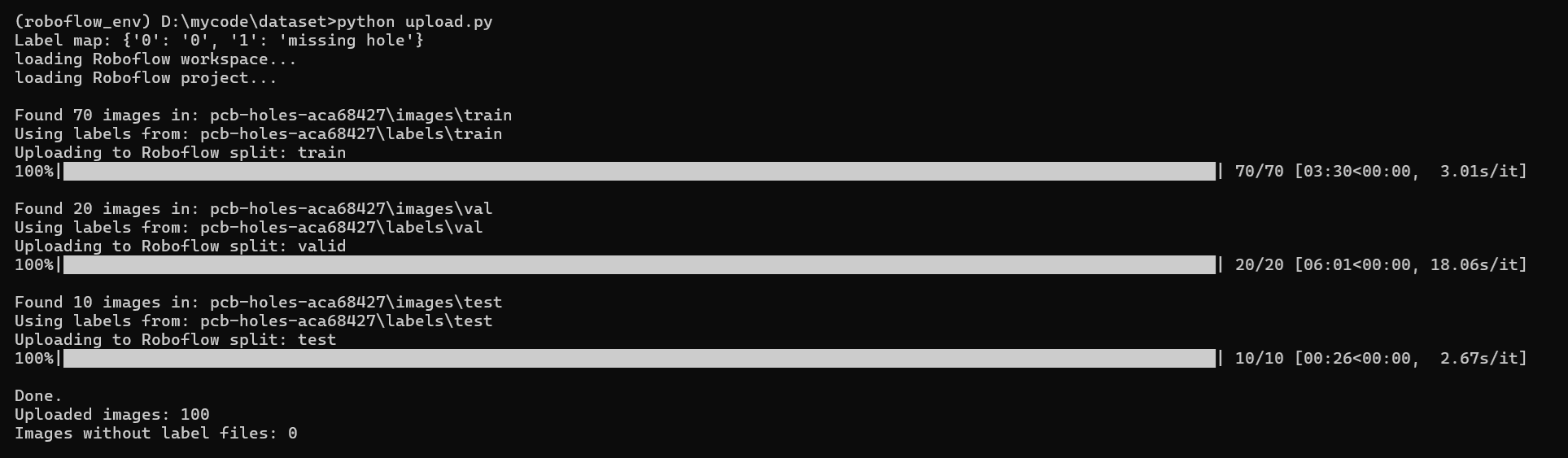
Once execution done, you should see all your images in Roboflow project.
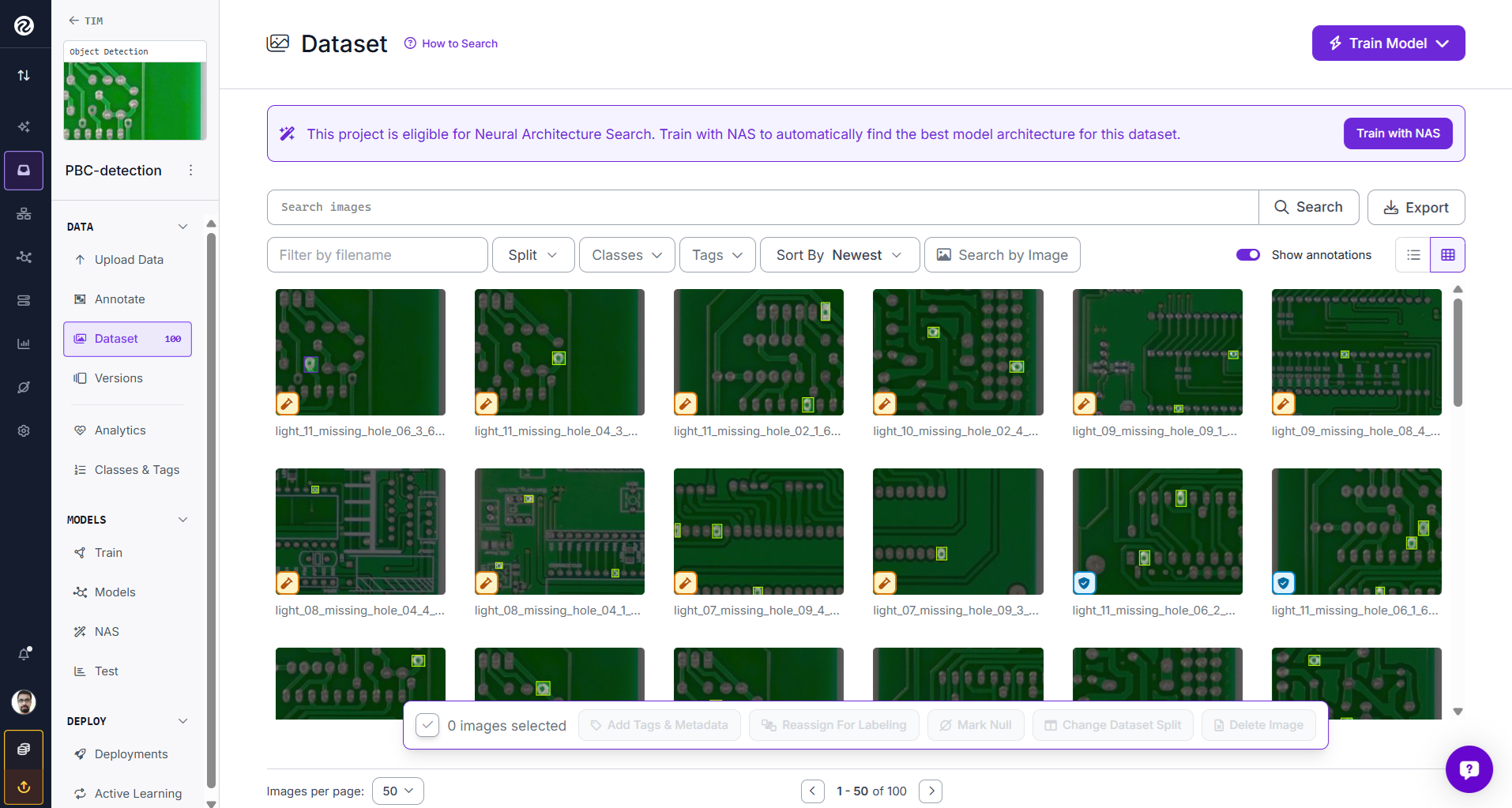
After upload, open the Roboflow project and verify:
- The image count is correct.
- The annotation count is correct.
- Bounding boxes appear on sample images.
- Class names match the original
data.yaml.
Export trained models from Ultralytics HUB
You may also want to migrate trained model weights from HUB. A trained YOLO model from Ultralytics HUB is usually exported as a .pt file. A simple model export process is:
- Sign in to Ultralytics HUB.
- Go to models tab on the left pane.
- Click on the model you want to export.
- Go to deploy tab.
- Go to export section and download it as PyTorch model.
For example:
hub-export/
└── weights/
└── <model>.ptExport YOLO model from Ultralytics HUB
Alternatively you may also use the code below to download the model from HUB. First install the required libraries.
!pip install -U ultralytics hub-sdkAnd then use the following code.
import shutil
from pathlib import Path
from ultralytics.hub.session import HUBTrainingSession

HUB_API_KEY = "YOUR_ULTRALYTICS_HUB_API_KEY"
MODEL_ID = "YOUR_HUB_MODEL_ID"

hub_model_url = f"https://hub.ultralytics.com/models/{MODEL_ID}?api_key={HUB_API_KEY}"

session = HUBTrainingSession(hub_model_url)

print("Downloaded model path:", session.model_file)

# Copy downloaded best.pt to your current folder
output_path = Path("best.pt")
shutil.copy(session.model_file, output_path)

print("Saved as:", output_path.resolve())
The code needs the actual Ultralytics HUB model ID from the model URL, not the display name. The URL looks something like following and you need to fetch the MODEL_ID from there.
https://hub.ultralytics.com/models/MODEL_IDSee the following video how to get your MODEL ID.
Finding the MODEL ID
Upload HUB-trained model weights to Roboflow
Roboflow supports custom model weight upload for supported model types. This is useful when you already trained a model in Ultralytics HUB and want to deploy it using Roboflow infrastructure. There are two common upload patterns:
- Versioned upload
- Versionless upload
Versioned model upload
Use a versioned upload when the model corresponds to a specific Roboflow dataset version. This is useful for traceability. Before uploading model you must create a dataset version, note down the version number, 3 in our example, and then run the following code.
from roboflow import Roboflow

rf = Roboflow(api_key="ROBOFLOW_API_KEY")

project = rf.workspace("tim-4ijf0").project("pcb-holes-3qrgd")

version = project.version(3)
version.deploy(
    model_type="yolov8s",  # Type of the model
    model_path="./",  # Path to model directory
    filename="weights/best.pt"  # Path to weights file (default)
)
This example assumes your model is stored at,
./weights/best.ptAfter the execution is completed, you would see following status,
...
View the status of your deployment at: https://app.roboflow.com/tim-4ijf0/pcb-holes-3qrgd/3
Share your model with the world at: https://universe.roboflow.com/tim-4ijf0/pcb-holes-3qrgd/model/3
and the model in your Roboflow project associated with the dataset version 3.
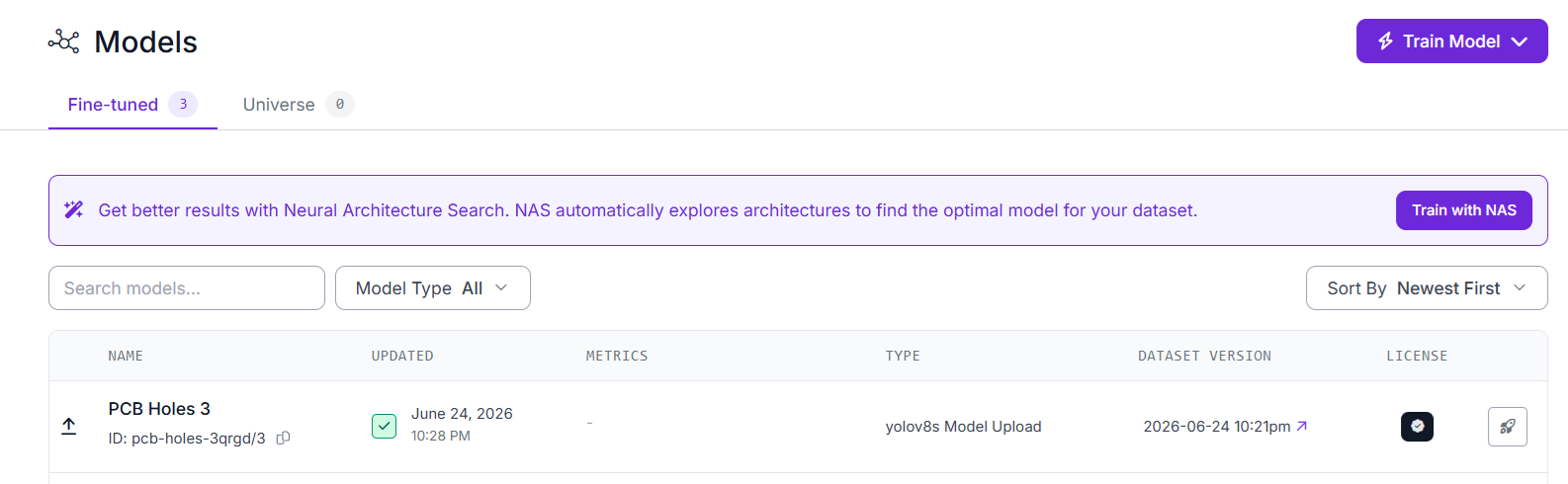
You can also use the Roboflow CLI to upload model.
roboflow upload_model \
  -p PROJECT_ID \
  -v 3 \
  -t yolov8s \
  -m ./weights \
  -f best.pt
Use the correct model_type for your model. For example, use yolov8s for YOLOv8 weights.
Versionless model upload
Use a versionless upload when you want to upload a model to the workspace and attach it to one or more projects without tying it to a specific dataset version.
Example:
from roboflow import Roboflow

rf = Roboflow(api_key="ROBOFLOW_API_KEY")
workspace = rf.workspace("WORKSPACE_ID")

workspace.deploy_model(
    model_type="yolov8s",
    model_path="./weights",
    filename="best.pt",
    project_ids=["pbc-detection-pihto"],
    model_name="hub-model-v1"
)
Run the code and onces the execution completes you will see model in the Roboflow project.
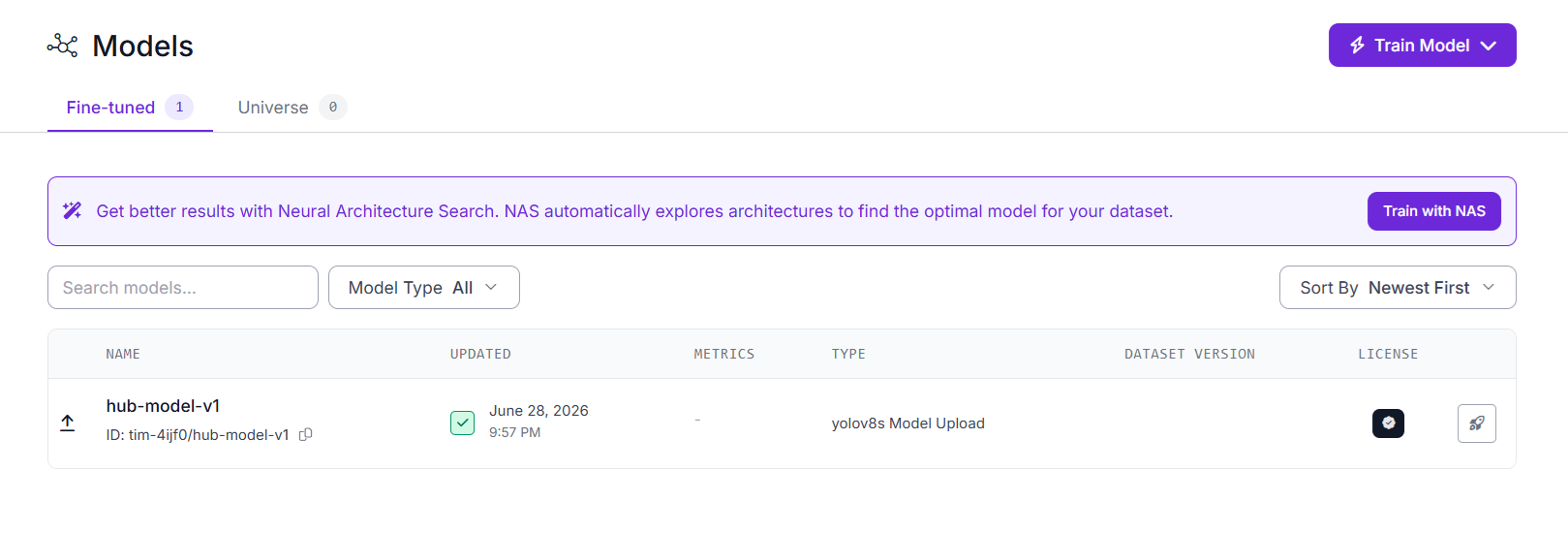
You can also use Roboflow CLI alternatively to upload versionless model.
roboflow upload_model \
  -p PROJECT_ID \
  -t yolov8s \
  -m ./weights \
  -f best.pt \
-n hub-model-v1-v <VER_NO> argument is not used, instead -n <MODEL_NAME> is used.After uploading, open the Roboflow project and confirm that the model appears in the project’s model or deployment interface.
Important compatibility note
Custom weight upload depends on the model architecture and training version. Roboflow lists supported model types and version requirements. If your HUB-trained model is not supported for direct weight upload, the recommended path is:
- Export the dataset from HUB.
- Import the dataset into Roboflow.
- Generate a Roboflow dataset version.
- Train a new model in Roboflow.
- Deploy the Roboflow-trained model.
This is often the cleaner long-term migration path because it gives you reproducible dataset versions, training metadata, deployment options, and Workflows support.
Train a new model in Roboflow after migration
After importing a HUB dataset into Roboflow, you can train a new model from the dataset. General process:
- Open the Roboflow project.
- Review the imported annotations.
- Fix any label issues.
- Generate a dataset version.
- Select preprocessing and augmentation settings.
- Choose a model architecture.
- Train the model.
- Evaluate model performance.
- Deploy the model or add it to a Workflow.
This is also a good time to test whether another architecture works better than the original HUB-trained YOLO model. For example:
- Use RF-DETR for high-accuracy object detection.
- Use RF-DETR Seg for instance segmentation.
- Use RF-DETR Keypoints preview for keypoint detection.
- Use YOLO models when you need a familiar YOLO deployment path.
- Use Roboflow 3.0 or Roboflow Instant for fast iteration.
A recommended migration strategy is to keep the original HUB model as a baseline, then train a new model in Roboflow using the same imported dataset. Compare both models on the same validation or test set.
Deploy the migrated model in Roboflow
Once the dataset or model is in Roboflow, you can deploy in several ways.
- Hosted API: The hosted API is useful when you want a simple cloud endpoint for inference.
- Roboflow Inference: Roboflow Inference lets you run models and Workflows on your own hardware.
- Workflows deployment: With Workflows, you can deploy a full computer vision pipeline instead of only a single model.
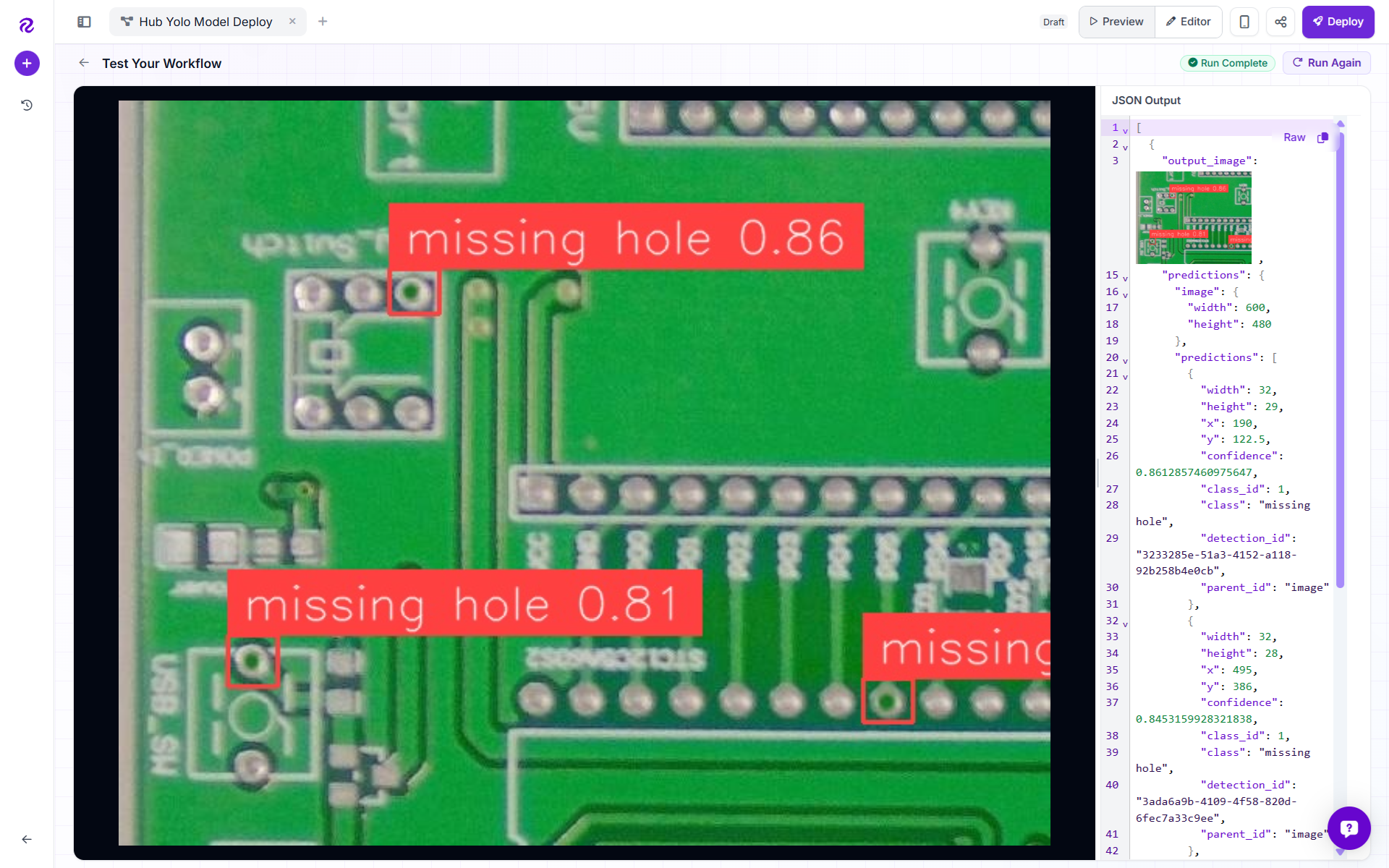
In the following example I'll use hub-model-v1 that I have uploaded to deploy it using a Roboflow workflow.
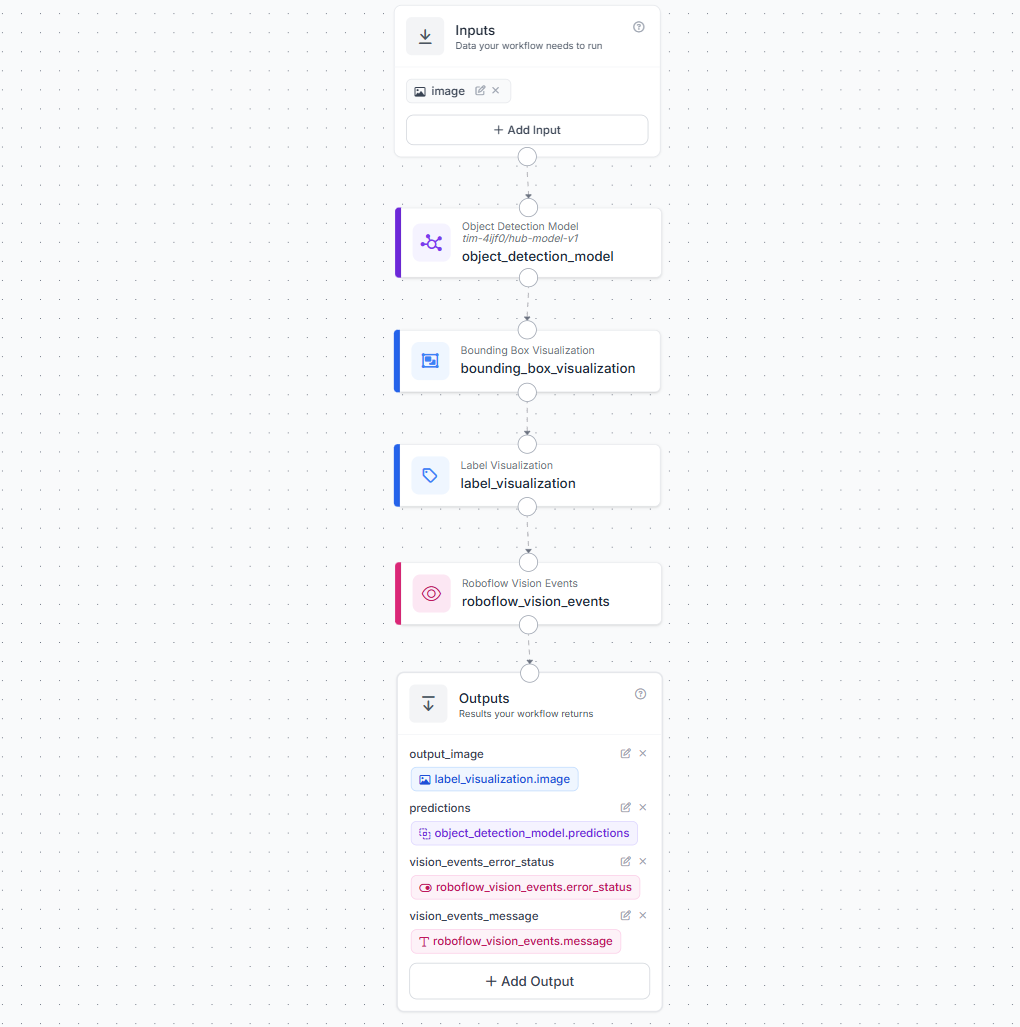
hub-model-v1 ModelWhen you run the above workflow, you will see following output.
Common Migration Problems and Fixes
While migrating your HUB projects to Roboflow, it is possible that you may encounter some issues. Following are some of them with fixes.
Issue 1: Roboflow does not recognize the dataset format
Check that the dataset has the expected structure. For YOLO object detection, make sure you have:
data.yaml
train/images
train/labels
valid/images
valid/labels
or equivalent split folders. Also check that label files have the same base names as image files:
image_001.jpg
image_001.txt
Issue 2: Class names are wrong after import
Open data.yaml and verify the class names and order of classes. If class mapping is incorrect, use Roboflow interface "Classes & Tags" to correct them easily.
Issue 3: Some images have no labels
This may be valid if the dataset contains negative images. However, it may also indicate that label files were not exported or uploaded correctly. Check:
- Are label files present?
- Do label filenames match image filenames?
- Are label files empty?
- Are images and labels in matching split folders?
You can use Roboflow Annotate to easily annotate images that has no labels.
Issue 4: Custom weights cannot be uploaded
Check whether Roboflow supports direct upload for your model type and version. If not, import the dataset and train a new Roboflow model. This is often better than trying to preserve an old checkpoint, especially if the original training environment is no longer reproducible.
Bringing Ultralytics HUB Projects Into Roboflow
Roboflow is more than a place to store datasets. It provides an end-to-end computer vision platform for collecting data, annotating images, managing datasets, training models, deploying models, monitoring performance, and building production applications.
1. Roboflow supports full computer vision workflows
With Roboflow Workflows, you can build multi-step computer vision applications in a visual editor. A Workflow can combine object detection, segmentation, classification, keypoints, filtering logic, OCR, LLM or VLM steps, custom Python blocks, object tracking and external integrations. For example, after importing a YOLO model trained from HUB, you could build a Workflow that:
- Runs object detection on an image or video frame
- Filters detections by class or confidence
- Tracks objects across video frames
- Crops detected objects
- Sends cropped regions to another model
- Counts objects crossing a line
- Sends results to an API, dashboard, or database
- and much more...
This is useful when a model alone is not the final application. Many production systems need preprocessing, post-processing, business logic, and deployment support around the model.
2. Roboflow supports cloud, edge, and self-hosted deployment
Roboflow models and Workflows can be deployed through the hosted API, dedicated deployments, or self-hosted with Roboflow Inference. Roboflow Inference is an open-source deployment server for running computer vision models and Workflows. It can run on your own hardware, cloud servers, or edge devices such as NVIDIA Jetson devices. This matters when you need:
- Lower latency than a remote API call
- Local video processing
- Control over infrastructure
- Private deployments
- Hardware acceleration
- Deployment close to cameras, robots, or production lines
3. Roboflow supports offline and air-gapped deployment
For high-security, industrial, government, and remote environments, internet access may be limited or unavailable. Roboflow supports offline deployment through Docker-based infrastructure. According to the Roboflow Offline Mode documentation, Enterprise customers can deploy models in environments that are completely air-gapped or where internet access is not readily available. This is important for teams that need to run models in:
- Factories
- Warehouses
- Remote field sites
- Defense or government environments
- Hospitals or regulated facilities
- Private networks
- Locations with unreliable internet etc.
4. Roboflow supports training many production-ready model architectures
Roboflow Train supports many model families across different computer vision tasks. For object detection, Roboflow supports models such as RF-DETR, YOLO26, YOLO12, YOLO11, YOLO-NAS, and Roboflow 3.0 etc.
For instance segmentation, Roboflow supports RF-DETR Seg, YOLO segmentation models (i.e. YOLO26 Segmentation), Roboflow 3.0 Segmentation, SAM-3 options, and other segmentation architectures.
Similarly for keypoint, Roboflow supports RF-DETR keypoint, YOLO models, Roboflow 3.0.
This means a migration from Ultralytics HUB to Roboflow does not have to be only a storage migration. You can import your HUB dataset, create a new dataset version, and train a different model architecture better suited to your production requirements.
5. Roboflow gives you access to RF-DETR models with permissive licensing options
Licensing is an important consideration for production computer vision systems. Some YOLO models are distributed under AGPL-3.0 or GPL-style licenses unless covered by a commercial license. Roboflow’s licensing documentation explains which model families require commercial licensing and which are permissively licensed.
RF-DETR Nano, Small, Medium, and Large are Apache-2.0 licensed. RF-DETR Seg models are also Apache-2.0 licensed. Apache-2.0 is generally easier to use in commercial and proprietary settings than AGPL-3.0, though you should always review licensing with your legal team for your specific use case. So, one migration strategy is:
- Export your dataset from Ultralytics HUB.
- Import the dataset into Roboflow.
- Train RF-DETR or another supported model in Roboflow.
- Deploy through Roboflow Hosted API, Dedicated Deployment, Roboflow Inference, or Offline Mode.
6. Roboflow lets you export datasets in many annotation formats
Another advantage of bringing Ultralytics HUB projects into Roboflow is dataset portability. After importing a HUB dataset into Roboflow, you are not locked into one training format or model ecosystem. Roboflow can export dataset versions in many commonly used computer vision annotation formats, making it easier to train models across different frameworks.
For example, you can export datasets in formats such as YOLO, COCO JSON, Pascal VOC XML, TensorFlow TFRecord, and other task-specific formats depending on the project type. This is useful when you want to move the same dataset between different training pipelines, compare architectures, or keep a backup in a standard open format. A typical workflow looks like this:
- Import your Ultralytics HUB dataset into Roboflow.
- Review and clean the annotations.
- Generate a versioned dataset.
- Export that dataset in the format needed for your training or deployment stack.
For example, you may export the same dataset as YOLO format for YOLO training, COCO JSON for transformer-based detection models, or TensorFlow TFRecord for TensorFlow-based training workflows.
Roboflow supports dataset exports through the web app, Python SDK, REST API, and CLI. For example, using the Python SDK, you can download a dataset version in a selected format:
from roboflow import Roboflow

rf = Roboflow(api_key="ROBOFLOW_API_KEY")
project = rf.workspace("WORKSPACE_ID").project("PROJECT_ID")
dataset = project.version(1).download("yolov8")
This makes Roboflow useful not only as a destination for migrating from Ultralytics HUB, but also as a central dataset management layer. You can keep one clean, versioned dataset in Roboflow and export it into the format required by your chosen model, training library, or deployment environment.
This lets you move beyond simply preserving an old HUB model and instead modernize the full production pipeline.
Steps to Migrate from Ultralytics HUB to Ultralytics Platform
Here is how to migrate from Ultralytics HUB to Ultralytics Platform.
- Create an account on Ultralytics Platform.
- Open Platform settings.
- Go to Settings > Integrations > Ultralytics HUB.
- Paste your HUB API key.
- Use the integration to migrate datasets and models from HUB to Platform.
This is the recommended path if you want to continue using Ultralytics-hosted tooling after HUB is shutdown down.
Ultralytics Dataset Export Conclusion
Ultralytics HUB is being deprecated, so existing HUB users should migrate datasets and models before the July 2026 wind-down.
For teams building production computer vision systems, Roboflow is a strong migration destination. You can export datasets and trained weights from HUB, import datasets into Roboflow, upload compatible YOLO weights, train new models, compare architectures such as RF-DETR and YOLO, build Workflows, and deploy to cloud, edge, private, or offline environments.
A good migration should not only preserve old models. It should also improve the system around them such as dataset versioning, model evaluation, deployment, monitoring, and business application logic. Moving from Ultralytics HUB to Roboflow gives teams a path to turn legacy HUB projects into production-ready computer vision applications.


Cite this Post
Use the following entry to cite this post in your research:
Timothy M. (May 26, 2026). How to Transition from Ultralytics HUB to Ultralytics Platform: Ultralytics Dataset Export. Roboflow Blog: https://blog.roboflow.com/migrate-from-ultralytics-hub/