

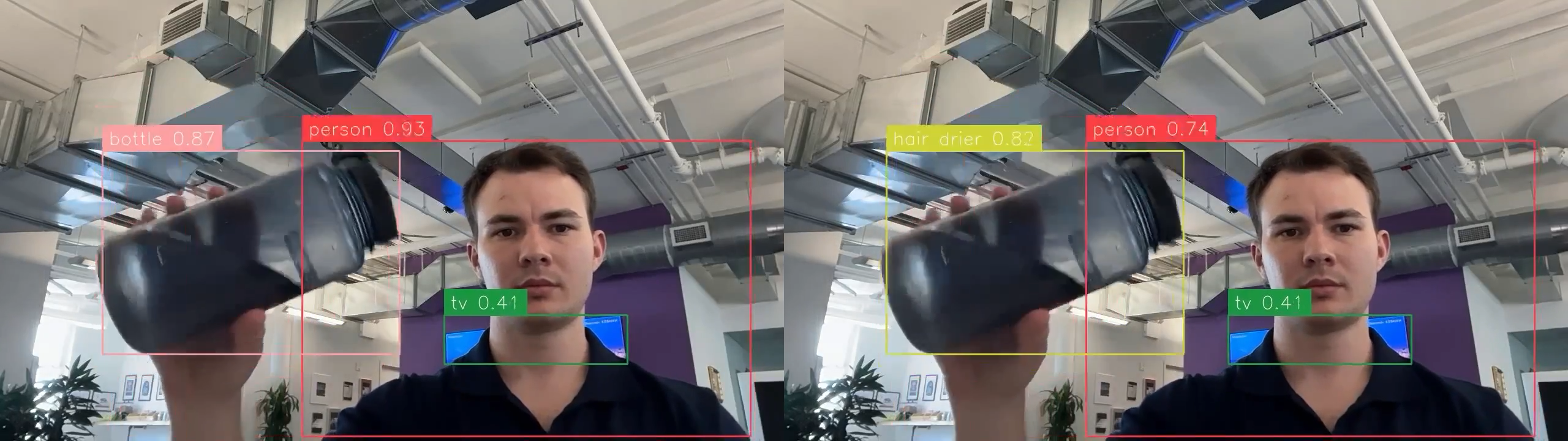
Track Class Lock is a new Roboflow Workflow block that stops object detection labels from flickering on video (the bottle that reads "remote" for a frame, then "bottle" again) by watching each tracked object and freezing its class once the detector has voted for it confidently enough.
If you've ever run an object detection model on video, you've seen it: an object appears as "bottle" one frame, "remote" the next, then "bottle" again. The detections are fine. The tracking is fine. But the label flickers. Every downstream consumer of those labels (counters, alerts, dashboards, business logic) inherits the noise.
Track Class Lock is a new workflow block that watches each tracked object across frames and freezes its class label once the detector has voted for it confidently enough.
A locked label only changes if the object is consistently re-identified as a different class for a configurable number of consecutive high-confidence frames so genuine corrections get through, while momentary misclassifications don't.
Left: Track Class Lock Active || Right: Not Active (water bottle flickers)
How Track Class Lock Works
The block keeps a small amount of state per tracker ID and applies two asymmetric rules:
Locking is cumulative. Every frame where an object is detected above a confidence threshold casts one vote for that frame's class. Votes accumulate in any order. When the leading class reaches MIN_VOTES and leads the runner-up by LEAD_MARGIN, the class locks. The margin matters: an object flickering 50/50 between two classes accumulates votes for both, and refuses to lock until one side earns a real lead. It won't crown whichever class got lucky first.
Switching is consecutive. Once locked, the class can only change after SWITCH_AFTER uninterrupted frames identifying the object as the same different class, each above the confidence bar. One frame of the original class, or one low-confidence frame, or a different challenger resets the streak to zero. This allows the class to be flexible enough to correct mistakes, but confident enough to be sure in its decisions.
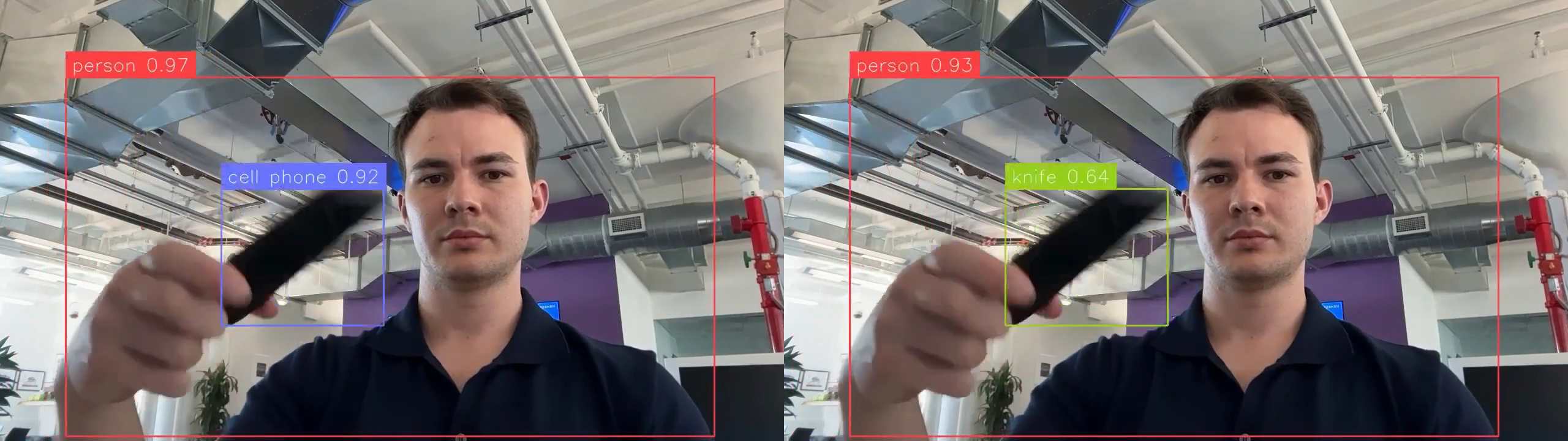
Left: Track Class Lock Active || Right: Not Active (phone flickers)
Try It In One Click
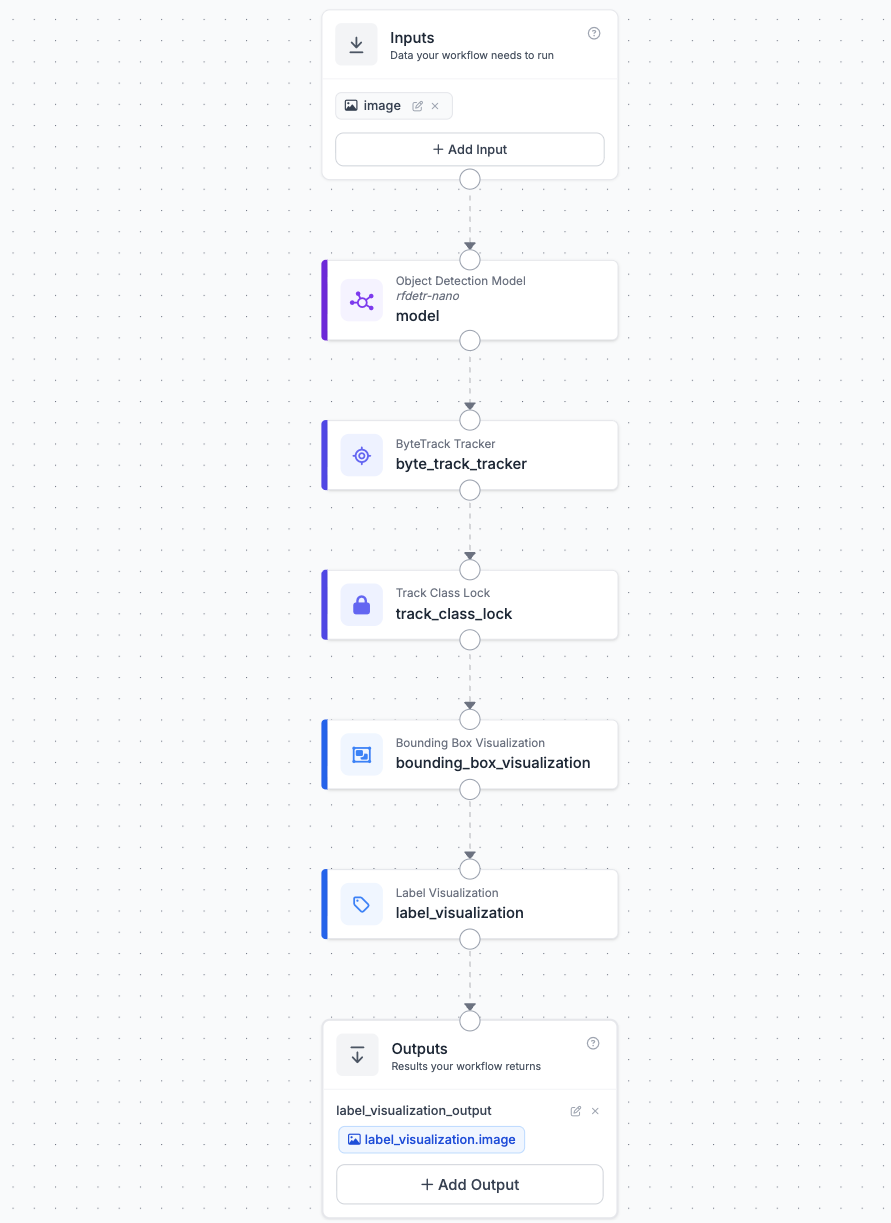
The fastest way to see it work is the ready-made workflow. It comes pre wired: detection model → tracker → Track Class Lock → side-by-side visualizations,so you can run a video and immediately compare raw labels against locked ones. Open it, sign in, fork the workflow and run (currently unavailbale on serverless deployment).
Build It Yourself
If you'd rather understand each piece, build it yourself below! (~10 min)
Step 1: Add a detection model
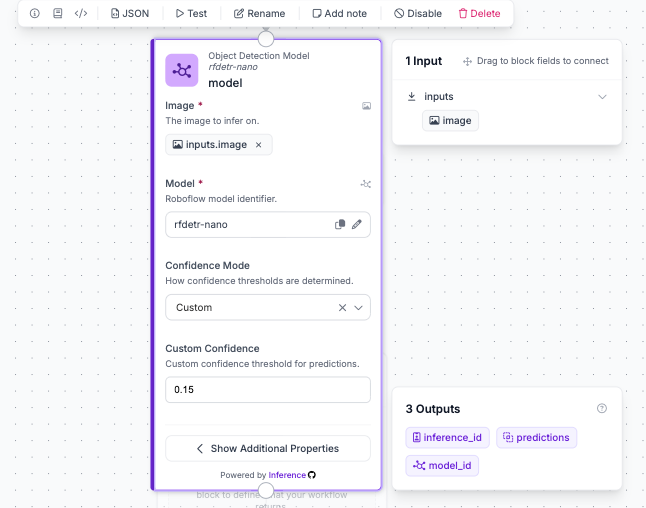
Create a new Workflow. Add an Object Detection Model block and select your model. Its input connects to the workflow's input image. This is what produces the per-frame, sometimes-flickering predictions.
Tip: Set Confidence lower than you normally would. Track Class Lock is supressing junk detections downstream through voting and VOTE_CONFIDENCE. If you set the model's threshold high, weak-but-correct detections get dropped before they can vote.
Step 2: Add a tracker
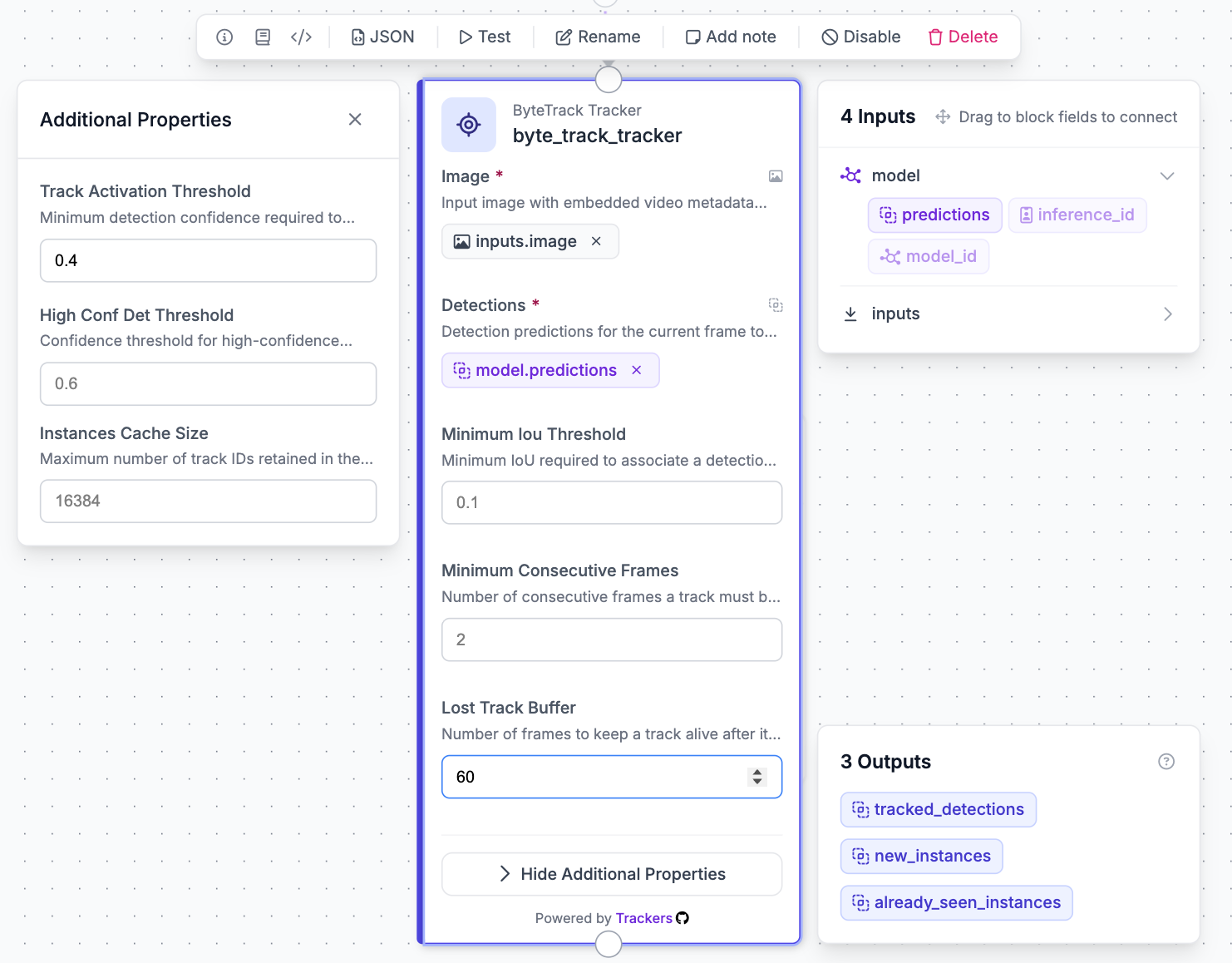
Add a ByteTrack Tracker (or any other tracker) block and connect the detection model's predictions into it. The tracker assigns each object a persistent tracker_id that stays the same frame to frame. This is the identity Track Class Lock uses to know which votes belong to which object.
Tip: track_activation_threshold should be set low. This lets the tracker hold onto objects through weak-detection moments rather than dropping them.
Step 3: Add the Track Class Lock block
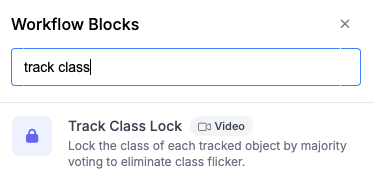
Click +, search for Track Class Lock, and add it. Connect its predictions input to the tracker's tracked detections output. Set the parameters or keep the defaults to start.
Step 4: Visualize
Add Bounding Box Visualization and Label Visualization blocks. Connect their predictions inputs to the Track Class Lock block's output not the tracker's. This is the one easy mistake to make: if the visualizations read from the tracker, the block runs but you see the old flickering labels and assume it isn't working.
Step 5: Run on video (important)
Track Class Lock builds evidence across frames, so it must see frames in order, as a video, not as single images.
Please note, this block may not be live for serverless deployment yet, but is available for local and dedicated deployment. If it is not, check back in a couple days.
Stable labels are the difference between detections you can watch and detections you can build on. Track Class Lock adds one block to a standard detect-and-track workflow and turns per-frame guesses into settled object identities.
Track Class Lock = Confidence in your detections + Visuals that impress clients.
Cite this Post
Use the following entry to cite this post in your research:
Alexei Alexandrovich. (Jun 16, 2026). Reduce Class Flickering: Introducing Track Class Lock. Roboflow Blog: https://blog.roboflow.com/reduce-class-flickering/