

Managing a massive trading card collection requires a balance of speed and meticulous accuracy. In the secondary market for TCGs like Pokémon and Magic: The Gathering, the cataloging phase is the most labor-intensive part of the business. A simple oversight (mistaking a First Edition for a reprint or missing a specific set symbol) can lead to significant financial loss or a frustrated buyer.
Traditionally, logging cards into spreadsheets relied on manual data entry, a task that becomes a bottleneck as collections grow. Today, computer vision is redefining the hobby. By utilizing AI, collectors and hobby shop owners can deploy an automated vision agent that identifies, evaluates, and logs cards in seconds.
In this guide, we will demonstrate how an AI-driven system can automate card identification (specifically, Pokémon), focusing on a method to extract card details and live market values. This approach addresses the modern need for rapid, high-volume inventory scaling.
Automated TCG Inventory: The Two-Stage Pipeline
To build a professional-grade inventory tool, we utilize a multi-stage architecture:
- The Detector: You will utilize an RF-DETR model to serve as the system’s eyes. Its goal is to locate the card within the frame and provide precise instance segmentation masks, ensuring the system knows exactly where the card begins and ends.
- The Inspector (Reasoning Layer): You will implement a reasoning engine using Gemini 2.5 Flash. This acts as the brain that performs OCR and database validation, confirming that the card’s name, ID, and set information match the visual evidence.
Step 1: Initialize Your Workspace
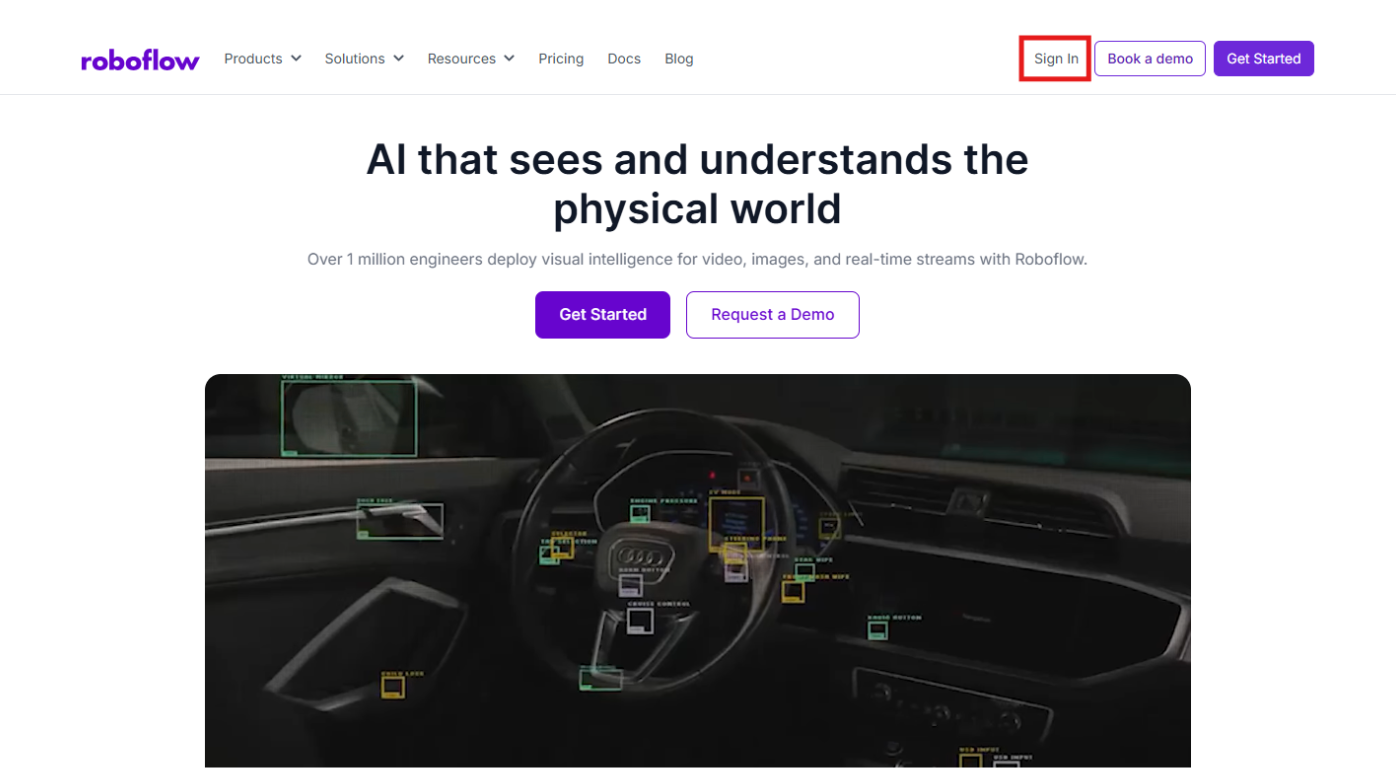
Begin by signing into your Roboflow dashboard. New users can set up a free account to manage their hobby-focused vision models.
Step 2: Source the Training Data
Quality models require high-quality datasets. We will use a TCG-optimized dataset from Roboflow Universe, specifically curated to recognize card layouts and holographic textures.
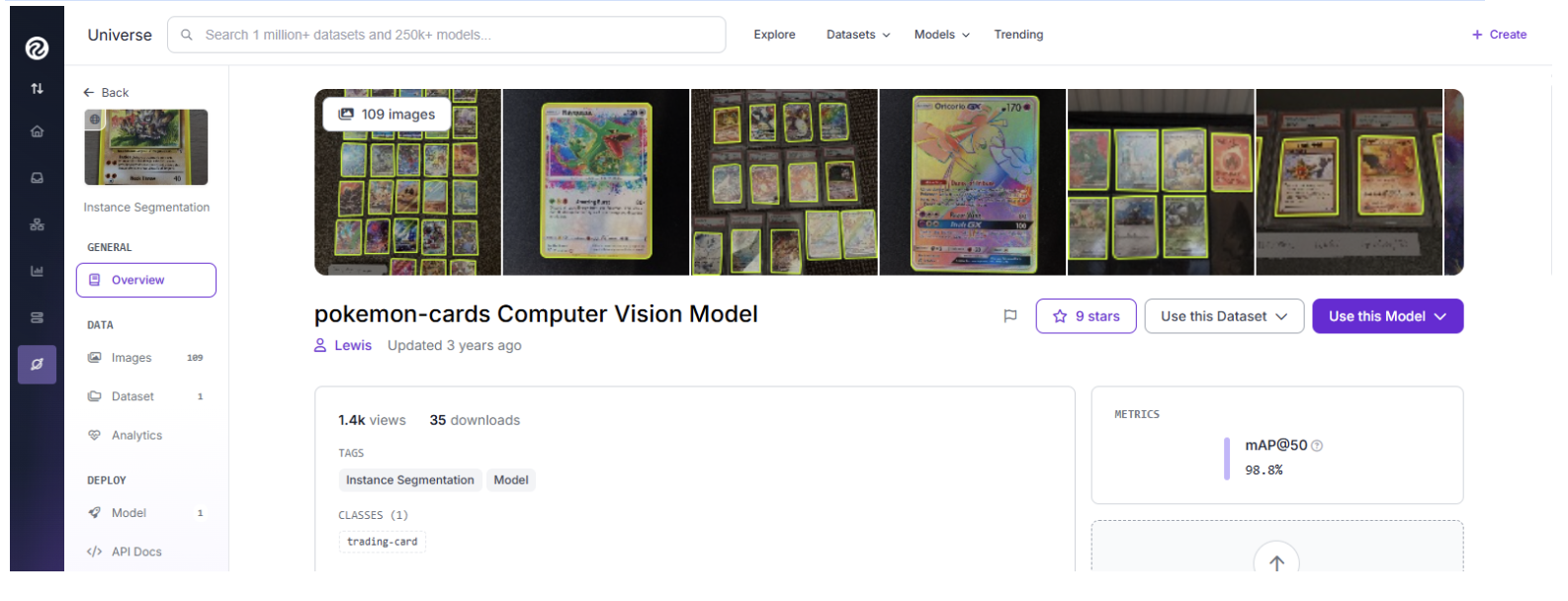
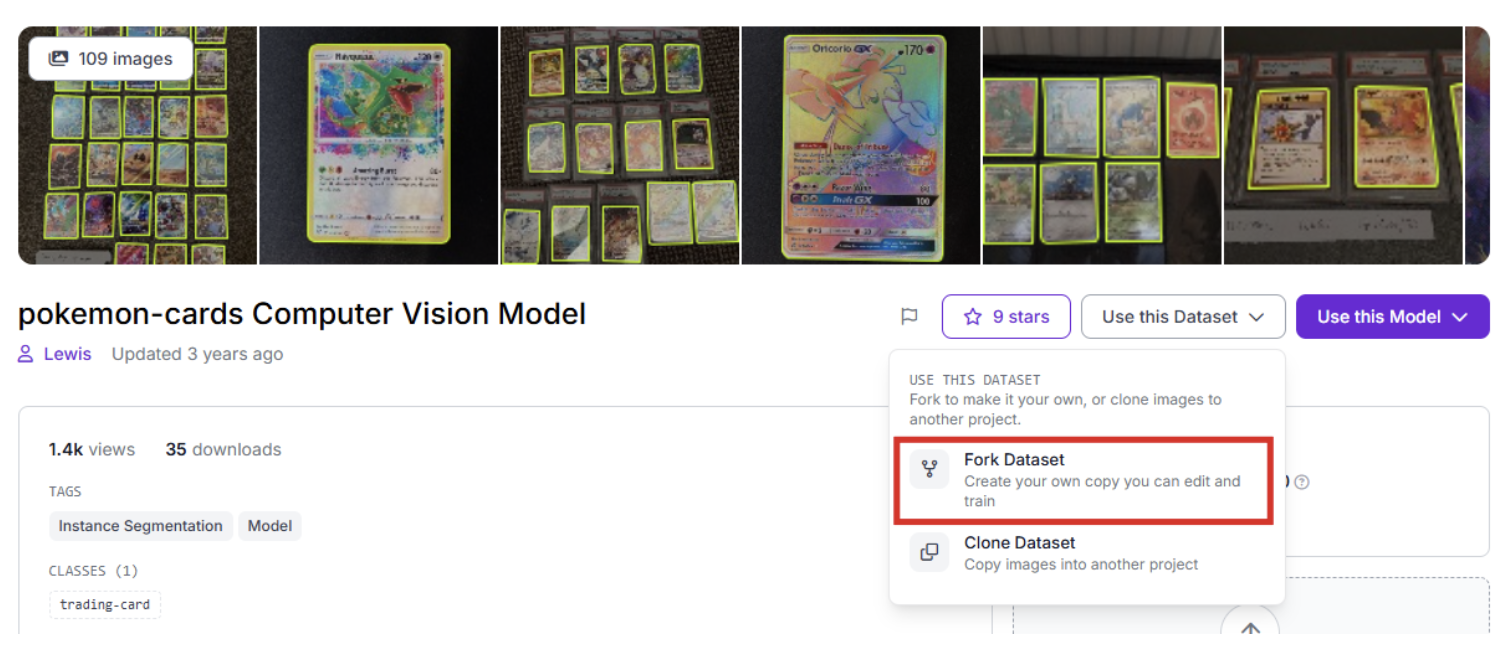
Locate the project on Roboflow Universe and select "Fork Project" to import the images into your local workspace for custom training.
Step 3: Precise Annotation
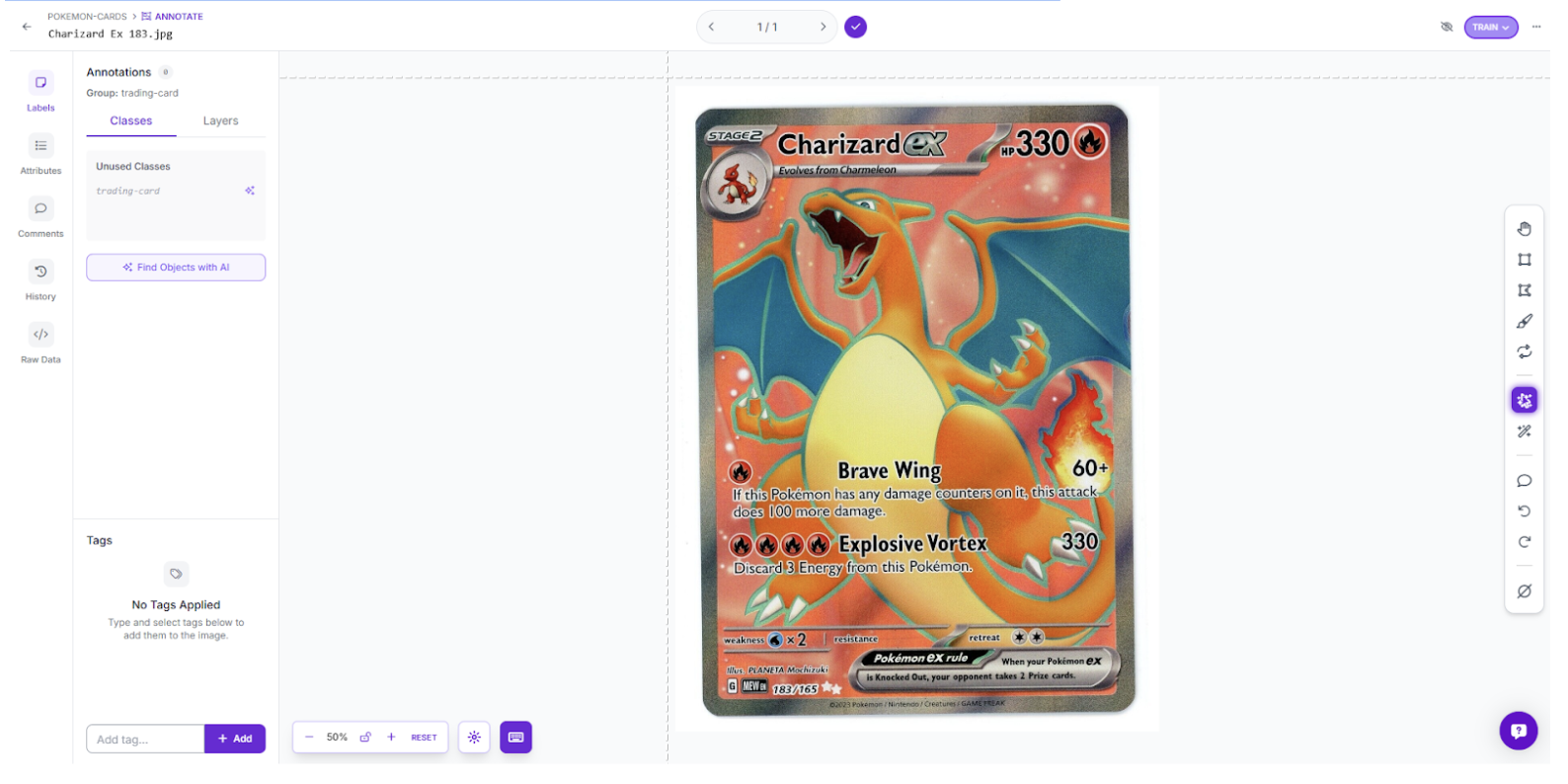
If you are uploading photos of your own collection to train the model, use Roboflow’s tools to define your card’s boundaries, labelling it clearly as “trading-card.”
Step 4: Train the RF-DETR Model
We are using the RF-DETR architecture for our detection stage. As a leading transformer-based model, it offers the high-speed performance required for real-time inventory processing.
- Initiate Training: Navigate to the "Train" dashboard.
- Select Your Framework: Identify the model architecture that aligns with your project requirements.
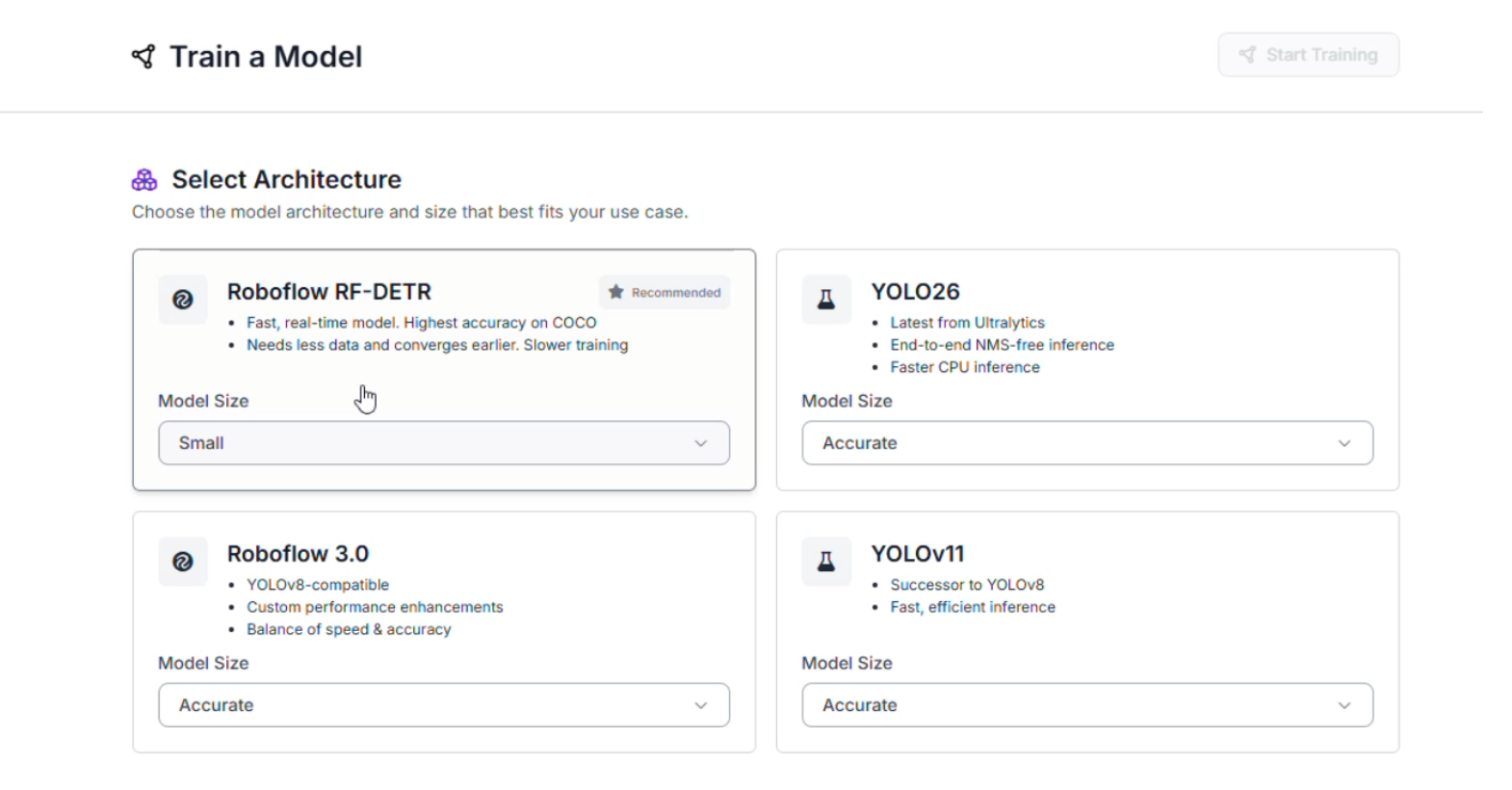
The Strategy Behind RF-DETR Small: While larger models offer high capacity, the "Small" variant is the optimal choice for this inventory pipeline:
- Latency-Free Scanning: You can process entire stacks of cards quickly without waiting for the model to "think."
- Edge Compatibility: It is lightweight enough to run on local hardware, allowing you to process your collection without heavy cloud costs.
Step 5: Configure Dataset Splits
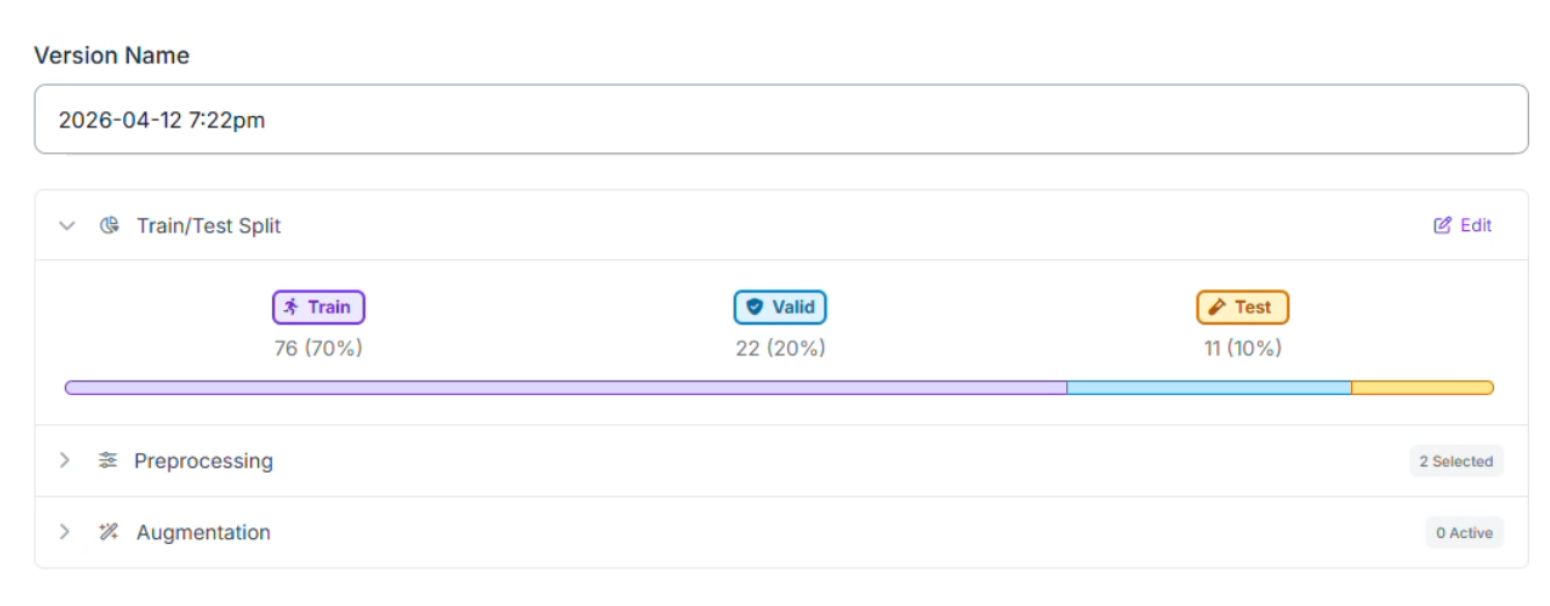
When preparing your TCG data, we recommend a 70/20/10 train/test split:
- 70% Training: Teaches the RF-DETR model to recognize various card borders and backgrounds.
- 20% Validation: Acts as a practice exam to fine-tune the model during training.
- 10% Testing: Provides the final grade by testing the model on cards it has never seen before.
Step 6: Preprocessing and Augmentation
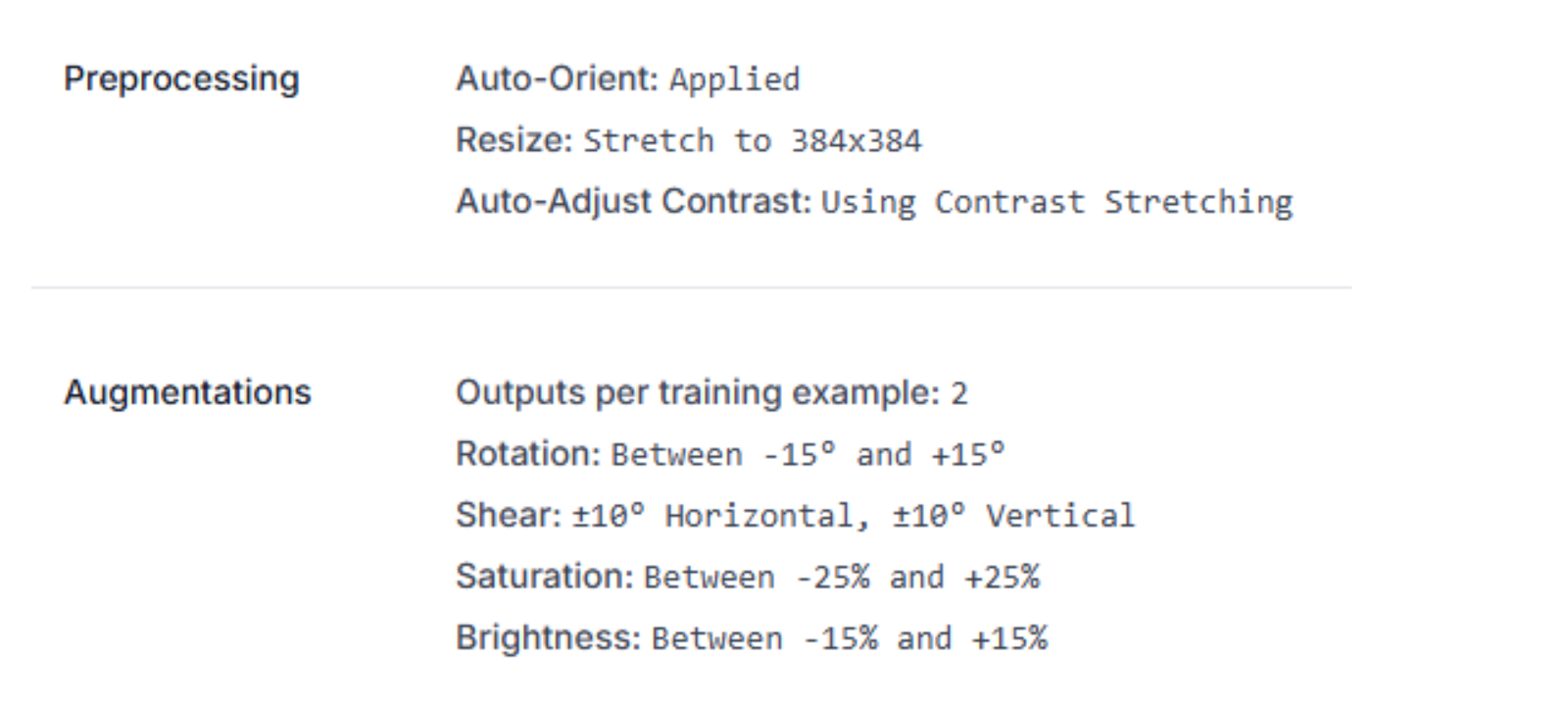
To ensure the system works under different desk lighting conditions, we applied specific preprocessing and augmentation steps.
Preprocessing:
- Auto-Orient: Standardizes input orientation.
- Resize (384x384): Optimizes the card for the transformer architecture.
- Auto-Adjust Contrast: Makes text and set symbols sharper for easier detection.
Augmentations (2x outputs per image):
- Rotation (±15°) & Shear: Accounts for cards placed slightly crooked on the scanning surface.
- Brightness & Saturation: Prepares the model for glare or dim room lighting.
Step 7: Analyze Model Performance
Our RF-DETR Small model achieved an impressive mAP@50 of 100.0% at an optimal confidence threshold of 52%.
- Precision (100.0%): The model is incredibly reliable; when it detects a card, it is accurate every time.
- F1 Score (100.0%): The balance between finding all cards and avoiding false detections is perfectly tuned for this set.
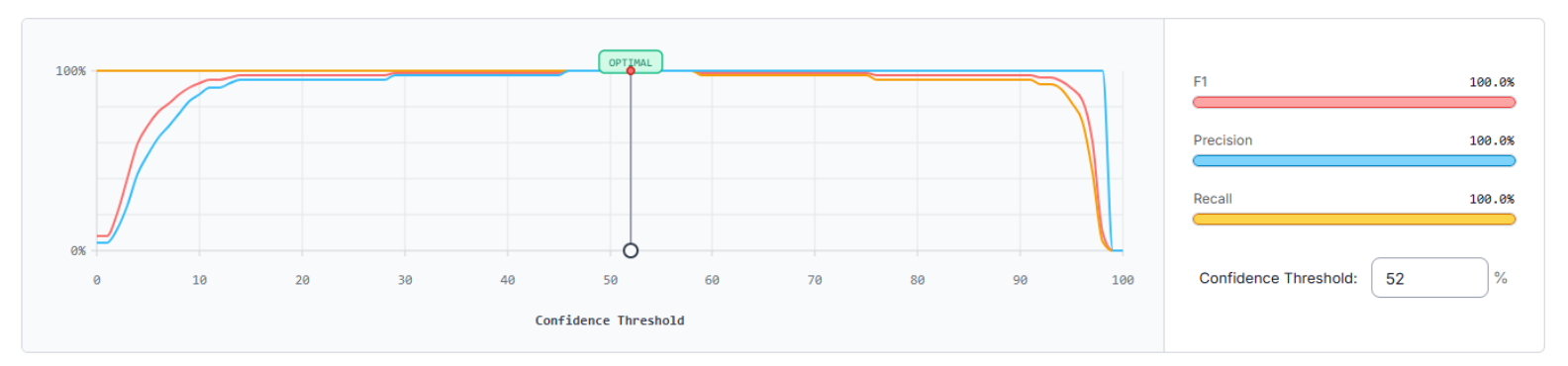
Continuous Improvement: Since the current test set is small (11 images), adding more diverse card variants will ensure these high scores hold up across every TCG expansion.
Building the Automated Workflow
Training the model is the first step; the second is building the Roboflow Workflow to automate the decision-making. Here’s the workflow made in this article.
1. Workflow Initialization
Begin by establishing the logical framework within the Roboflow Workflows interface.
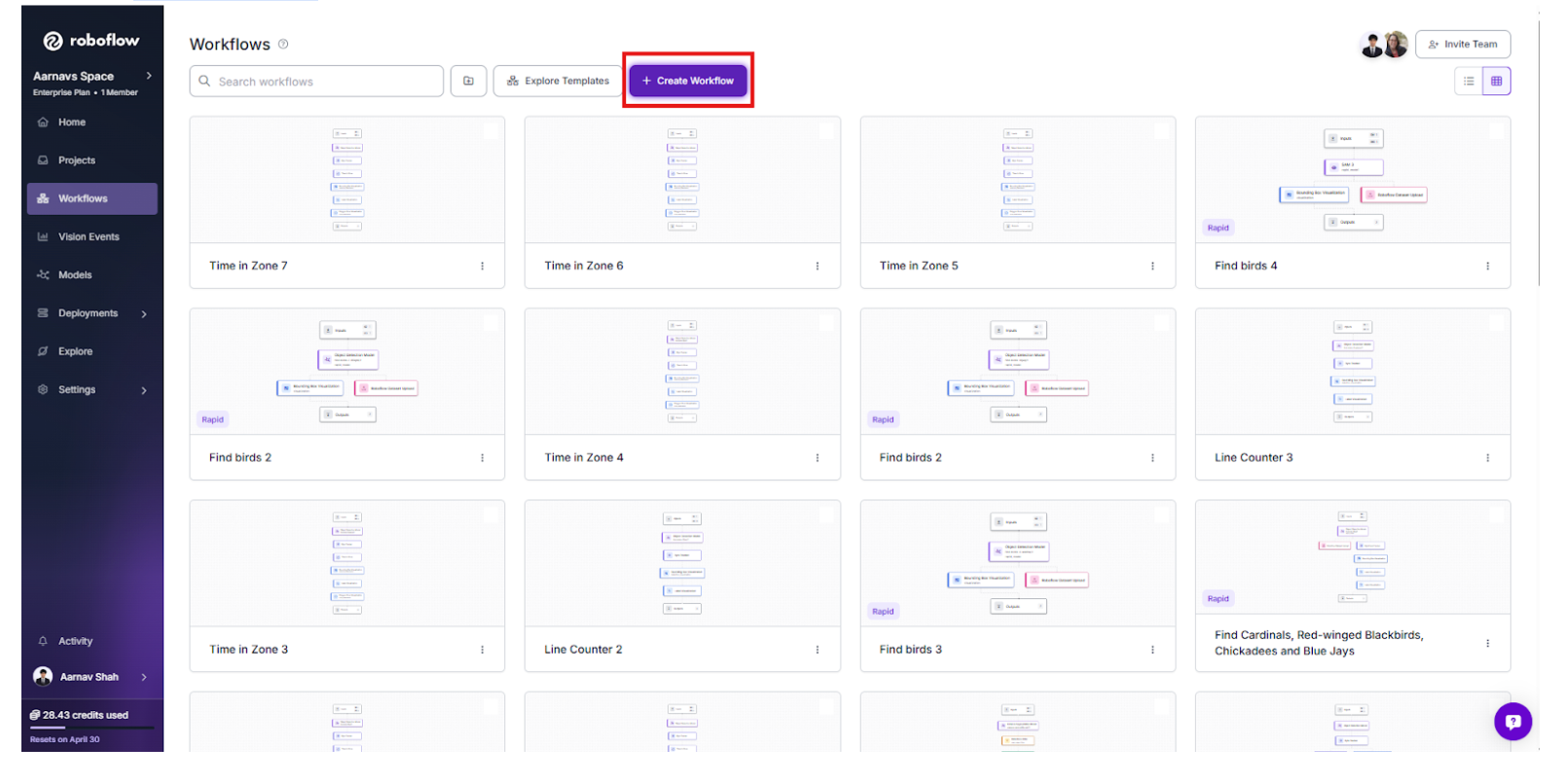
Locate the Workflows tab in the left-hand navigation menu of your Roboflow Dashboard.
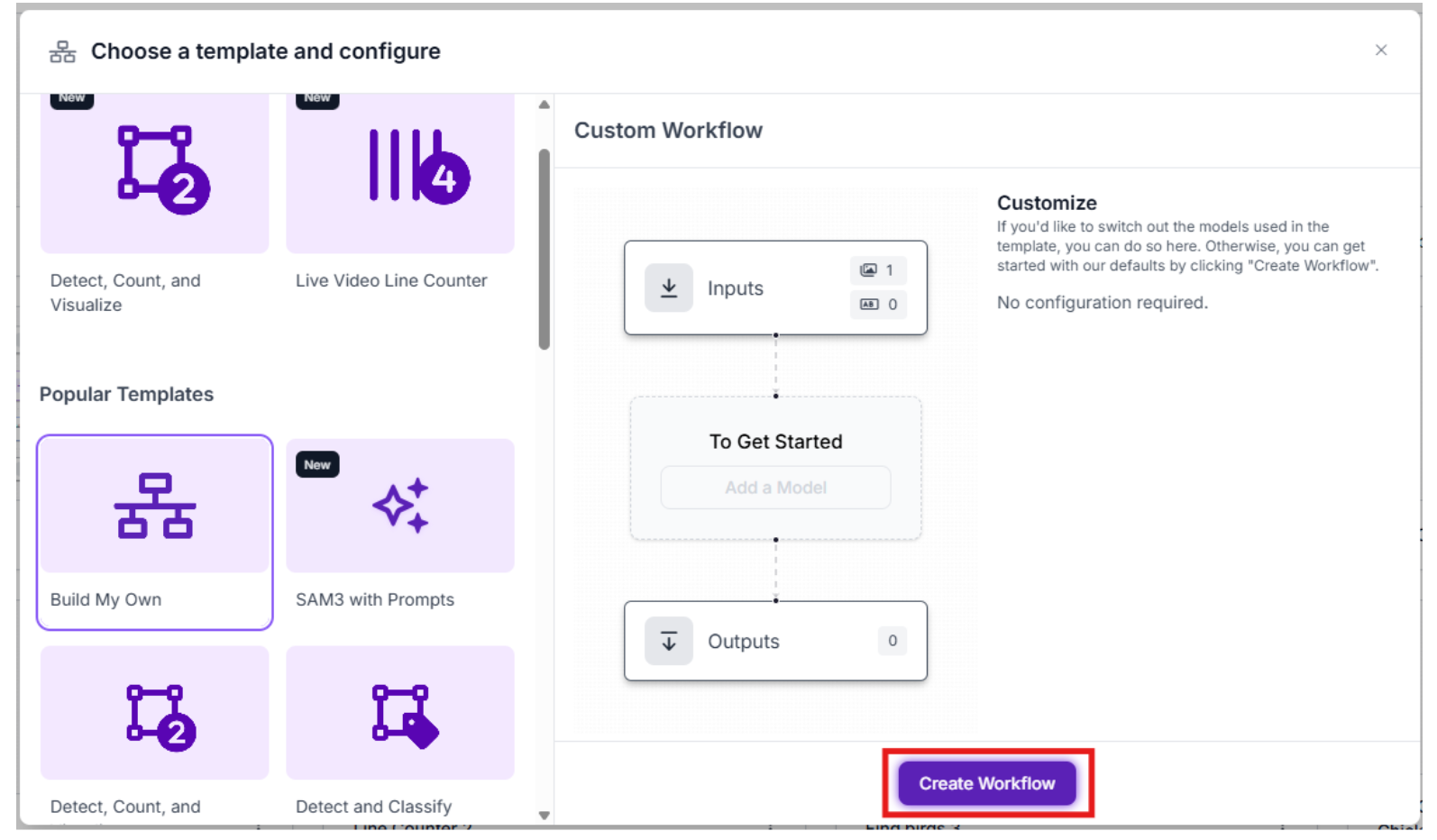
Choose Create Workflow and opt for the Build Your Own template to access a clean, flexible canvas.
2. The Perception Stage: RF-DETR Detection
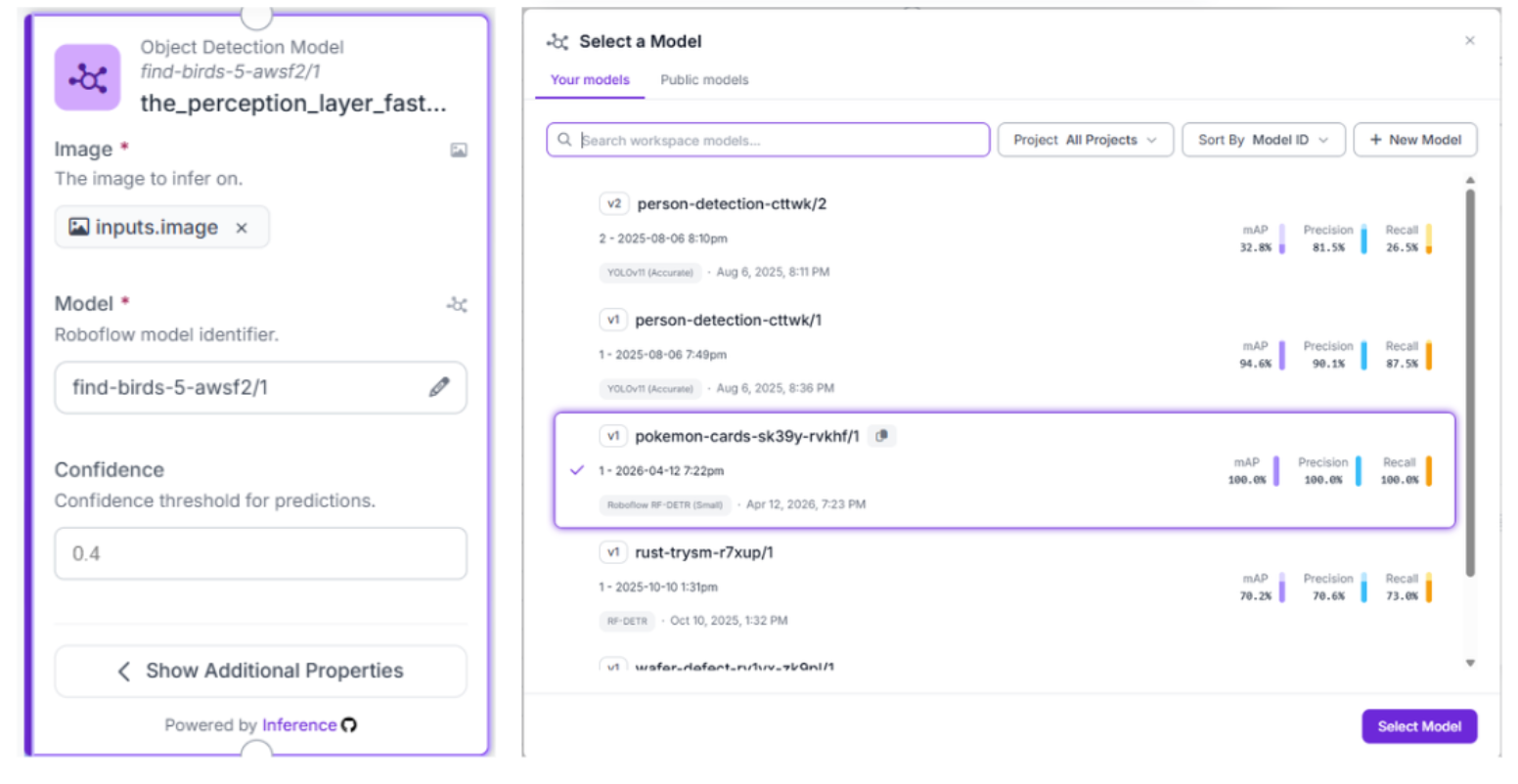
The process starts with the specific RF-DETR model previously trained. This component functions as the primary "Spotter," analyzing the full image frame to locate the precise position of the trading card. It establishes the spatial foundation required for the subsequent agent operations.
3. Precision Tuning: Detections Filter
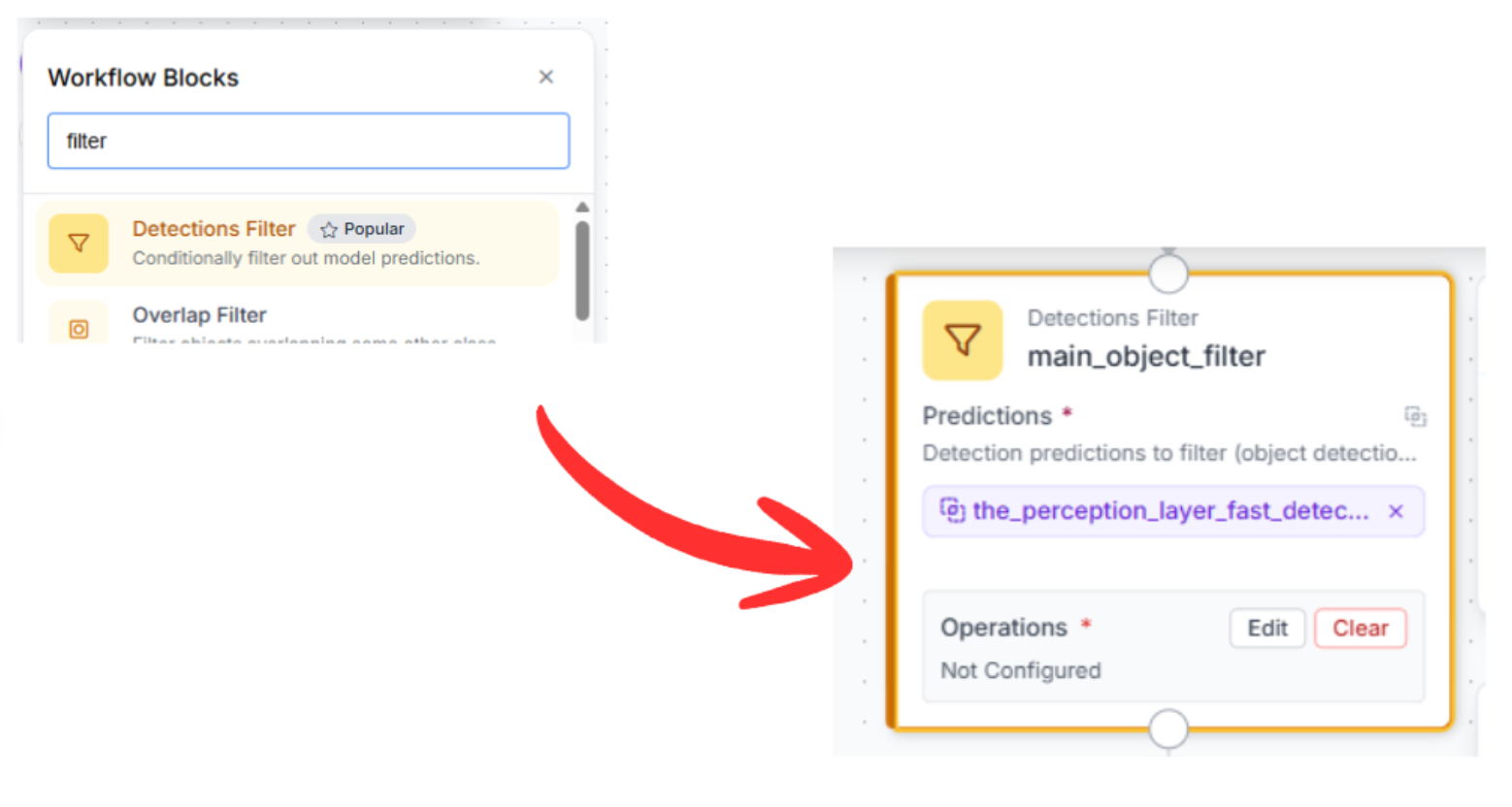
In busy environments, visual interference or multiple cards may be present. We incorporate a Detections Filter to manage this. This step guarantees the architecture disregards low-confidence identifications and concentrates exclusively on the most visible, high-priority card for analysis.
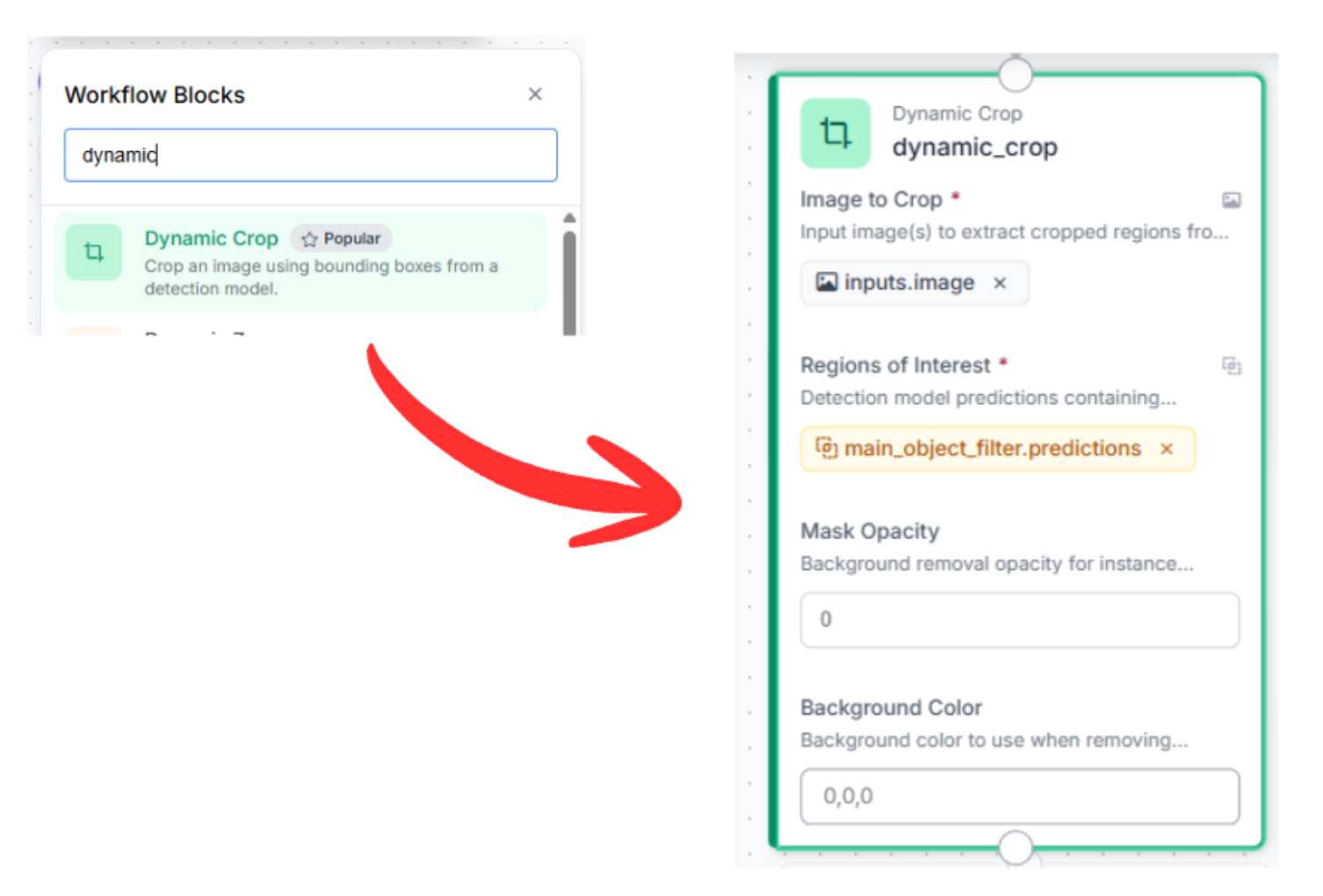
4. The Targeted Action: Dynamic Crop
The precision of OCR (Optical Character Recognition) relies heavily on the density of available pixels. Instead of requiring the AI to interpret small text from a broad perspective, we utilize the Dynamic Crop tool. This feature leverages the coordinates from the filter to magnify the card, delivering a high-definition, cropped image to the analytical engine.
5. The Analytical Engine: Gemini 2.5 Flash
At this stage, we integrate the Inspector. Utilizing a Vision Agent block (Gemini 2.5 Flash), we execute data extraction and authentication checks simultaneously.
By exploring the Model Playground, you can evaluate various systems against one another. Our benchmarks indicate that Gemini 2.5 Flash is one of the current leaders in OCR precision and speed. Its proficiency in interpreting stylized fonts and organized card data makes it the ideal selection for the Reasoning Layer.

This component examines the high-definition crop to pull text while enforcing quality guardrails to verify if the card details are legible and if the formatting matches official collector standards.
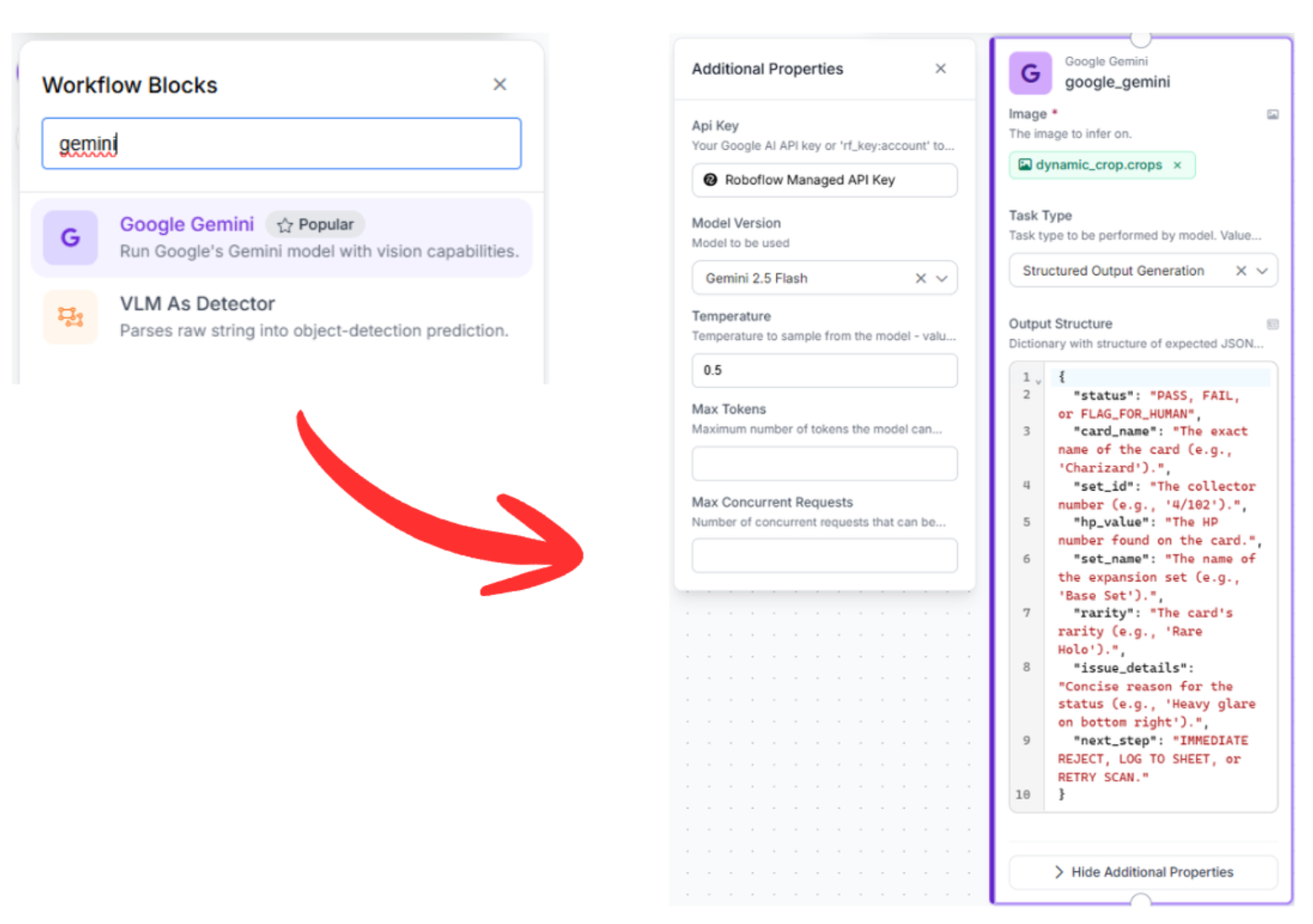
- First, add a Gemini block and designate “Structure Output Generation” as the primary task.
- Model: Choose Gemini 2.5 Flash.
- Next, define the prompt for the output format. You may utilize the following:
{
  "status": "PASS, FAIL, or FLAG_FOR_HUMAN",
  "card_name": "The exact name of the card (e.g., 'Charizard').",
  "set_id": "The collector number (e.g., '4/102').",
  "hp_value": "The HP number found on the card.",
  "set_name": "The name of the expansion set (e.g., 'Base Set').",
  "rarity": "The card's rarity (e.g., 'Rare Holo').",
  "issue_details": "Concise reason for the status (e.g., 'Heavy glare on bottom right').",
  "next_step": "IMMEDIATE REJECT, LOG TO SHEET, or RETRY SCAN."
}
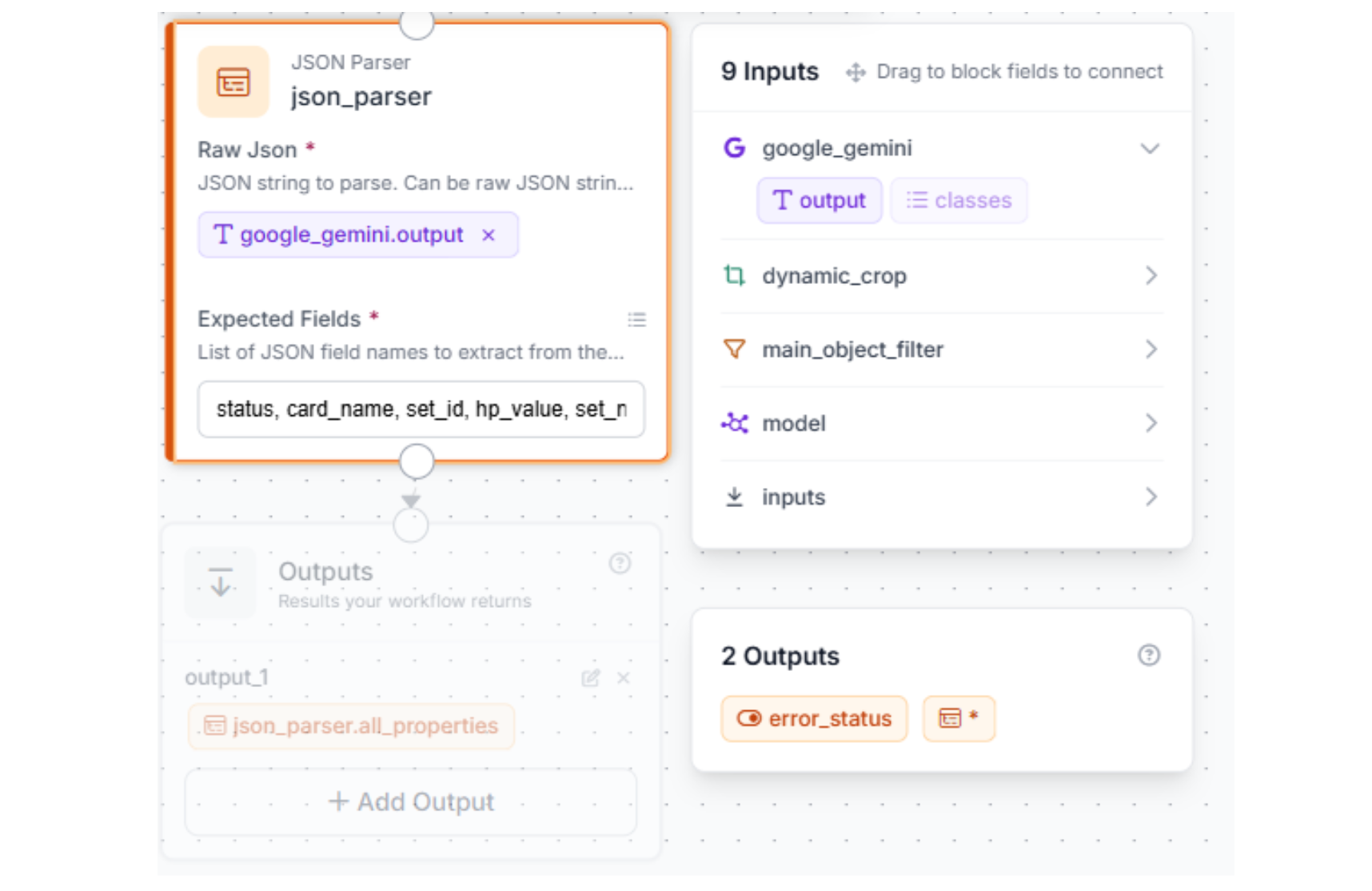
6. JSON Parser
To ensure this architecture is compatible with digital inventories or databases, we must convert the AI’s descriptive output into concrete data. The JSON Parser component streamlines the evaluation into a consistent, comma-delimited set of attributes:
“status, card_name, set_id, hp_value, set_name, rarity, issue_details, next_step”
Once that’s done, make sure that the block is connected to the output block with the only output being “all_properties” of the JSON block
Deploy: Implementing the Python Automation
To make this system functional in your local environment, you will move the logic into VS Code. This script connects to your workflow and saves everything into an Excel spreadsheet.
Environment Setup
Before running the code, you need a structured workspace:
- Project Folder: Create a new folder (e.g., tcg_inventory).
- main.py: This file will house your logic.
- .env File: This is a vital security step. Rather than pasting your API key directly into the code, where it might be accidentally shared, you store it in a .env file. The python-dotenv library will then give it to your script privately. To learn more about .env files, follow this tutorial.
- Images Folder: Create a folder named “card_images” to store the photos you want to scan.
Use the following script in the Main.py file.
import os
import pandas as pd
from inference_sdk import InferenceHTTPClient
from pokemontcgsdk import Card
from dotenv import load_dotenv


load_dotenv()


ROBOFLOW_API_KEY = os.getenv("RF_API_KEY") # load from .env file
EXCEL_FILE = "pokemon_inventory.xlsx"
IMAGE_FOLDER = "card_images"


# initialize Roboflow Client
client = InferenceHTTPClient(
    api_url="https://serverless.roboflow.com",
    api_key=ROBOFLOW_API_KEY
)


def run_inventory_pipeline(image_folder):
    new_entries = []

    # make sure the folder exists
    if not os.path.exists(image_folder):
        print(f"Folder '{image_folder}' does not exist. Please create it and add some images.")
        return


    # check for valid image files
    valid_extensions = ('.jpg', '.jpeg', '.png')
    image_files = [f for f in os.listdir(image_folder) if f.lower().endswith(valid_extensions)]


    if not image_files:
        print(f"No image files found in '{image_folder}'.")
        return


    for image_name in image_files:
        image_path = os.path.join(image_folder, image_name)
        # run the workflow
        print(f"Processing {image_path}...")
        try:
            result = client.run_workflow(
                workspace_name="your_workspac_name",
                workflow_id="your_workflow_id",
                images={"image": image_path},
                use_cache=True
            )
        except Exception as e:
            print(f"Failed to process {image_path}: {e}")
            continue


        # parse data
        for image_result in result:
            card_list = image_result.get("output_1", [])

            for card in card_list:
                if card.get("status") == "FAIL":
                    print(f"Skipping card: {card.get('card_name')} (Status: FAIL)")
                    continue


                name = card.get("card_name")
                set_id = card.get("set_id")

                print(f"Searching TCG API for {name} {set_id}...")

                # using default values if API lookup fails
                official_set = card.get("set_name")
            rarity = card.get("rarity")
            market_price = None
            low_price = None
            high_price = None
            tcgplayer_url = None


            # clean up set_id to just the number (e.g. 186/196 -> 186)
            search_number = set_id.split('/')[0] if set_id else ""


            # use the Pokemon TCG API
            api_results = Card.where(q=f'name:"{name}" number:"{search_number}"')

            if api_results:
                match = api_results[0]
                official_set = match.set.name
                rarity = getattr(match, 'rarity', "Unknown")

                # try to obtain the TCGPlayer URL
                if hasattr(match, 'tcgplayer') and match.tcgplayer:
                    tcgplayer_url = match.tcgplayer.url
                    # try to obtain the market prices
                    prices = match.tcgplayer.prices
                    if prices:
                        price_source = getattr(prices, 'holofoil', getattr(prices, 'normal', None))
                        if price_source:
                            market_price = getattr(price_source, 'market', None)
                            low_price = getattr(price_source, 'low', None)
                            high_price = getattr(price_source, 'high', None)


            # summarize data for Excel
            new_entries.append({
                "Card Name": name,
                "Set ID": set_id,
                "Official Set": official_set,
                "Rarity": rarity,
                "Market Price ($)": market_price,
                "Low Price ($)": low_price,
                "High Price ($)": high_price,
                "TCGPlayer URL": tcgplayer_url
            })


    # send/append to excel
    if not new_entries:
        print("No valid cards detected.")
        return


    df_new = pd.DataFrame(new_entries)


    if os.path.exists(EXCEL_FILE):
        df_existing = pd.read_excel(EXCEL_FILE)
        df_final = pd.concat([df_existing, df_new], ignore_index=True)
    else:
        df_final = df_new


    try:
        df_final.to_excel(EXCEL_FILE, index=False)
        print(f"\nSuccessfully added {len(new_entries)} cards from {len(image_files)} images to {EXCEL_FILE}")
    except PermissionError:
        print(f"ERROR: Could not save to {EXCEL_FILE}.")
        print("Please close the Excel file if it's currently open and try running the script again.")


run_inventory_pipeline(IMAGE_FOLDER)
Explaining the Logic
- Inference SDK: The script sends our images to the Roboflow Inference server, which runs the detection and Gemini reasoning layers.
- TCG API Integration: Since visual data can sometimes be incomplete, the script uses the pokemontcgsdk to find the "Official Set" and "Market Price," filling in the gaps.
- Pandas Persistence: The code uses pandas to manage the Excel file. It checks if the file exists and appends new data, ensuring you never lose your progress.
Test it
Once you have placed your photos in the card_images directory and executed the script, a comprehensive pokemon_inventory.xlsx file will be generated in your project's root folder.
This spreadsheet serves as your finalized digital catalog, automatically populated with the verified names, rarities, and real-time market valuations retrieved during the process.
Conclusion: Trading Card Inventory Management
Modern inventory management is about data integrity. By combining the speed of an RF-DETR detector with the reasoning of a Gemini agent, you create a system that is both fast and incredibly accurate. This ensures that every card you log is verified against live market data.
Ready to automate your collection? Sign up for a free Roboflow account and explore TCG datasets on Universe today.
Written by Aarnav Shah


Cite this Post
Use the following entry to cite this post in your research:
Contributing Writer. (Apr 20, 2026). Trading Card Inventory Management with AI. Roboflow Blog: https://blog.roboflow.com/trading-card-inventory-management/