

Deploy air-gapped computer vision with Roboflow Inference and Enterprise Offline Mode to run models and Workflows on your own hardware while keeping production images and results inside your network. Work with Roboflow to prepare the required local artifacts, validate offline operation, and plan model updates and lease renewals for your environment.
Some computer vision systems cannot depend on the public internet. Manufacturing plants, regulated facilities, defense environments, and other sensitive sites may need camera data, model inference, and production decisions to stay inside the local network. In these environments, the vision system must continue working even when cloud services are unavailable or intentionally blocked.
Roboflow Inference can run models and Workflows on your own hardware, close to the cameras and production systems. Self-hosted Inference supports fine-tuned and pre-trained models, Workflows, foundation models, and video streaming, and it can run offline. With Enterprise Offline Mode, once the required model weights and Workflow are cached locally, the pipeline can keep running without public internet access.
What Is Air-Gapped Computer Vision Deployment?
An air-gapped computer vision deployment runs inference on hardware that has no route to the public internet, either because the network is physically isolated or because outbound access is blocked by policy. The camera feed, model inference, application logic, and production results stay on systems inside the organization's environment instead of relying on a hosted inference API. In practice, three different network setups are often grouped together under the term “air-gapped,” even though they are not the same:
- Fully air-gapped: The inference hardware has no usable network path to the outside environment. Models, Workflows, and updates cannot be fetched from the internet at runtime, so files have to be prepared elsewhere and brought into the disconnected environment manually, sometimes called a sneakernet workflow. Roboflow Inference supports offline execution after the required model artifacts have been made available locally.
- Isolated network: The vision system is connected to an internal plant or facility LAN, but that network has no public internet egress. Devices inside the network can still communicate with each other, so an RTSP camera can send video to the Inference Server and the Workflow can send results to systems such as PLCs, OPC UA servers, MQTT brokers, or local databases. This is the pattern where the runtime path from camera, inference, plant system remains inside the protected network.
- Restricted egress: The inference system is not completely disconnected, but outbound traffic is limited to specific destinations. For this type of deployment, a full air gap may not be necessary. The Secure Gateway can proxy Roboflow API and model-download traffic through a single point in the DMZ, and only the gateway needs outbound access to
api.roboflow.comandrepo.roboflow.com. For firewalled Deployment Manager devices, those domains may also need to be allowlisted.
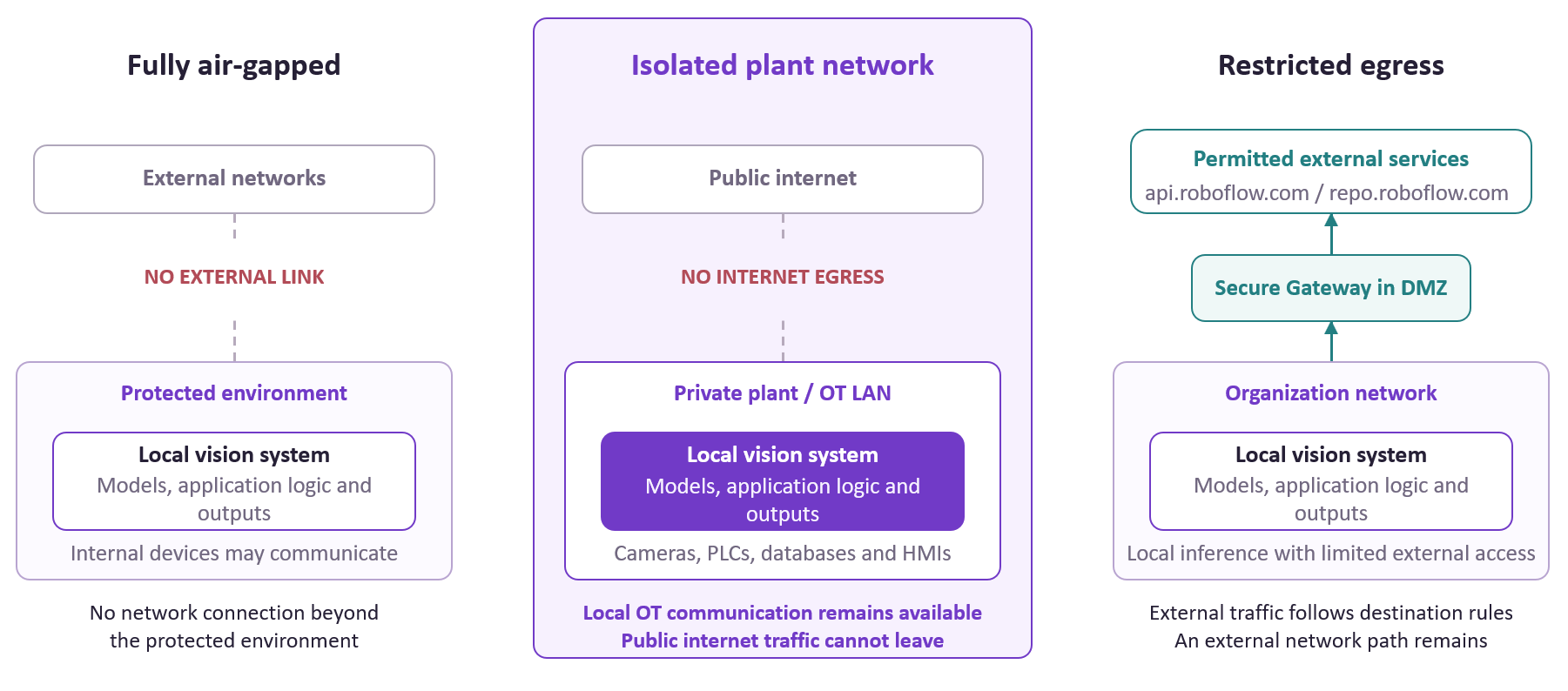
For the rest of this article, the focus is the isolated plant network with no internet egress. The cameras, Inference Server, PLCs, OPC UA servers, databases, and other production systems can still communicate over the local network, but the real-time vision pipeline does not depend on public internet access. This type of deployment matters in environments where visual data or production systems must stay local. For example:
- Aerospace and defense deployments can run on air-gapped servers, while energy and utility environments support the same deployment model for facilities without internet connectivity.
- Pharmaceutical and medical-device manufacturing are another example. Their solution architectures include air-gapped deployment options alongside requirements such as FDA 21 CFR Part 11 validation and audit trails.
- Electronics and semiconductor manufacturing also supports deployment from air-gapped servers to cloud-connected cameras, which is useful for production lines where wafer, PCB, or hardware inspection data must stay inside the facility.
The same approach is relevant when an organization has data-residency, security, or corporate-policy requirements that prevent production images from leaving its own infrastructure. Self-hosted inference keeps those images inside the organization’s environment instead of sending them to a hosted inference service.
What Crosses the Gap and What Stays Out
In an air-gapped deployment, the production system cannot download models, Workflow definitions, or other files while it is running. Everything needed for inference must be on the local system before internet access is removed. The model weights and Workflow files are downloaded and cached while the system is still connected, and Roboflow Inference then uses them without an internet connection. The table below shows what needs to be prepared before going offline, what continues to run locally, and how selected production examples can later be used to improve the model.
| Stage | What | How it works |
|---|---|---|
| Before offline use | Roboflow Inference Server | Start a local Roboflow Inference Server using Docker. |
| Before offline use | Model weights | Make a request to the required model while internet access is available. Inference downloads the model weights and stores them in the local cache. |
| Before offline use | Model cache |
A Docker volume is mounted at /tmp/cache so the downloaded model weights are available for offline inference.
|
| Before offline use | Workflow | Run the published Workflow through self-hosted Inference while connected. On the first call, the Workflow definition and any required model weights are downloaded and cached locally. |
| Offline | Model inference | Once the required model weights are cached, the model can run locally without an internet connection. |
| Offline | Workflow execution | A locally deployed Workflow can be cached for future offline use, allowing the Workflow and its supported models to run locally. Offline Workflow deployment is an Enterprise feature. |
| Model improvement | Selected production examples | Selected production examples can be exported for model improvement. Updated model and Workflow versions can then be reviewed and transferred back into the OT environment. |
| Stays local | Production runtime data | In the strictest on-premise deployment, the camera feed, model weights, inference results, application logic, and production records remain inside the plant network. |
Cached model weights can be used for up to 30 days. When fewer than seven days remain, the Inference Server tries to renew the lease once per hour through the Roboflow API or a Secure Gateway connection. A successful renewal resets the lease to 30 days. A fully air-gapped site therefore needs a planned way to renew the lease before it expires.
Offline loading is enabled with OFFLINE_MODE=True, covered in Step 4. This setting controls how models are loaded, but it does not create the air gap itself. A hard air-gapped environment still requires external network access to be blocked at the operating system or network level.
Architecture for an Offline Vision Pipeline
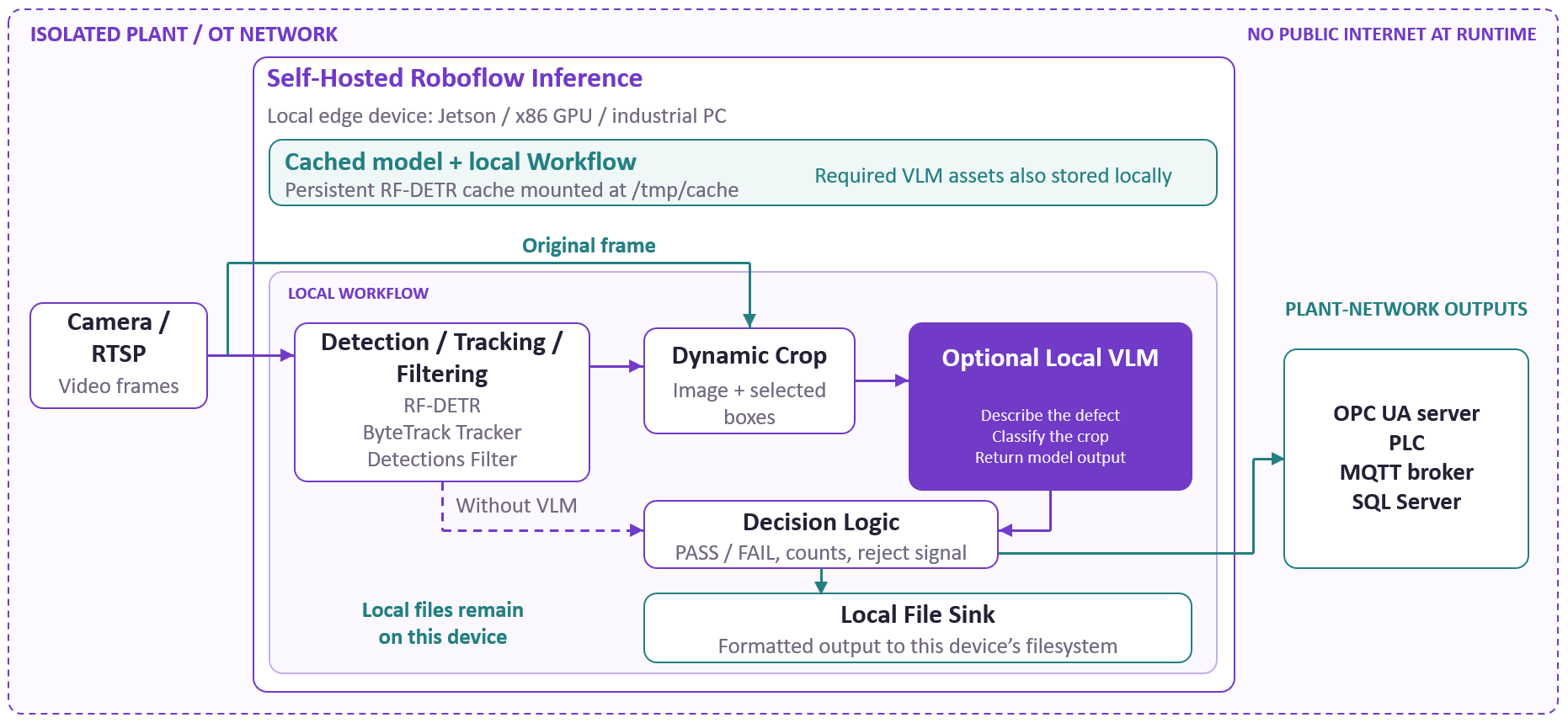
An offline computer vision pipeline keeps the full production path inside the local network. A camera or RTSP stream sends video to a self-hosted Inference Server, the Workflow processes each frame locally, and the final result is sent to systems that are also reachable inside the plant network. A typical architecture looks like this:
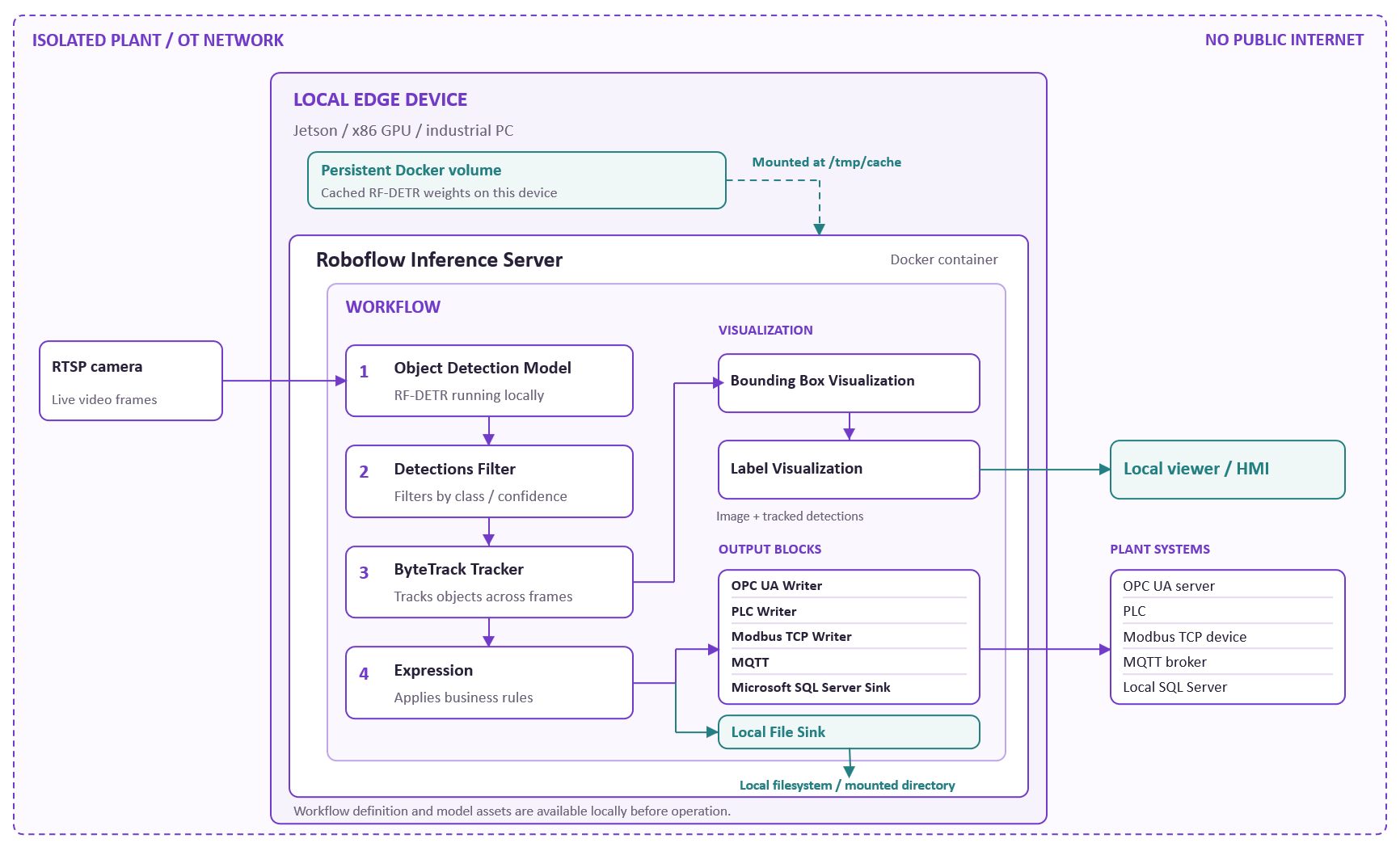
The Roboflow Inference Server runs models and Workflows on local hardware instead of sending every frame to a hosted inference API. It can run on systems such as NVIDIA GPUs, NVIDIA Jetson devices, Raspberry Pi, and standard servers. Video sources such as RTSP streams can also be processed through the local server.
Once the model and Workflow required for offline operation are available locally, the production camera can continue sending frames to the local Inference Server without using the public internet.
What can run inside the air gap?
A Workflow can combine model inference with tracking, filtering, transformations, visualization, and application logic. Blocks for object detection, segmentation, OCR, line crossing, time-in-zone, velocity estimation, and other processing steps can all be part of a local Workflow when they execute on the local Inference Server.
A defect inspection Workflow could look like this:
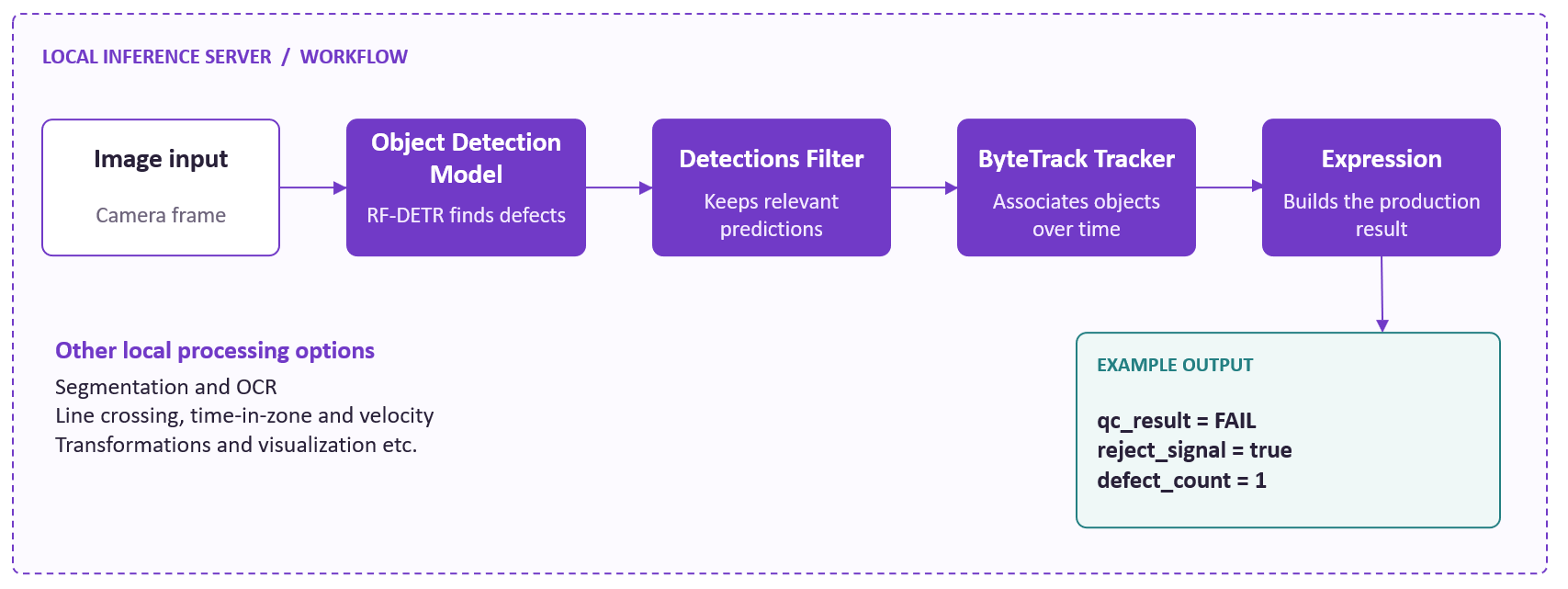
In this example, RF-DETR finds defects, the filter removes detections that are not needed, tracking follows objects between frames, and the logic converts the predictions into a production result such as:
qc_result = FAIL
reject_signal = true
defect_count = 1
For an offline deployment, each block used in the Workflow should be checked for local runtime support. Blocks that run locally and do not depend on an external service can remain inside the offline path.
Send results to systems inside the plant network
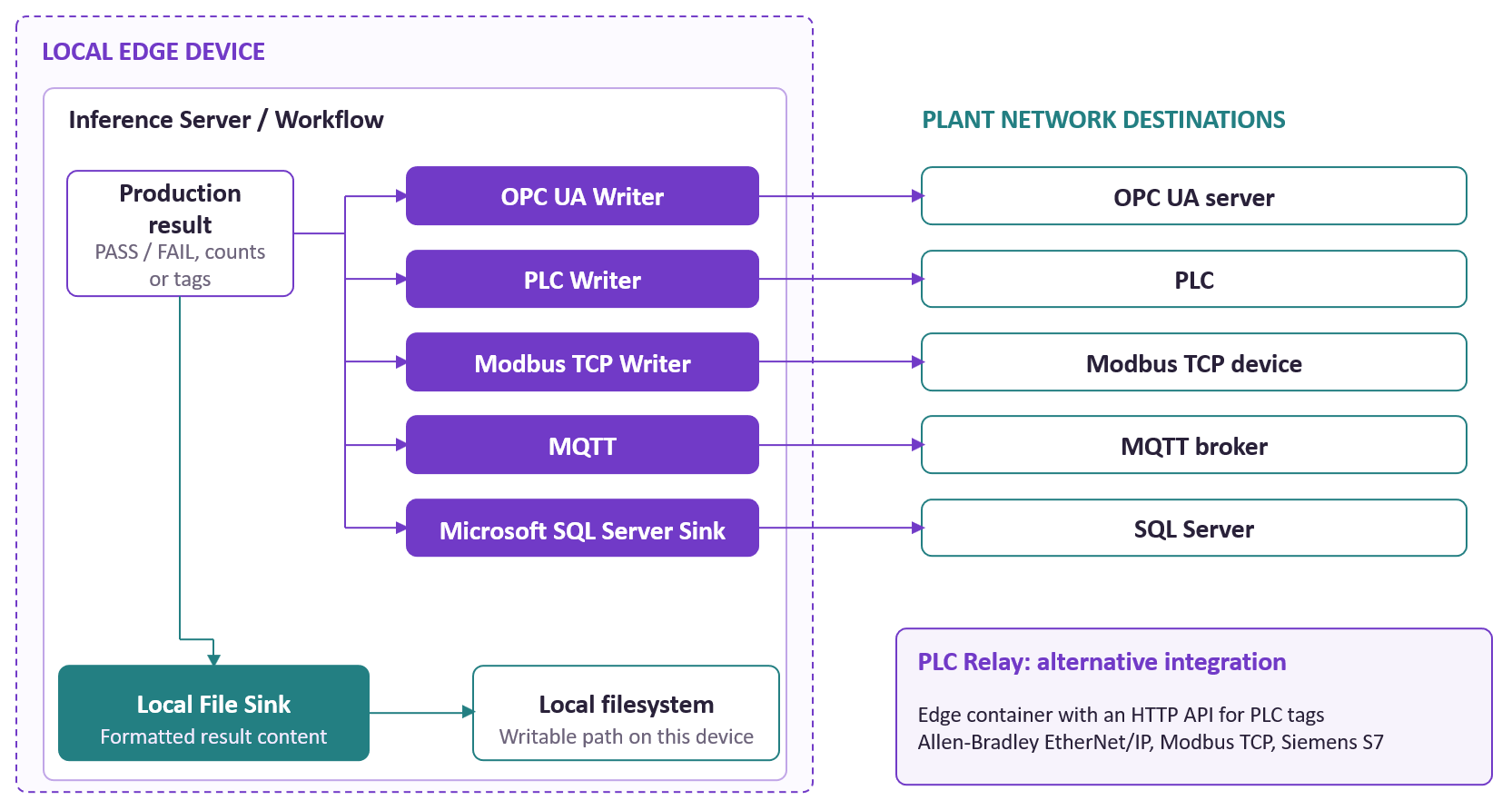
The final Workflow output can be passed directly to industrial systems instead of stopping at a visual prediction. Enterprise Workflow integrations include:
- OPC UA Writer
- PLC Writer
- Modbus TCP Writer
- MQTT
- Microsoft SQL Server Sink
- Local File Sink
The vision system decides whether the inspected part passes or fails. That result can then be written to the plant system, while the PLC handles machine timing, interlocks, and the physical action such as activating a reject mechanism.
The Enterprise integration options also include PLC Relay, which provides an edge container and HTTP API for reading and writing PLC tags. The supported PLC protocols include Allen-Bradley EtherNet/IP, Modbus TCP, and Siemens S7.
Blocks that still need internet access
Some Workflow blocks depend on external cloud services and therefore do not belong in a strict air-gapped path.
For example, the Google Gemini block and OpenAI block call external APIs and are marked requires_internet. They will not work when the network has no route to those services.
The Slack Notification block is also marked requires_internet, so it cannot send Slack messages from a fully isolated network.
Email is slightly different. The Email Notification block can use either a managed email service or a custom SMTP server. A managed service needs external connectivity, while a custom SMTP server can be used when that server is reachable from the local network.
The Webhook Sink can send requests to private or LAN addresses when using self-hosted Inference, but its runtime compatibility is still marked requires_internet for offline deployments. For a strict air-gapped system, check the exact block compatibility before including it in the production Workflow.
The same idea applies to model and Workflow retrieval. On the first connected request, self-hosted Inference can download the published Workflow definition and any model weights that are not already cached. Later requests use the cached artifacts locally.
Running a VLM inside the air gap
An offline pipeline can also include a vision-language model (VLM) for tasks that require more than object detection. Instead of sending a crop or image to a hosted Gemini or OpenAI endpoint, the image can be passed to a VLM running on the local Inference Server. For example:
Several VLMs supported by Inference can run locally:
- Qwen VL (i.e. Qwen3.5) can be used through self-hosted Inference. The unified Qwen-VL block supports newer Qwen generations, including Qwen 3 VL and Qwen 3.5 VL. The Qwen3.5 model page includes local Inference Server deployment and GPU usage.
- Florence-2 can also run as a Workflow block for tasks such as OCR, image captioning, object detection, open-vocabulary detection, and grounded classification. Its local Workflow runtime requires a GPU.
- SmolVLM2 can run directly on a local Inference Server, with GPU execution available for local deployment.
The main tradeoff is hardware. A VLM generally needs more compute and memory than a small object detector, and model size shifts this balance further. Qwen3.5, for example, is available in multiple sizes, and the larger variants achieve stronger benchmark results but require more capable hardware. Florence-2 can be demanding on Raspberry Pi-class hardware, while NVIDIA Jetson is a better fit when more compute is required.
Deploying an Air-Gapped Model with Roboflow Inference
Consider a PCB inspection line running on an isolated plant network. An RTSP camera sends video to a local GPU workstation, RF-DETR detects defects, a Workflow turns those detections into a quality decision, and an OPC UA Writer sends the result to an OPC UA server on the plant network. The deployment can be prepared while internet access is available, then run locally using the cached model and Workflow.
Step 1: Train RF-DETR and build the Workflow
RF-DETR can be trained on your own workstation using the rfdetr Python package or trained in Roboflow Cloud. Local training is useful when you want to manage the training environment yourself, while cloud training provides a managed training path whose model can later be deployed on your own hardware.
For a PCB inspection application, the Workflow could be:
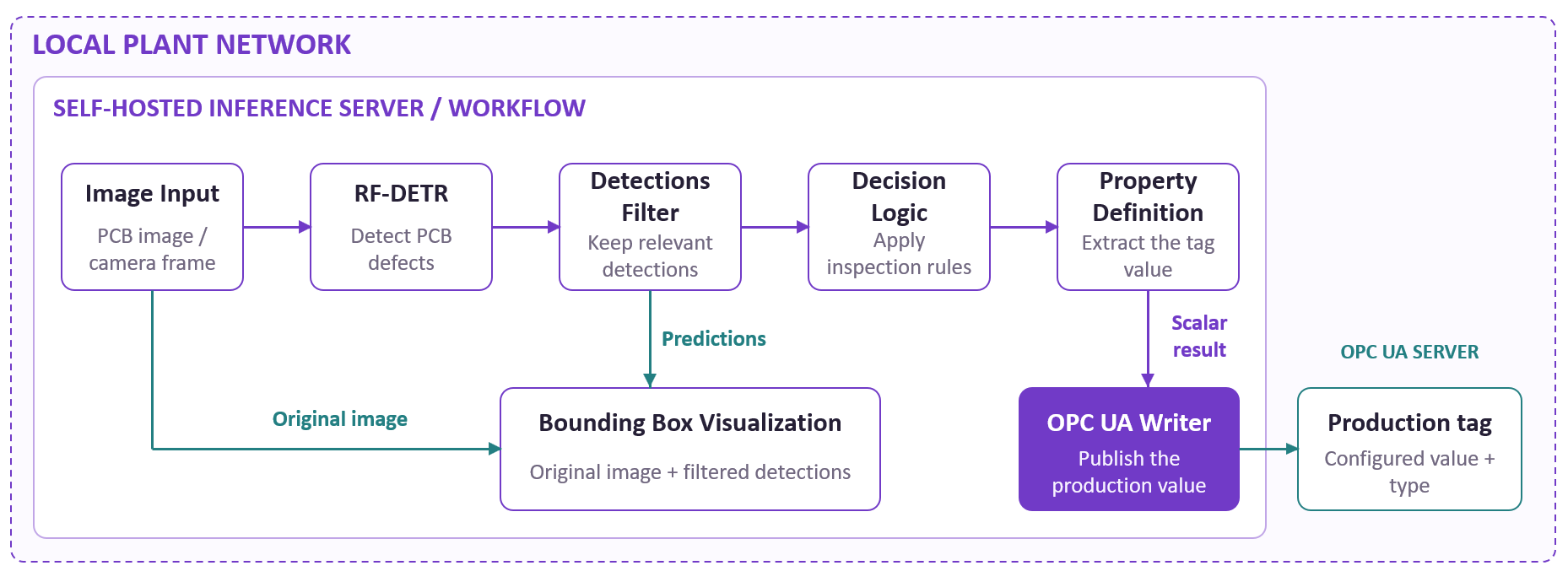
Build and test the Workflow while the development environment is connected. The Workflow editor provides a Preview option for testing images and videos before local deployment. Once the Workflow is ready, the Deploy option provides the code needed to run it on a local server. Offline Workflow deployment is an Enterprise feature.
Step 2: Start the local Inference Server with a persistent cache
Enterprise Offline Mode uses the Roboflow Inference Docker container and a Docker volume mounted at /tmp/cache. For an NVIDIA GPU system, use:
sudo docker volume create roboflow

docker run -it --rm \
  -p 9001:9001 \
  --gpus all \
  --mount source=roboflow,target=/tmp/cache \
  roboflow/roboflow-inference-server-gpu
This starts the local Inference Server on port 9001 and gives the model cache a persistent Docker volume.
At this stage, keep internet access available because the required model and Workflow still need to be fetched and cached.
Step 3: Cache the model and Workflow
Run the published Workflow once through the local Inference Server while it is still connected. A basic test request looks like this:
from inference_sdk import InferenceHTTPClient

client = InferenceHTTPClient(
    api_url="http://localhost:9001",
    api_key="YOUR_ROBOFLOW_API_KEY",
)

result = client.run_workflow(
    workspace_name="your-workspace",
    workflow_id="your-workflow",
    images={"image": "pcb_test.jpg"},
)
On this first call, the local server retrieves the published Workflow definition, checks which models the Workflow uses, and downloads any model weights that are not already available locally. Later requests use those cached artifacts instead of downloading them again. The Workflow definition is also written to disk under the Workflow cache so that it can be used as an offline fallback when the platform cannot be reached.
Before disconnecting the system, run the actual Workflow version and model version that will be used in production. A new model version causes a new download on first use, and a changed Workflow needs to be refreshed while the server can still reach the platform.
Step 4: Enable offline loading
After the model and Workflow are cached, restart the Inference Server with OFFLINE_MODE=True. This setting makes network-provider models load only from a trusted, compatible local cache. Mount the same roboflow volume used in Step 2 so the server can find the cached artifacts.
sudo docker run -it --rm \
  -p 9001:9001 \
  --gpus all \
  -e OFFLINE_MODE=True \
  --mount source=roboflow,target=/tmp/cache \
  roboflow/roboflow-inference-server-gpu
Prepare the cache with the same inference-models release and model-loading constraints that will be used offline. The default cache directory is /tmp/cache. INFERENCE_HOME or MODEL_CACHE_DIR can point to another location.
When OFFLINE_MODE=True is enabled, per-model API key checks cannot run because the server cannot reach the Roboflow API. If MODELS_CACHE_AUTH_ENABLED=True is also set, startup requires an explicit opt-in. Add it only for trusted single-tenant deployments.
ALLOW_OFFLINE_MODEL_CACHE_AUTH_BYPASS=TrueDeployments that do not enable MODELS_CACHE_AUTH_ENABLED do not need this flag.
Step 5: Run the Workflow on the RTSP camera
The application now connects to the Inference Server running on the local machine rather than sending frames to a hosted inference endpoint. A local RTSP Workflow uses the same pattern:
import cv2

from inference_sdk import InferenceHTTPClient
from inference_sdk.webrtc import RTSPSource, StreamConfig, VideoMetadata

client = InferenceHTTPClient.init(
    api_url="http://localhost:9001",
    api_key="ROBOFLOW_API_KEY"
)

source = RTSPSource(
    "rtsp://username:password@camera-ip:554/stream"
)

config = StreamConfig(
    stream_output=["output_image"],
    data_output=[
        "predictions",
        "reject_signal",
        "qc_result",
        "defect_count"
    ],
    processing_timeout=3600
)

session = client.webrtc.stream(
    source=source,
    workflow="pcb-inspection",
    workspace="your-workspace",
    image_input="image",
    config=config
)

@session.on_frame
def show_frame(frame, metadata):
    cv2.imshow("PCB Inspection", frame)

@session.on_data()
def on_data(data: dict, metadata: VideoMetadata):
    print(data)

session.run()
The important part is:
api_url="http://localhost:9001"The same local deployment pattern supports RTSP camera streams and Workflow outputs such as predictions, reject signals, and quality-control results.
Step 6: Send the inspection result to OPC UA
The final production result can be written to an OPC UA server using the OPC UA Writer Sink, which is an Enterprise Workflow block. A simple Workflow path is:
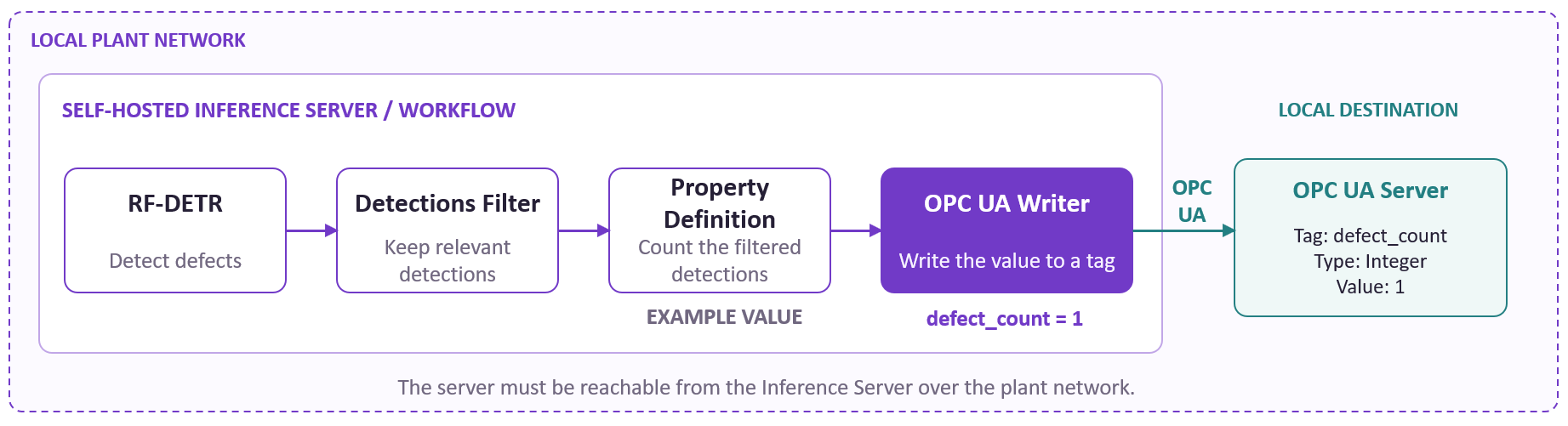
The Property Definition block reduces the Workflow output to a value that can be written to a tag, such as a defect count or Boolean reject signal. The OPC UA Writer then sends that value to the configured OPC UA server. For example, an OPC UA endpoint can use a format such as:
opc.tcp://<server-host>:62541The Workflow configuration also specifies the namespace, target variable, value, and value type. The Inference Server must be able to reach the OPC UA server over the plant network.
Example of the Workflow running offline
The offline deployment example shows RF-DETR Segmentation processing an RTSP stream with both the Workflow and model executing locally.
RF-DETR Segmentation Workflow running locally on an RTSP stream
Offline model and Workflow deployment described here requires Roboflow Enterprise. The current Offline Mode settings and runtime-authorization options can change with Inference releases, so the deployment configuration should use the current Offline Mode and Inference Models configuration pages linked above.
Updating Models and Closing the Retraining Loop Offline
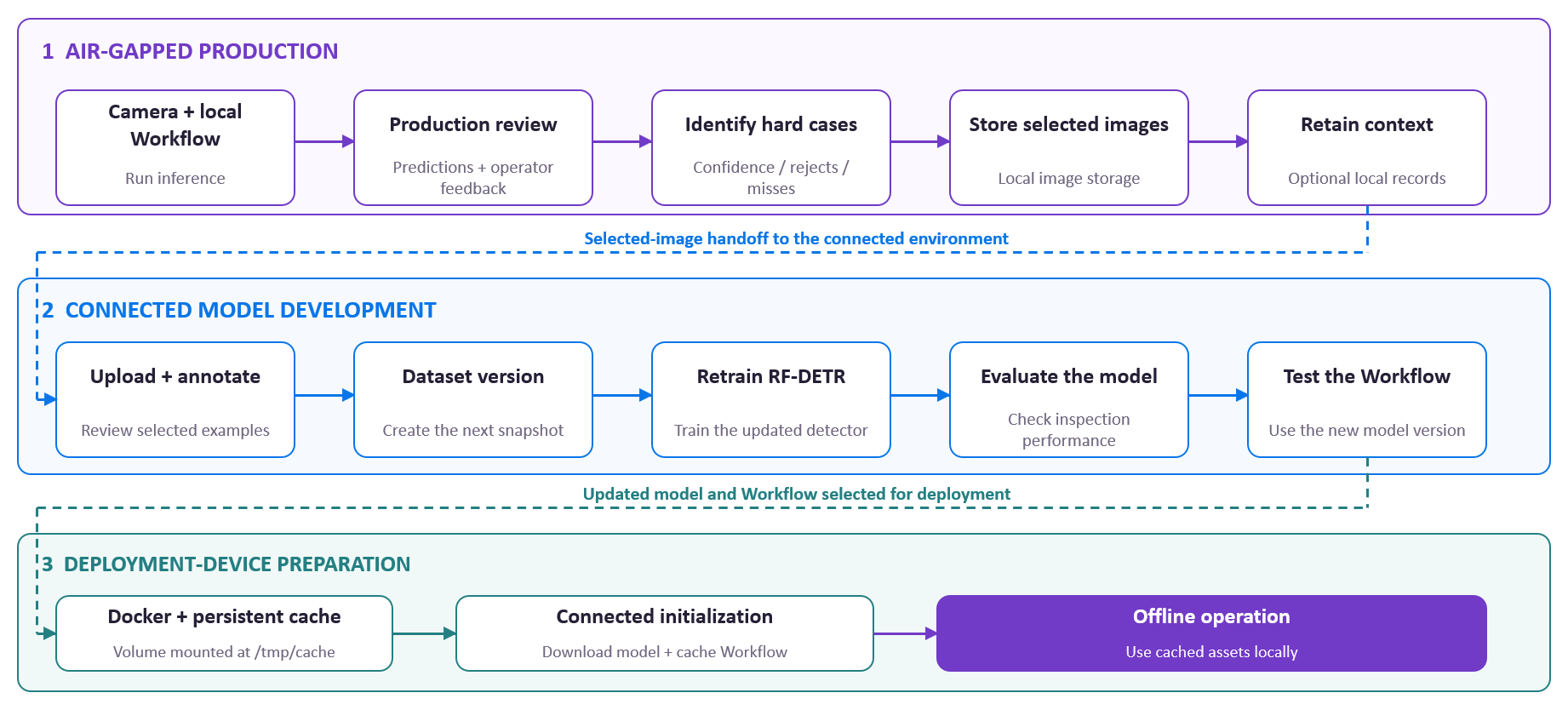
An air-gapped deployment can still improve over time. The difference is that production images are not automatically sent to a cloud training pipeline. Useful examples are collected locally, moved out of the isolated environment when needed, reviewed and labeled, and then used to train the next model. A typical improvement loop can look like this:
Collect useful production examples
You do not need to move every production image out of the air-gapped environment. Instead, collect the cases that are most useful for improving the model, such as:
- low-confidence predictions;
- false rejects;
- missed defects;
- operator corrections;
- new product variants;
- changed lighting or backgrounds;
- unusual machine states;
- rare edge cases.
These types of production cases are useful for identifying where the deployed model needs improvement.
The selected images can first be stored locally on the isolated system. If the site's security policy permits it, they can then be copied to removable storage and moved to the connected development environment. This transfer step is part of the site's air-gap procedure rather than a Roboflow product feature.
Once the images reach the connected environment, they can be uploaded to the Roboflow project, reviewed, annotated, and included in the next Dataset Version.
Keep useful production evidence locally
For Enterprise deployments using Event Store, recent Workflow events can be retained on the edge device. These events can contain inspection results and other Workflow outputs, making it easier to identify cases that should be reviewed later.
When connectivity is available, Vision Events can store deployed vision activity including images, predictions, source information, and application metadata. Images from Vision Events can also be added back to a project for model improvement.
Create a new Dataset Version
After the selected production images have been reviewed and labeled, create a new Dataset Version before retraining. A Dataset Version is a point-in-time snapshot of the project data and its preprocessing and augmentation settings. This keeps each training cycle tied to a specific state of the dataset.
Retrain and evaluate the model
Train the next model using the new Dataset Version, then evaluate it before preparing it for production. Test both the updated RF-DETR model and the Workflow that uses it in production. This checks that changes in the model still produce the expected output for the rest of the inspection pipeline.
Keep track of Workflow versions
Workflows also have Version History. Each saved Workflow creates a version, versions can be named, and earlier versions can be restored on supported plans. The latest saved version is marked Live. This is useful when both the model and production logic change.
Prepare the updated version for offline use
After testing, prepare the updated model and Workflow using the same offline caching process as the initial deployment. While internet access is available, run the updated model and published Workflow through the local Inference Server so the required weights and Workflow definition are cached. The production system can then use those cached versions offline. The complete cycle becomes:
Active Learning and an air-gapped deployment
Active Learning can automatically collect production images that match specified conditions, such as low-confidence predictions, and feed those images back into the model-improvement process. However, the built-in Active Learning feature requires a cloud deployment.
In a fully air-gapped setup, this collection step becomes manual. Hard cases are identified locally, selected images are moved to the connected environment, and then the normal review, dataset versioning, and retraining process continues. The result is a batched feedback loop rather than continuous cloud collection:
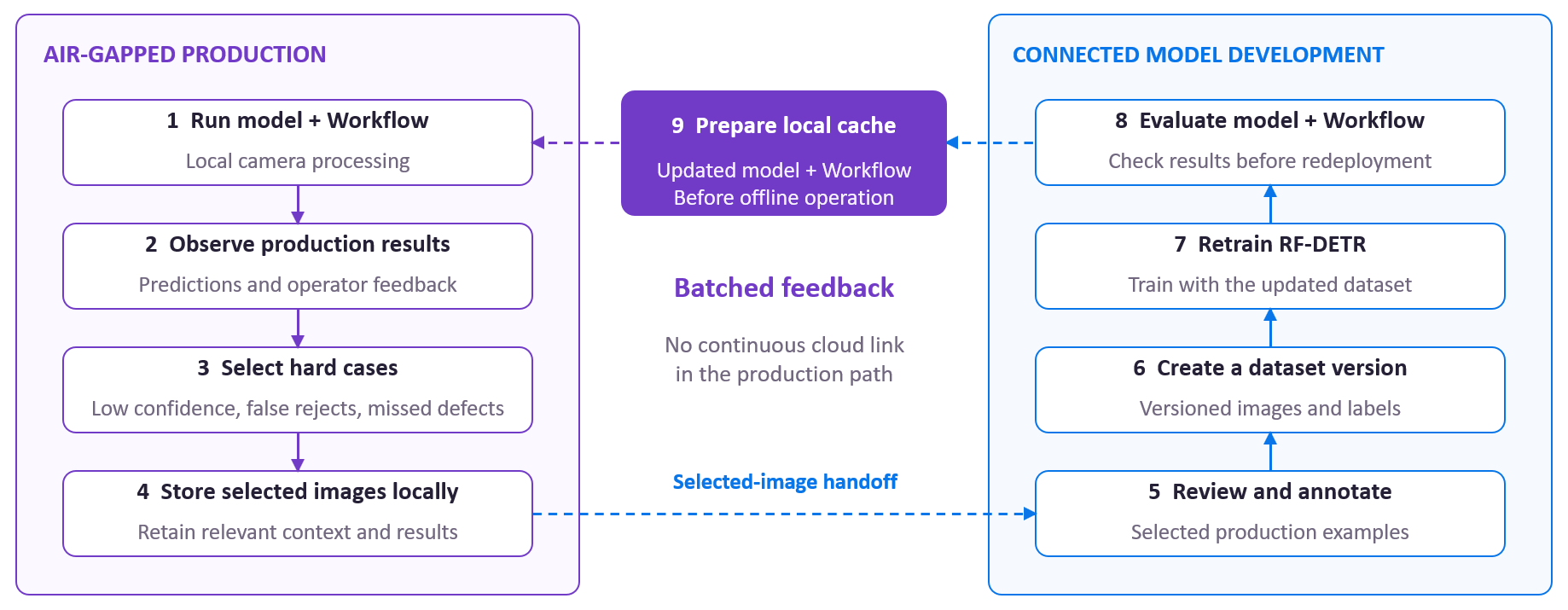
This allows the production inference system to stay offline while useful real-world examples are still used to improve future model versions.
Conclusion
Air-gapped computer vision lets production systems keep running without depending on public internet access. Models and Workflows run locally through Roboflow Inference, while camera feeds, inference results, application logic, and production records stay inside the plant network. Hard production cases can still feed a separate retraining loop, so the model continues to improve even though the production system stays offline.
For teams that need local or air-gapped deployment, Roboflow Inference and Enterprise Offline Mode provide the foundation for running computer vision on your own infrastructure. Since Offline Mode is part of Roboflow Enterprise, contact the Roboflow team to get started.
Further reading:
- How Cloud Connected AI Products Run On-Prem: Learn how Roboflow fits into industrial IT/OT networks, including the Purdue Model, air-gapped deployments, and secure gateways.


Cite this Post
Use the following entry to cite this post in your research:
Timothy M. (Sep 9, 2026). Air-Gapped Computer Vision Deployment: How to Run Offline. Roboflow Blog: https://blog.roboflow.com/air-gapped-computer-vision-deployment/