

This tutorial builds a golf swing analysis pipeline that combines a Roboflow 3.0 keypoint detection model with Gemini 2.5 Flash to produce coaching-grade feedback from a single frame. The model is trained on the Golf Swing dataset from Roboflow Universe, which annotates 68 images across four body regions covering spine alignment, shoulder rotation, club shaft angle, and head position. Once deployed in a Roboflow Workflow, the pipeline outputs an annotated frame alongside biomechanical commentary on body alignment, club position, and swing phase.
Despite 40 years of equipment advances, male golfers have only improved their handicap index by about 3 strokes, according to Golf Digest's analysis of USGA handicap data. Technology moved fast. Golfers didn't. The problem isn't access to instruction or equipment. It's actionable, objective feedback on swing mechanics.
This tutorial changes that. We'll build a golf swing analysis pipeline using Roboflow 3.0 for keypoint detection and Gemini 2.5 Flash for biomechanical reasoning.
Golf Analysis with Computer Vision
By the end you'll be able to drop in a swing photo and get back an annotated frame with AI-generated coaching commentary on body alignment, club position, and swing phase. Here's the workflow we'll build.
Step 1: Prepare the Dataset
We'll train on the Golf Swing dataset from Roboflow Universe. The dataset contains 68 images annotated for keypoint detection across four body regions: back, upper-body, lower-body, and golf-club. Each region carries its own set of keypoints covering everything from spine alignment and shoulder rotation to club shaft angle and head position.
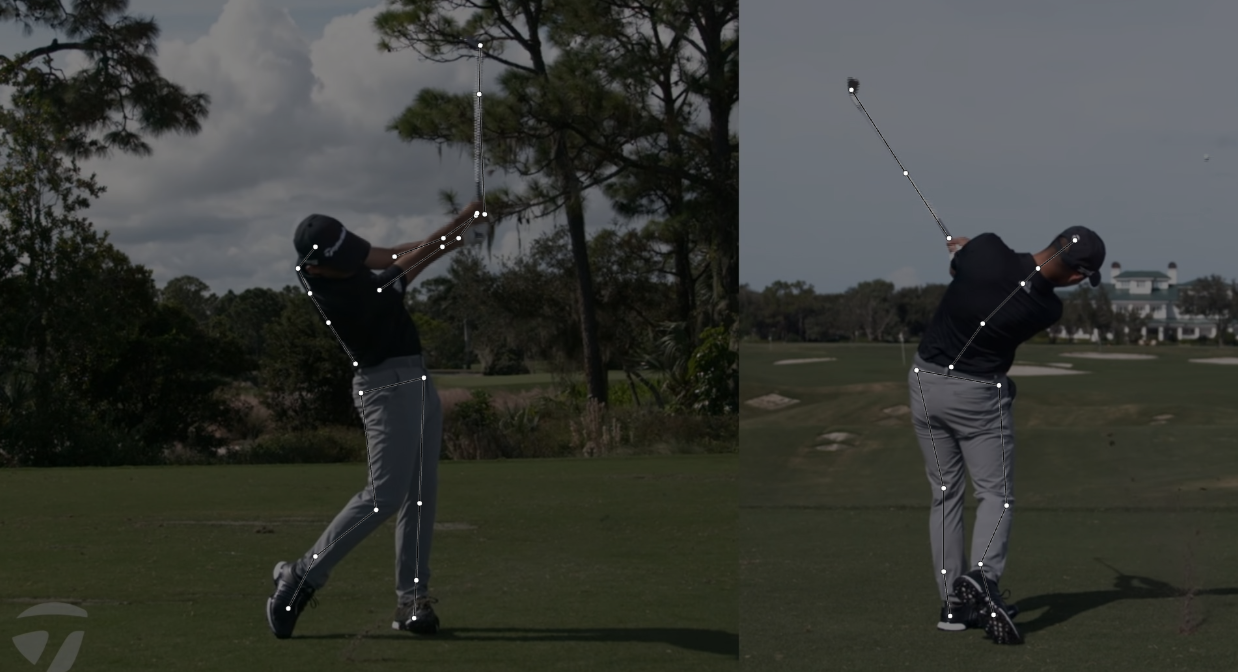
Keypoint detection on a golf swing is a precise task. The model needs to learn the spatial relationships between joints and club positions across different swing phases, from address through follow-through. 68 well-annotated images of a repeatable, structured motion are a reasonable starting point for a tutorial pipeline.
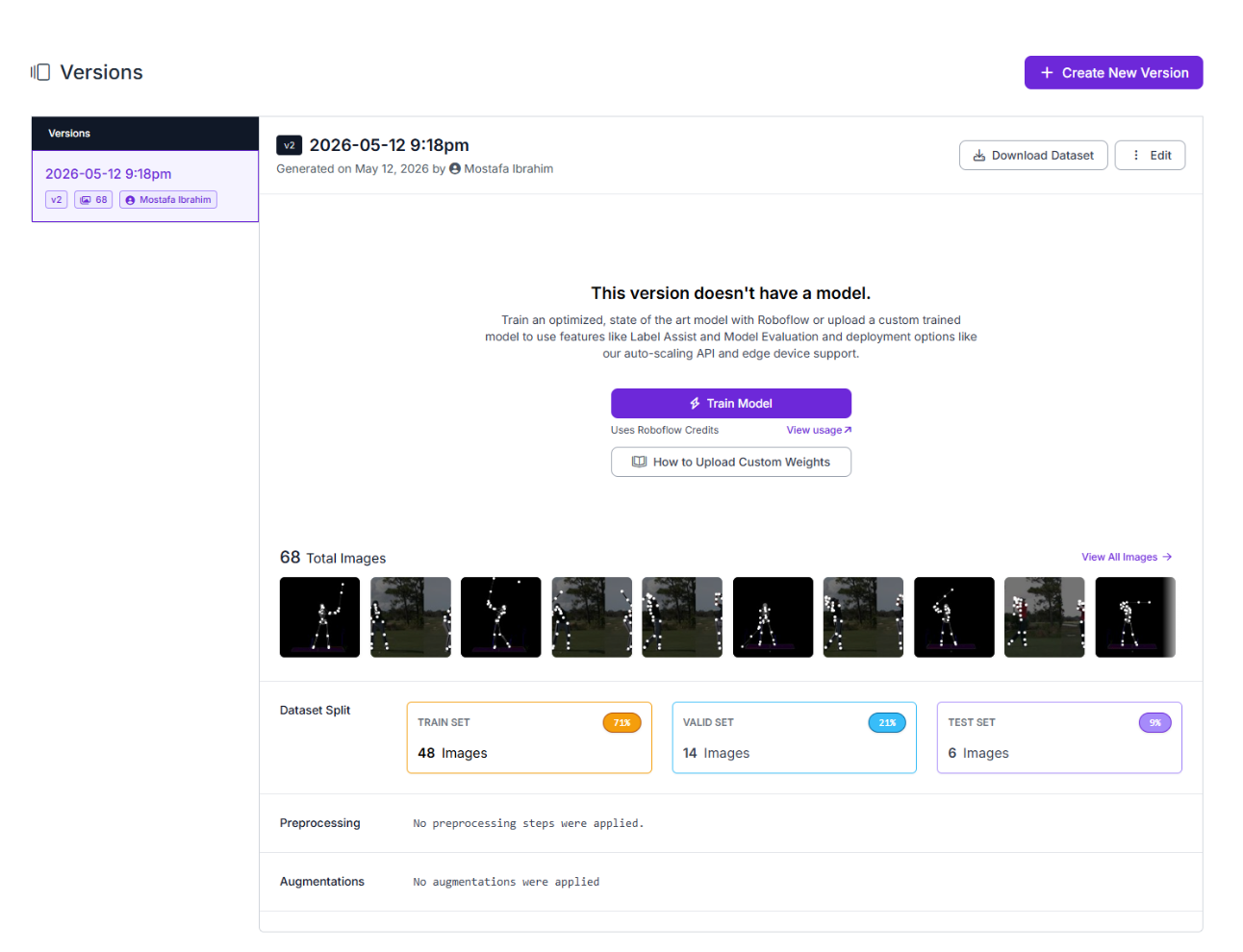
To begin, fork the dataset into your own Roboflow workspace. From there, generate a new version and configure a 70/20/10 train/validation/test split. This reserves enough images for training while keeping a clean test set for evaluating real-world performance after training completes.
Step 2: Train the Roboflow 3.0 Model
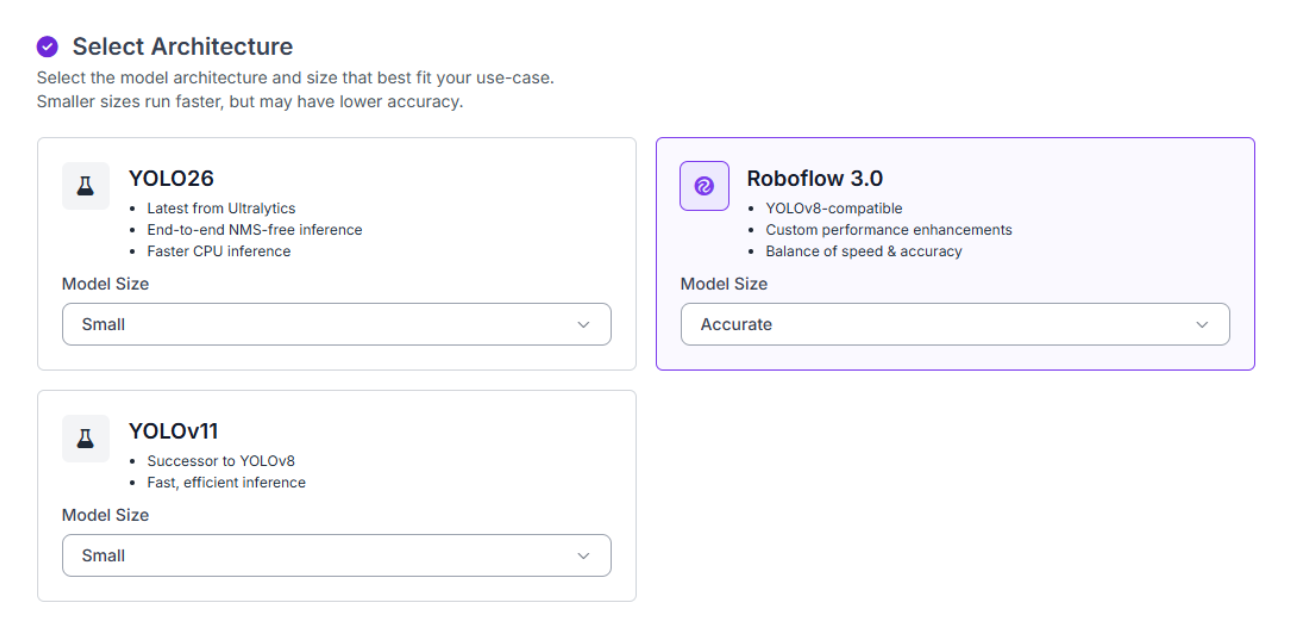
With your dataset version ready, click "Train Model" to configure your training job. Select Roboflow 3.0 as the model type and choose the Accurate variant. The Fast option trains quicker but trades off detection precision, which matters here. Keypoint detection on a golf swing requires the model to localize fine anatomical landmarks reliably. Accuracy is worth the extra training time.
Once training completes, review your model's performance metrics.
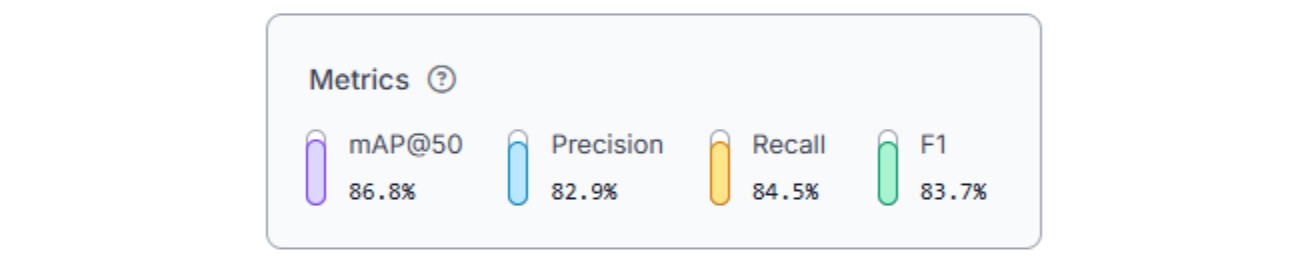
The model delivers strong results across all four keypoint classes. An 86.8% mAP@50 reflects reliable landmark localization across back, upper-body, lower-body, and club keypoints, with 82.9% precision and 84.5% recall, combining into a balanced 83.7% F1 score. The high recall is particularly important here: missed keypoints mean missing body segments in the overlay, which degrades both the visualization and the quality of Gemini 2.5 Flash’s downstream swing analysis. These metrics give us a solid foundation to build on.
Step 3: Deploy to Workflows
Roboflow Workflows provides a visual interface for building computer vision pipelines that connect detection, visualization, and language understanding. Our final workflow connects five blocks: the Roboflow 3.0 model localizes keypoints across the golfer's body and club, a keypoint visualization block draws the skeleton overlay, Google Gemini reads the annotated frame and generates swing coaching commentary, with the annotated image and Gemini's analysis passed to the outputs.
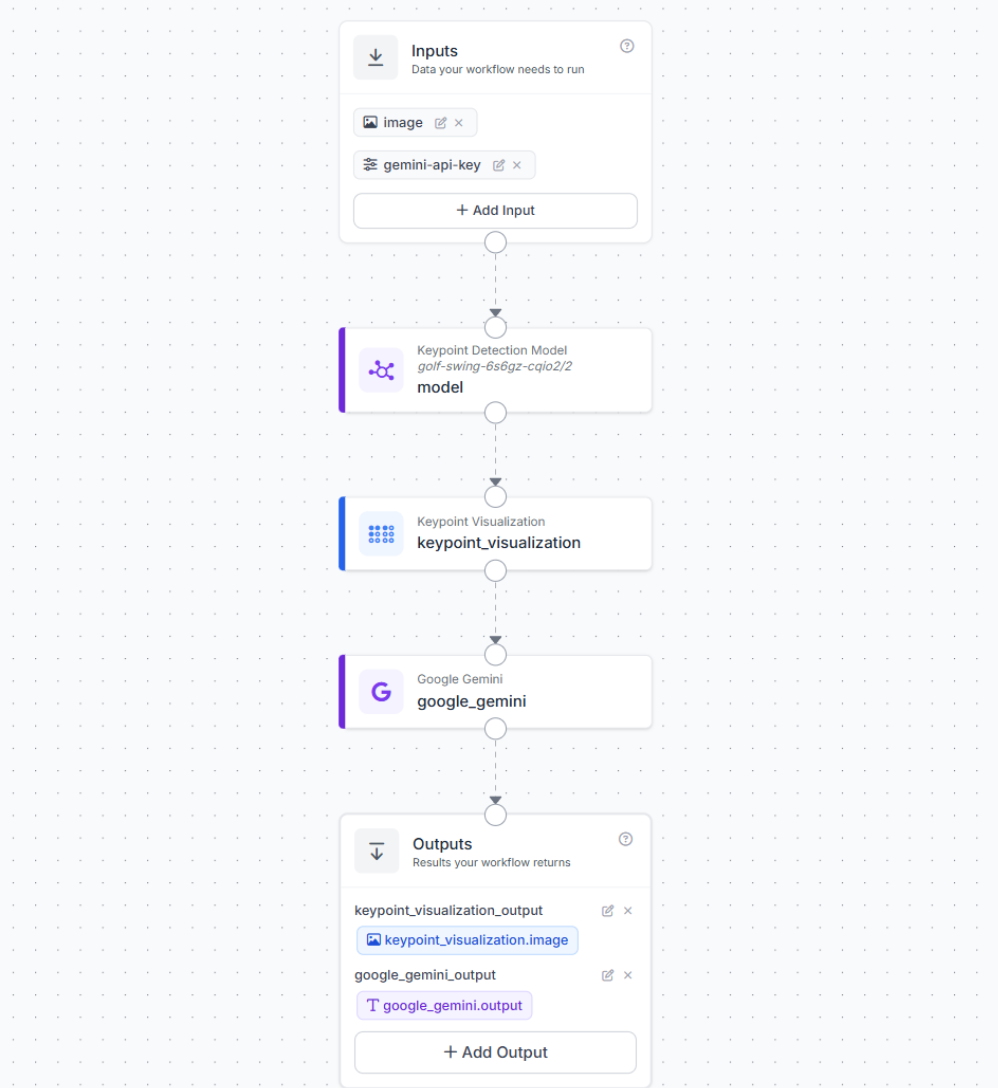
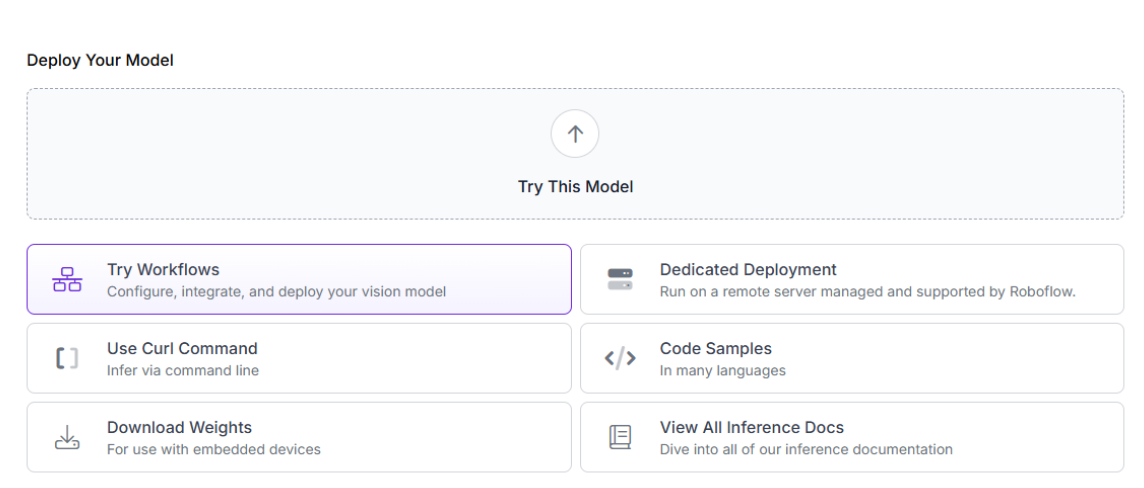
To create this workflow, click "Try Workflows" when viewing your trained model's deployment options.
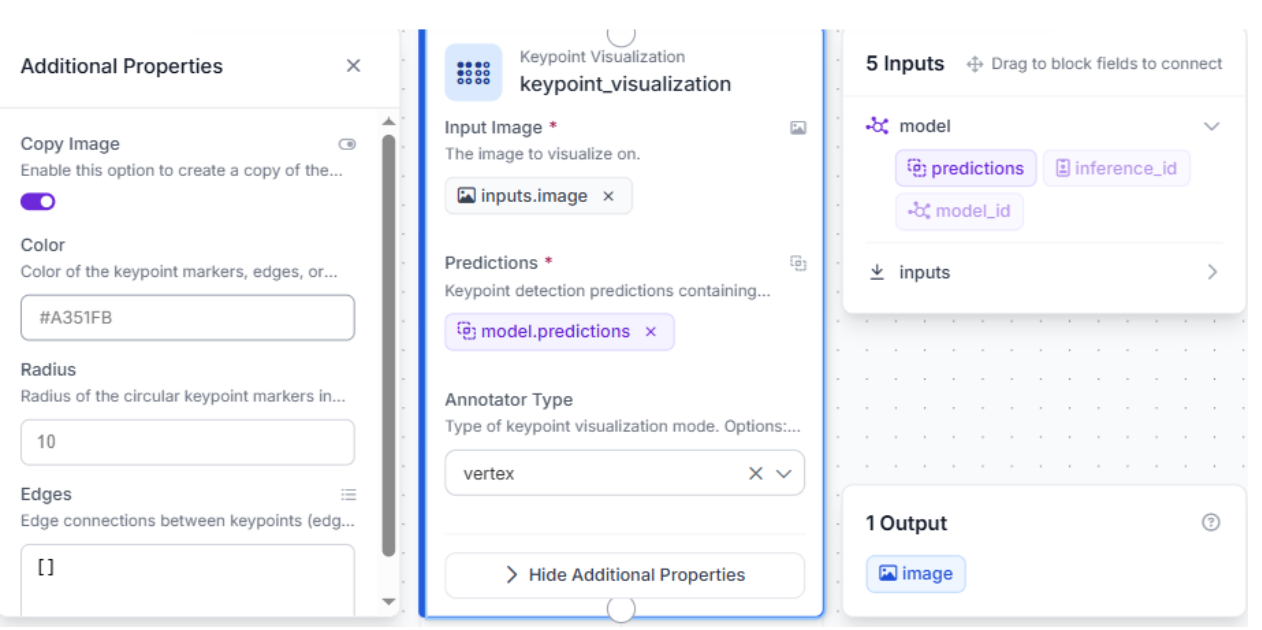
Configure the Keypoint Visualization Block
Add a Keypoint Visualization block and connect it to the keypoint detection model's predictions output. Set the annotator type to vertex. This places a marker at each detected keypoint, mapping the model's localization of the golfer's joints and club position across the frame.
Configure the Google Gemini Block
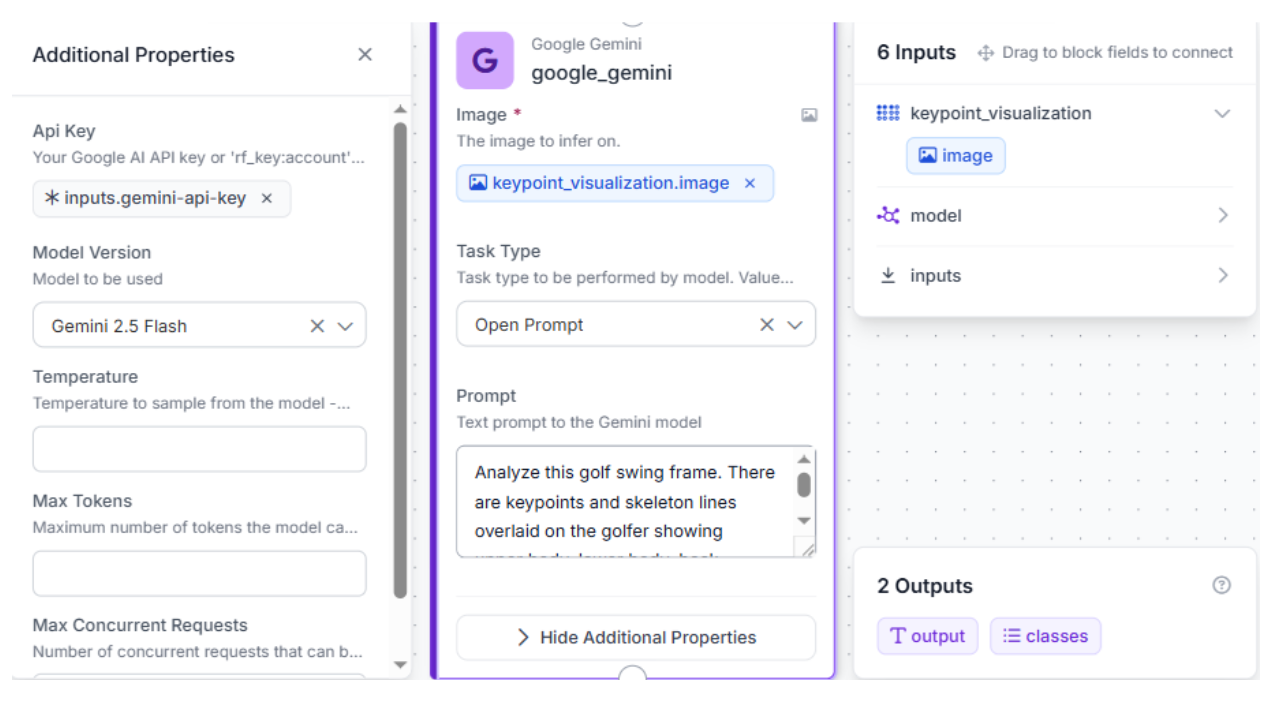
Add a Google Gemini block and connect it to the keypoint visualization image output. Configure:
- Model version: Gemini 2.5 Flash
- API key: `inputs.gemini-api-key` (passed in as a workflow input so it's never hardcoded)
- Prompt:
Analyze this golf swing frame. There are keypoints overlaid on the golfer showing upper body, lower body, back alignment, and club position. Describe: (1) the current phase of the swing (address, takeaway, backswing, downswing, impact, or follow-through), (2) the alignment of the upper body and lower body relative to each other, (3) the club position and angle, (4) one specific coaching observation about the swing mechanics visible in this frame. Keep it concise, 3-4 sentences max.Gemini 2.5 Flash receives the annotated frame with keypoint markers rather than the raw photo, grounding its analysis in the detected keypoint positions rather than pixel-level guesswork.
Step 4: Test the Workflow
Click the run symbol in the top-right corner of the Workflows Builder. Upload a test image of a golf swing, ideally one that captures the full body and club in a clearly visible swing phase.
Within seconds, you'll receive two outputs: the annotated frame with keypoint markers mapped across the golfer's body and club, and Gemini 2.5 Flash's written swing analysis.
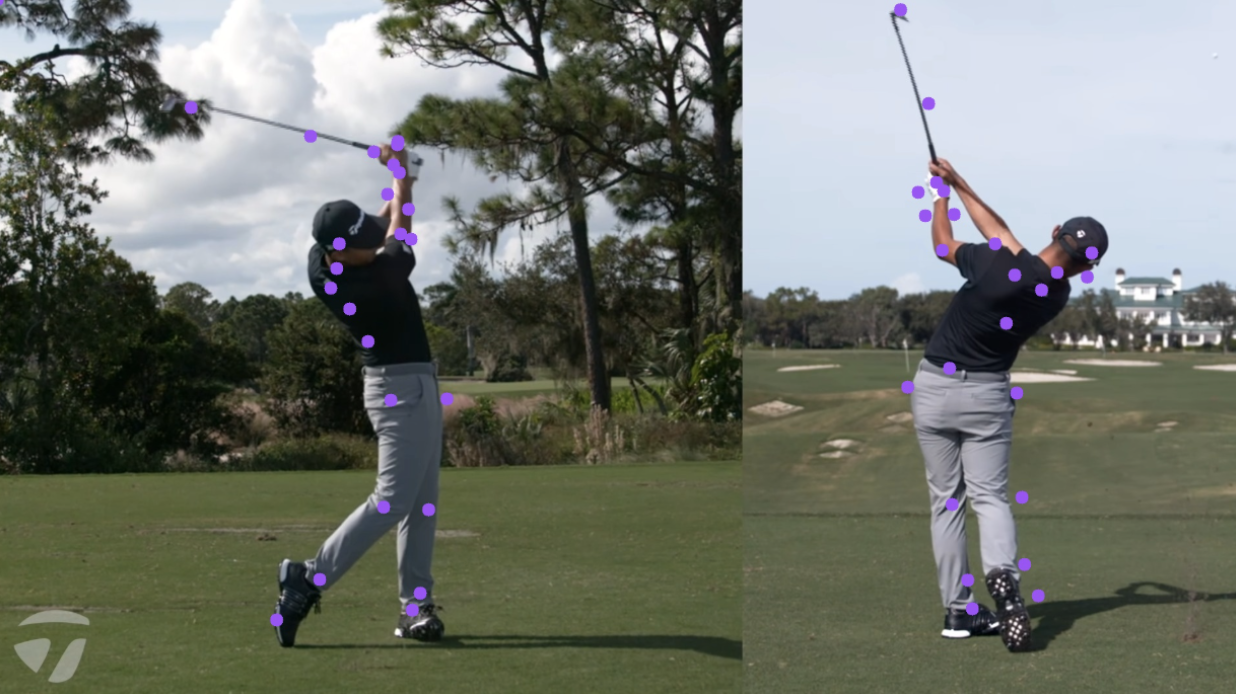
A representative Gemini 2.5 Flash output looks like:
This image captures two key phases of a golf swing. The left frame shows the golfer at the very top of the **backswing**, exhibiting a significant shoulder turn (upper body) rotated almost perpendicular to the target, with the lower body also rotated but maintaining good separation. The club is well past parallel to the ground. The right frame depicts the **follow-through**, where the golfer has fully rotated their upper and lower body towards the target, with weight transferred to the lead side and the club finishing high. A coaching observation is the excellent body rotation and complete weight transfer visible in both phases, indicating a powerful and athletic swing.If the commentary misreads a swing phase or body position, iterate the prompt rather than retraining the model. Adding context like swing direction, camera angle, or specific joints to focus on is a single prompt edit away.
Golf Analysis with Roboflow Agent
Another option is to use Roboflow Agent to complete your project with written prompts. Here's a walk through.
Golf AI Conclusion
You've built a golf swing analysis system that combines Roboflow 3.0 keypoint detection with Gemini 2.5 Flash's biomechanical reasoning to deliver coaching-grade feedback from a single frame. The detect-then-reason pattern is what makes this work: a specialized keypoint model maps body landmarks and club position across the swing, then Gemini 2.5 Flash interprets the annotated keypoint markers to identify swing phase, body alignment, and specific mechanics.
From here, the natural extension is running the workflow across multiple frames of the same swing to track how body alignment evolves from address through follow-through, or fine-tuning the prompt to focus on specific fault patterns like early extension or over-the-top club paths. Both are achievable within the Roboflow Workflows ecosystem.
Further reading
Below are a few related topics you might be interested in:


Cite this Post
Use the following entry to cite this post in your research:
Contributing Writer. (May 18, 2026). Golf Swing Analysis with Vision AI. Roboflow Blog: https://blog.roboflow.com/golf-swing-analysis-with-vision-ai/