

Medical bills arrive from multiple providers in inconsistent formats, making a consolidated expense record difficult to maintain for budgeting, reimbursement, or tax purposes. This tutorial builds a personal medical expense tracker in a Roboflow Workflow: a Google Gemini block reads each bill image and extracts structured fields (provider, service, cost, insurance coverage), a Custom Python block cleans the data, and a local script appends results to an Excel ledger. No custom model training is required, and the system can be triggered from a phone camera with a single command.
Medical bills come in many forms including printed hospital invoices, pharmacy receipts, lab reports, and handwritten clinic bills. Each one contains useful information about what service was provided, who provided it, what it cost, and how much was covered by insurance. Because bills arrive at different times from different providers and in different formats, keeping a consolidated record of all medical expenses takes deliberate effort.
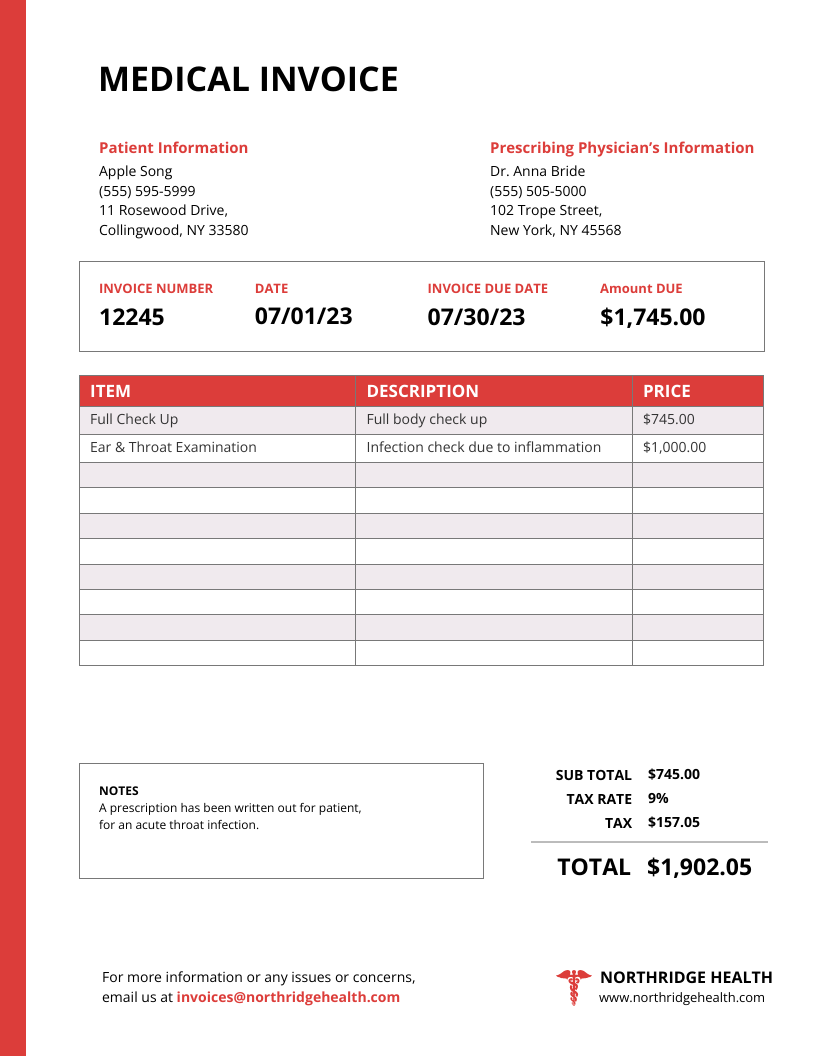
Healthcare is one of the largest spending categories for most households. Having that spending organized in one place makes it easier to manage personal budgets, process insurance reimbursements, and prepare accurate records for tax purposes. This blog walks through how to build a system that does exactly that by scanning a bill image, and automatically logging the extracted data to an Excel file on your machine.
How Computer Vision Helps
Computer vision is a field of AI that helps computers read and understand information from images. In document processing, this means not only reading text from a page, but also understanding how the document is organized and what the information means.
At the basic level, document understanding uses Optical Character Recognition (OCR). OCR detects text in an image and converts it into digital text. For example, if you take a photo of a printed bill, OCR can extract all the words and numbers from it. Modern OCR systems can also capture layout information, such as where headings, tables, and totals are located on the page. However, OCR mainly focuses on extracting text and basic structure.
Vision Language Models (VLMs) are a newer approach that goes beyond OCR. A VLM not only reads the text and layout, but also understands the meaning of the content. For example, if a bill contains the line “CBC Panel 450”, a VLM can interpret that “CBC Panel” is a medical test and “450” is its cost. It can also understand that this belongs to a list of charges, not to a summary section.
In addition, VLMs can infer missing information, such as identifying the type of visit from the document header or classifying a service based on its description. This makes them very useful for documents such as medical bills, where formats and field names change across providers.
In this project, I will use Google Gemini for medical bill OCR. It extracts text from bill images and also understands the content to generate structured data.
So let's get started!
Building a Personal Medical Expense Tracker Using Roboflow Workflows and Gemini
In this tutorial, we'll build a Personal Medical Expense Tracker that lets you photograph any medical bill and automatically extract, structure, and log all the important information to an Excel file on your machine. Over time, this becomes a searchable, analyzable record of every hospital visit, lab test, consultation, and pharmacy purchase you've ever had. We'll use:
- Roboflow Workflows to orchestrate the pipeline
- Google Gemini (via the Gemini block) as our Vision Language Model for OCR and structured extraction
- A Custom Python Block (within Roboflow workflow) for data cleaning and metadata enrichment
- openpyxl library and Roboflow deployment code on local system to persist records to Excel
Here is a high-level view of the complete pipeline before we dive into each step:
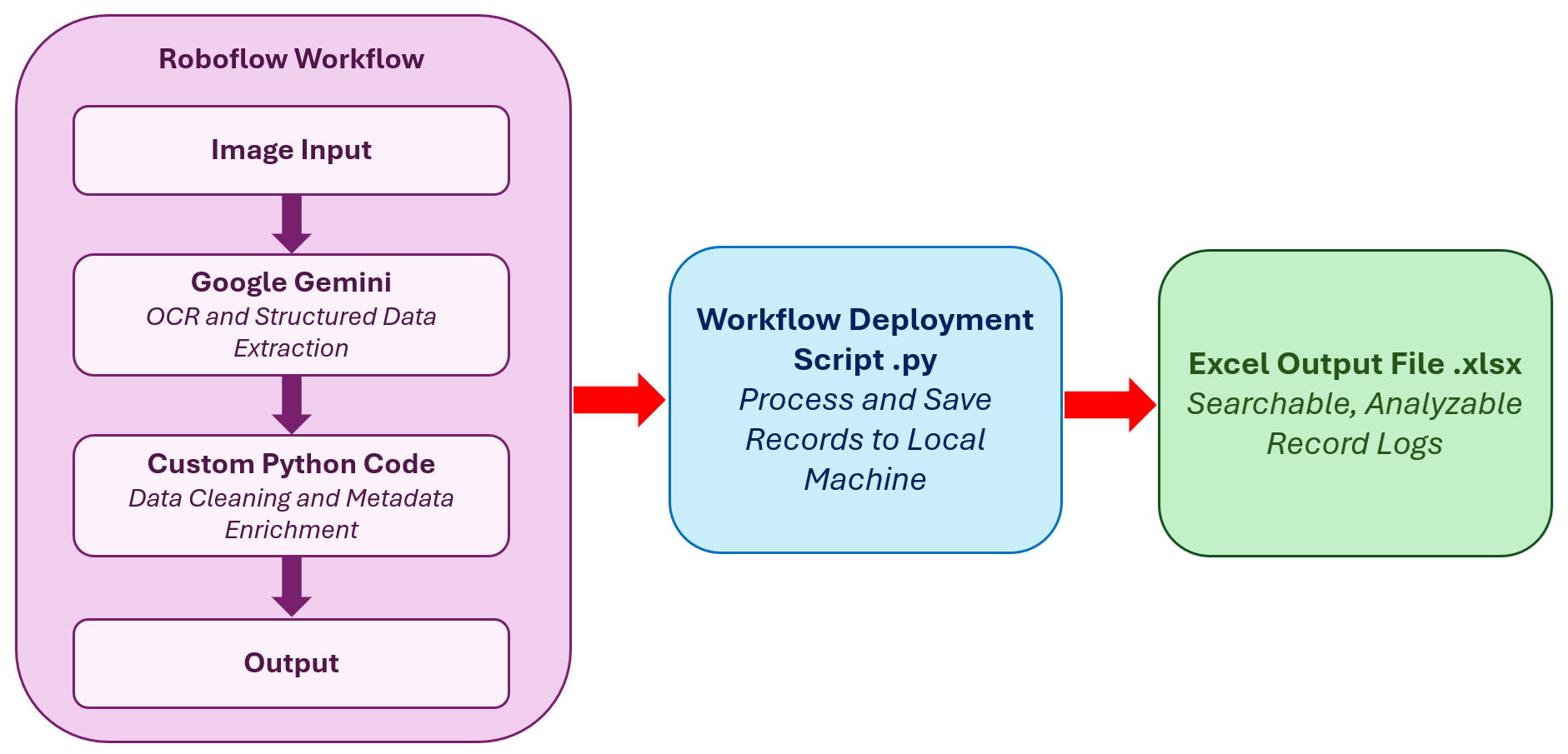
The pipeline takes a photo of a medical bill as input and returns a fully structured JSON record containing:
- Provider and doctor details
- Patient information
- Visit type and diagnosis
- Every line item (consultation, lab test, medicine, procedure) with category and cost
- Payment summary including tax, discount, insurance, and out-of-pocket amount
Each bill is logged as a new row in an Excel file on your local machine, with one sheet for bill summaries and another sheet for individual line items, so you can filter, sort, and analyze your health spending over time.
Prerequisites
- A Roboflow account (free plan works)
- A Google Gemini API key (available via Google AI Studio)
- Python 3.8+ with the following packages:
pip install inference-sdk openpyxlStep 1: Create a New Workflow
Log in to Roboflow and navigate to Workflows from the left sidebar. Click Create Workflow. You'll land on the Workflow canvas with a default Input and Output block already present. Now create a workflow.
Step 2: Add the Google Gemini Block
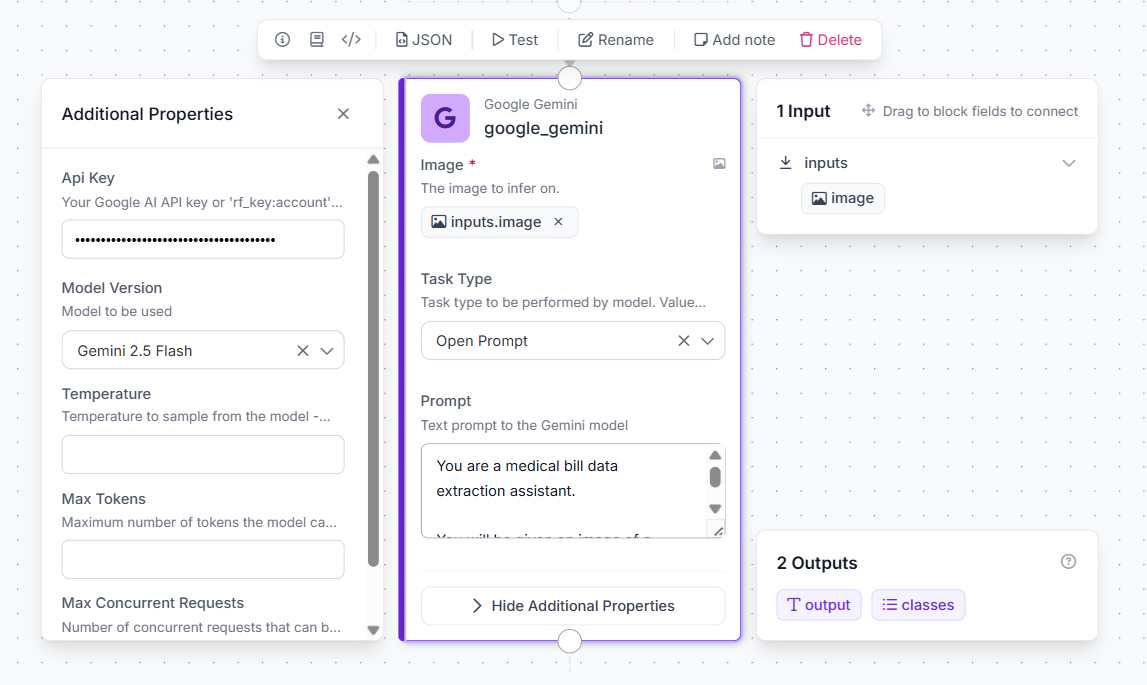
Click the + button on the canvas to add a new block. Search for Google Gemini and add it. Configure the block:
- Model:
gemini-2.5-flash(fast and accurate for document OCR) - API Key: paste your Gemini API key
- Image Input: wire it to
$inputs.image
The Prompt
This is the most important part of the pipeline. Paste the following into the Gemini block's prompt field:
You are a medical bill data extraction assistant.

You will be given an image of a medical bill, receipt, or invoice from a
hospital, clinic, laboratory, or pharmacy.

Your task is to extract all relevant information and return it as a single
valid JSON object.

EXTRACTION RULES:
- Only extract information that is explicitly visible in the bill image
- If a field is not present in the bill, return null for that field
- For fields marked as "can infer", you may use context clues from the bill
- Do not guess or fabricate any numeric values like prices, totals, or dates
- All monetary values should be numbers only, no currency symbols

FIELDS TO EXTRACT:

{
  "provider_name": "Name of the hospital, clinic, lab, or pharmacy",
  "provider_type": "One of: Hospital / Clinic / Laboratory / Pharmacy / Diagnostic Center / Other (can infer)",
  "provider_address": "Full address if visible, else null",
  "doctor_name": "Treating or consulting doctor name, else null",
  "department": "Department name if visible, else null (can infer)",

  "patient_name": "Full name of the patient",
  "patient_id": "Patient ID or registration number if visible, else null",
  "date_of_birth": "Patient DOB if visible, else null",

  "date_of_service": "Date of visit or service in YYYY-MM-DD format",
  "visit_type": "One of: OPD / IPD / Emergency / Laboratory / Pharmacy / Imaging / Other (can infer)",
  "diagnosis": "Diagnosis or reason for visit if mentioned, else null (can infer)",

  "line_items": [
    {
      "description": "Name of the service, medicine, or procedure",
      "category": "One of: Consultation / Medicine / Lab Test / Imaging / Procedure / Room Charge / Other (can infer)",
      "quantity": "Numeric quantity, default 1 if not stated",
      "unit_price": "Price per unit as a number, null if not visible",
      "line_total": "Total for this line item as a number",
      "inferred": "true if category was inferred, false if explicitly stated"
    }
  ],

  "subtotal": "Sum before discounts or taxes, null if not visible",
  "discount": "Discount amount as a number, null if not visible",
  "tax": "Tax amount as a number, null if not visible",
  "total_billed": "Final total amount charged as a number",
  "insurance_covered": "Amount covered by insurance as a number, null if not visible",
  "out_of_pocket": "Amount patient actually paid as a number, null if not visible",
  "payment_method": "One of: Cash / Card / UPI / Insurance / Online / Unknown (can infer)"
}

IMPORTANT:
- Return ONLY the JSON object, no explanation, no markdown, no code blocks
- Every field must be present in the output even if the value is null
- line_items must always be an array, even if there is only one item
- Monetary values must be plain numbers like 450 not "₹450" or "$450.00"
- Dates must be in YYYY-MM-DD format
- If the image is not a medical bill or is unreadable, return:
  {"error": "not_a_medical_bill"} or {"error": "unreadable_image"}
A few things worth noting about this prompt design:
null over guessing: explicitly tell Gemini to return null for missing fields rather than infer numeric values. This is critical for financial data. You never want a fabricated dollar amount in your records.
can infer annotation: for categorical fields like visit_type, provider_type, and category, Gemini can reason from context. A bill from "City Diagnostics Lab" doesn't need to say "Laboratory" explicitly for Gemini to correctly classify it.
Structured line_items array: asking Gemini to return line items as a typed array means your downstream Python code gets clean, iterable data rather than a wall of text to parse.
Step 3: Add the Custom Python Block
Click + on the canvas again and search for Custom Python Block. Add it below the Gemini block. Fill in the block configuration as follows:
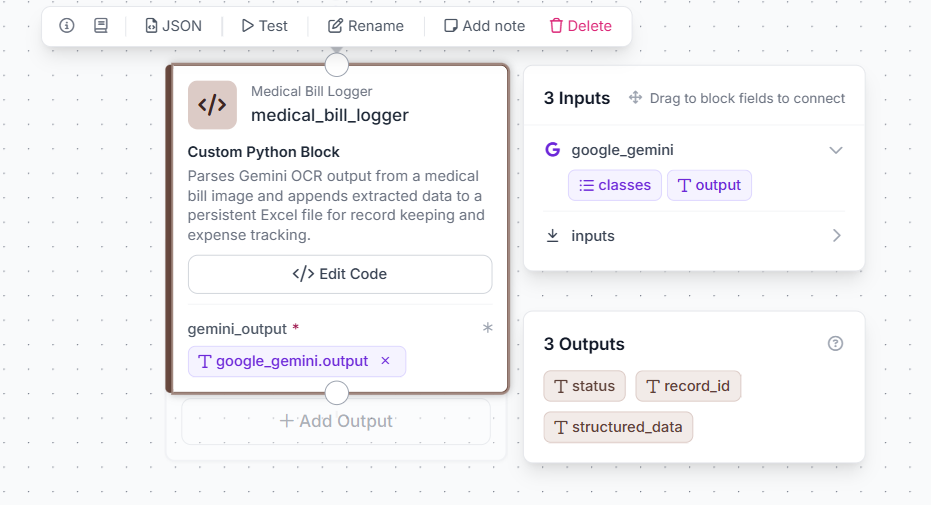
Block Name: Medical Bill Logger
Block Description: Parses Gemini OCR output from a medical bill image and enriches it with metadata for record keeping.
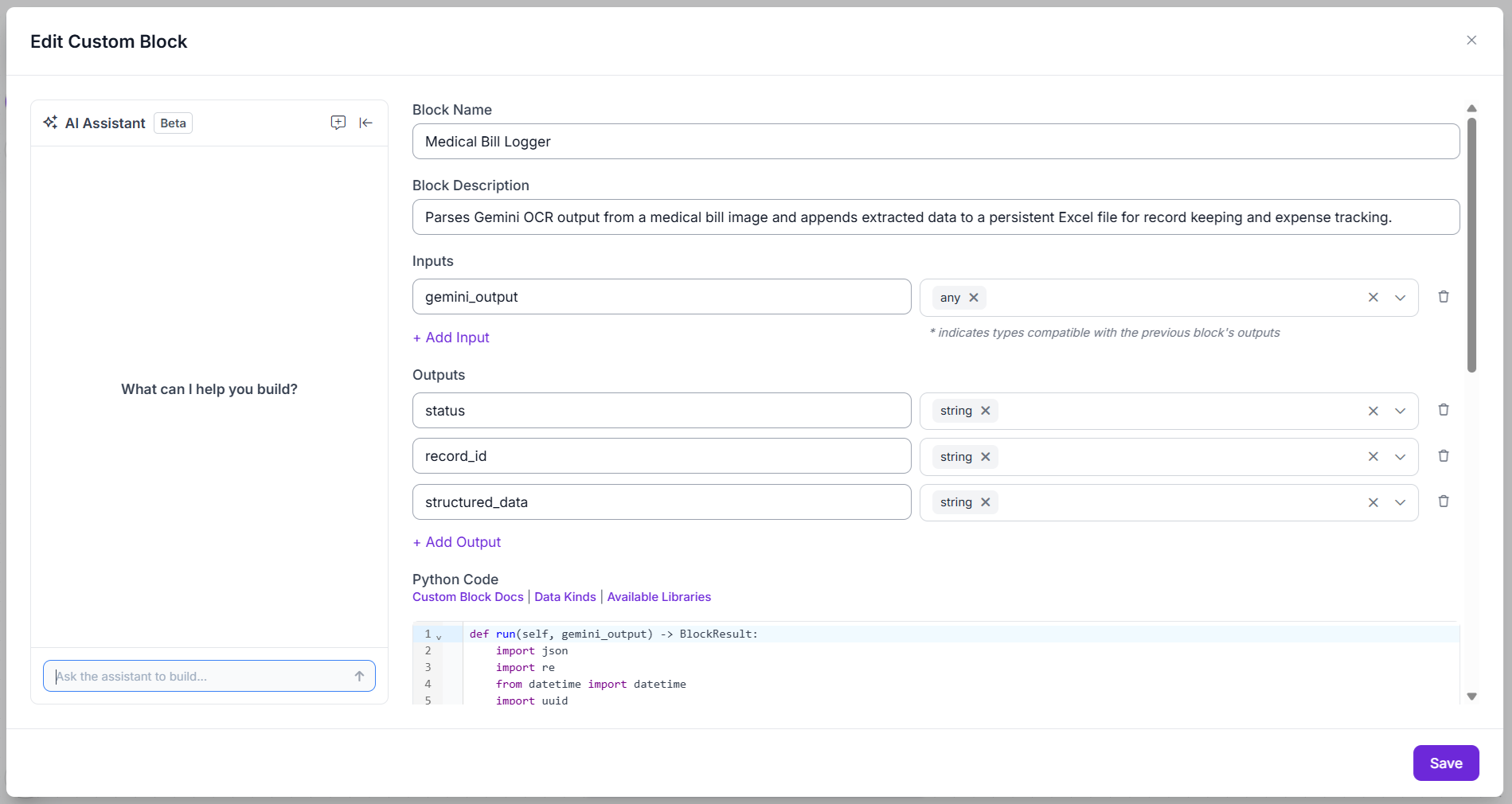
Inputs:
| Input Name | Type |
|---|---|
gemini_output | Any |
Wire gemini_output to $steps.google_gemini.output.
Outputs:
| Output Name | Type |
|---|---|
status | String |
record_id | String |
structured_data | String |
Python Code:
def run(self, gemini_output) -> BlockResult:
    import json
    import re
    from datetime import datetime
    import uuid

    if not gemini_output:
        return {
            "status": "error",
            "record_id": "",
            "structured_data": "{}",
        }

    # Strip markdown fences
    raw = re.sub(r"^```json|^```|```$", "", gemini_output.strip(), flags=re.MULTILINE).strip()

    try:
        data = json.loads(raw)
    except json.JSONDecodeError:
        return {
            "status": "error",
            "record_id": "",
            "structured_data": "{}",
        }

    if "error" in data:
        return {
            "status": data["error"],
            "record_id": "",
            "structured_data": "{}",
        }

    # Add metadata
    record_id = str(uuid.uuid4())[:8]
    data["record_id"]  = record_id
    data["scan_date"]  = datetime.now().strftime("%Y-%m-%d")
    data["scan_time"]  = datetime.now().strftime("%H:%M:%S")

    # Check completeness
    critical_fields = ["date_of_service", "total_billed", "provider_name"]
    missing = [f for f in critical_fields if not data.get(f)]
    data["status"]         = "incomplete" if missing else "complete"
    data["missing_fields"] = ", ".join(missing) if missing else ""

    return {
        "status": data["status"],
        "record_id": record_id,
        "structured_data": json.dumps(data),
    }
What This Block Does
The Gemini block returns raw text even when instructed to return JSON only, it occasionally wraps the output in markdown code fences. The Python block handles this defensively with a regex strip before parsing.
Beyond cleaning, the block adds three important metadata fields that the bill image itself will never contain such as a unique record_id to link the Summary row to its LineItems rows, a scan_date and scan_time for when you processed the bill, and a status field (complete or incomplete) based on whether critical fields were successfully extracted.
Step 4: Configure the Output Block
In the Output block, add a single output:
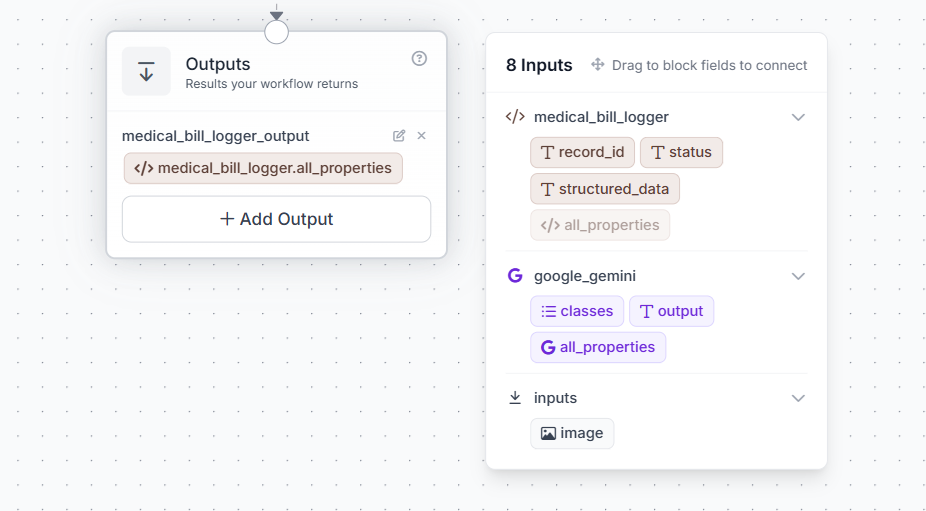
| Output Name | Connected To |
|---|---|
medical_bill_logger_output | $steps.medical_bill_excel_logger.all_properties |
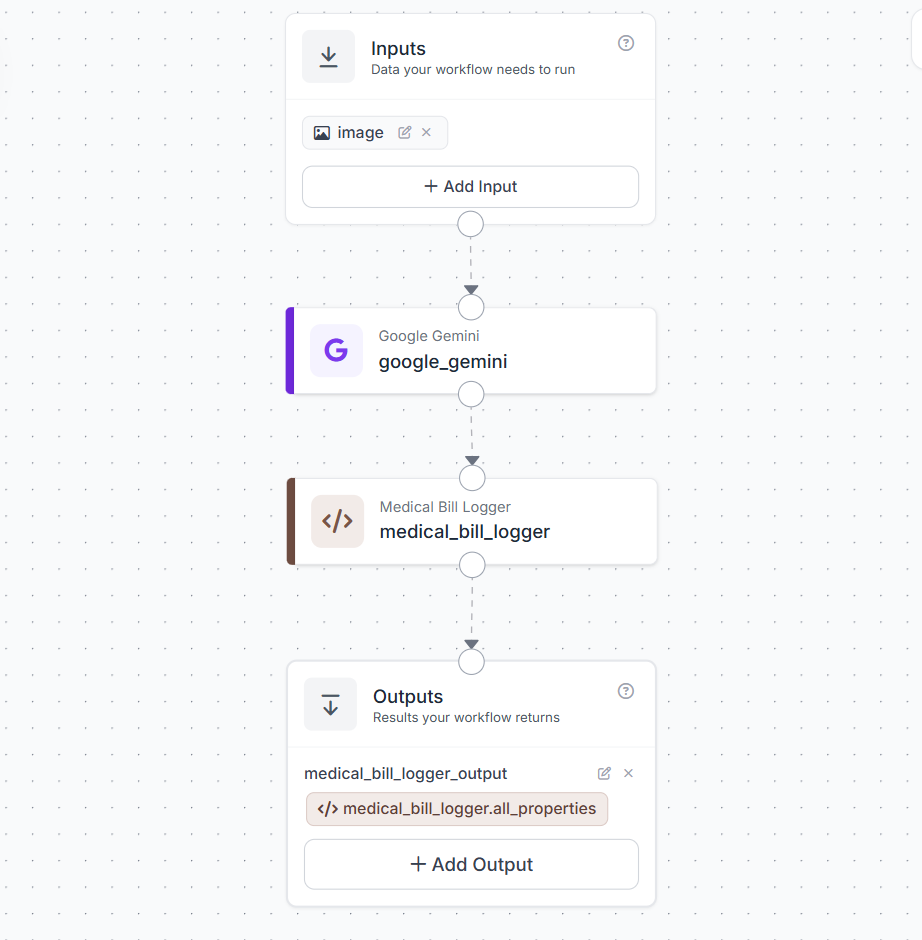
Your workflow will look like this:
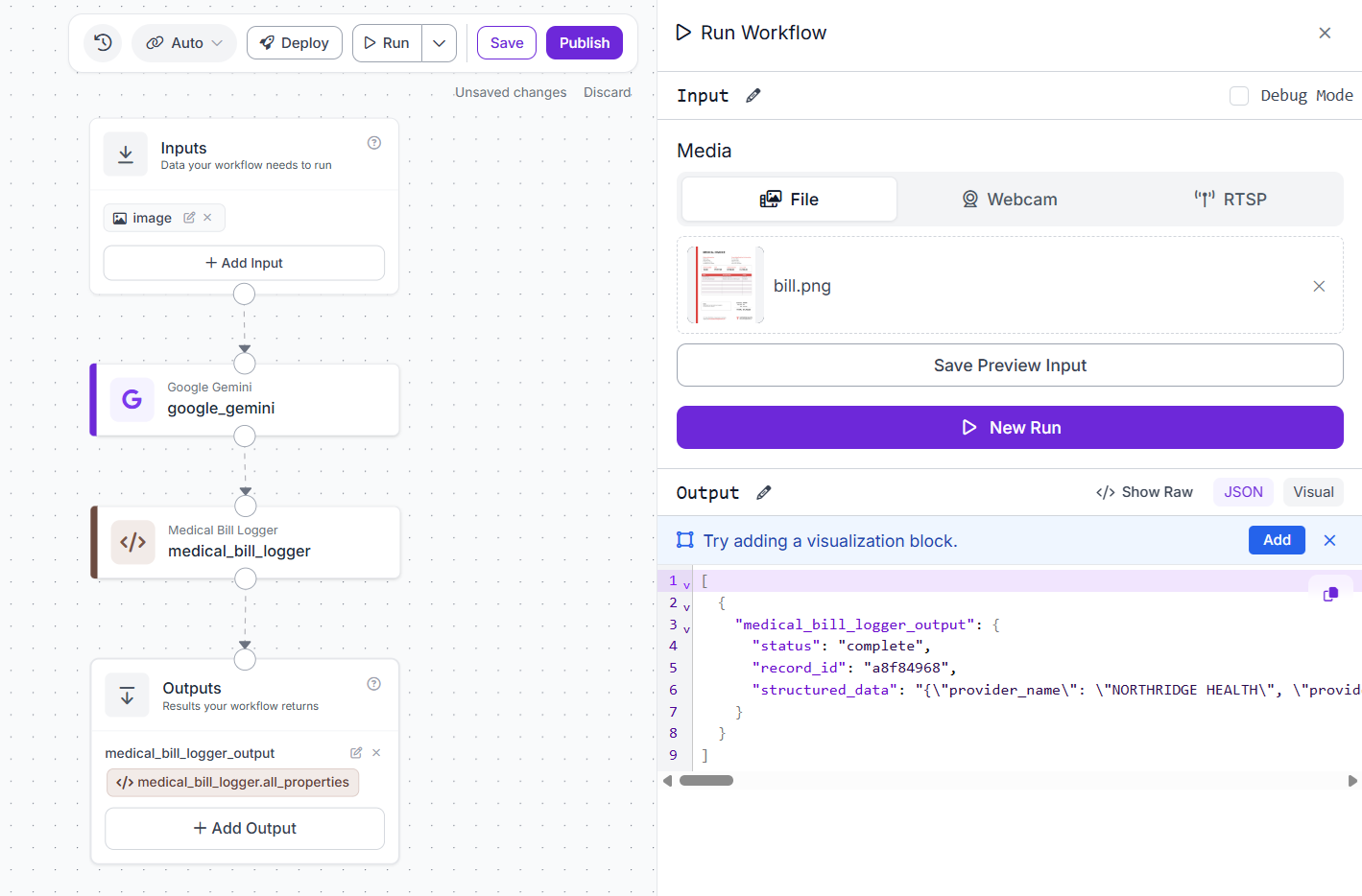
When you run the workflow, you should see output similar to following:
Step 5: The Local Deployment Script
Now we write the script that runs on your machine, calls the Workflow, and saves results to Excel. Create a file called medical_bill.py:
import json
import os
from inference_sdk import InferenceHTTPClient
from openpyxl import load_workbook, Workbook

EXCEL_PATH = "medical_expenses.xlsx"

client = InferenceHTTPClient(
    api_url="https://serverless.roboflow.com",
    api_key="ROBOFLOW_API_KEY"
)

result = client.run_workflow(
    workspace_name="tim-4ijf0",
    workflow_id="medical-bill-ocr",
    images={"image": "bill_4.png"},
    use_cache=False
)

raw_output = result[0]["medical_bill_logger_output"]["structured_data"]
data = json.loads(raw_output)

print(f"\nRecord ID  : {data.get('record_id')}")
print(f"   Provider   : {data.get('provider_name')}")
print(f"   Doctor     : {data.get('doctor_name')}")
print(f"   Date       : {data.get('date_of_service')}")
print(f"   Diagnosis  : {data.get('diagnosis')}")
print(f"   Total      : {data.get('total_billed')}")
print(f"   Status     : {data.get('status')}")
if data.get("missing_fields"):
    print(f"Missing : {data.get('missing_fields')}")

summary_headers = [
    "record_id", "scan_date", "scan_time", "status", "missing_fields",
    "provider_name", "provider_type", "provider_address",
    "doctor_name", "department",
    "patient_name", "patient_id", "date_of_birth",
    "date_of_service", "visit_type", "diagnosis",
    "subtotal", "discount", "tax", "total_billed",
    "insurance_covered", "out_of_pocket", "payment_method"
]

line_item_headers = [
    "record_id", "date_of_service", "provider_name",
    "description", "category", "quantity",
    "unit_price", "line_total", "inferred"
]

if os.path.exists(EXCEL_PATH):
    wb = load_workbook(EXCEL_PATH)
else:
    wb = Workbook()
    wb.remove(wb.active)

if "Summary" not in wb.sheetnames:
    ws_summary = wb.create_sheet("Summary")
    ws_summary.append(summary_headers)
else:
    ws_summary = wb["Summary"]

ws_summary.append([
    data.get("record_id"),
    data.get("scan_date"),
    data.get("scan_time"),
    data.get("status"),
    data.get("missing_fields"),
    data.get("provider_name"),
    data.get("provider_type"),
    data.get("provider_address"),
    data.get("doctor_name"),
    data.get("department"),
    data.get("patient_name"),
    data.get("patient_id"),
    data.get("date_of_birth"),
    data.get("date_of_service"),
    data.get("visit_type"),
    data.get("diagnosis"),
    data.get("subtotal"),
    data.get("discount"),
    data.get("tax"),
    data.get("total_billed"),
    data.get("insurance_covered"),
    data.get("out_of_pocket"),
    data.get("payment_method"),
])

if "LineItems" not in wb.sheetnames:
    ws_items = wb.create_sheet("LineItems")
    ws_items.append(line_item_headers)
else:
    ws_items = wb["LineItems"]

for item in data.get("line_items", []):
    ws_items.append([
        data.get("record_id"),
        data.get("date_of_service"),
        data.get("provider_name"),
        item.get("description"),
        item.get("category"),
        item.get("quantity"),
        item.get("unit_price"),
        item.get("line_total"),
        item.get("inferred"),
    ])

wb.save(EXCEL_PATH)
print(f"\nSaved to {EXCEL_PATH} — {len(data.get('line_items', []))} line items logged")
Run it:
python medical_bill.pyYou will see output similar to following:
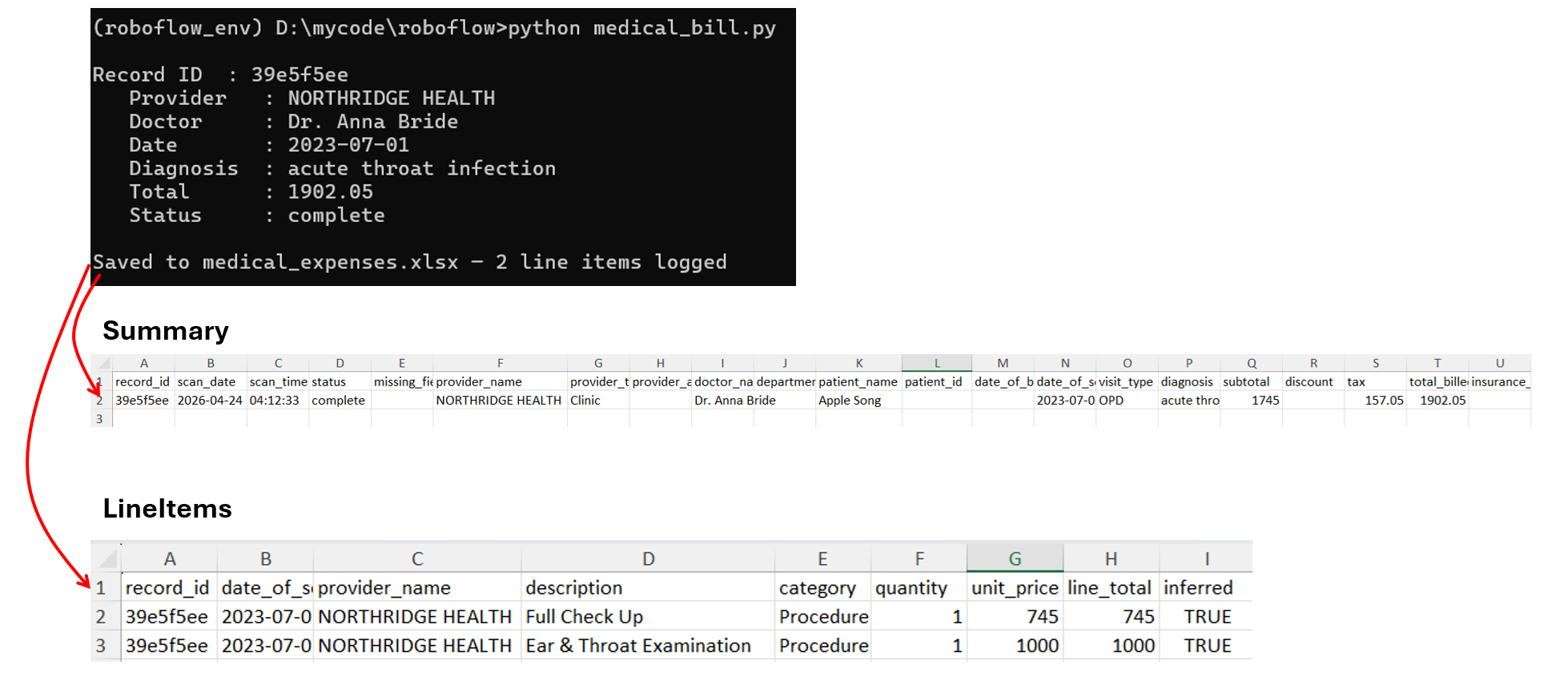
Understanding the Excel Output
After scanning your first bill, medical_expenses.xlsx will be created with two sheets.
Sheet 1 - Summary
Each row represents one scanned bill. Key columns to pay attention to:
record_id— links this row to its line items in Sheet 2status—completemeans all critical fields were found;incompletemeans something was missingmissing_fields— tells you exactly which fields the VLM couldn't findout_of_pocket— what you actually paid after insurancevisit_type— lets you filter by OPD, IPD, Lab, Pharmacy etc.
Sheet 2 - LineItems
Each row is one line item from a bill. The record_id column links back to the Summary sheet. Use this sheet to answer questions like "how much have I spent on medicines vs lab tests this year?"
Handling Messy or Incomplete Bills
Not every bill is a clean printed receipt. Here's how the pipeline handles real-world variation:
- Pharmacy receipts: Often has missing
doctor_name,diagnosis, anddepartment. These will havestatus: incompletewith those fields listed inmissing_fields. The core financial data (items, prices, total) will still be captured. - Handwritten bills: Gemini handles handwriting reasonably well but accuracy drops for cursive or faded ink. These may produce more
nullfields. Thestatusflag will catch this. - Bills in other languages: Gemini is multilingual. Bills in Hindi, Arabic, French, or other languages will still extract correctly for most fields, though romanisation of names may vary.
- Non-bill images: if you accidentally run a non-bill image through the pipeline, Gemini returns
{"error": "not_a_medical_bill"}and the Python block exits cleanly without writing anything to Excel.
What You Can Do With the Data
Once you've scanned a few bills, the Excel file becomes genuinely useful:
- Annual health spend: sum
total_billedorout_of_pocketacross all rows in Summary - Spending by category: pivot the LineItems sheet by
categoryto see how much went to medicines vs consultations vs lab tests - Provider analysis: group by
provider_nameto see which hospital or clinic costs you most - Insurance utilisation: compare
total_billedvsout_of_pocketto see your actual insurance benefit - Tax deductions: in many countries medical expenses are tax-deductible; this Excel file is your audit trail
Medical Bill OCR Conclusion
We built a working personal medical expense tracker in a single Roboflow Workflow without a custom model training, no complex OCR pipeline setup. The key insight is the division of responsibility where Gemini handles the hard vision work of reading varied, messy bill layouts, the Custom Python Block handles data cleaning and enrichment, and your local script handles persistence.
The result is a system you can run from your phone camera with a single command, and a growing Excel ledger that gives you genuine visibility into your healthcare spending over time.
Next steps to extend this project:
- Add a simple Streamlit front-end so non-technical users can drag and drop bill images.
- Connect the Excel output to Google Sheets for cloud sync and mobile access.
- Add a monthly summary report that emails you a spending breakdown at the end of each month.
- Build a dashboard in Power BI or Tableau on top of the Excel data for visual analytics.


Cite this Post
Use the following entry to cite this post in your research:
Timothy M. (Apr 24, 2026). Medical Bill OCR. Roboflow Blog: https://blog.roboflow.com/medical-bill-ocr/