

Computer vision projects rarely start from zero. Object detection, instance segmentation, and keypoint detection all share the same expensive starting problem. Training from scratch requires millions of labeled images and days of GPU compute. Pretrained weights let you skip that work.
A YOLO model file is not a blank network. It has already been trained on the Microsoft COCO dataset, the gold standard benchmark for evaluating computer vision models, containing over 330K images with more than 200K labeled across 80 object categories including people, vehicles, animals, and common household objects. The model has learned from that data and its weights reflect that knowledge. This initial COCO-trained state is what the term pretrained refers to throughout this post.
Roboflow supports a range of YOLO models across multiple computer vision tasks. For object detection, Roboflow Workflows supports YOLOv8, YOLO-NAS, YOLOv10, YOLO11, and YOLO26. For instance segmentation and keypoint detection, Workflows supports YOLOv8, YOLO11, and YOLO26. For custom training directly within the Roboflow UI, YOLO11 and YOLO26 are available for all three tasks. Each of these starts from COCO pretrained weights before fine-tuning on your data.
This tutorial explains what are pretrained COCO weights are and how to use them with Roboflow to build computer vision application and train a custom model.
Understanding Pretrained YOLO Weights
The term pretrained simply means trained before your use case began. The COCO weights that ship with every official YOLO release are the result of a training run that completed on the full COCO dataset. By the time you download the file, the network already knows what edges, textures, shapes, and object boundaries look like across a broad range of real-world images.
These weights are the starting point for almost every YOLO-based project. Rather than initializing the network with random values, you begin with a model that already understands visual features. Fine-tuning on your own dataset then adjusts those weights to recognize your specific objects.
In practice, pretrained in the YOLO ecosystem refers specifically to these initial COCO-trained weights. When you see, for example yolo11n.pt or yolo11s.pt, that .pt file contains weights produced by the COCO training run. Nothing else has been applied to them.
Roboflow-Supported YOLO Models and Tasks
The table below shows which YOLO models are available as blocks in Roboflow Workflows for direct use:
| Model | Object Detection | Instance Segmentation | Keypoint Detection |
|---|---|---|---|
| YOLOv8 | ✓ | ✓ | ✓ |
| YOLO-NAS | ✓ | — | — |
| YOLOv10 | ✓ | — | — |
| YOLO11 | ✓ | ✓ | ✓ |
| YOLO26 | ✓ | ✓ | ✓ |
For custom model training directly within the Roboflow UI using Roboflow Train, YOLO11 and YOLO26 are the supported architectures and both cover object detection, instance segmentation, and keypoint detection. Each model initializes from COCO pretrained weights before training on your custom dataset.
Downloading YOLO Pretrained Weights Using Roboflow
The pretrained COCO weights are distributed and download automatically the first time you initialize a YOLO model. Roboflow provides two common ways to work with pretrained YOLO models. The first uses pretrained weights as the starting point for custom training. The second uses pretrained models directly for inference through Workflows.
Option 1: Use Pretrained Weights for Training
When training a YOLO models on custom dataset in Roboflow, you do not manually download COCO-pretrained checkpoints. Instead, Roboflow automatically initializes the training process using pretrained weights behind the scenes. Every new training run starts from a pretrained model and fine-tunes it on your dataset. The workflow is:

This approach is ideal when you want to build a custom model for your own classes.
Option 2: Deploy a Pretrained YOLO Model Through a Workflow
If you want to use a pretrained model immediately without training, you can create a Workflow application that uses a baseline YOLO model and deploy it locally using Roboflow Inference. For example, the Workflow below uses the baseline YOLO26n-640 object detection model, followed by visualization blocks that render bounding boxes and class labels on the output image. The workflow structure is:
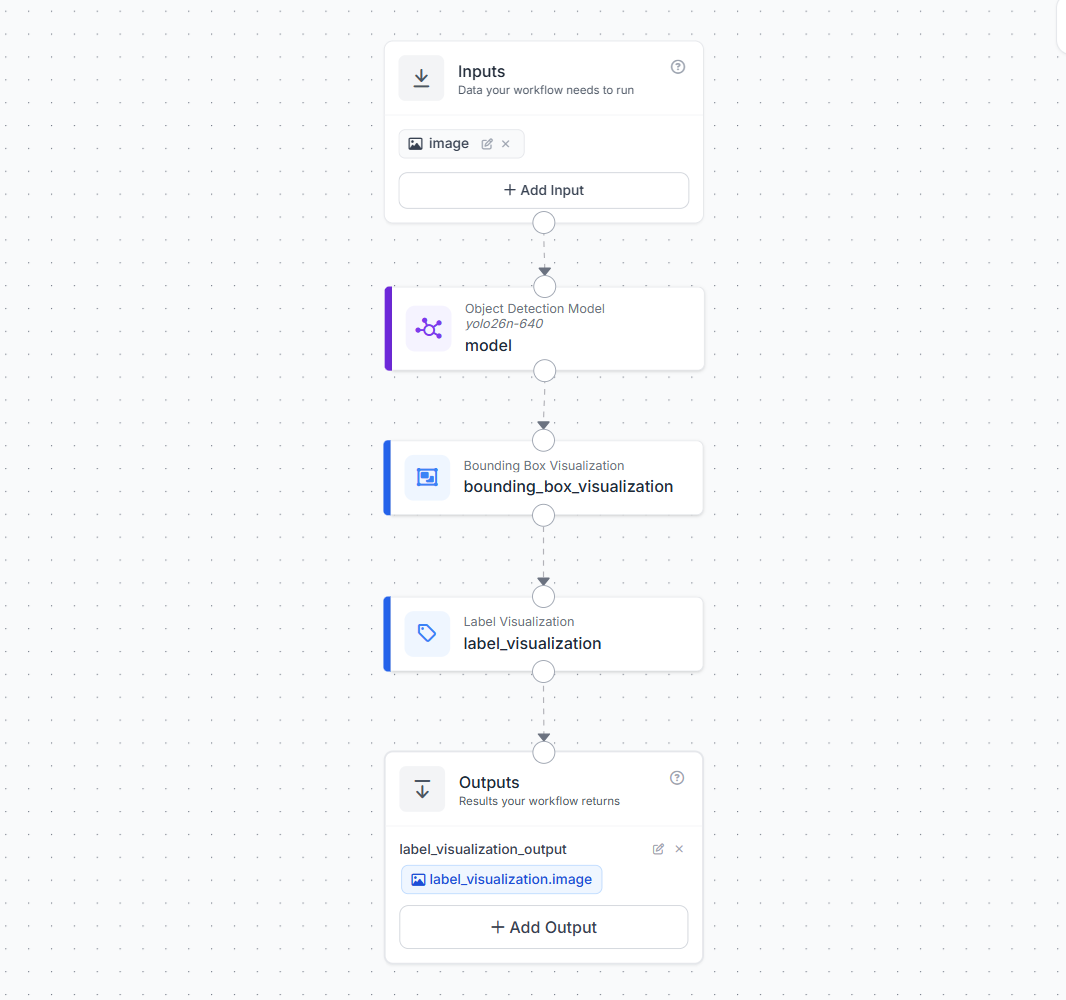
This workflow can be deployed locally using Roboflow Inference. Once deployed locally with Roboflow Inference, the workflow can be executed using the Inference SDK:
from inference_sdk import InferenceHTTPClient

client = InferenceHTTPClient(
    api_url="http://localhost:9001",
    api_key="YOUR_API_KEY"
)

result = client.run_workflow(
    workspace_name="your-workspace",
    workflow_id="yolo26-example",
    images={
        "image": "image.jpg"
    },
    use_cache=True
)

print(result)
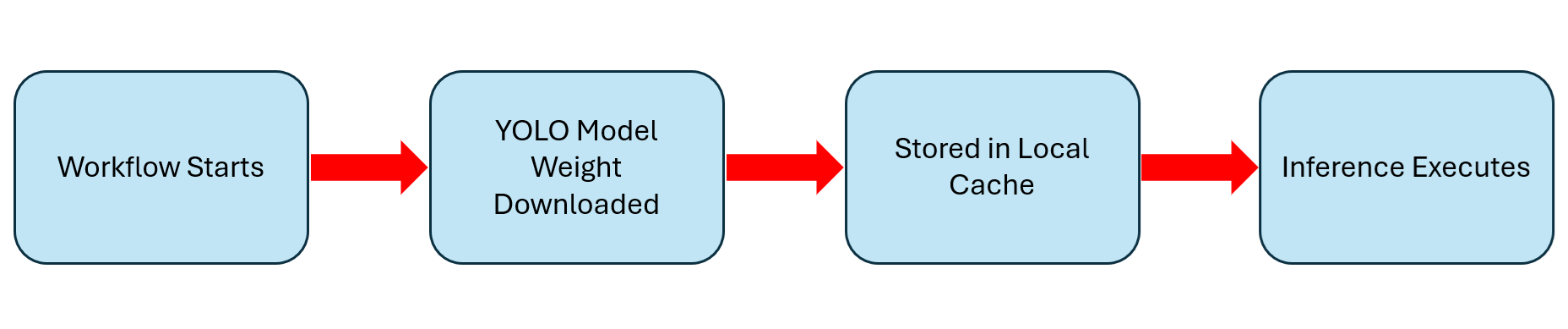
When the workflow runs for the first time, Roboflow Inference automatically downloads the model artifacts required by the YOLO model block. These files are cached locally and reused on subsequent runs, so the model does not need to be downloaded again. The process looks like:
This approach is useful when:
- Testing YOLO capabilities before collecting data
- Building a proof of concept
- Running inference on local images or video streams
- Deploying object detection on edge devices
- Evaluating baseline model performance before fine-tuning
It is important to note that this workflow uses the original pretrained model directly. No additional training occurs. The model predictions are therefore limited to the classes learned during pretraining. If your application requires custom classes such as pallets, defects, products, or medical instruments, you will still need to fine-tune a model on your own dataset.
Common Mistakes
Even though pretrained YOLO weights provide an excellent starting point, there are several common mistakes that can lead to disappointing results.
Using COCO Weights on Unrelated Domains Without Fine-Tuning
The COCO dataset contains 80 everyday object categories such as people, vehicles, animals, and household items. If your application involves custom objects such as industrial components, medical instruments, warehouse inventory, manufacturing defects, or agricultural products, a COCO-pretrained model will rarely produce useful results out of the box.
Even when a category exists in COCO, the model may struggle if the visual domain differs significantly from its training data. For example, a model trained on everyday photographs may perform poorly on aerial imagery, microscope images, X-rays, or factory inspection cameras.
Pretrained weights are a starting point, not a finished solution. Fine-tuning on labeled examples from your target domain is usually required to achieve reliable performance.
Confusing Pretrained and Fine-Tuned Models
A pretrained model has only been trained on the COCO dataset. A fine-tuned model has undergone additional training on a custom dataset. When sharing weights or documenting projects, this distinction is important. A colleague expecting standard COCO behavior may be confused if the model has been retrained to detect custom classes. Always document:
- The base model architecture
- Whether the model is pretrained or fine-tuned
- The dataset used for fine-tuning
- The dataset version
- The model version
Clear documentation makes experiments reproducible and avoids deployment mistakes.
Running Large Models on CPUs
Larger YOLO variants such as YOLO11l and YOLO11x are designed primarily for GPU inference. Running these models on a CPU often results in throughput that is too slow for real-time applications.
If your deployment target is CPU-only hardware, start with YOLO11n or YOLO11s. For edge devices such as NVIDIA Jetson systems or Raspberry Pi deployments, the nano model is typically the safest starting point before evaluating larger variants.
Ignoring Training and Inference Resolution
Image resolution has a direct impact on both speed and accuracy. YOLO models are commonly trained at resolutions such as 640×640, and performance is often best when inference uses a similar image size. Using very different resolutions between training and deployment can reduce detection quality, particularly for small objects. For best results, keep training and inference resolutions reasonably aligned:
# Training
model.train(data="data.yaml", imgsz=640)

# Inference
results = model("image.jpg", imgsz=640)
If your application contains very small objects, experimenting with higher resolutions may improve accuracy at the cost of slower inference.
End-to-End Example
This example walks through using COCO pretrained weights to train a custom model inside the Roboflow Training UI. Dataset labeling and project setup are assumed to be complete before these steps.
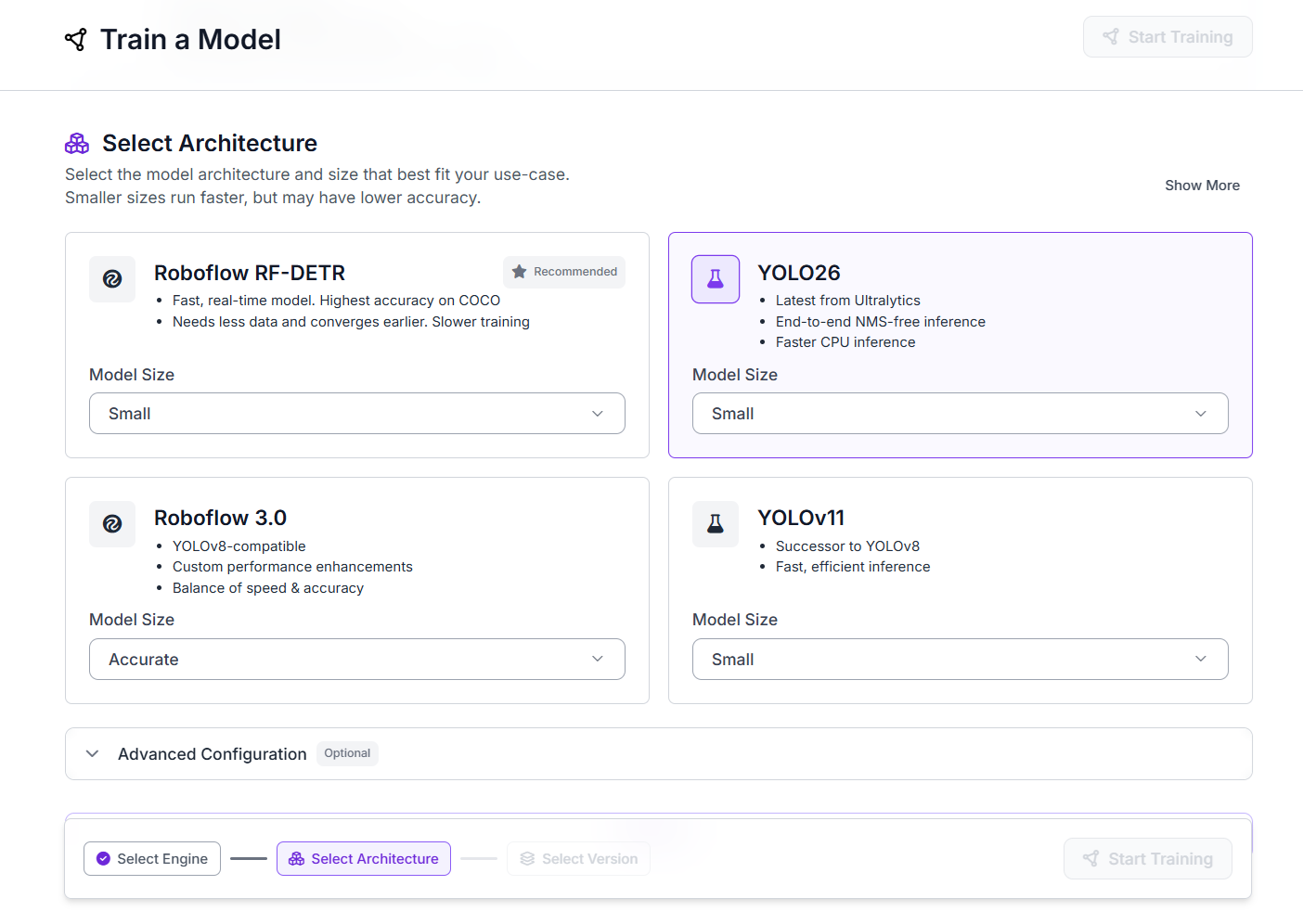
Step 1: Select an Architecture
From your dataset version, click the Train Model. The first screen asks you to select a model architecture. Choose YOLO26 or YOLOv11 depending on your requirements. Both support COCO pretrained weight initialization. Use the Model Size dropdown to select the size that fits your deployment target.
Step 2: Select Where to Train From
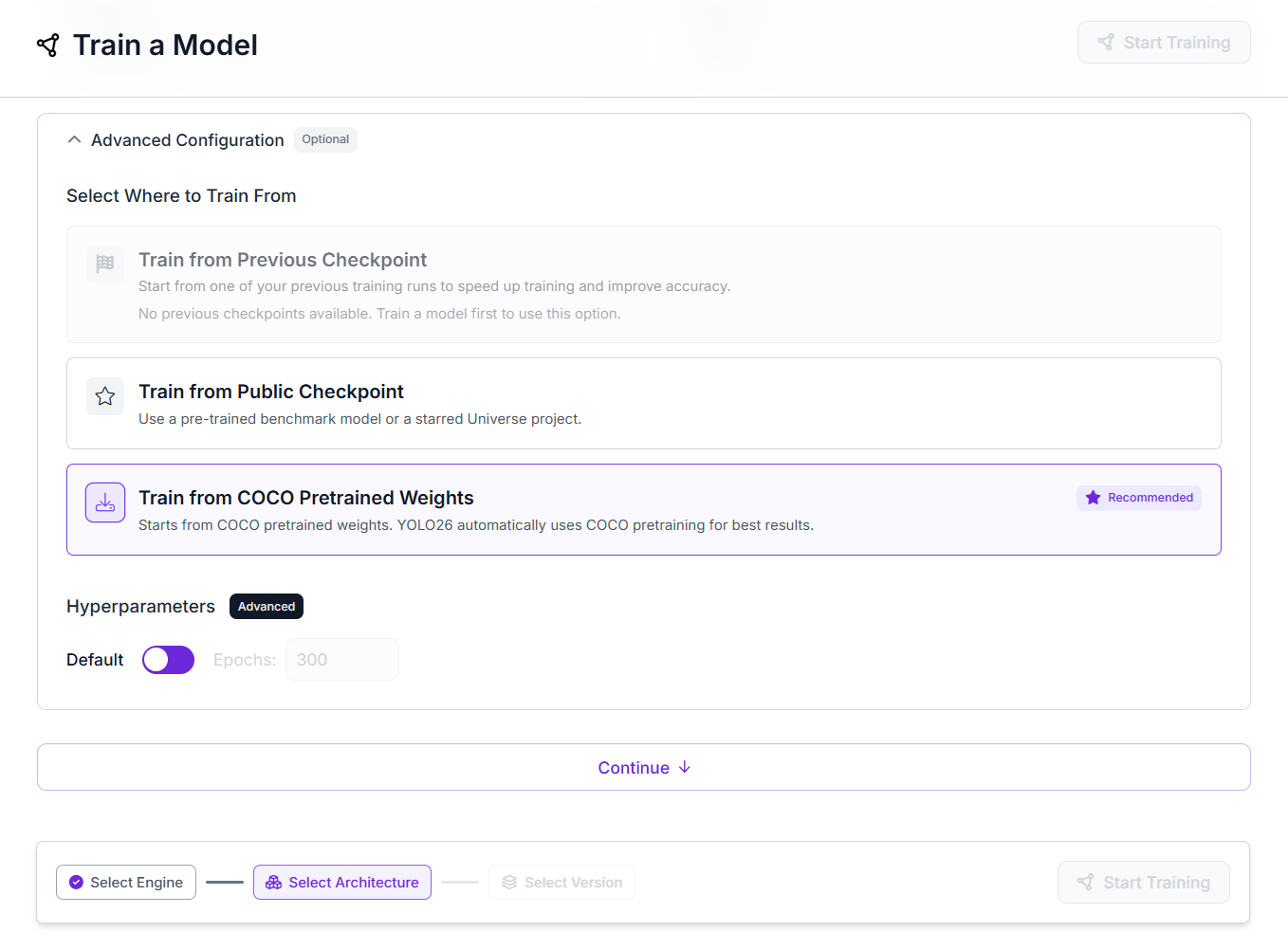
Scroll down to the Advanced Configuration section and expand it. This is where the pretrained weights selection happens. Roboflow gives you three options:
- Train from Previous Checkpoint, which continues from one of your own earlier training runs;
- Train from Public Checkpoint, which uses a pre-trained benchmark model or a starred Roboflow Universe project; and
- Train from COCO Pretrained Weights, which is the recommended option.
Select Train from COCO Pretrained Weights. As the UI describes it: "Starts from COCO pretrained weights. YOLO26 automatically uses COCO pretraining for best results."
Review the Training Summary at the bottom, which confirms the architecture, dataset size, resolution, and estimated training time. When everything looks correct, click Start Training.
Roboflow queues the job and runs training on its infrastructure. When training completes, your fine-tuned model is available in the dashboard for deployment, testing, or use as a block inside a Roboflow Workflow.
Download Pretrained YOLO Weights Conclusion
Pretrained YOLO weights are the foundation of computer vision project that uses YOLO models. Rather than starting from random values, your model begins with knowledge extracted from 80 real-world object categories, which means less data, less training time, and faster convergence on your custom classes.
Roboflow gives you two ways to put those weights to work. In the Roboflow Train UI, selecting "Train from COCO Pretrained Weights" applies them as the starting point for your custom training run. When deploying a Workflow locally, the Inference server downloads and caches the weights on your machine automatically on first run.
If your target objects fall outside COCO's 80 classes, fine-tune on your own labeled dataset. Choose the model architecture and size that fits your deployment target. Those two decisions, combined with a clean labeled dataset, are what determine whether a project performs well in production. Try Roboflow for free today.


Cite this Post
Use the following entry to cite this post in your research:
Timothy M. (May 18, 2026). Download Pretrained YOLO Weights. Roboflow Blog: https://blog.roboflow.com/download-pretrained-yolo-weights/